Article Summary: This tutorial explains how to effectively unpublish or close your rate plans within the Reservit platform. You will learn how to permanently deactivate an offer, block specific dates directly from your planning calendar, and use advanced settings for bulk closures. Mastering these rate management tools ensures you maintain accurate online availability and prevent unwanted reservations.
The 4 key steps to close or unpublish your offers:
-
Permanently unpublish a rate plan: Navigate to "My rates and availability" then "My offers" to select and permanently deactivate an active rate plan.
-
Access your planning calendar: Go to "My planning" and click the calendar icon next to your desired rate to open the annual view.
-
Close specific dates quickly: Hover over the availability lines in your calendar to directly block out specific periods or days for a chosen rate, then click "Apply".
-
Apply advanced bulk closures: Use the "Advanced Editing" tool to quickly close offers across multiple room types, date ranges, and packages simultaneously.
Why follow this guide? Following this guide helps you quickly execute your pricing strategy and saves you valuable time with bulk modifications, all while eliminating the risk of overbookings or selling inactive packages.
Unpublish your offer
Alert: By unpublishing your offer, it will no longer be accessible, regardless of the chosen date. Furthermore, all dependent offers will also be deactivated.
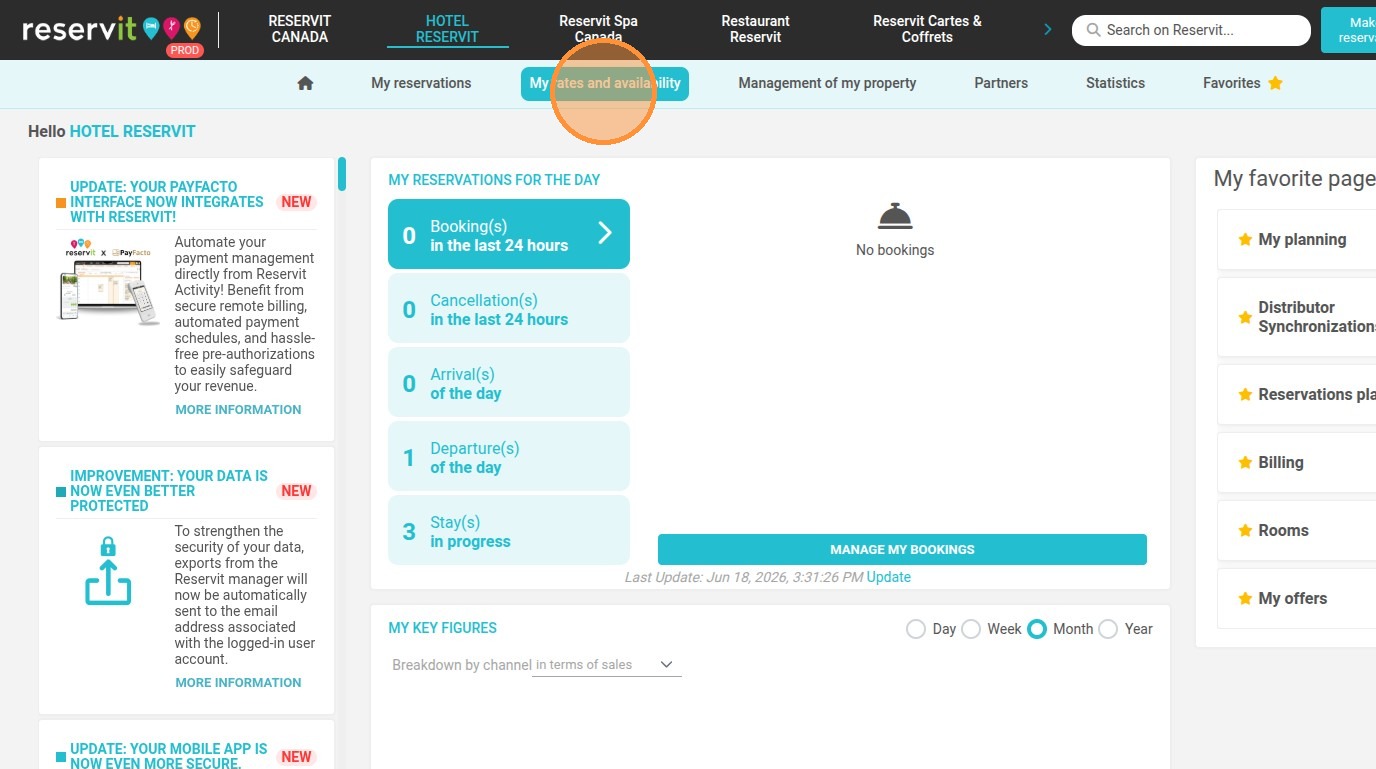
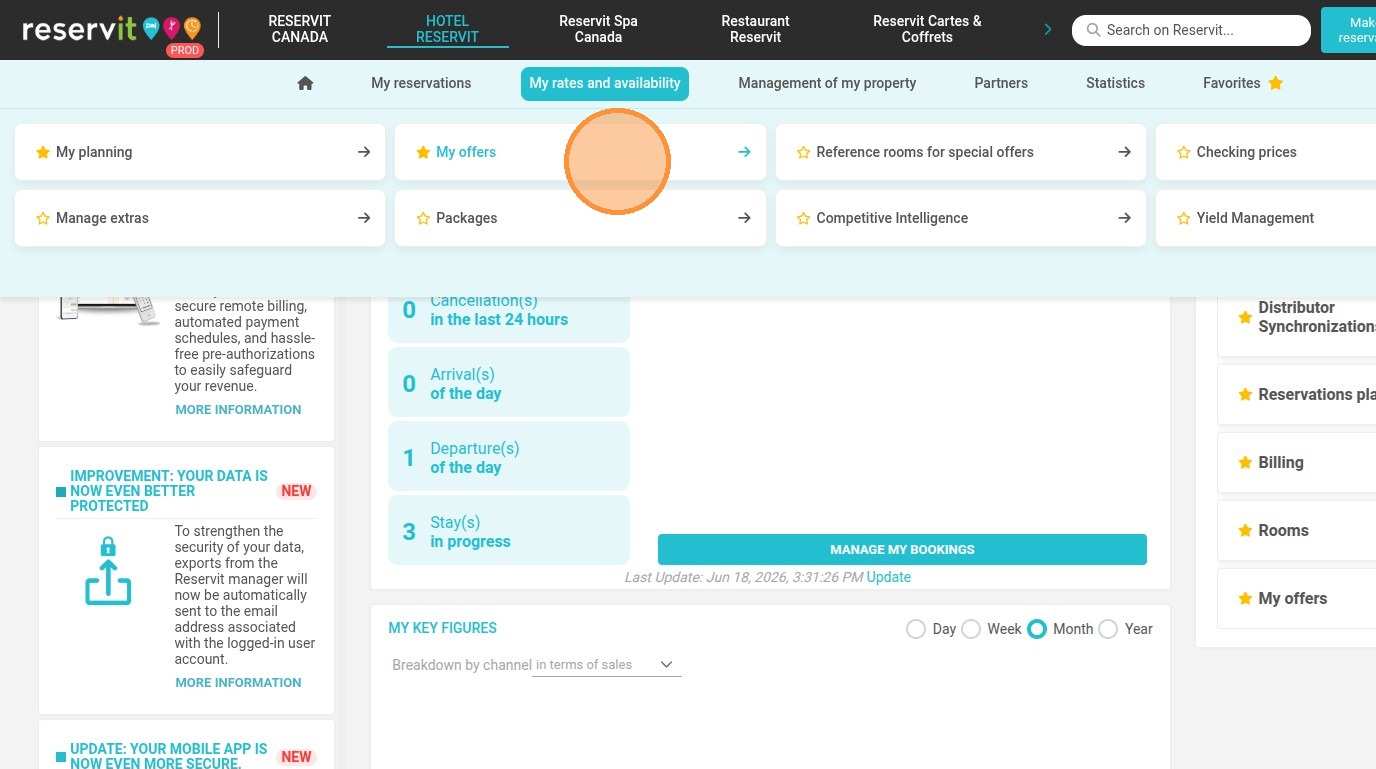
1. Click on "My rates and availability" then "My offers"
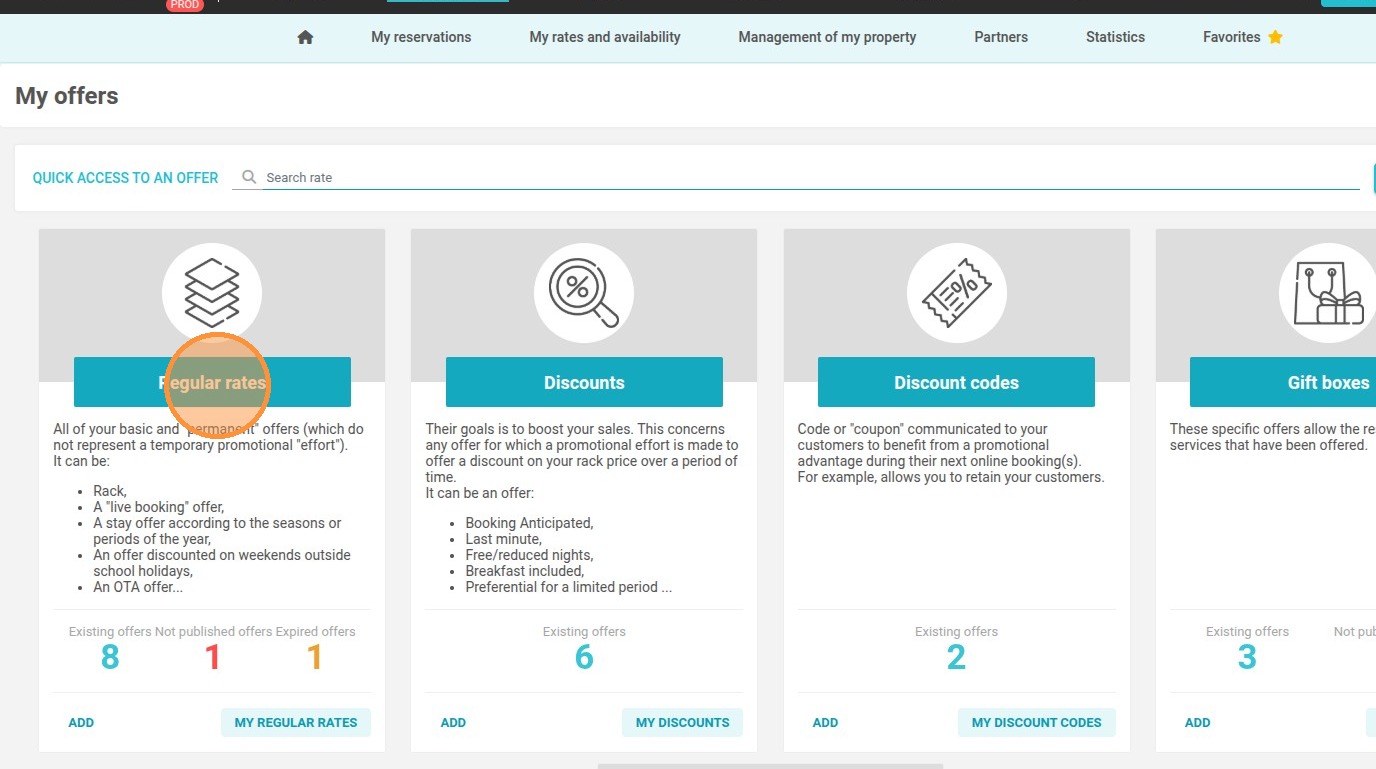
2. Choose the type of offers. Here, we will use "My rate plans".
3. Click on the radio button to unpublish your offer and therefore close it permanently.
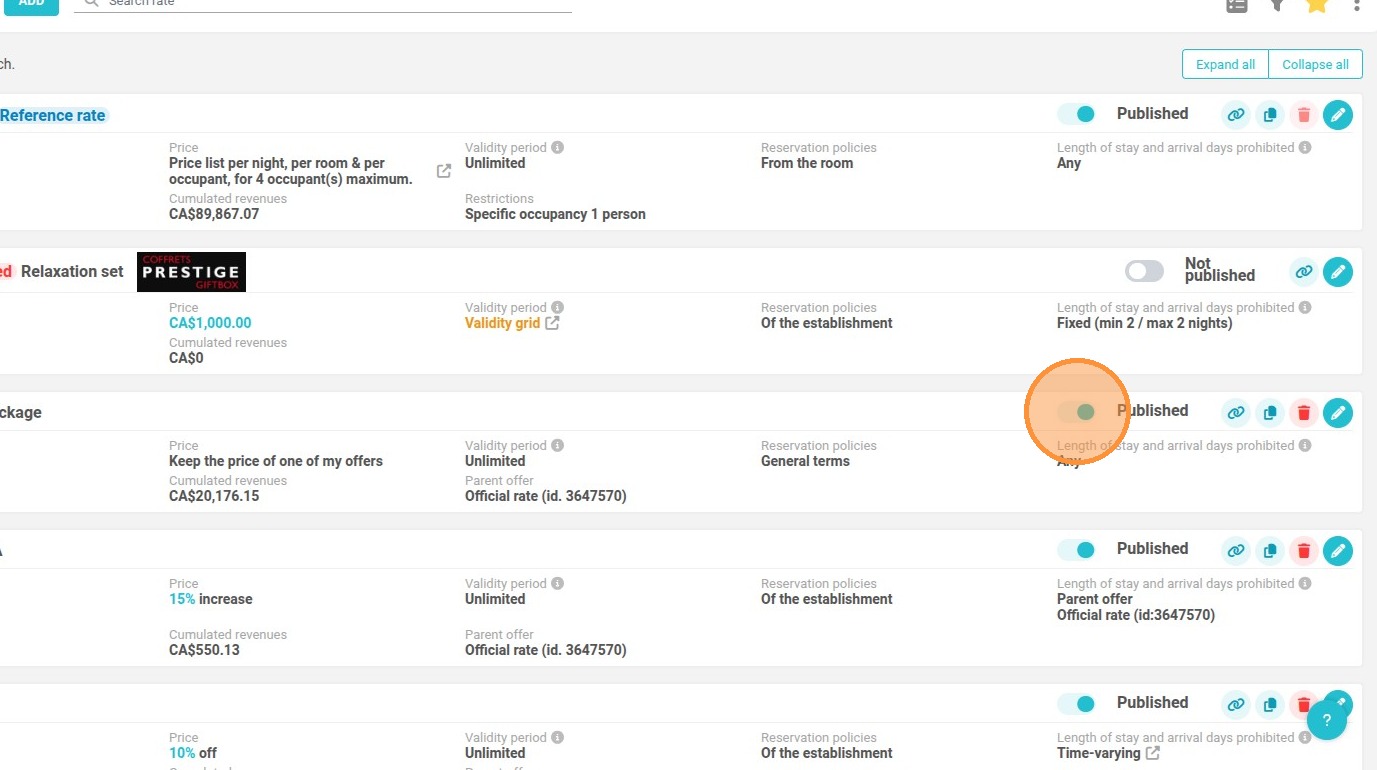
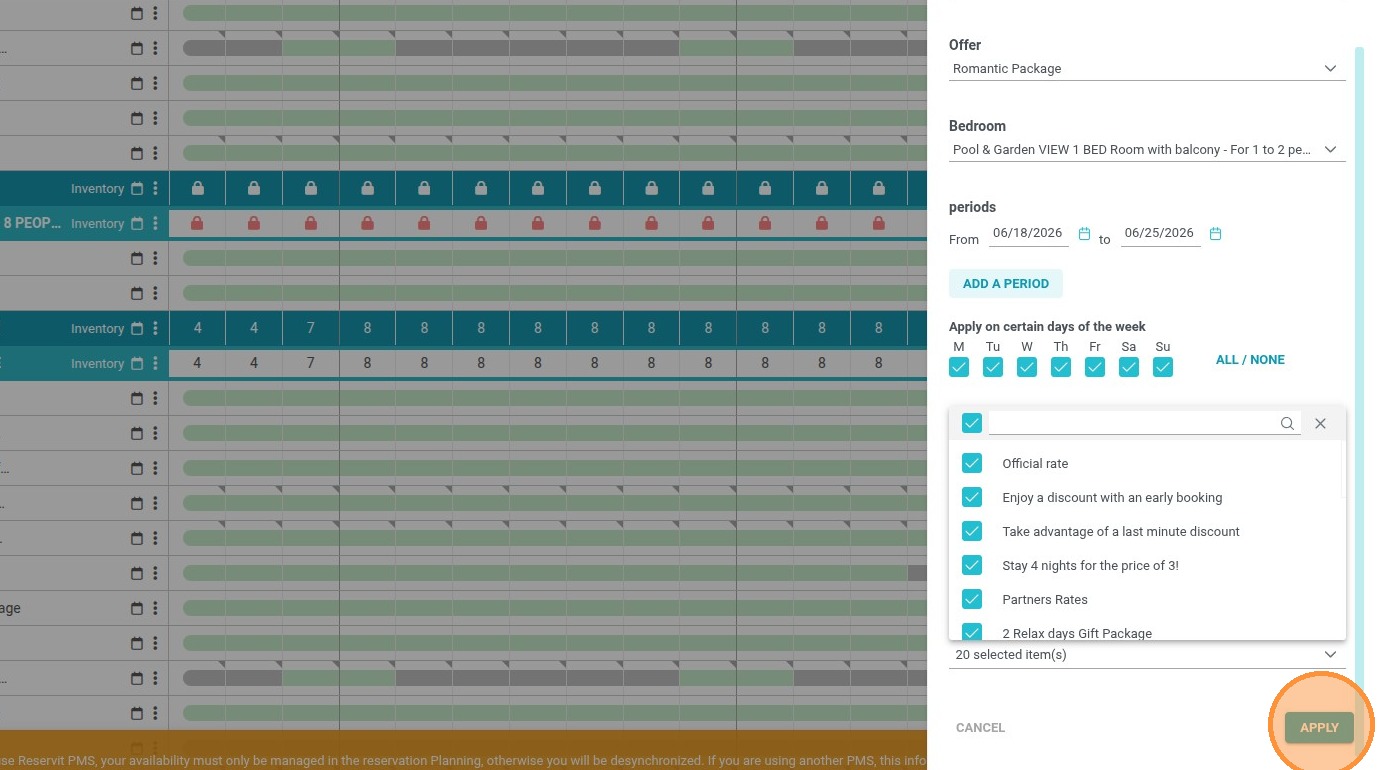
4. Your offer is now unpublished.
Close an offer from "My planning"
5. Click on "My rates and availability" then "My planning".
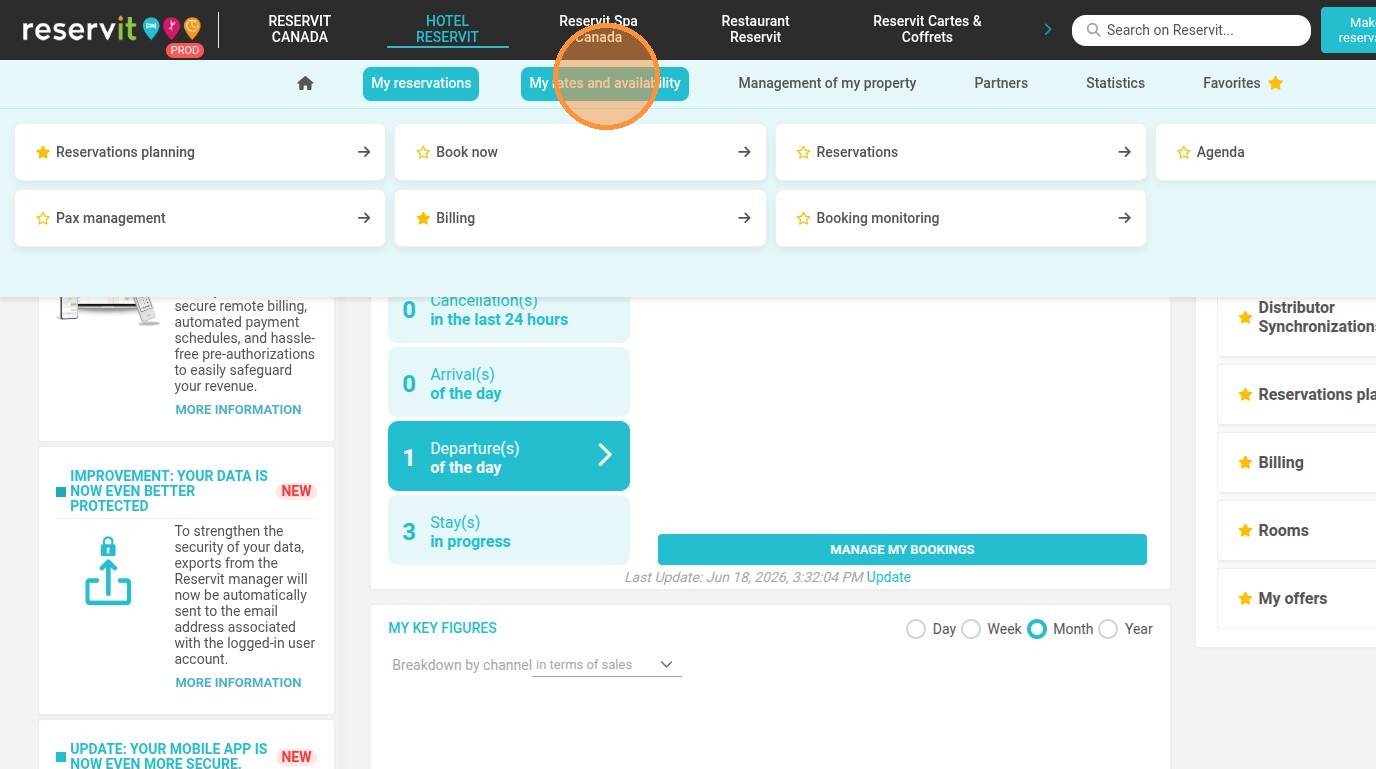
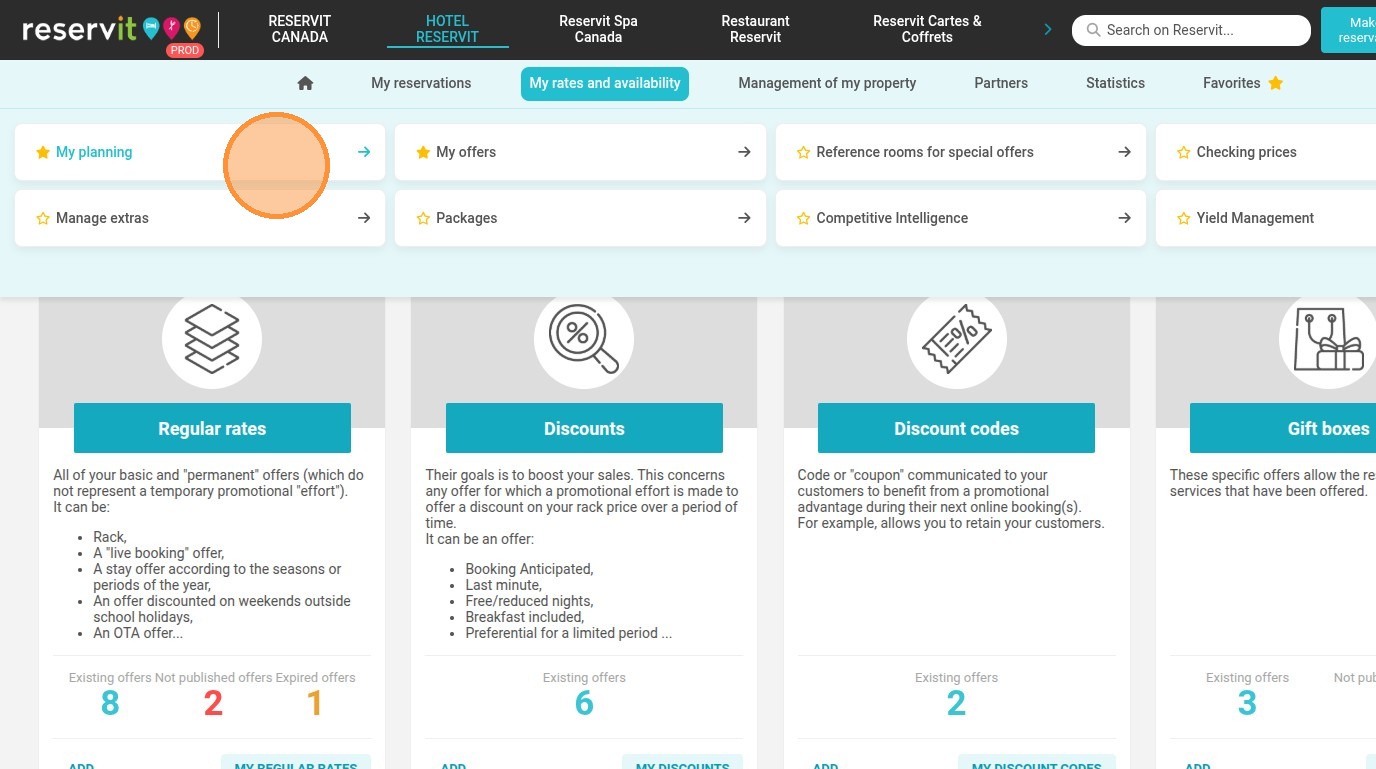
6. Choose the rate to close; here we will use the "Official rate"
Click on the calendar icon to access the annual view.
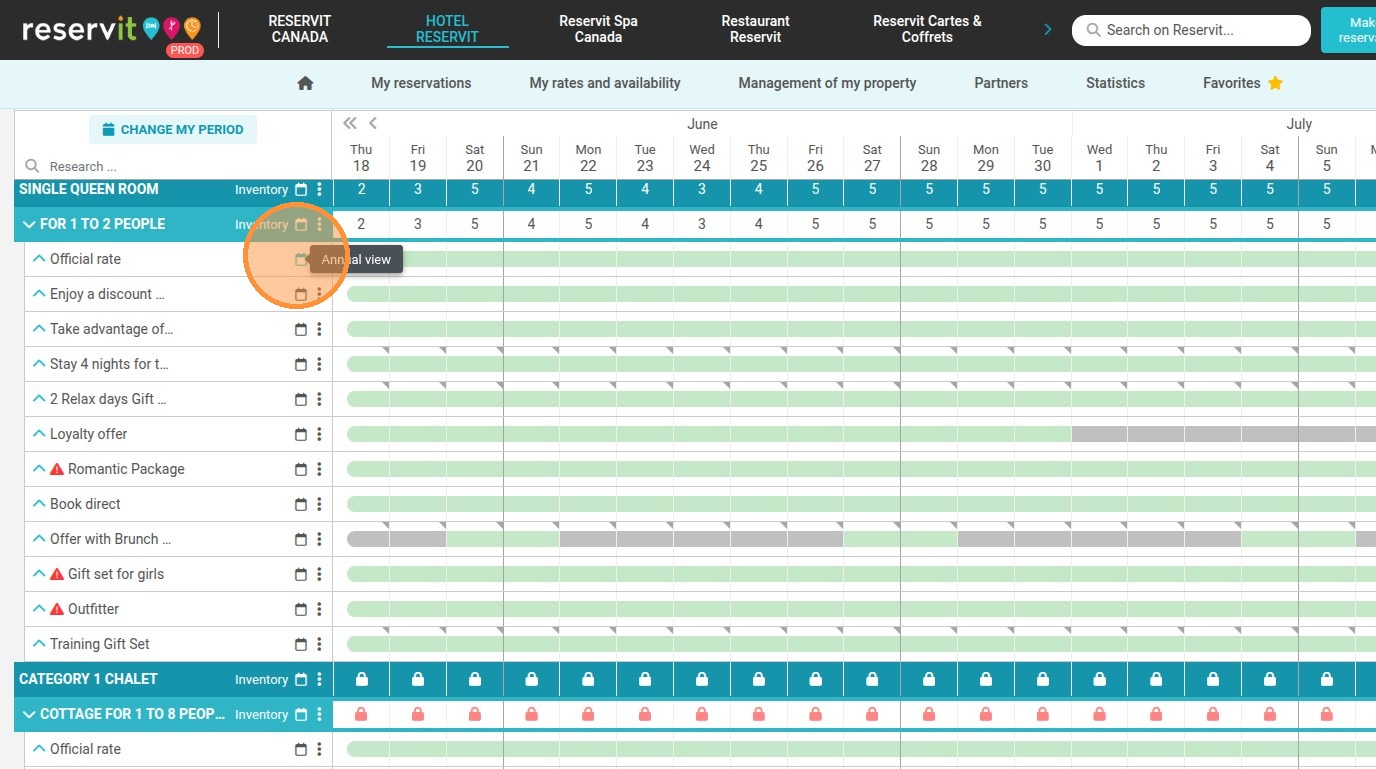
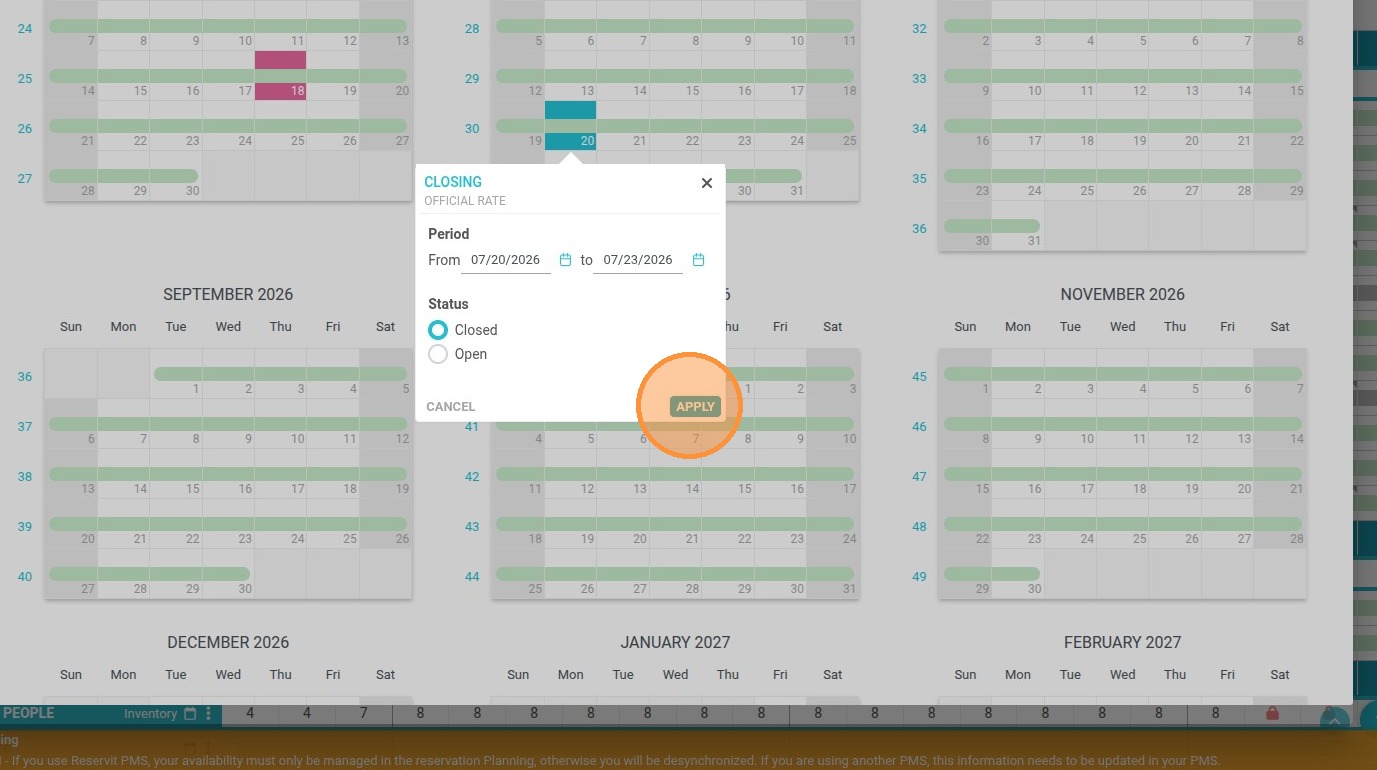
7. Choose the period or the day you wish to close. You can hover your mouse over the green or red line to perform actions directly from the calendar.
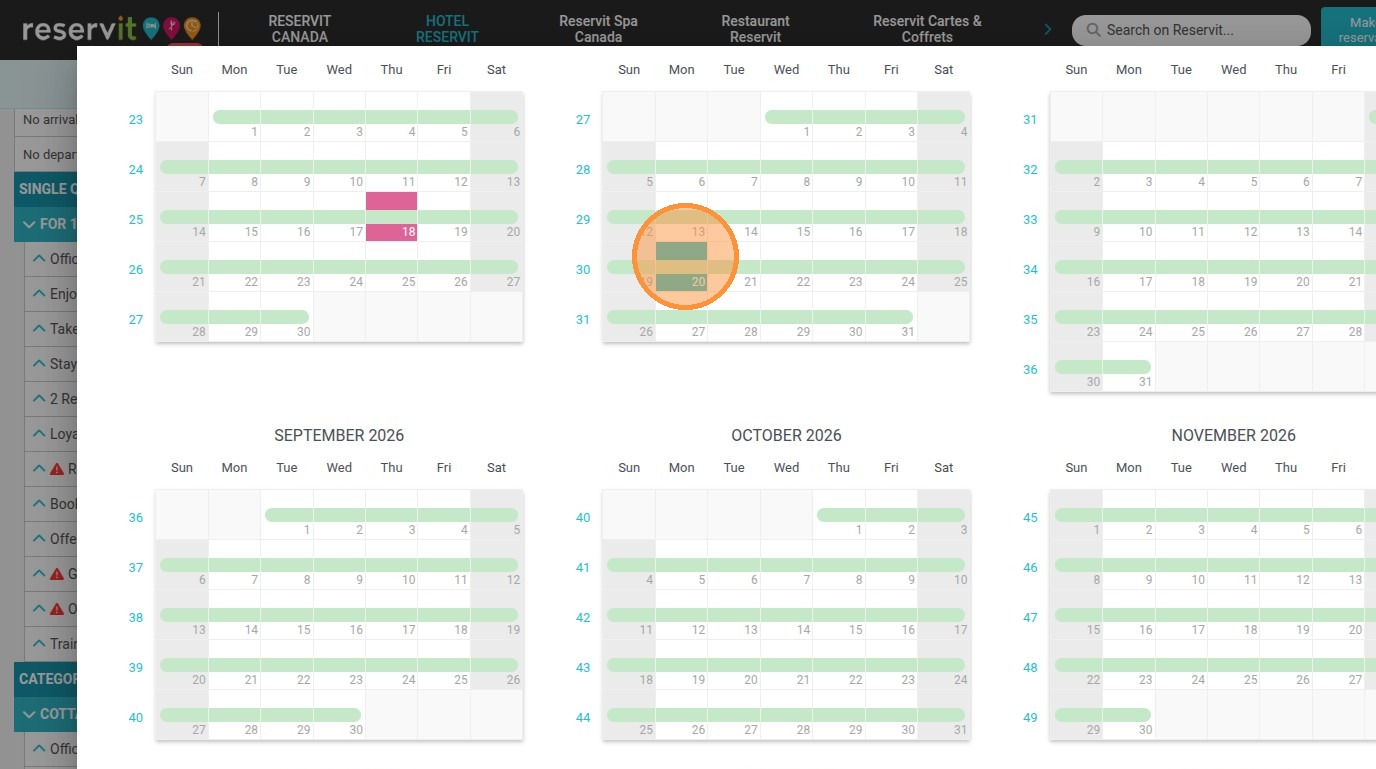
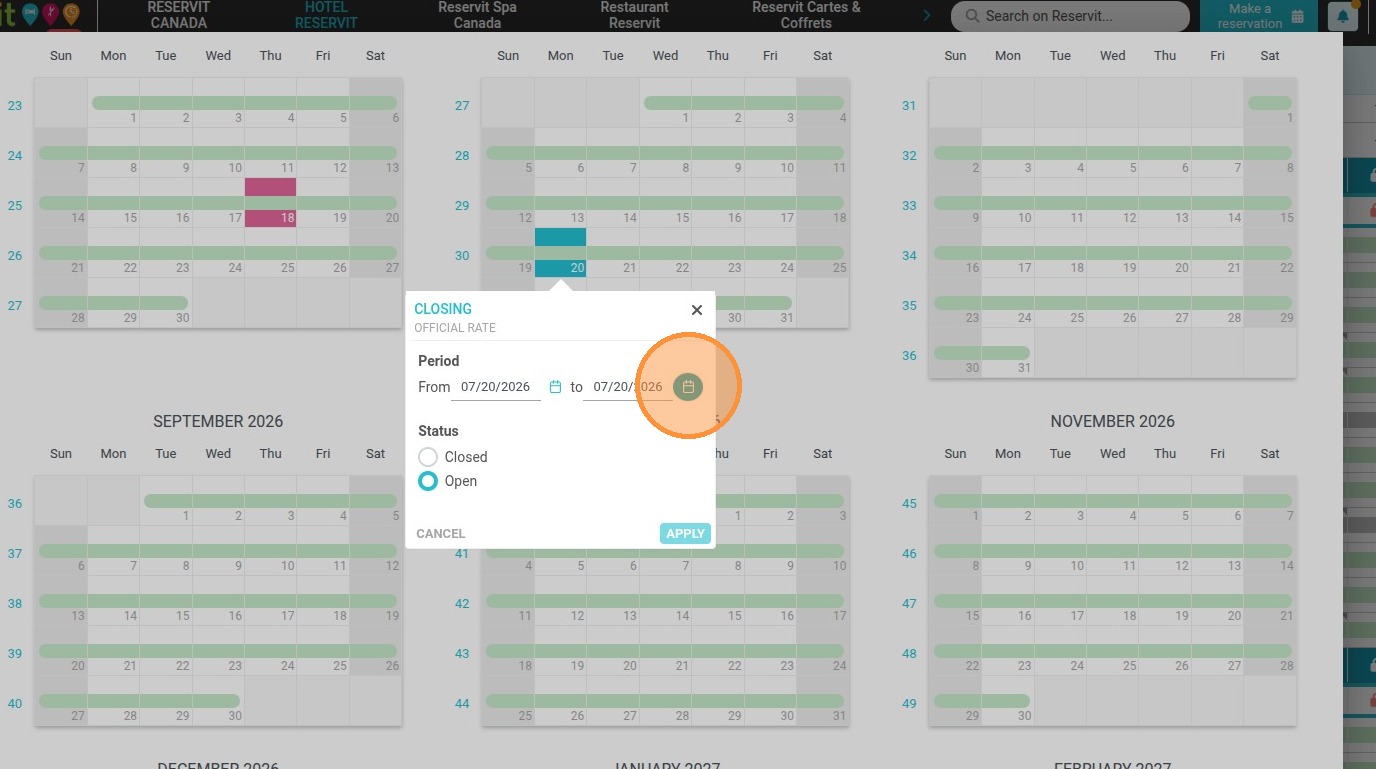
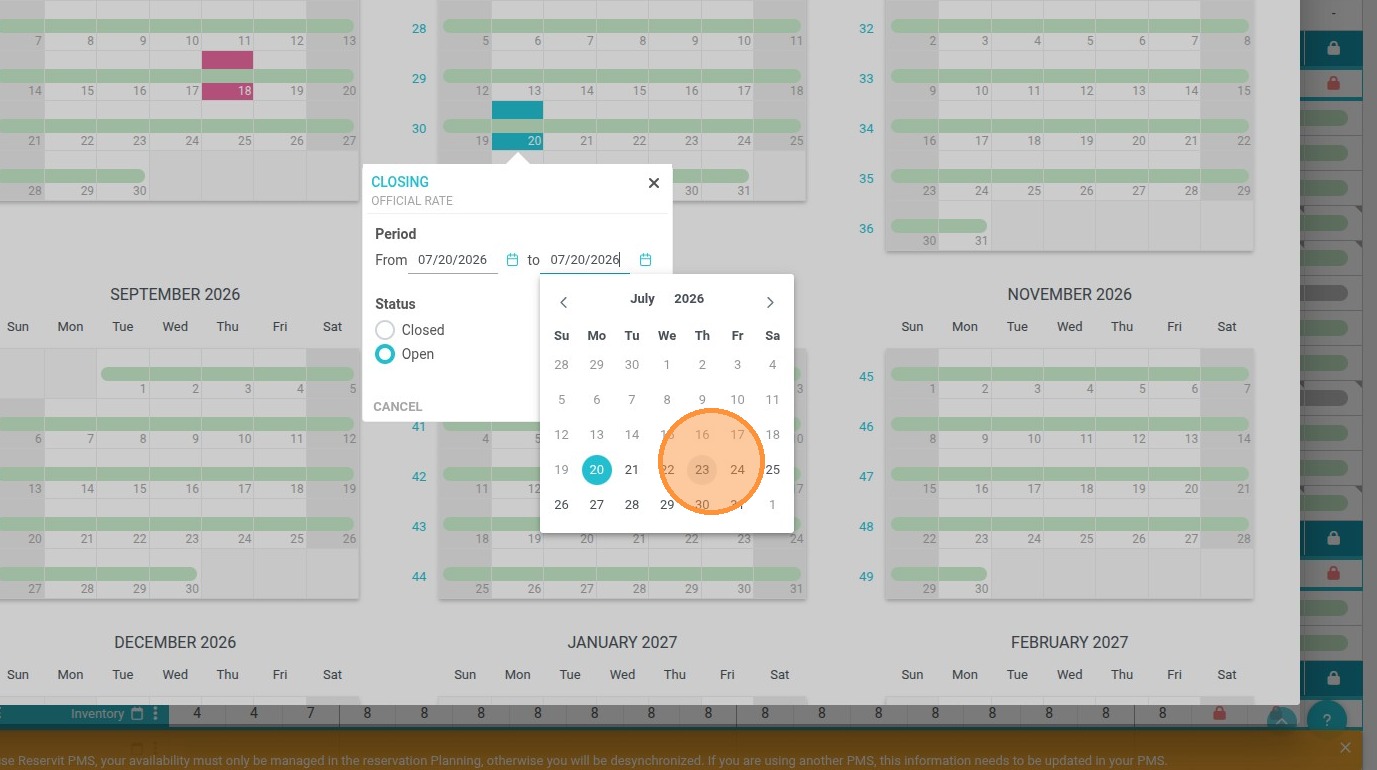
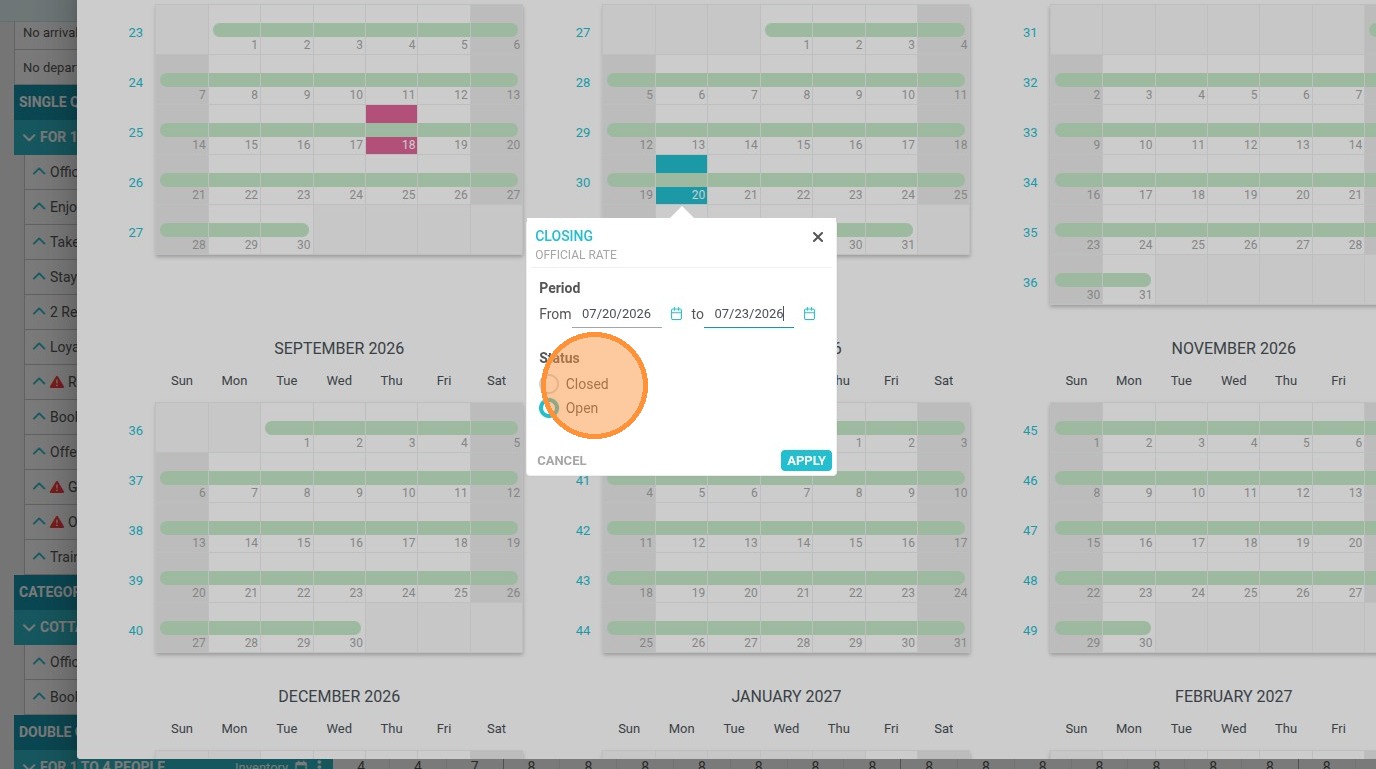
8. Do not forget to click on "Apply" to save the changes.
Advanced offer closure
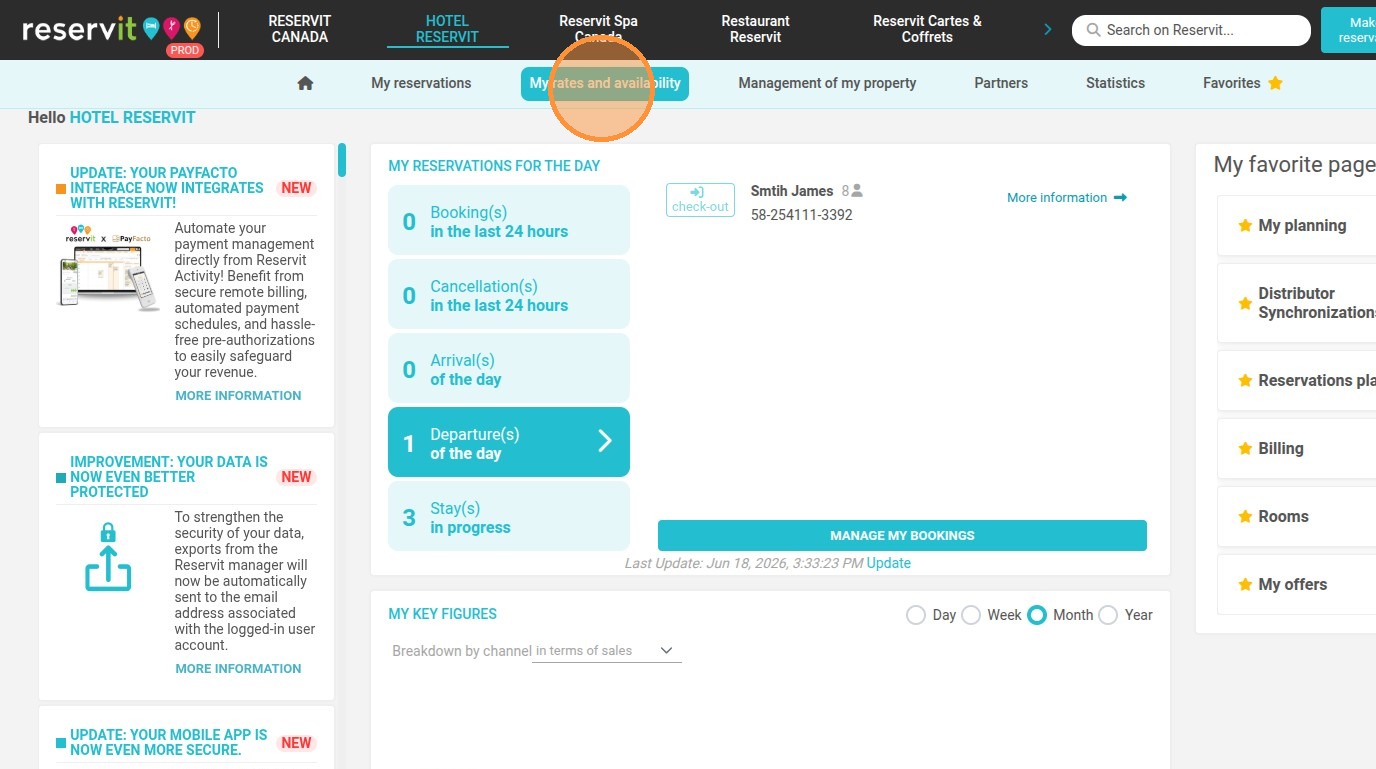
9. Click on "My rates and availability" then "My planning".
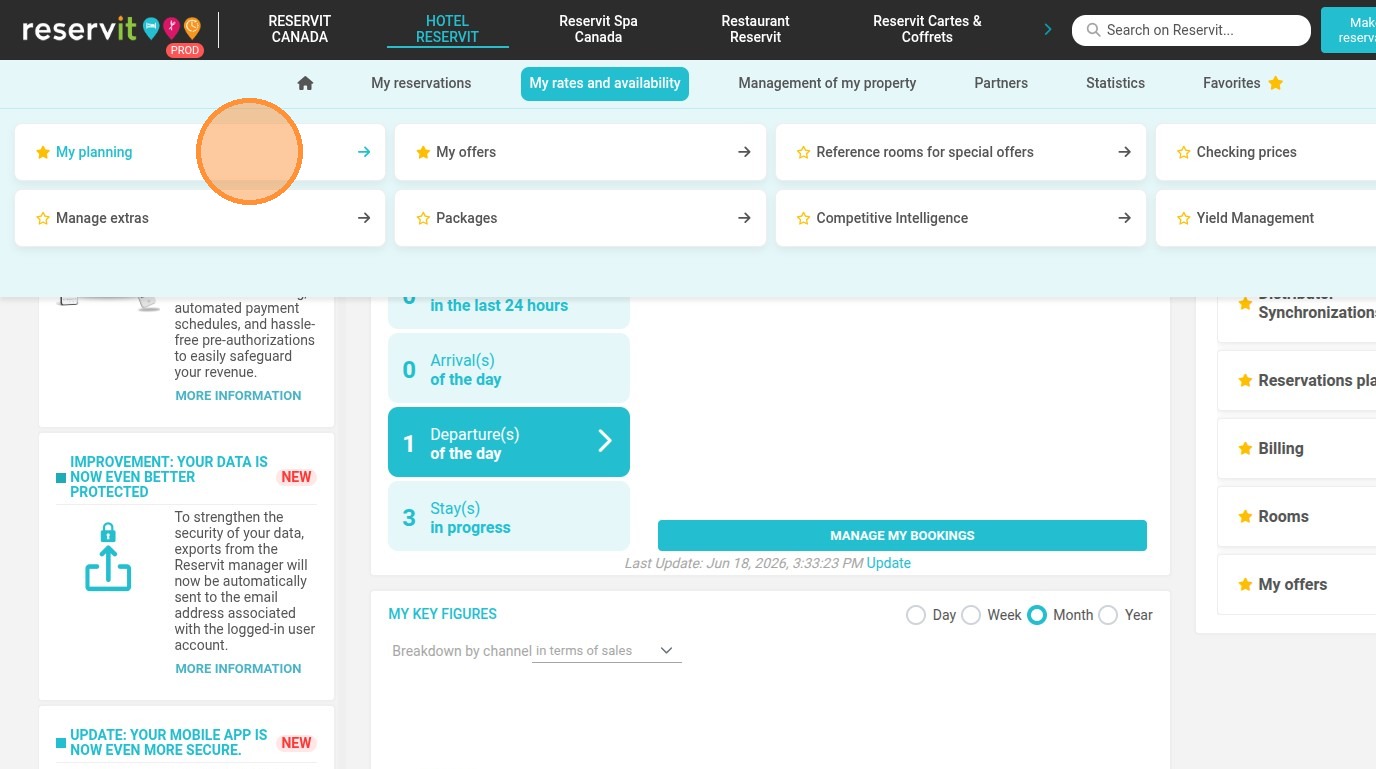
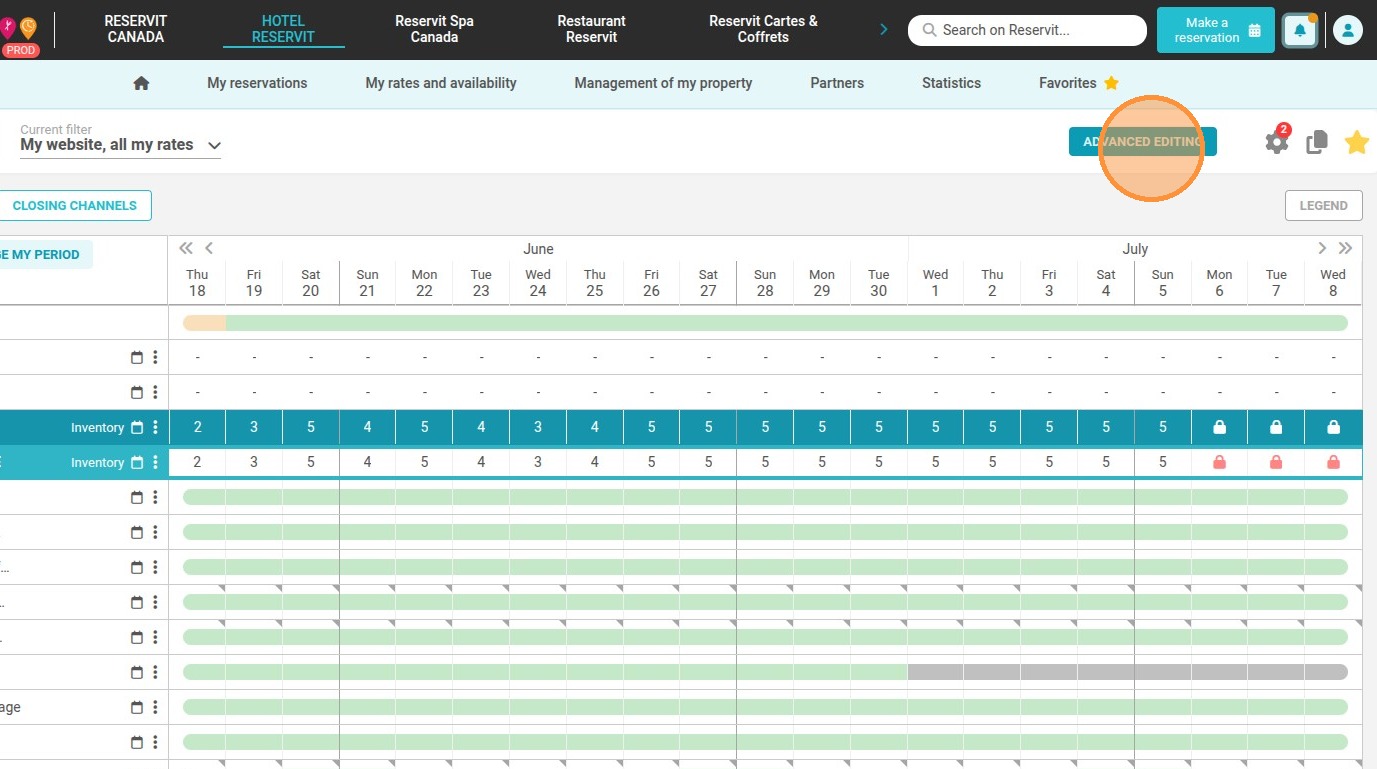
10. Select "Advanced Editing"
11. In the data type, choose "Offer closure".
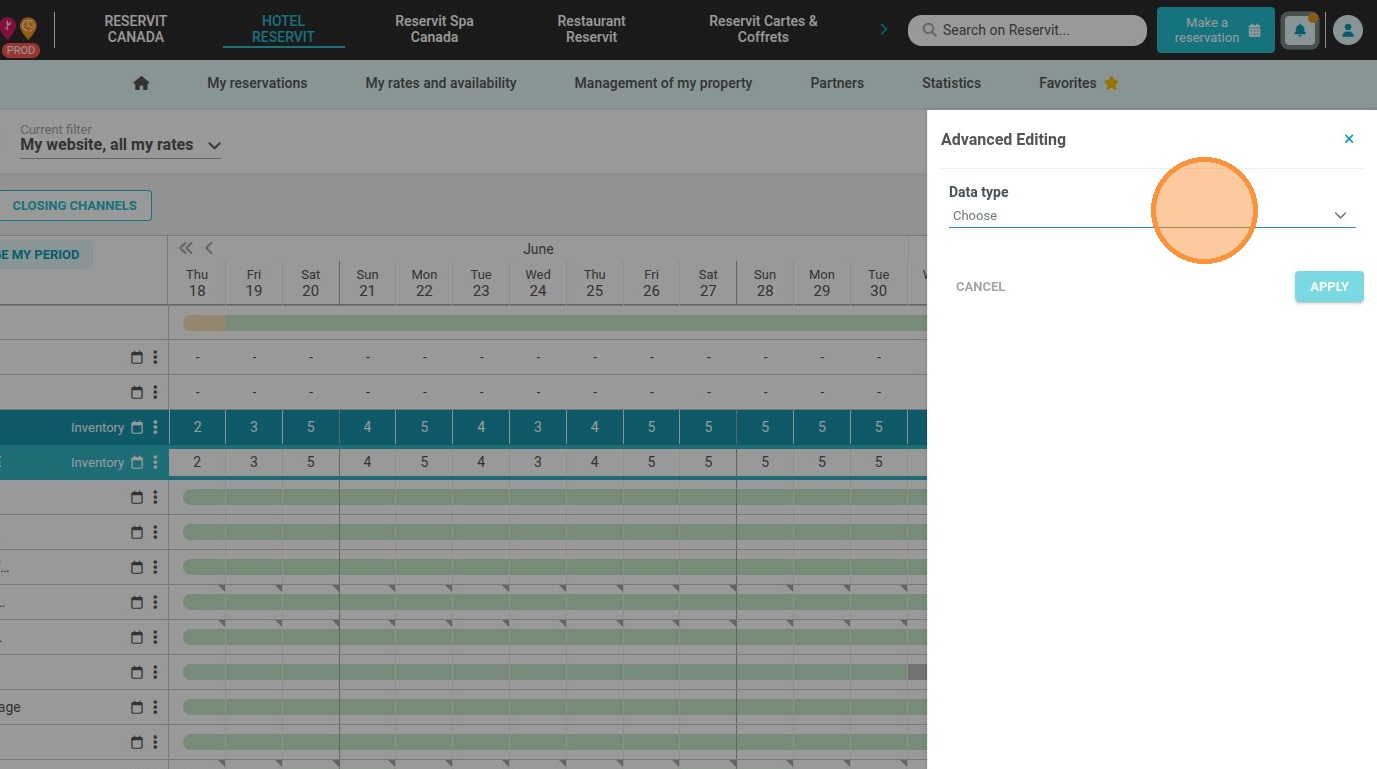
12. Select the offer to modify. Click "Romantic Package".
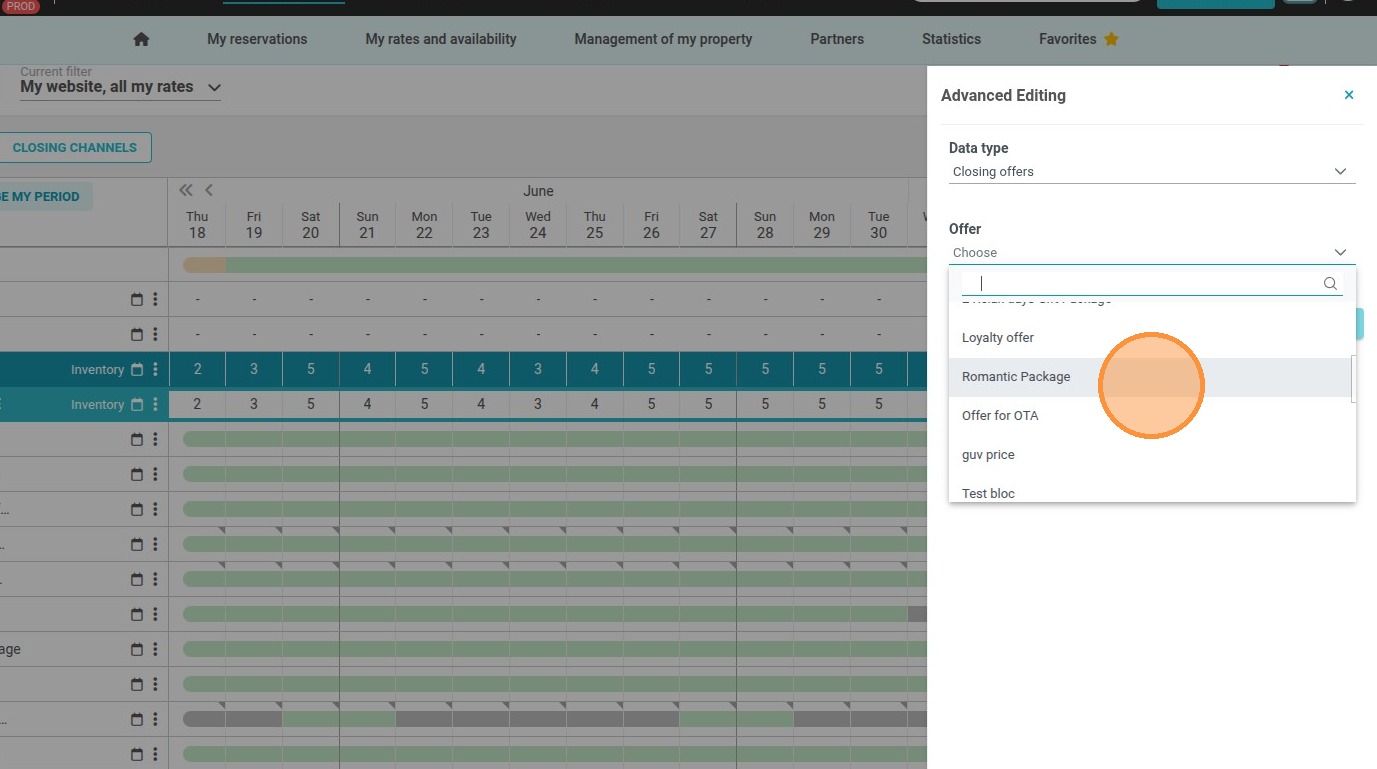
13. Choose the applicable rooms for this offer closure.
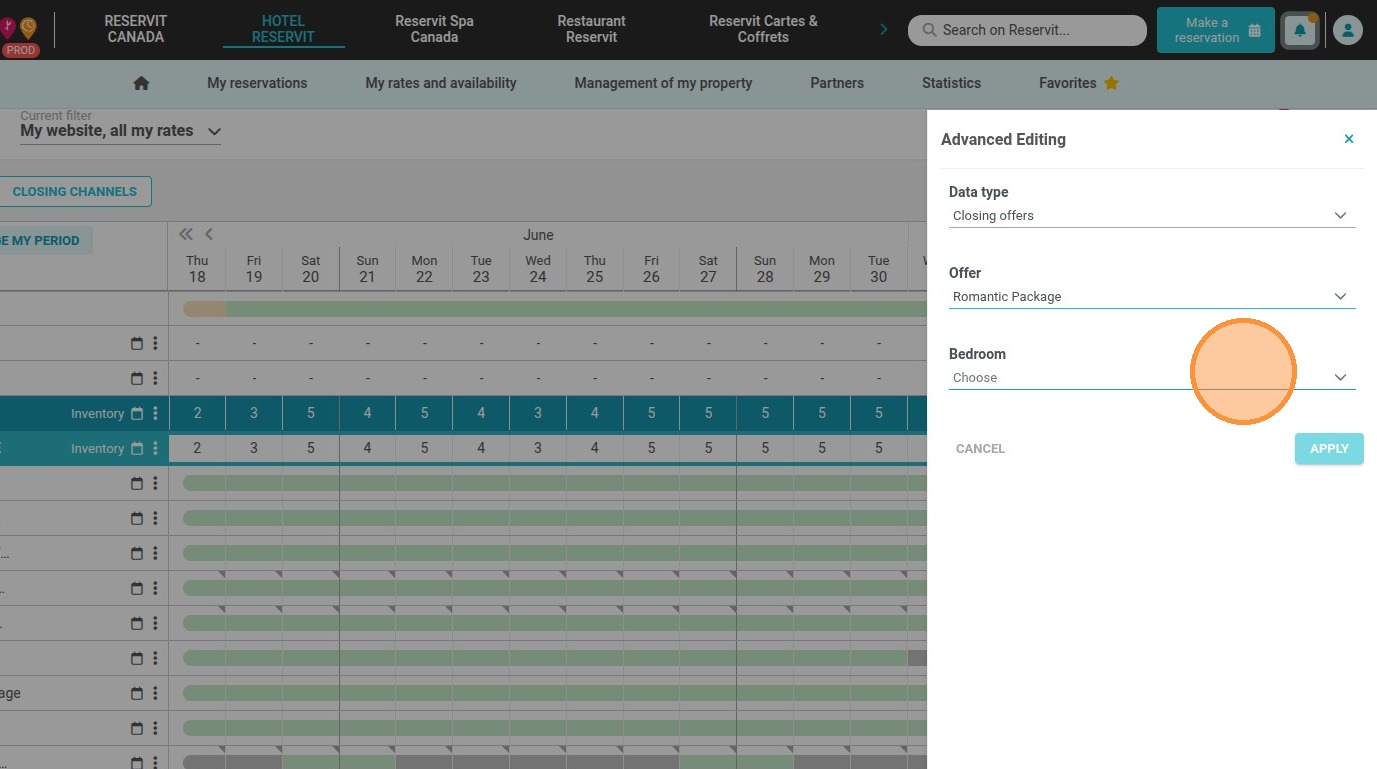
14. Next, define the applicable periods and days.
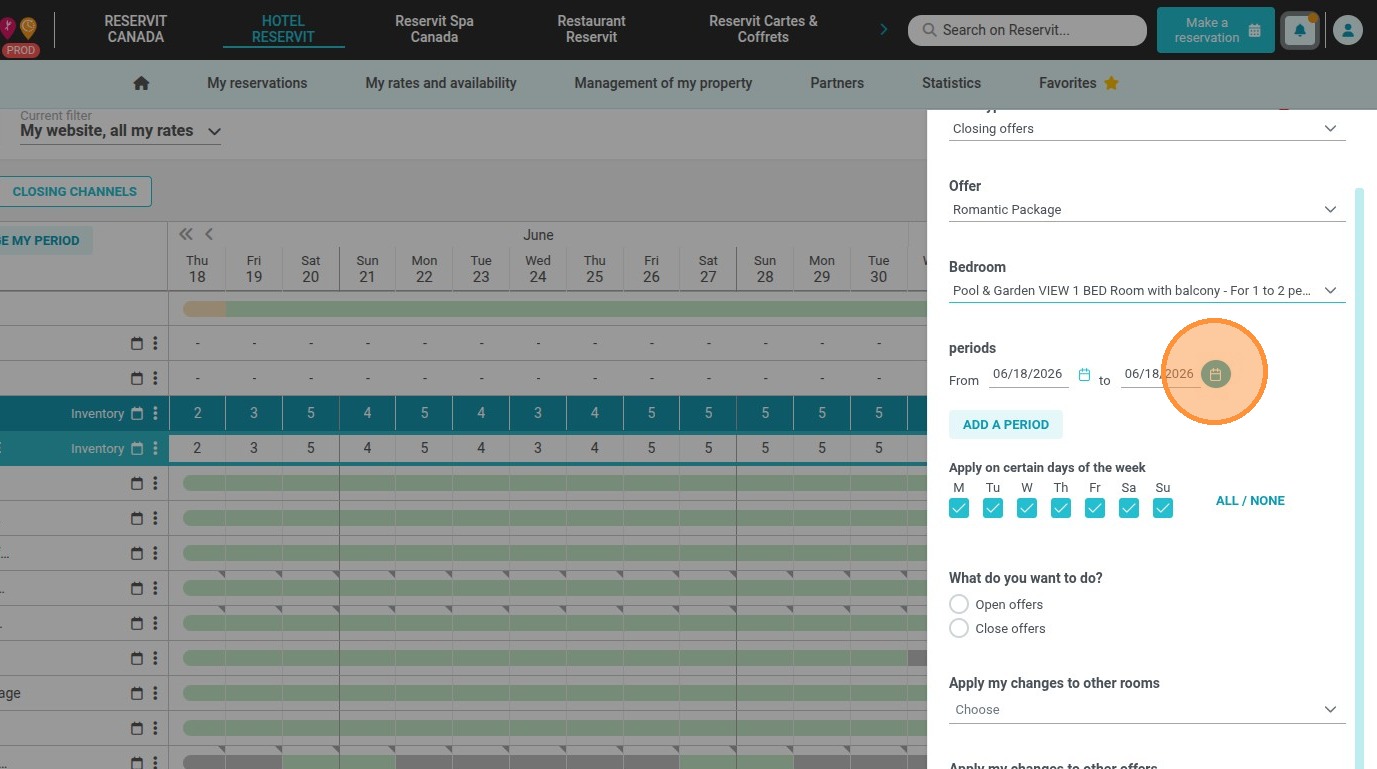
15. Click on "Close offers".
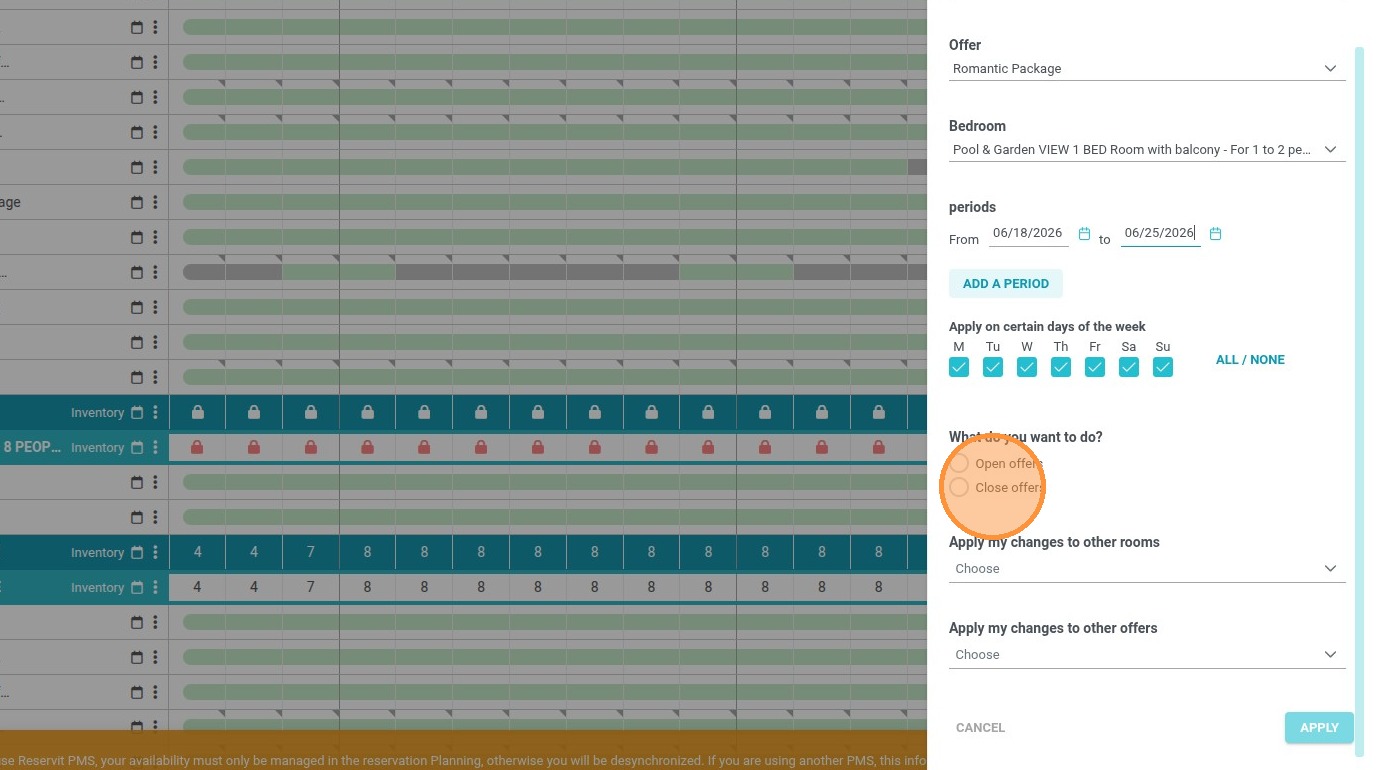
16. You have the option to apply these changes in bulk to other rooms/units and other offers.
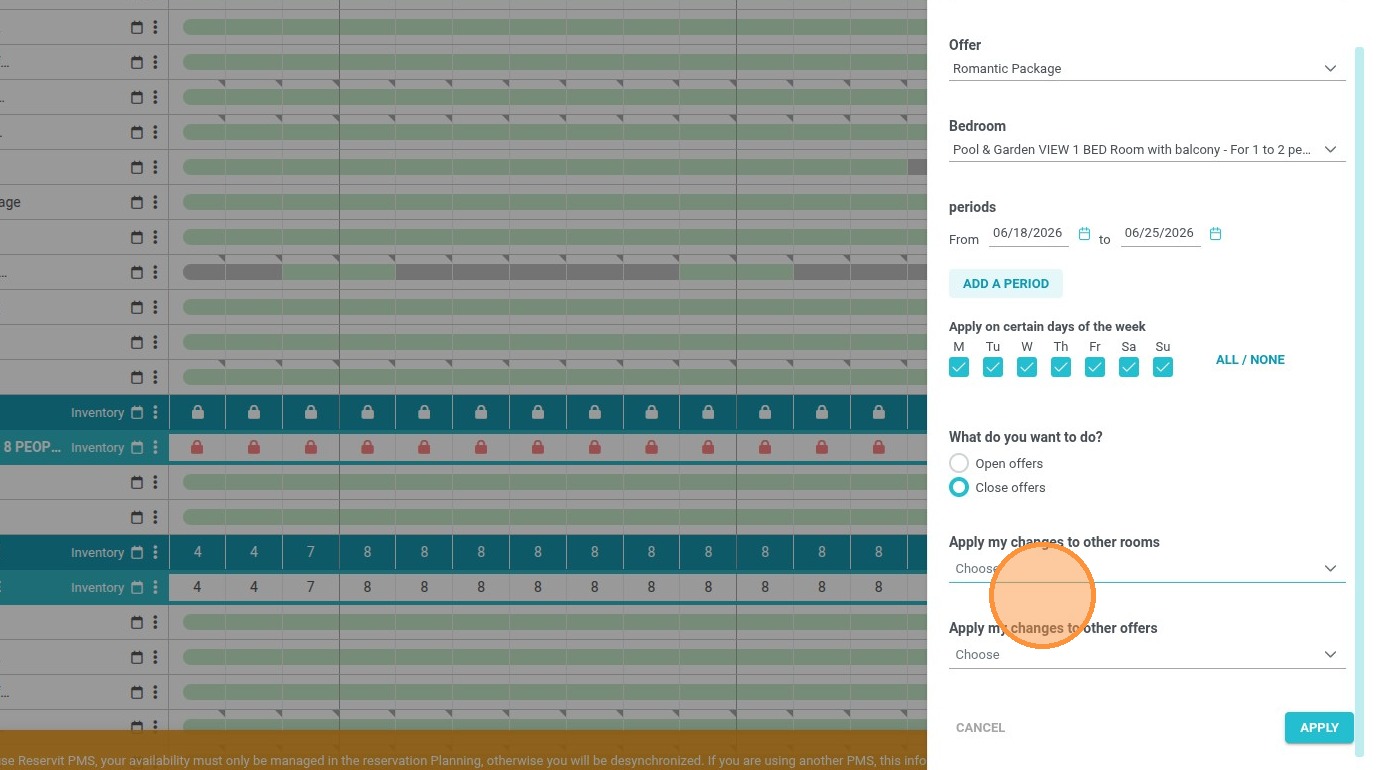
17. Click on "Apply" to save