Article Summary: This step-by-step tutorial explains how to customize the visual labels and promotional badges for your special offers within Reservit Accommodation. You will learn how to easily modify the display text, choose a distinct label color, and select a recognizable icon to make your deals stand out on the public booking page. Personalizing these visual elements helps capture potential guests' attention, making your promotions more engaging and ultimately driving higher conversion rates for your direct bookings.
The 4 Key Steps to Customize an Offer Label:
-
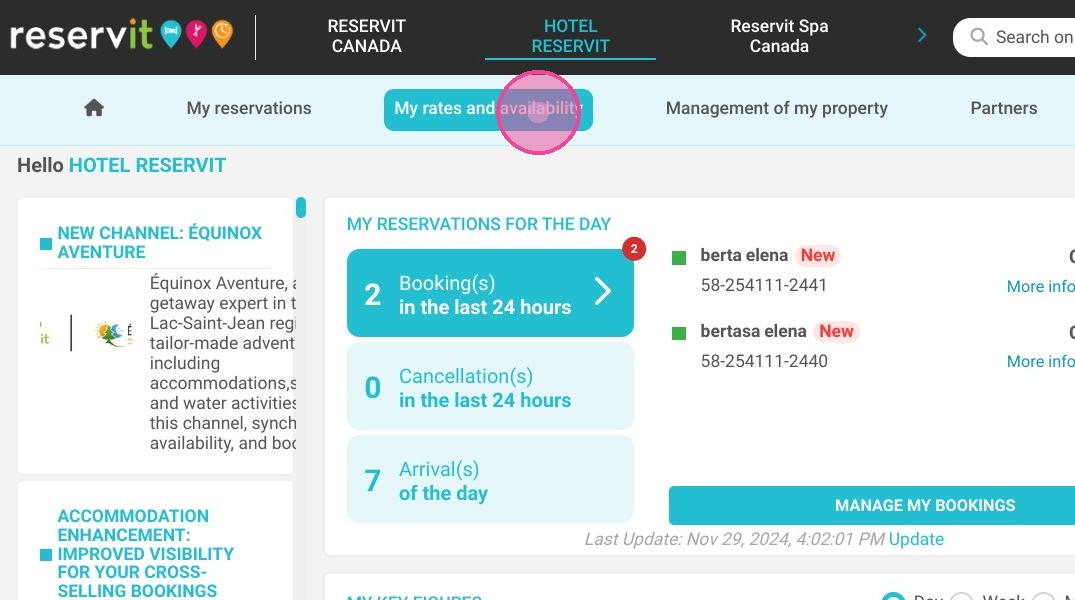
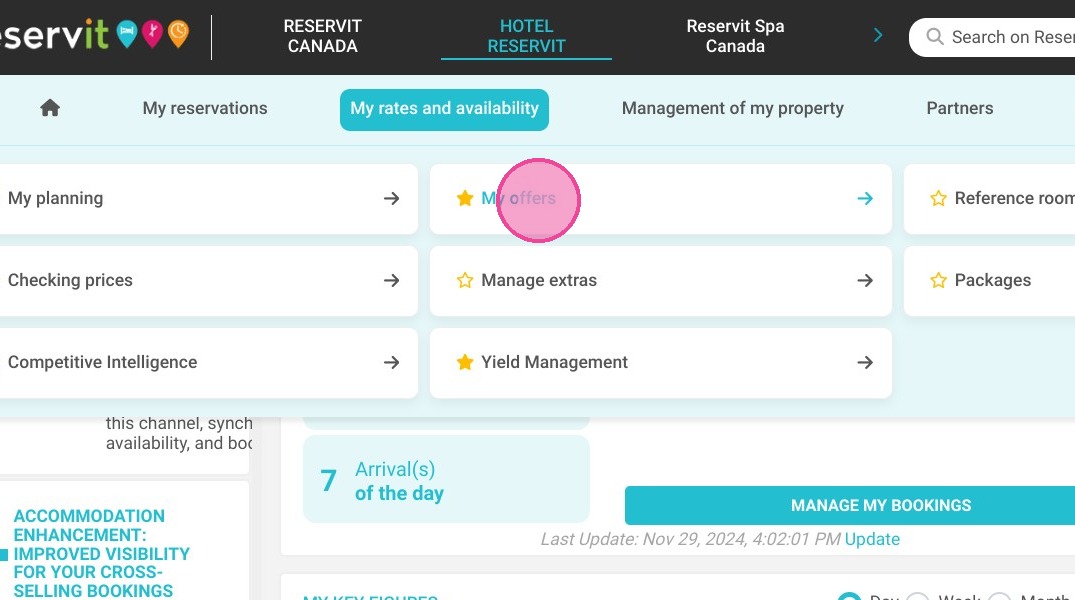
Access Your Offers: Navigate to the "My rates and availability" tab, click on "My offers," and select the specific promotion you want to edit.
-
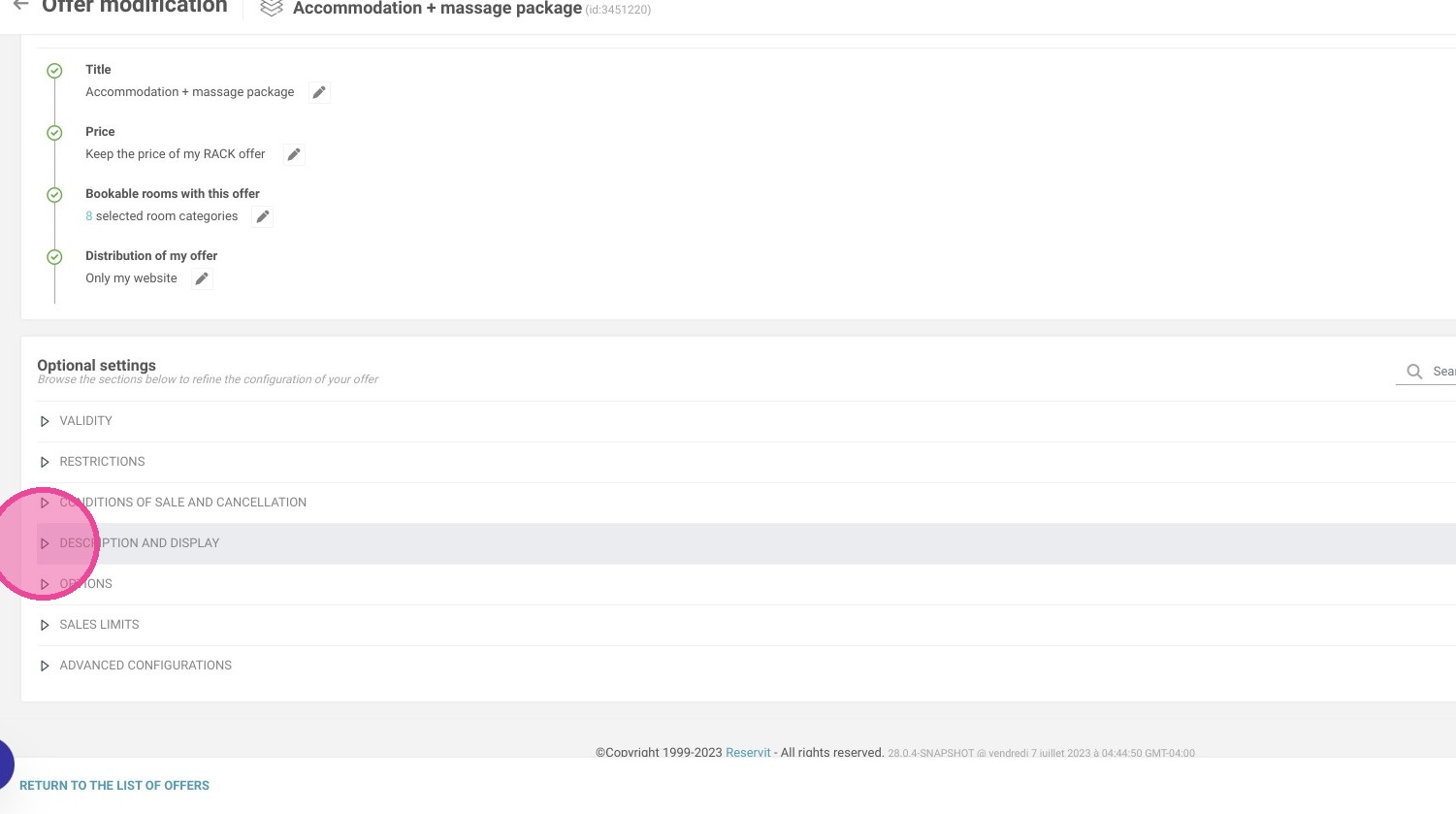
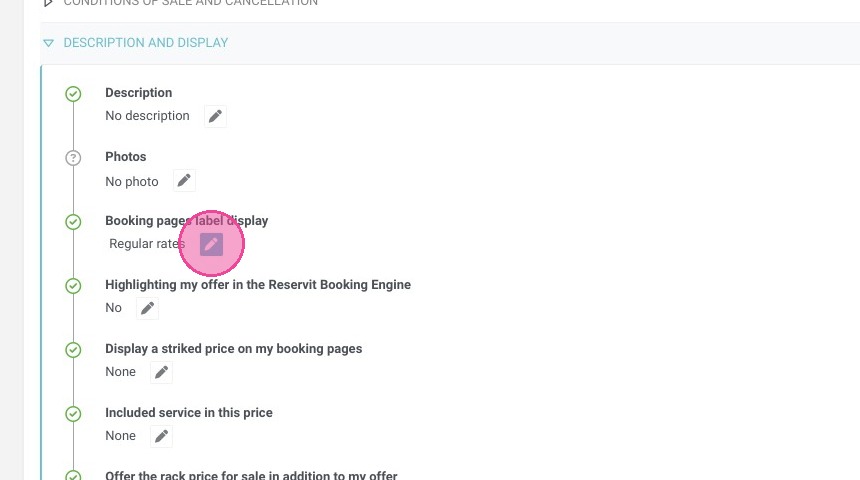
Open Display Settings: Scroll down to the "DESCRIPTION AND DISPLAY" section and click the pen icon located under "Booking pages label display."
-
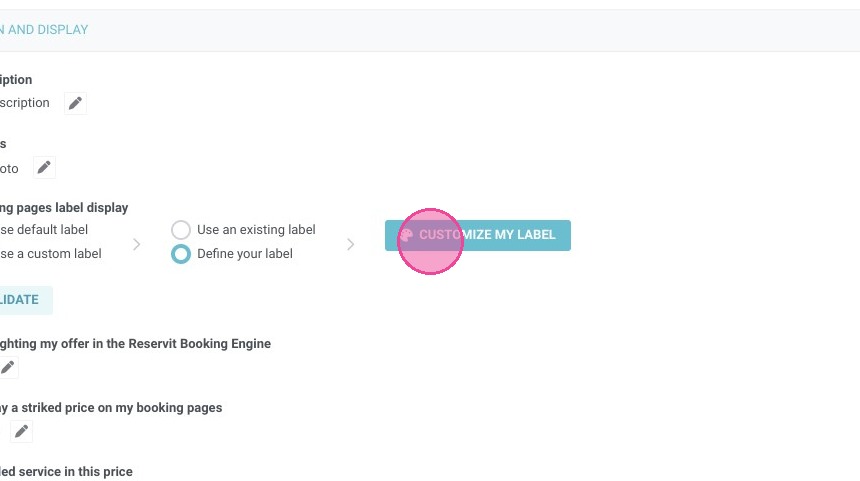
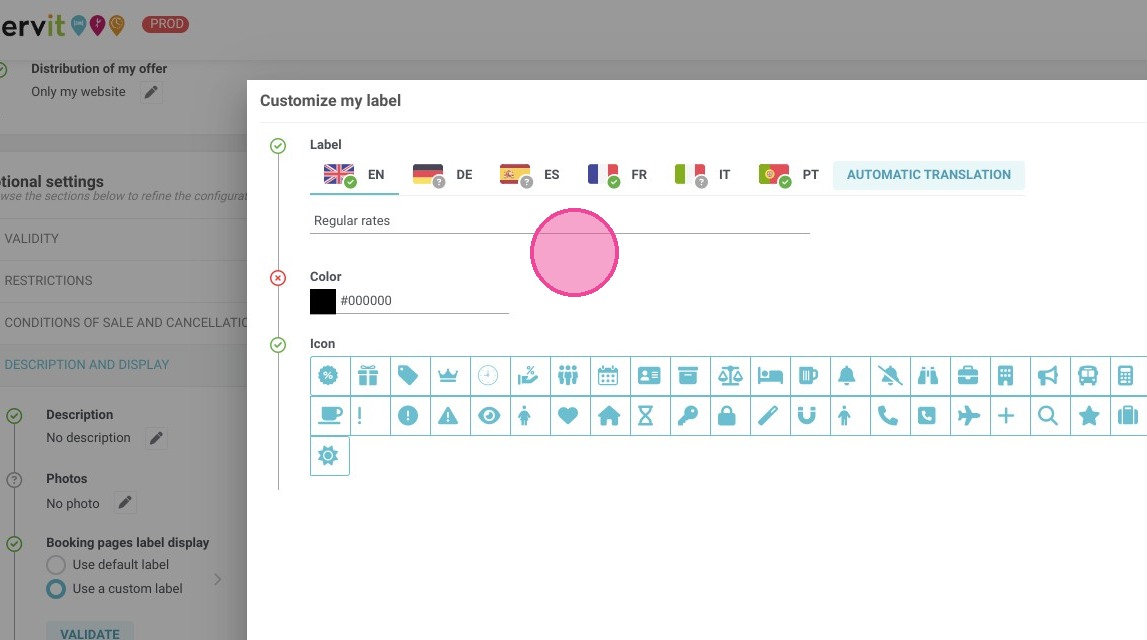
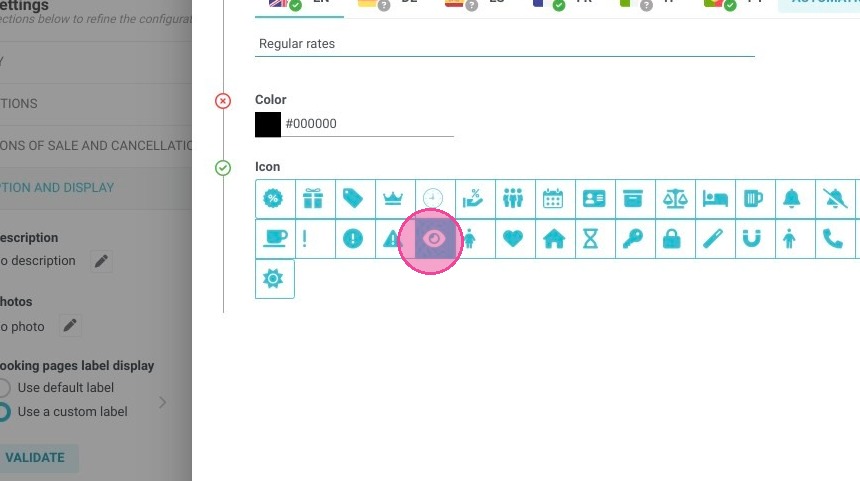
Customize Visuals: Click "CUSTOMIZE MY LABEL" to update your descriptive text fields, choose an attractive label color, and assign an eye-catching icon to the offer.
-
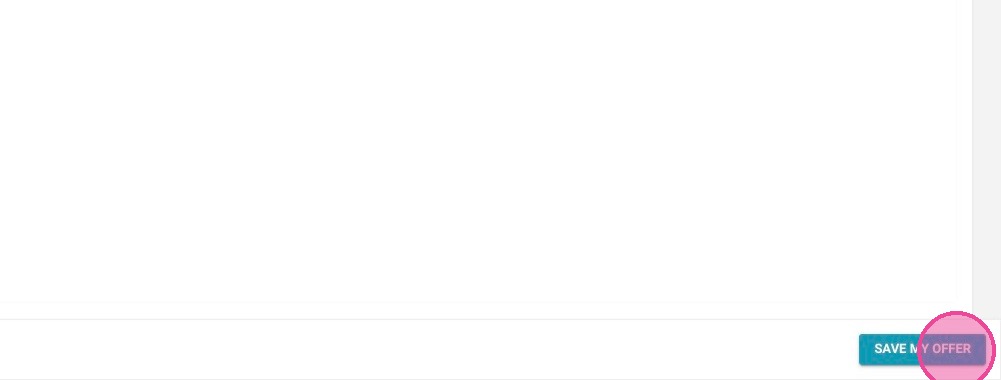
Apply and Save: Click "APPLY" to confirm your new visual settings, then hit "SAVE MY OFFER" to instantly publish the updated badge to your live booking engine.
Why follow this guide? Customizing your offer labels allows you to visually highlight exclusive deals, guiding the customer's eye toward your most profitable promotions without requiring any external web design skills. This simple digital merchandising optimization provides a clearer, more professional booking experience that actively boosts your online sales strategy.
1. Click "My rates and availability" then "My offers" and select the one that you wish to edit.
2. Go to "DESCRIPTION AND DISPLAY"
3. Click on the pen icon to modify. Underneath the line "Booking pages label display".
4. Click "CUSTOMIZE MY LABEL".
5. Fill out the fields that you need.
6. It is possible for you to select the label color.
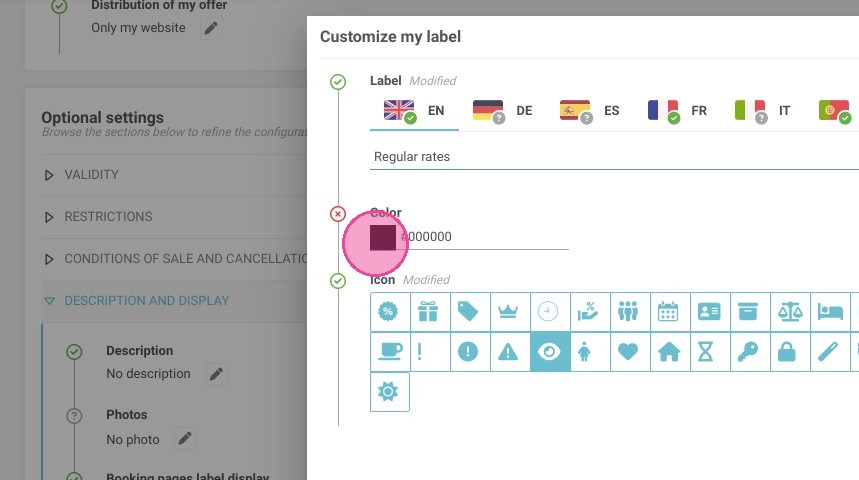
7. You have the option to select the icon that will be displayed with your offer.
8. Click "APPLY"
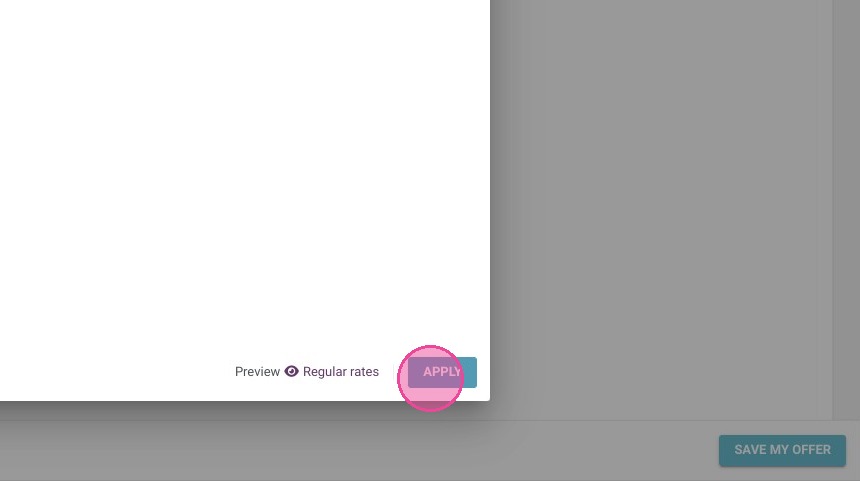
9. Click "SAVE MY OFFER".