

Article summary: This tutorial explains how to restrict the number of guests allowed for a specific offer, regardless of the room’s original capacity. You will learn how to configure targeted rates, such as corporate or group rates, to better control your customer segments and optimize your online sales strategy.
The 4 key steps to set a maximum occupancy for an offer:
-
Access offer management: Go to “My Rates and Availability,” then “My Offers,” and select the item you want to edit.
-
Edit rooms: Open the room editing window associated with your rate offer.
-
Override occupancy: Enter the maximum number of authorized guests in the override field at the top of the window.
-
Save: Confirm your changes and save the offer to update the restrictions in your booking engine.
Why follow this guide? Managing occupancy overrides allows you to create highly specific, customized offers while avoiding manual booking errors. It is an essential tool for protecting your margins on special rates and ensuring consistency between your room types and market segments.

1. Go to “My Rates and Availability” > “My Offers” and select the offer you want to edit.
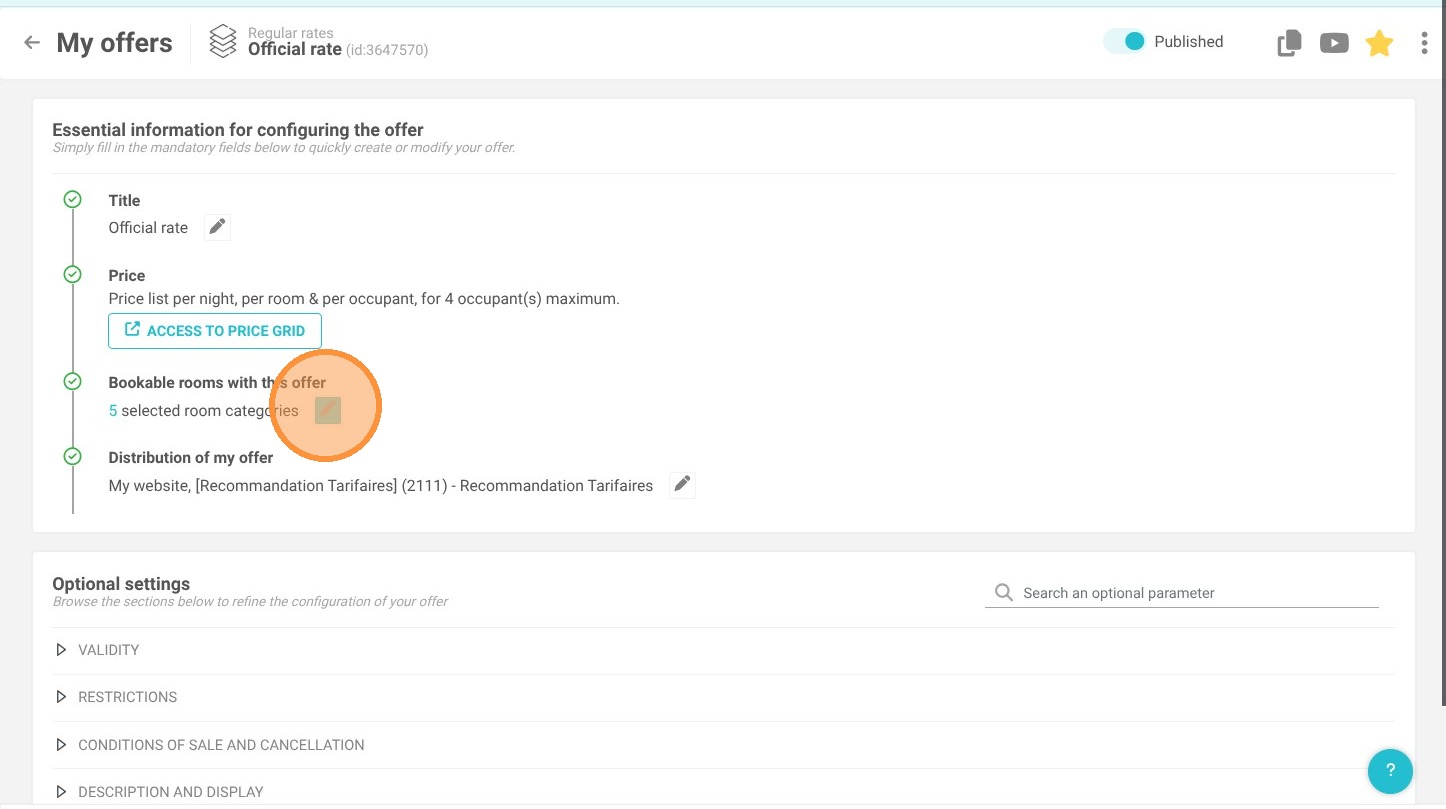
2. Edit the rooms bookable with this offer.

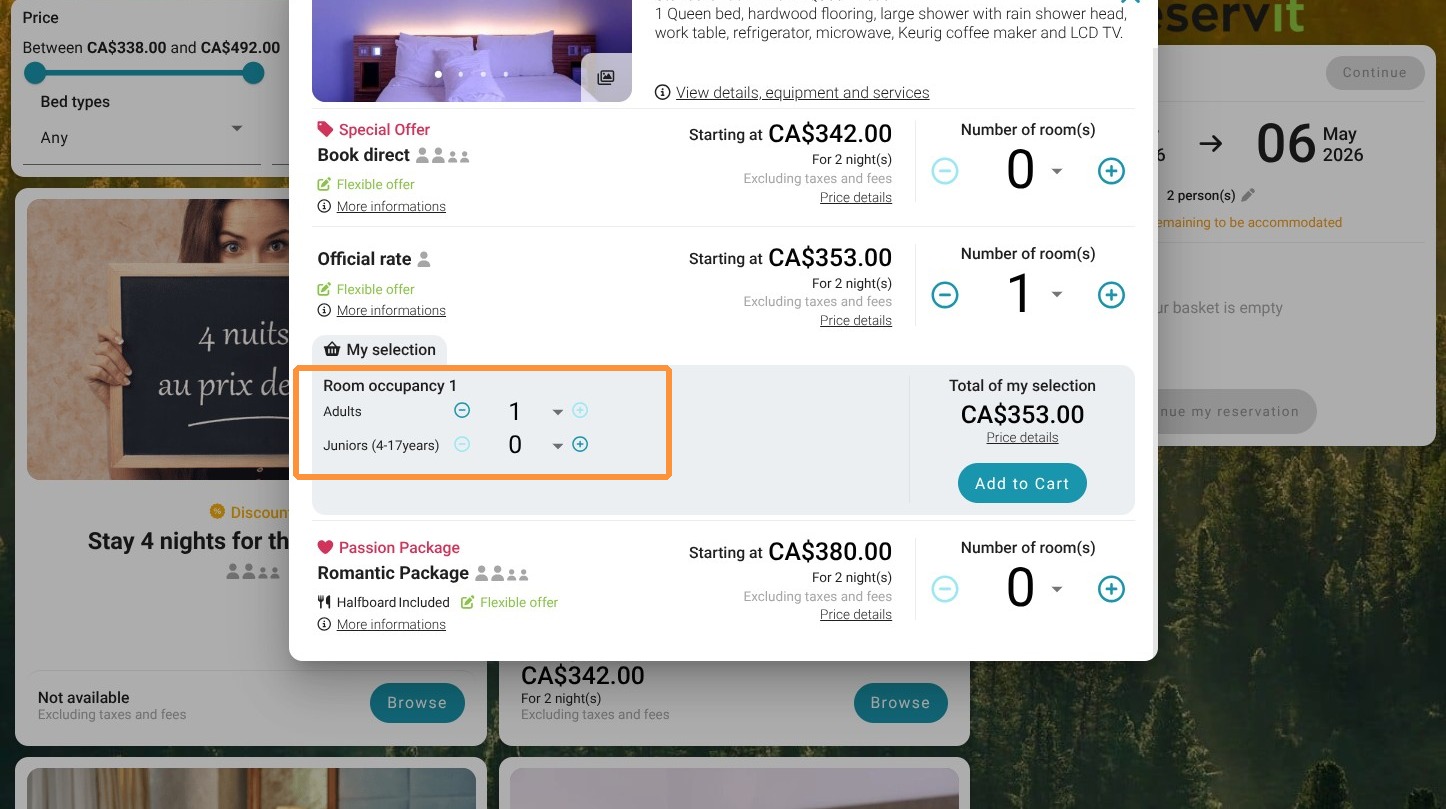
3. At the top of the window, you can now override the maximum occupancy allowed when booking the offer.
For example, your room accommodates 4 guests, but you create a corporate rate valid for one person only. By setting the limit to 1, the guest will not be able to select more than 1 person per room.
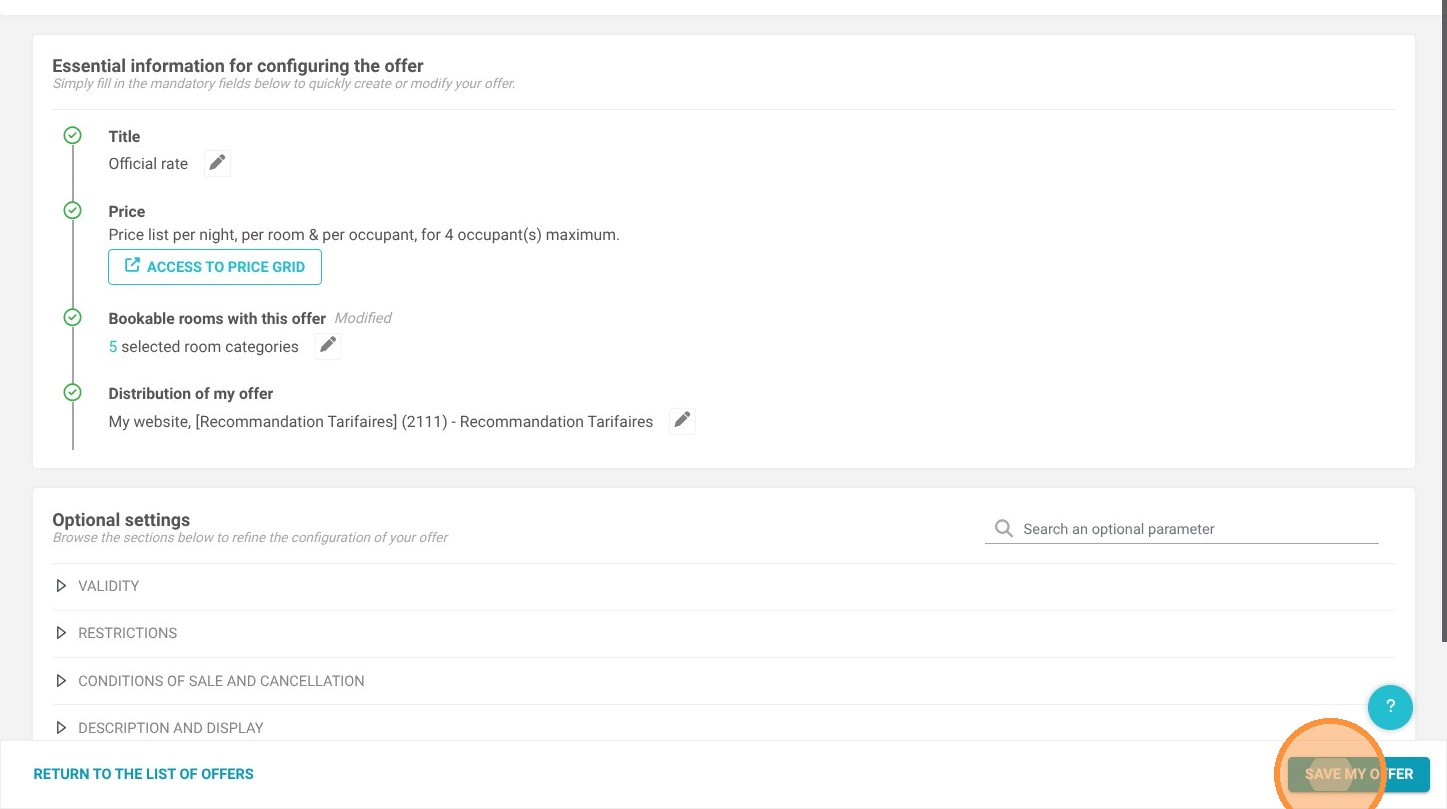
4. Save the offer.
5. Click "Add to Cart"
⚠️ A few points to note:
-
Compatibility risk: The system will display an alert message stating: “Warning: the occupancy entered may be incompatible with certain rooms.” You should therefore make sure that the rooms linked to the offer can physically and technically accommodate this occupancy.
-
If your rooms are configured with “price per person” pricing, the technical limit used at room level for display purposes will be the value defined in the “Maximum number of guests paying the adult rate” field in the room type configuration.
-
In “My Planning,” the number of price grids displayed per room will automatically adjust based on the lower value between the offer capacity and the room capacity. For example, if you configure an offer with a specific occupancy of up to 8 guests, but link it to a triple room with a maximum occupancy of 3 guests, the planning screen will only display 3 occupancy-based price grids for that room.