

Article Summary: This step-by-step tutorial explains how to easily create and manage discount codes using OBP management in Reservit Accommodation. You will learn how to configure promotional offers, set custom pricing rules, and define specific booking conditions and room availability. Mastering this feature allows you to launch targeted promotions, attract more direct customers, and effectively boost your seasonal or flash-sale bookings.
The 5 key steps to create a discount code:
-
Create a new promotional offer: Navigate to your "My rates and availability" menu, open "My offers," and select the option to add a new discount code.
-
Define your codes and pricing: Enter a clear title for your offer, generate one or multiple specific promotional codes, and configure the exact price reduction.
-
Set dates and policies: Choose the active validity period and specific days of the week for the offer, then apply any unique booking or cancellation conditions.
-
Assign rooms and restrictions: Select exactly which units or room types are eligible for the discount and apply any necessary booking restrictions to protect your inventory.
-
Finalize distribution and save: Choose the specific distribution channels where the code can be used, add any optional extras, and save your offer to make it live.
Why follow this guide? Following this precise setup process ensures your marketing campaigns are deployed securely, preventing costly pricing errors or unintended room availability. By properly structuring your discount codes, you save administrative time while maintaining strict control over your property's promotional revenue strategy.
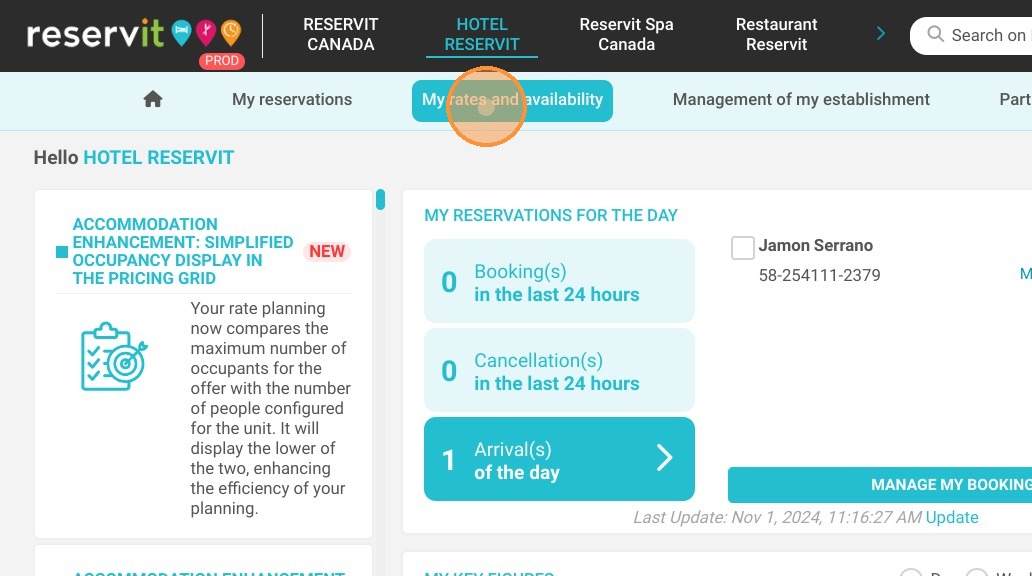
1. In the upper menu click on "My rates and availability" and "My offers"
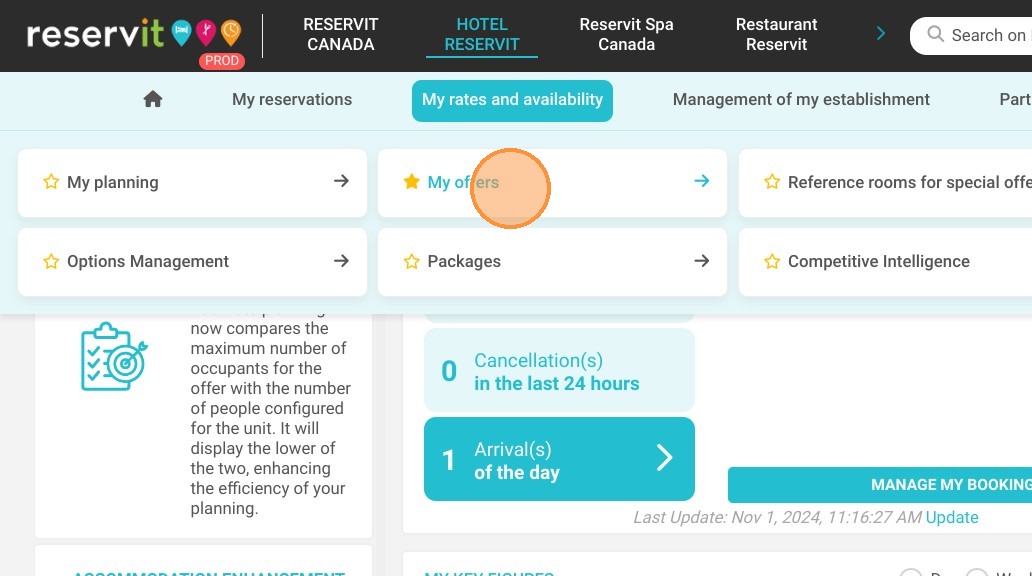
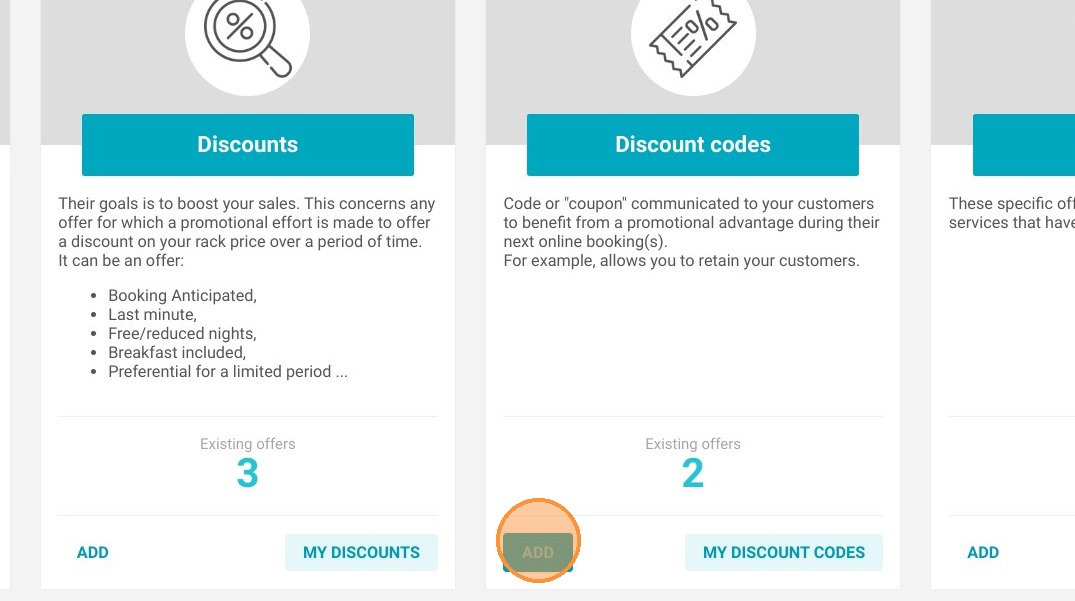
2. Add a discount code
3. Enter the title of your offer
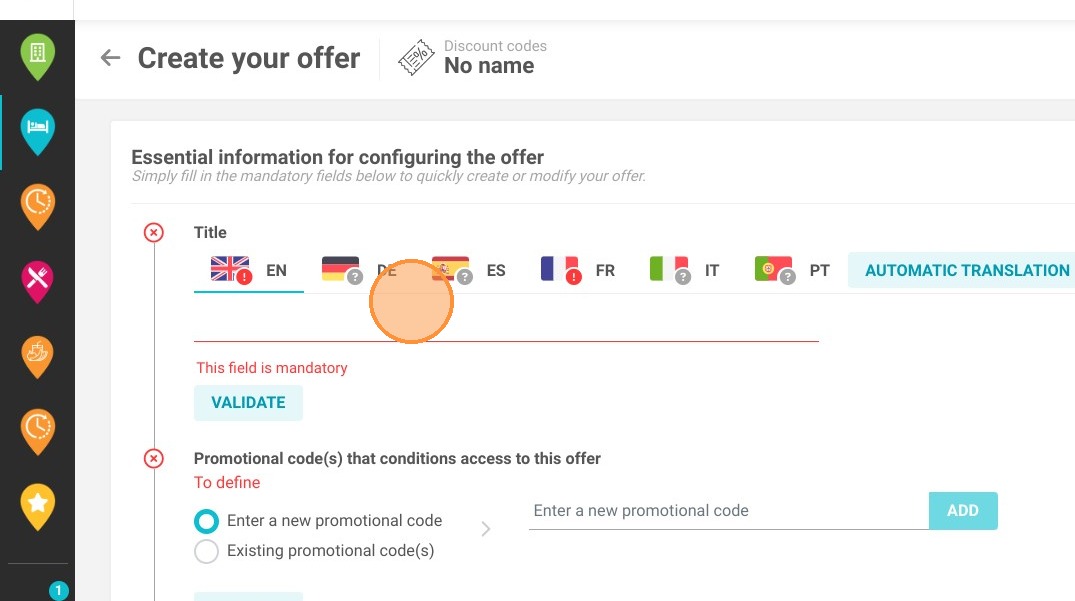
4. Enter a new promotional code for your offer, you can create several codes
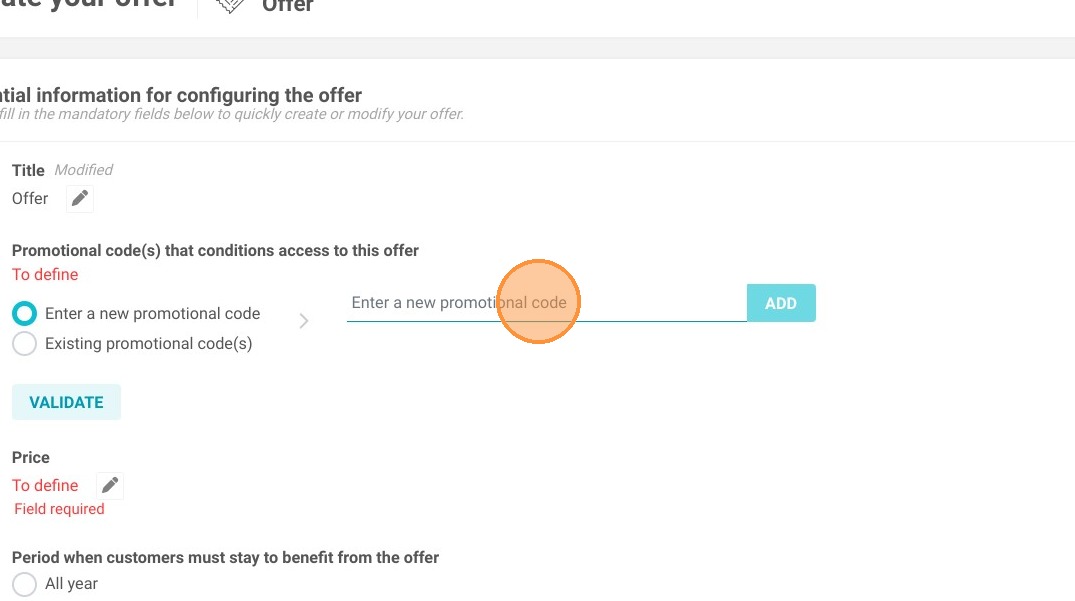
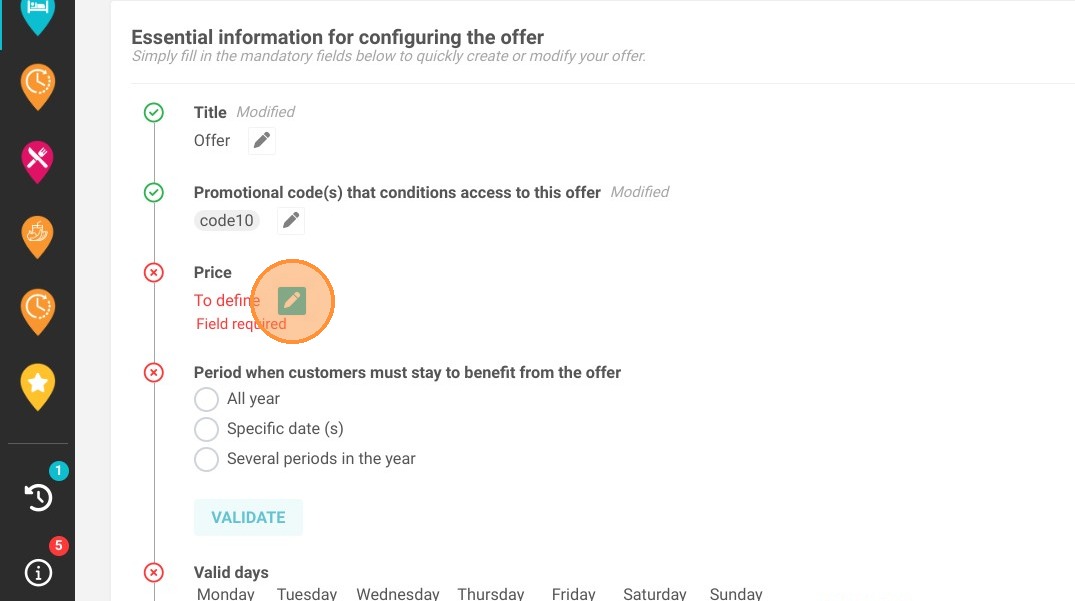
5. You can set your price according to the offer you want
To do this, follow the steps one by one in price configuration
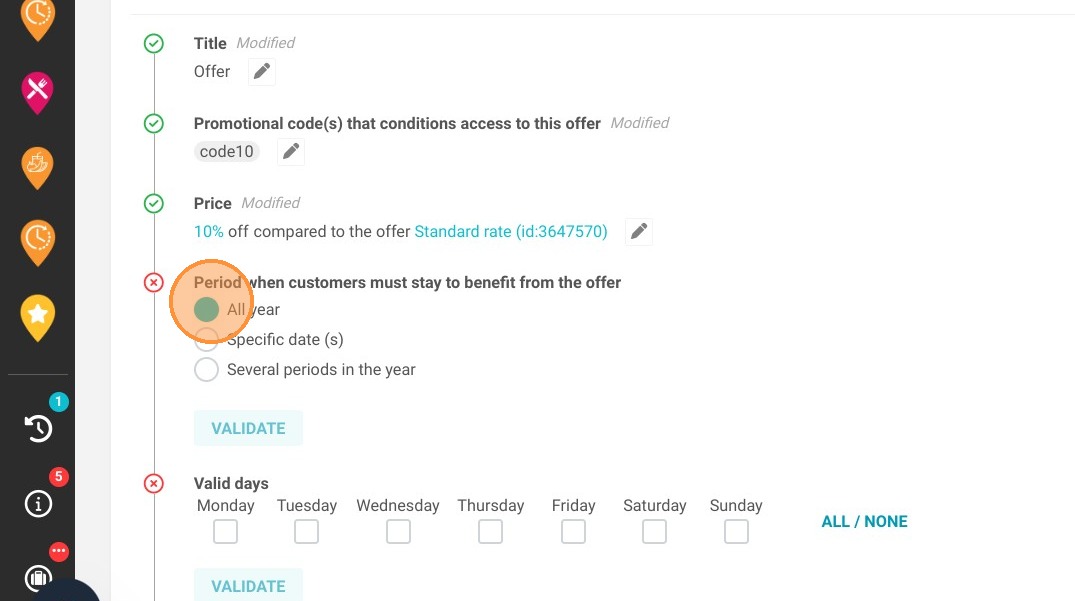
6. Choose the period of your offer
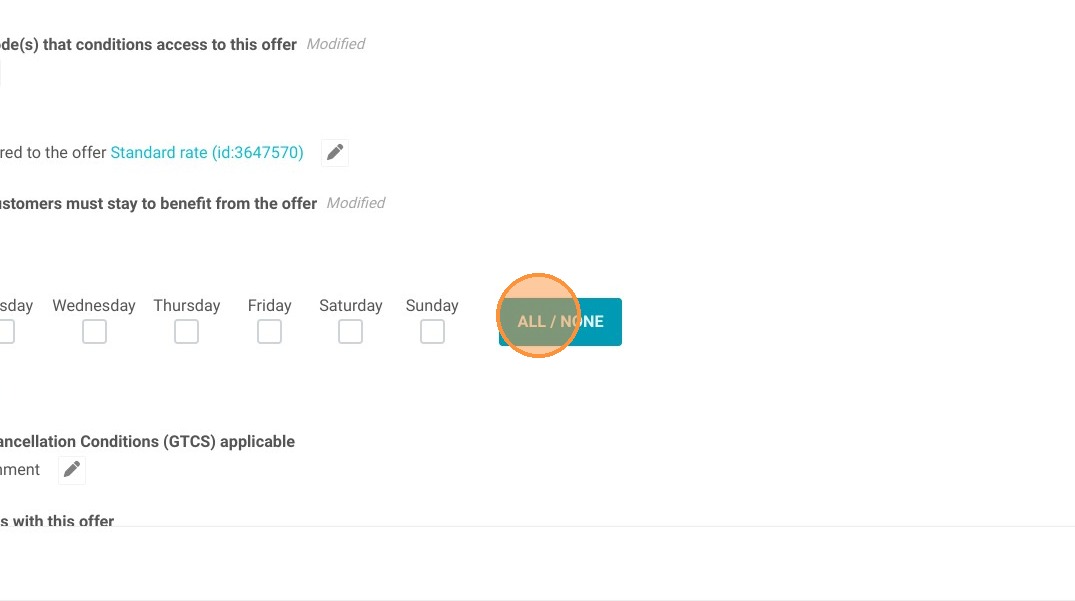
7. Choose the valid days that you need for your offer
8. You can choose specific Booking and cancellation conditions applicable if you want
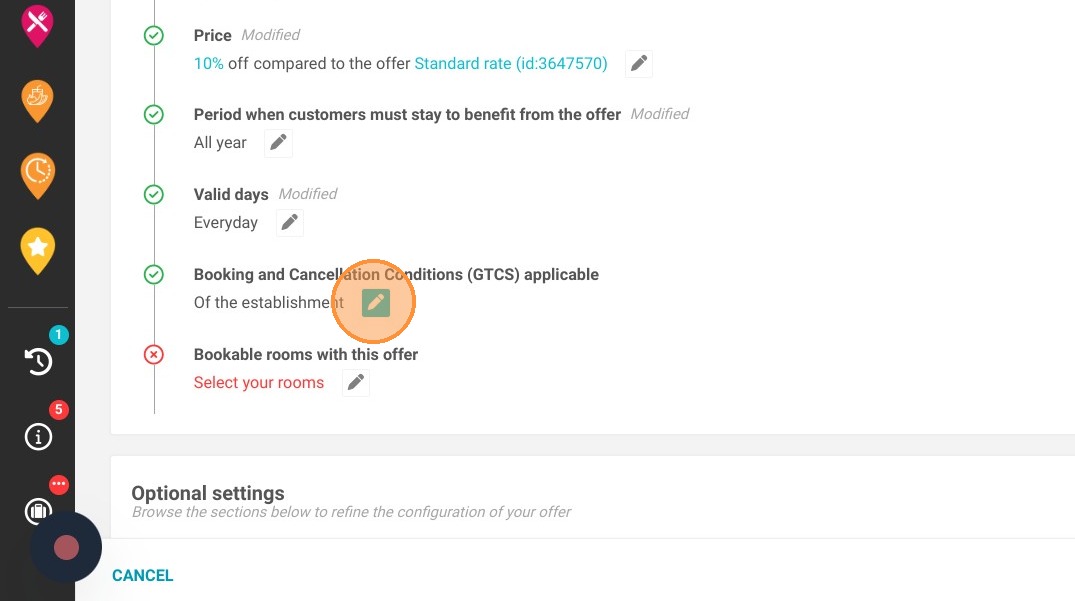
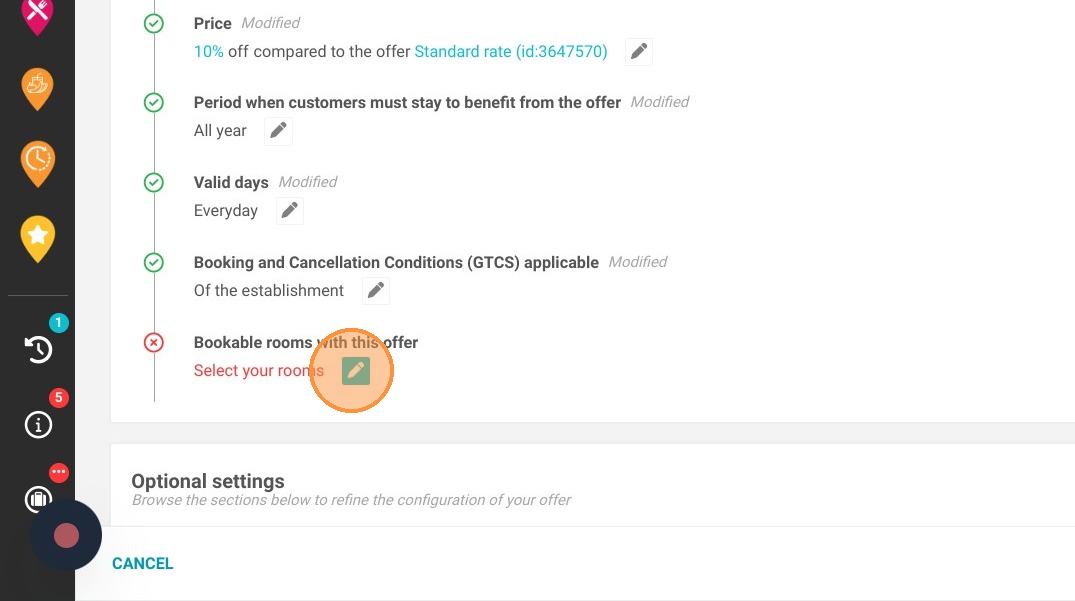
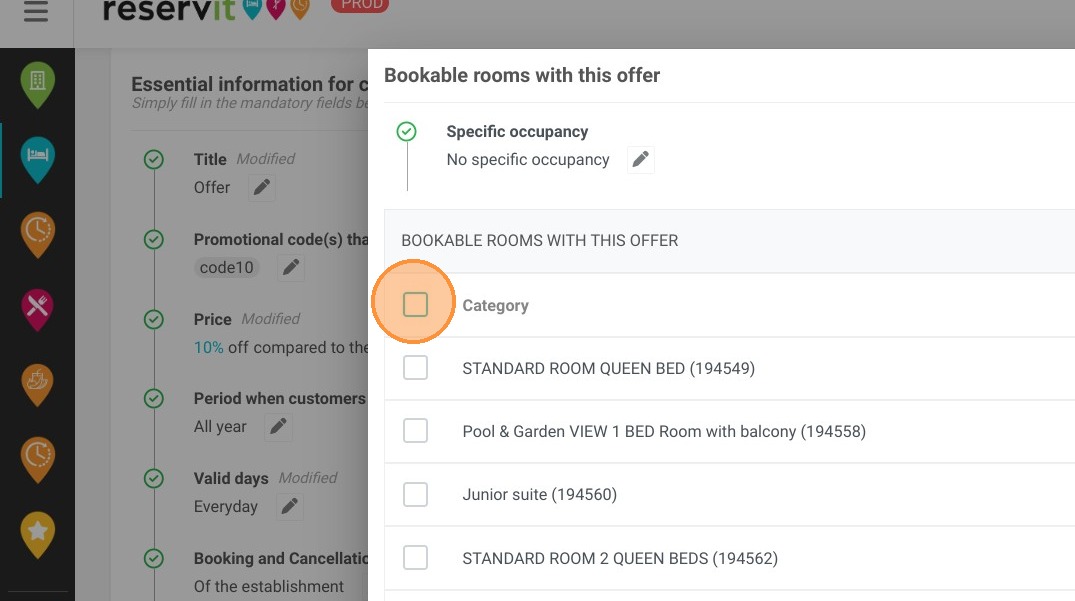
9. Choose all the rooms available for your offer
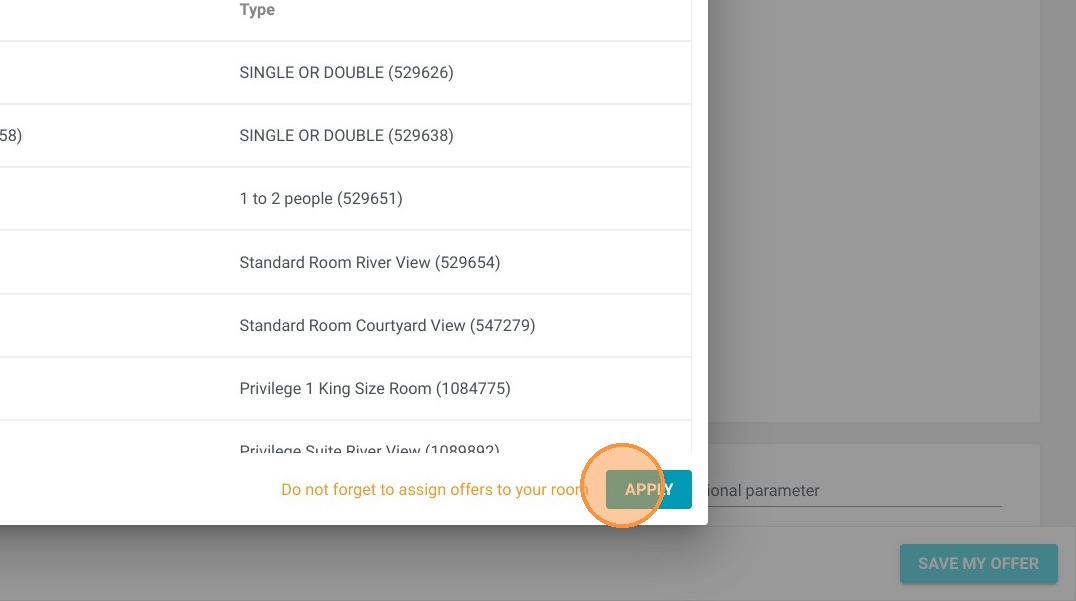
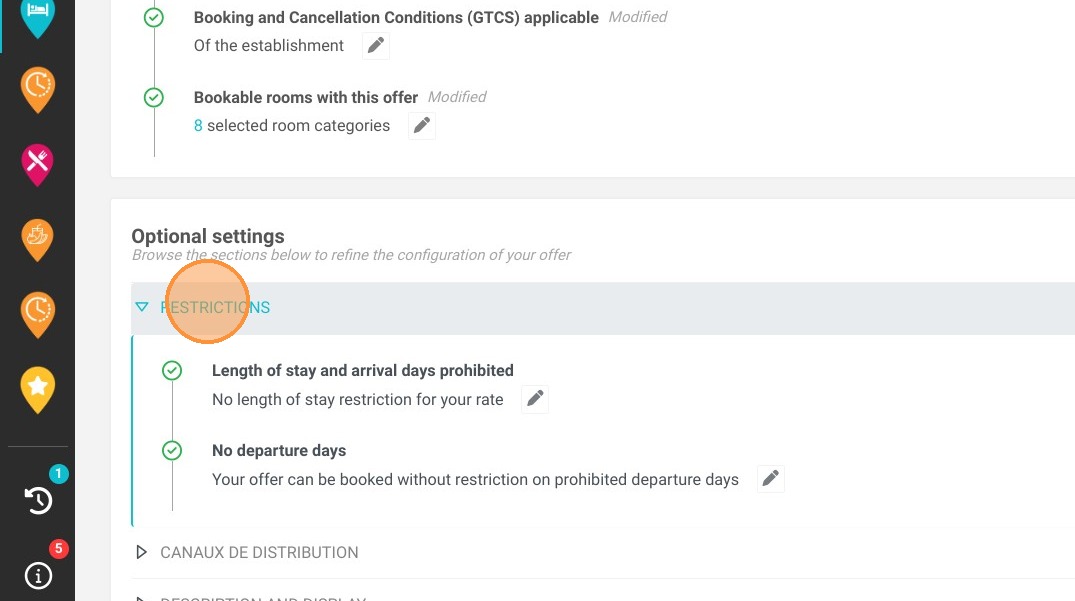
10. You can apply restrictions on your offer
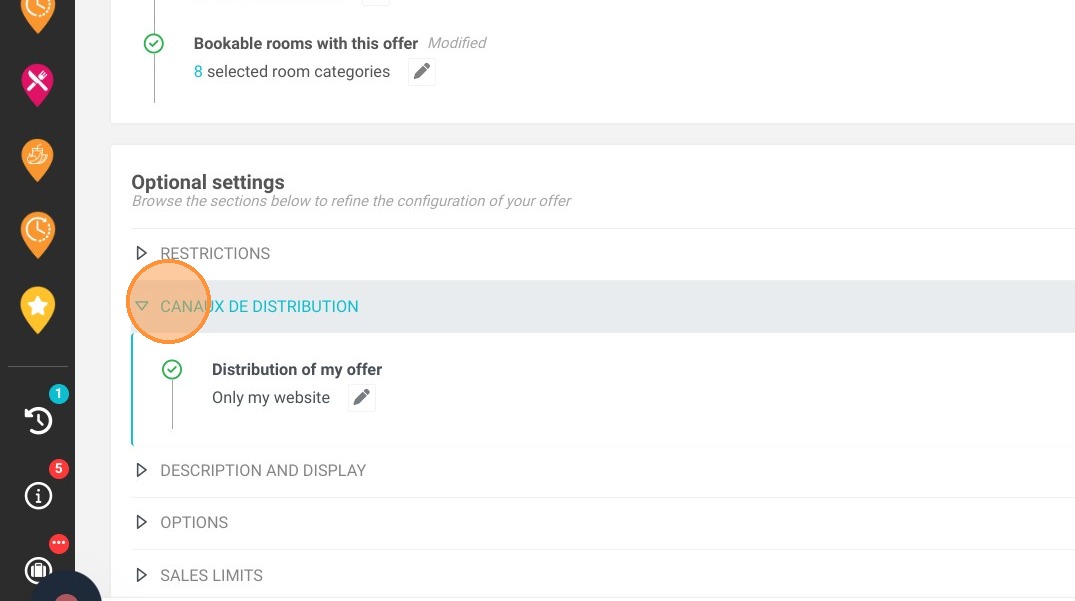
11. You can choose different distributions for your offer
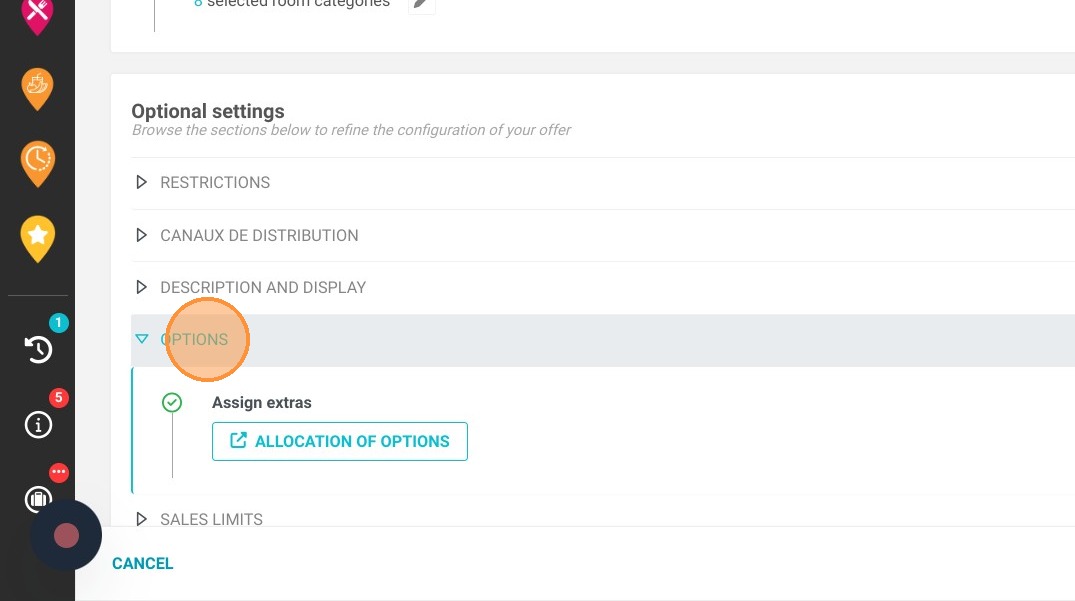
12. You can add options to your offer
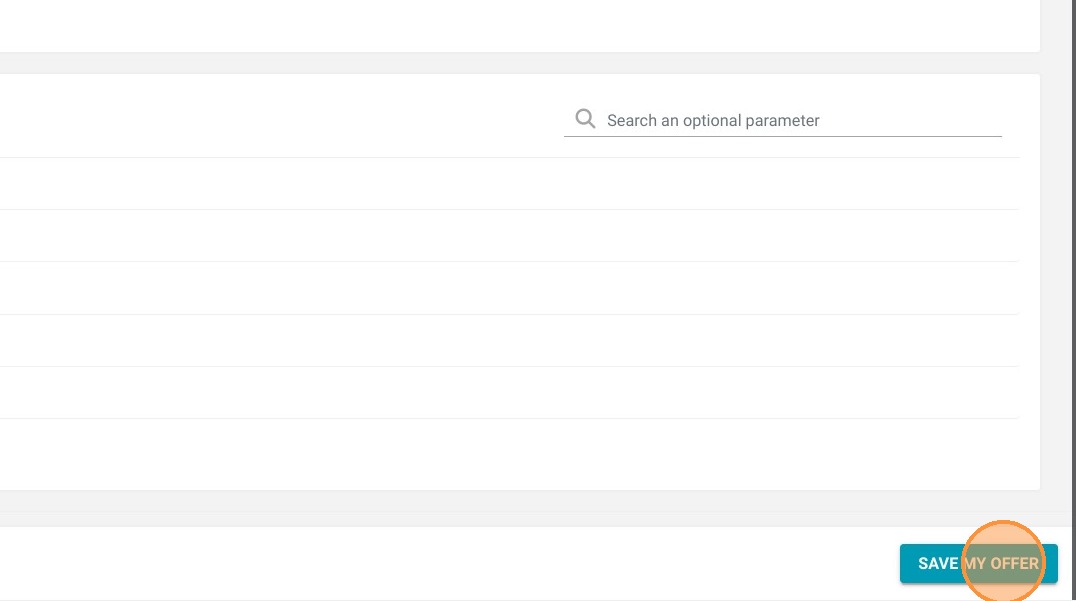
13. You can save your offer
Tip: You've finished your offer, now you can publish it!