Article Summary: This comprehensive tutorial explains how to successfully create and manage special offers within your Reservit Accommodation booking engine. You will learn how to configure pricing discounts, define length-of-stay restrictions, and apply targeted booking conditions to attract more guests. Implementing customized promotional rates helps you boost your direct sales, increase occupancy during low seasons, and effectively maximize your overall revenue strategy.
The 5 Key Steps to Create a Special Offer:
-
Initiate the Offer: Navigate to "My rates and availability," select "My offers," and click the "ADD" button to begin creating your new promotion.
-
Define Pricing and Units: Enter a clear name for the offer, configure the specific price reduction (such as a fixed percentage discount), and select which room types or units are eligible.
-
Set Booking Restrictions: Define your distribution channels (e.g., your website or specific partners) and establish parameters like available days and minimum length-of-stay requirements.
-
Configure Sales Conditions: Assign the appropriate booking and cancellation policies, link any extra services, and apply sales limits to control the total number of promotional reservations.
-
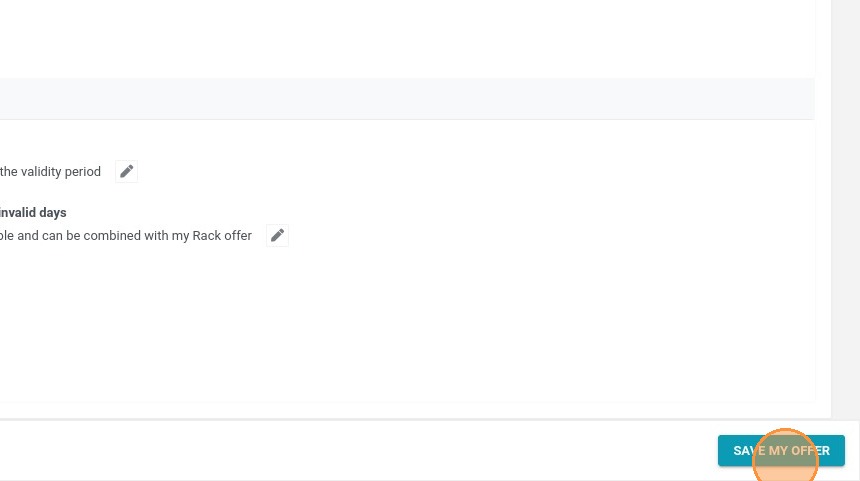
Review and Save: Adjust any specific taxes required for the promotion, review your display criteria, and click "SAVE MY OFFER" to launch it on your booking engine.
Why follow this guide? Creating well-structured special offers allows you to rapidly adapt to market demands and automate your promotional campaigns without manual daily pricing adjustments. Following these exact steps ensures your discounts are strategically applied and secure, protecting your profit margins while actively incentivizing direct bookings.
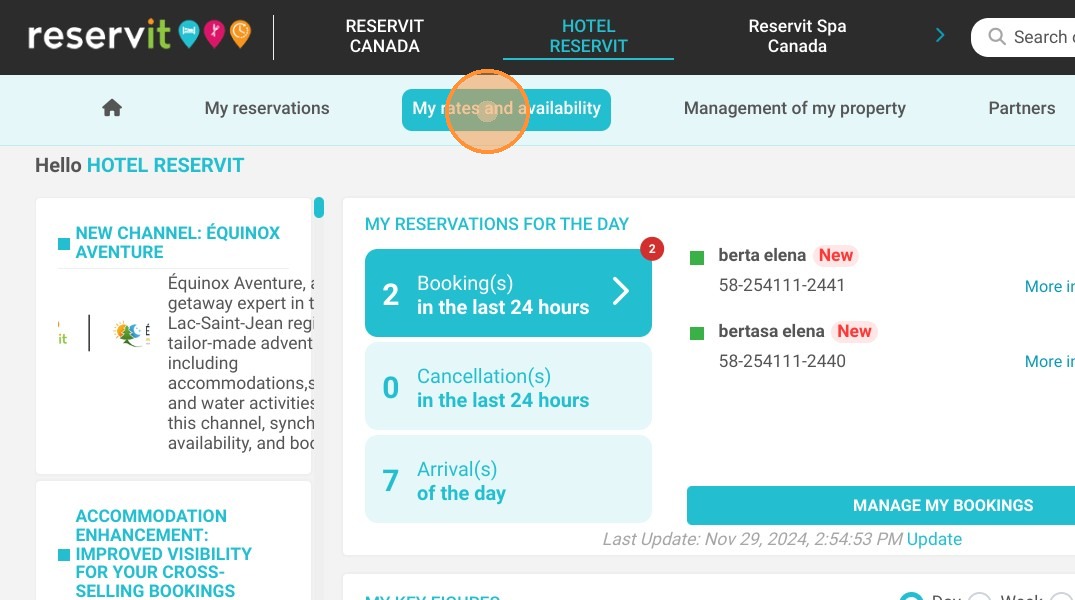
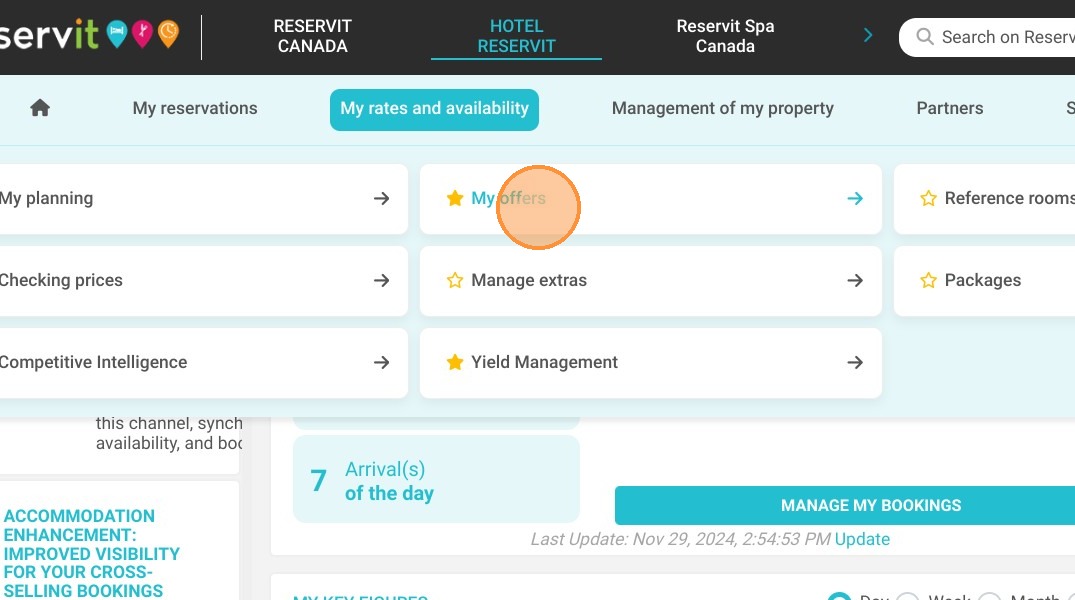
1. Click "My rates and availability" then "My offers" - Choose an offer.
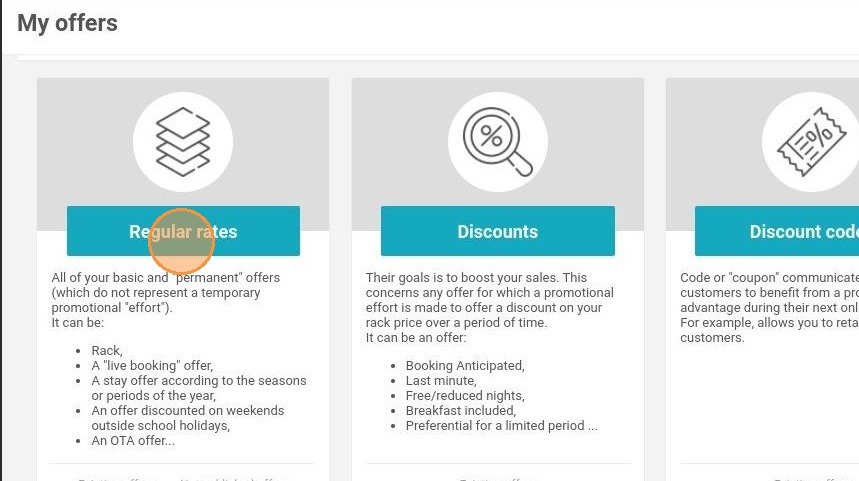
2. For example, select "Regular rates"
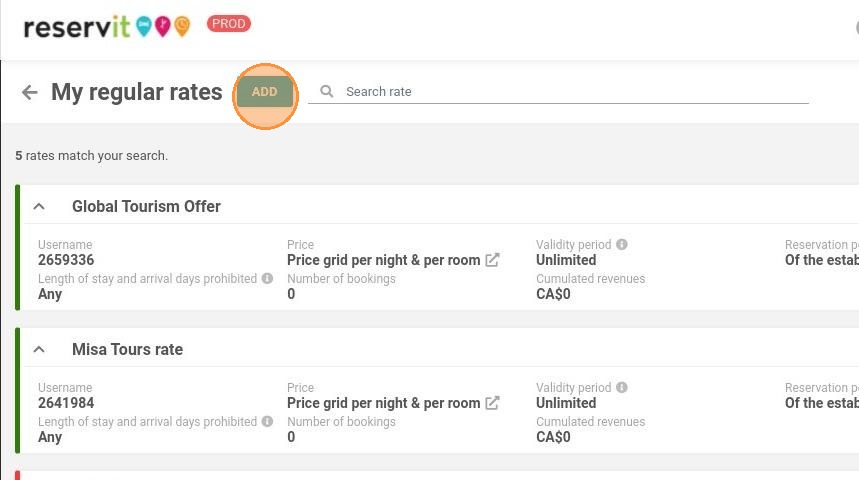
3. Click on "ADD" to create a new offer
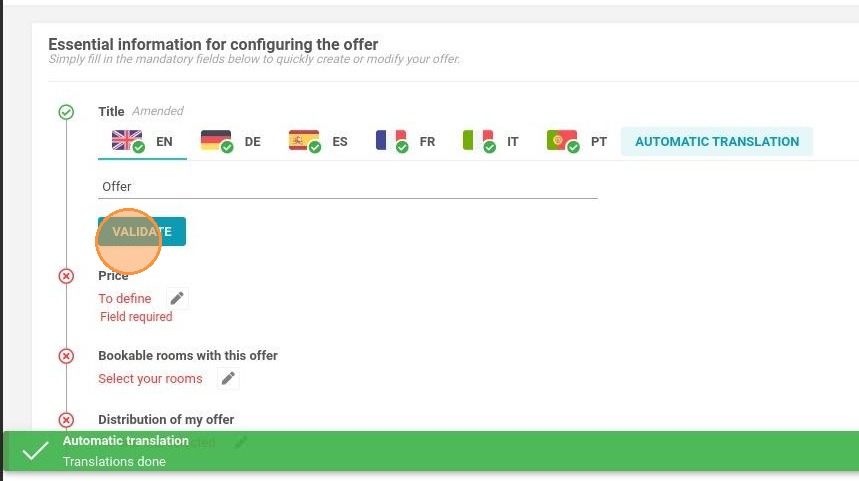
4. Enter the name of the offer, then "VALIDATE"
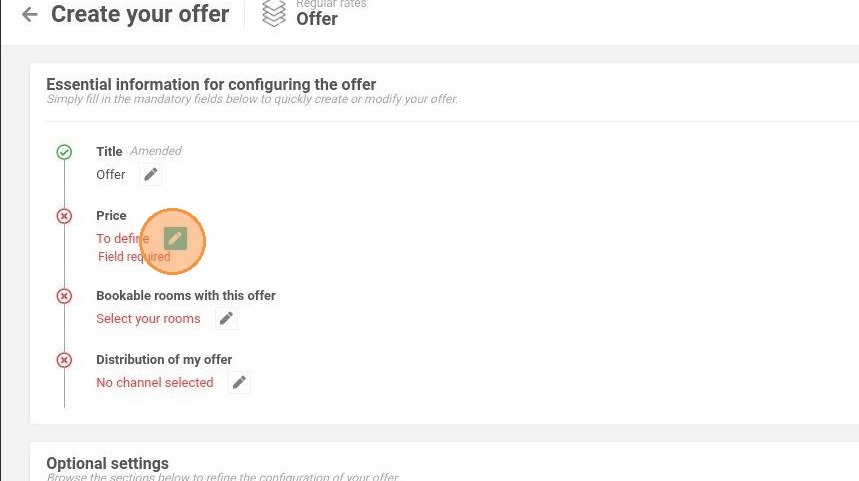
5. Define the price
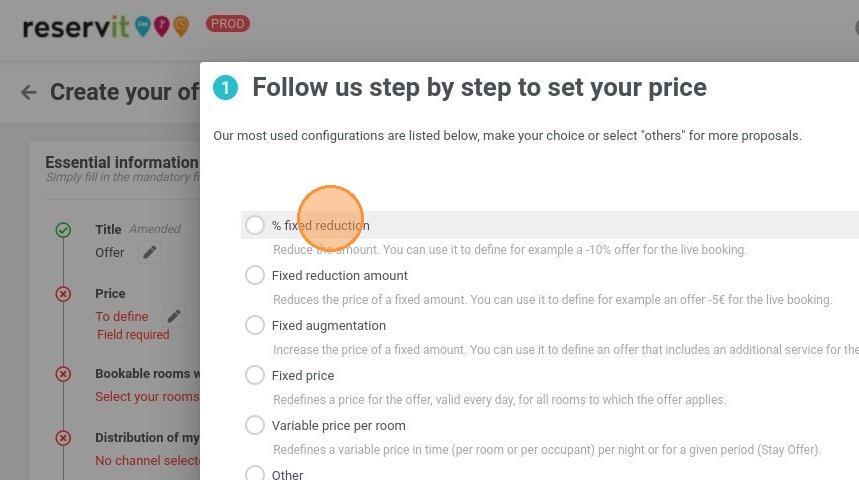
6. For example here, "% fixed reduction". Then follow the steps
7. Select the units that can be booked with this offer
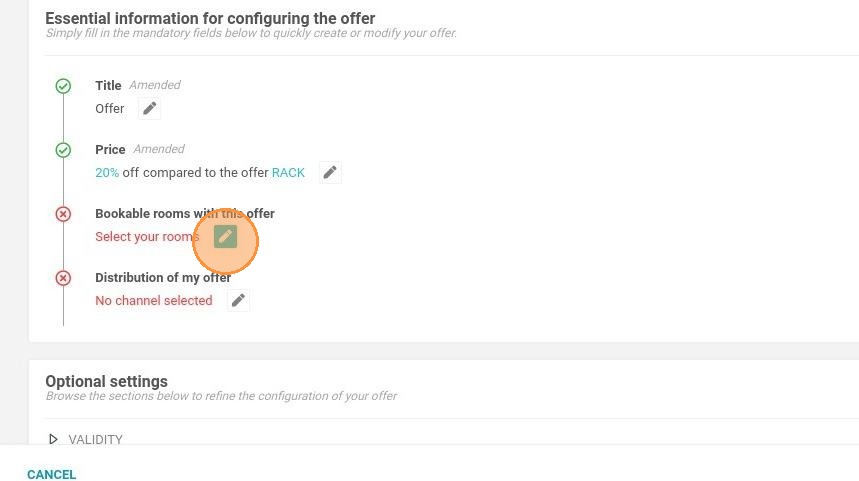
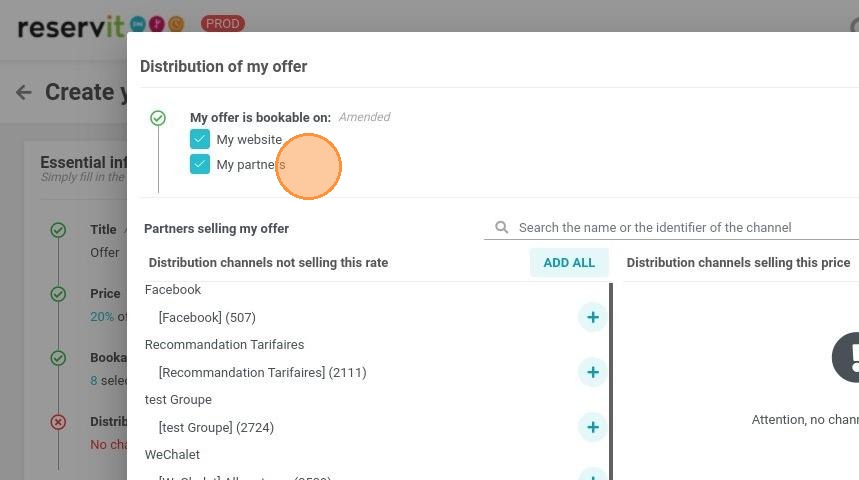
8. Define the distributors that can book this offer
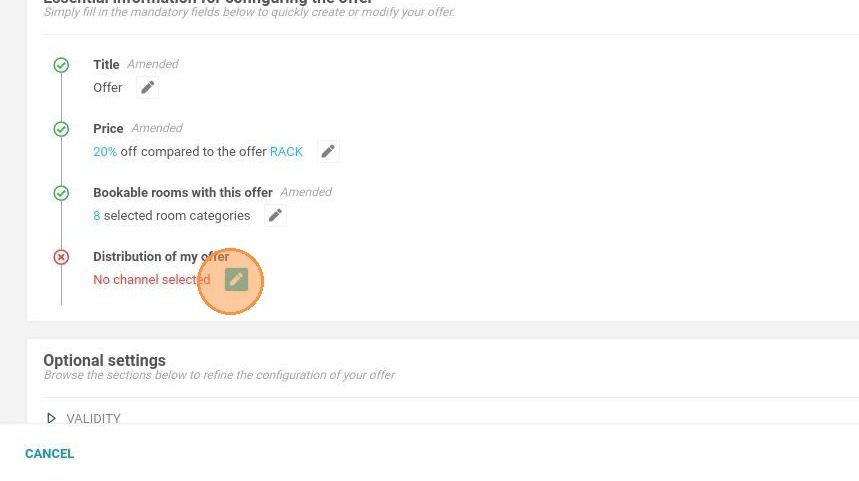
9. It can be your website and/or partners
10. Click this text field.
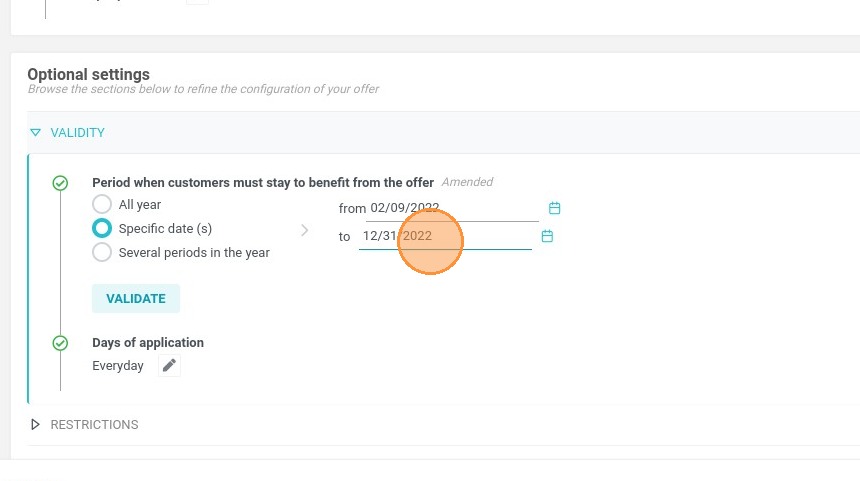
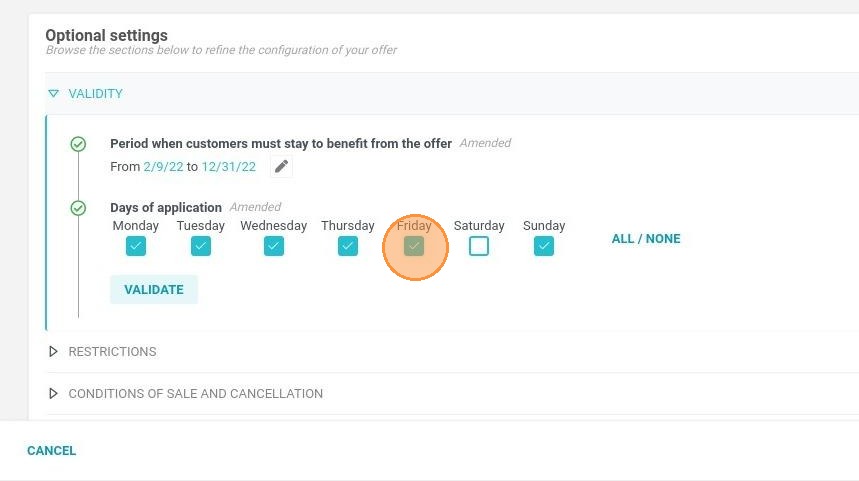
11. Then set the days
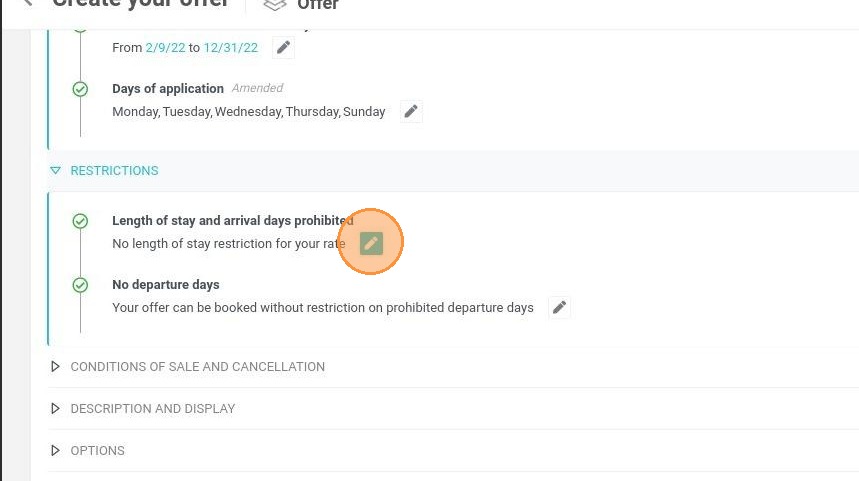
12. Define if there is any length of stay restriction
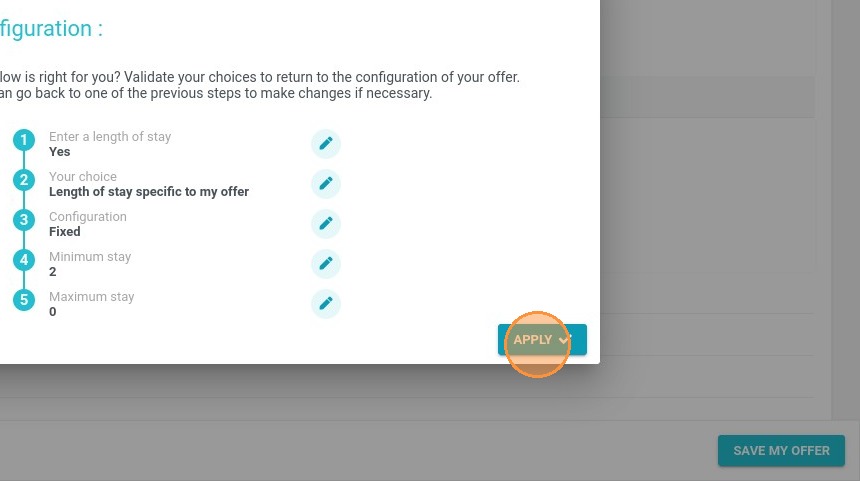
13. In this example, there is a 2-night minimum at all times for this offer.
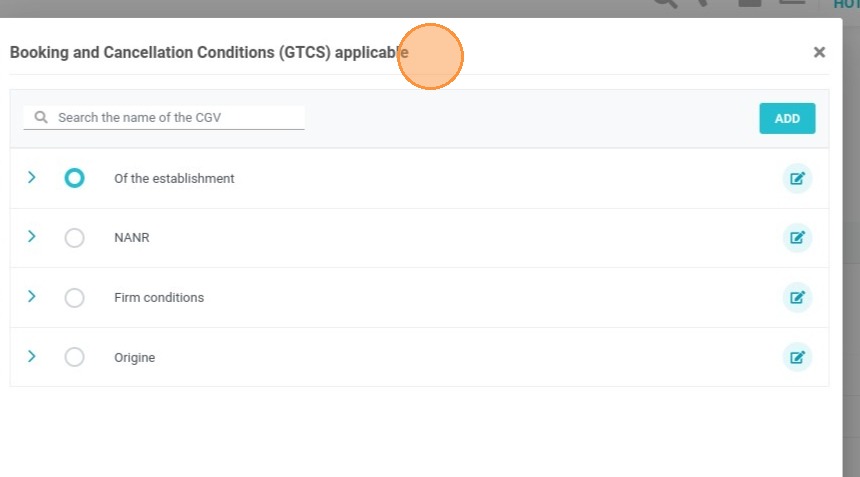
14. Define the booking and cancellation conditions
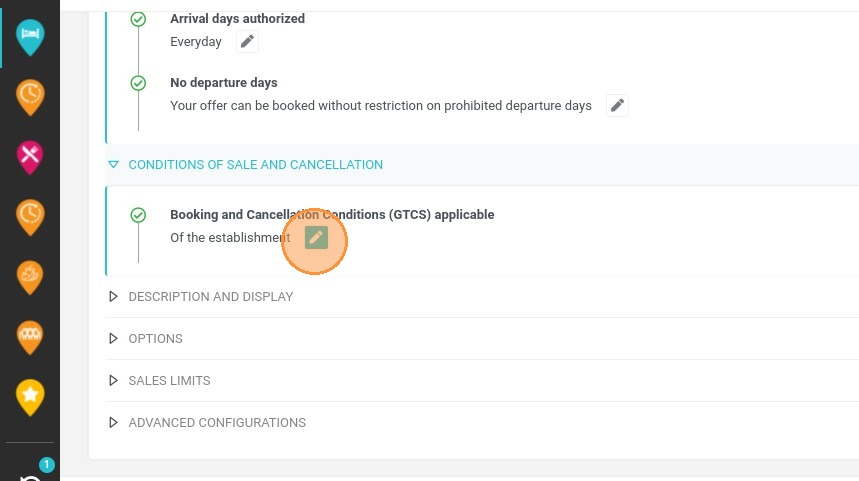
15. It can be your general conditions or specific ones
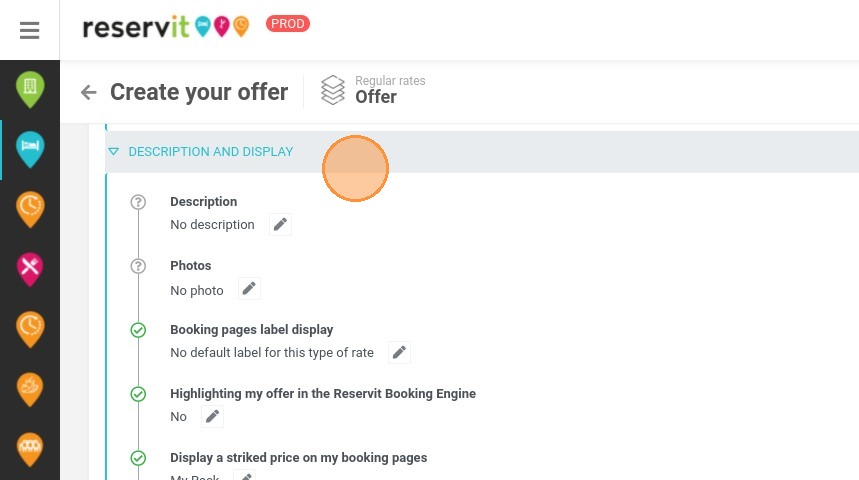
16. Adjust the different display criteria according to your needs
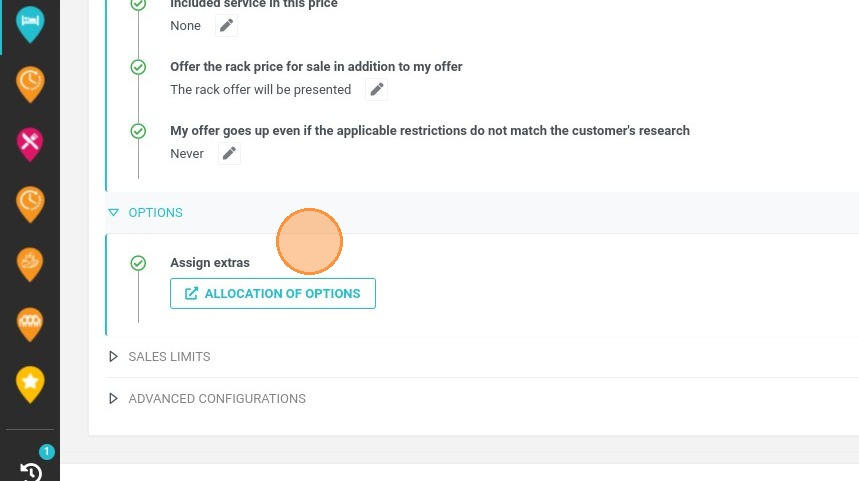
17. Link options created in Offers > manage extras
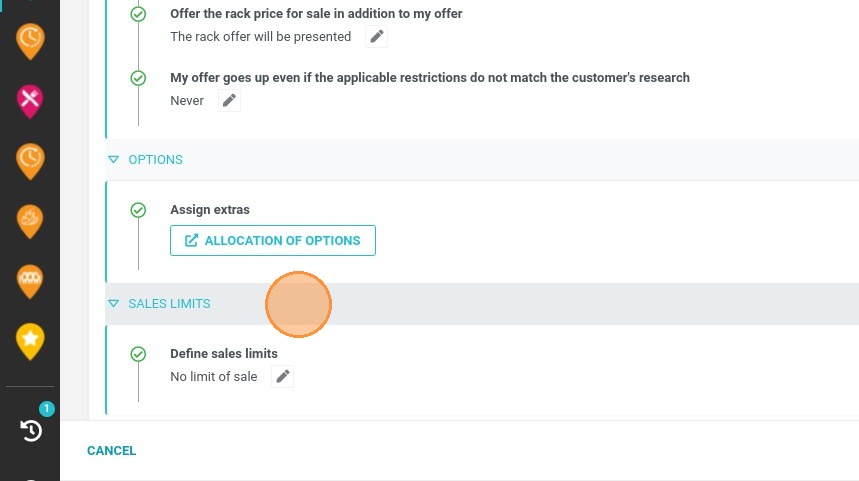
18. Apply sales limits to limit the number of reservations for this offer
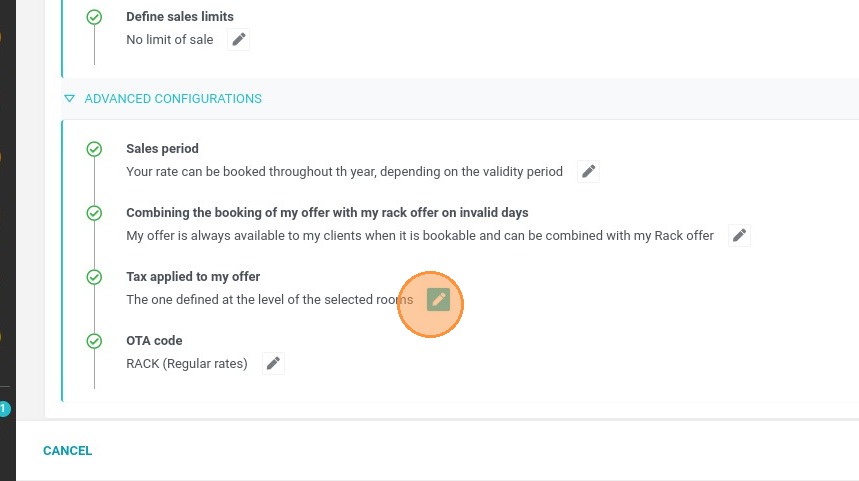
19. If necessary, define specific taxes for this offer
20. Click on "SAVE MY OFFER" when you are done