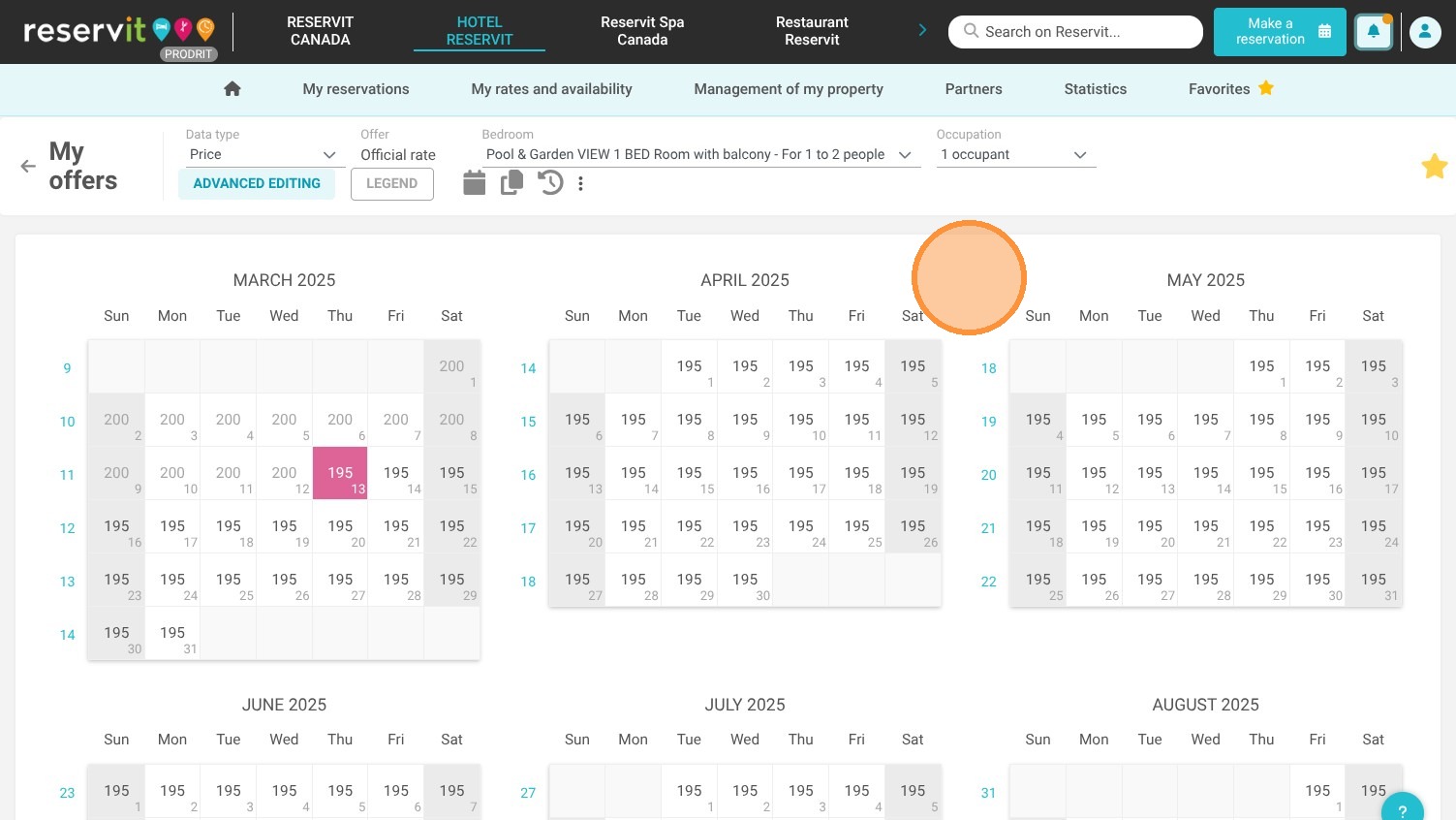
Article Summary: This step-by-step tutorial explains how to quickly modify and adjust your offer prices within Reservit Accommodation. You will learn how to navigate to your price grid and use the advanced editing tool to apply fixed rates, bulk increases, or specific discounts across targeted date ranges. Mastering this feature ensures your lodging pricing remains competitive, accurate, and perfectly aligned with your dynamic revenue strategy.
The 5 key steps to modify your offer prices:
-
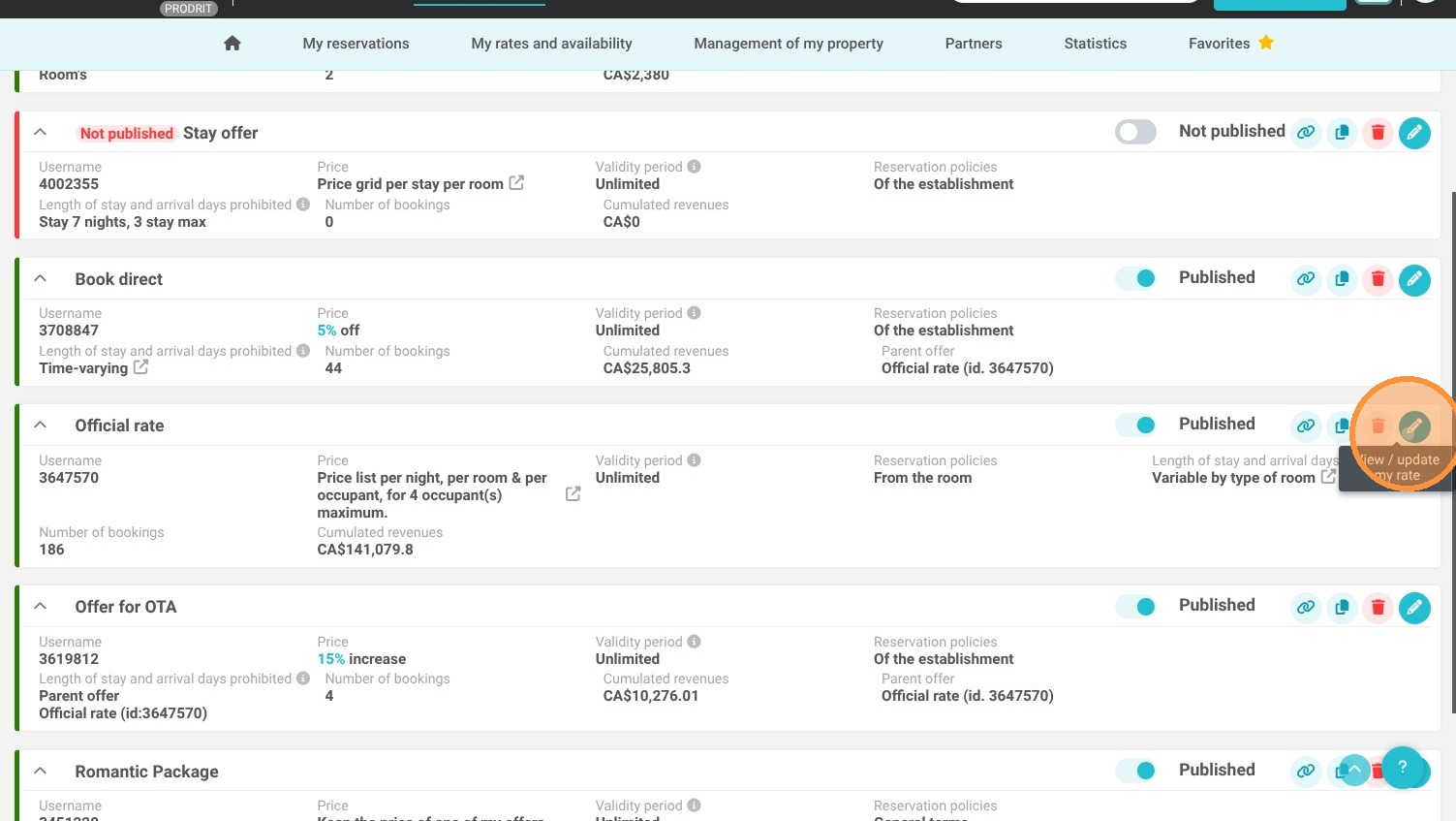
Access your offer settings: Navigate to the "My rates and availability" menu, select "Regular rates" under your offers, and click the pencil icon to edit your chosen plan.
-
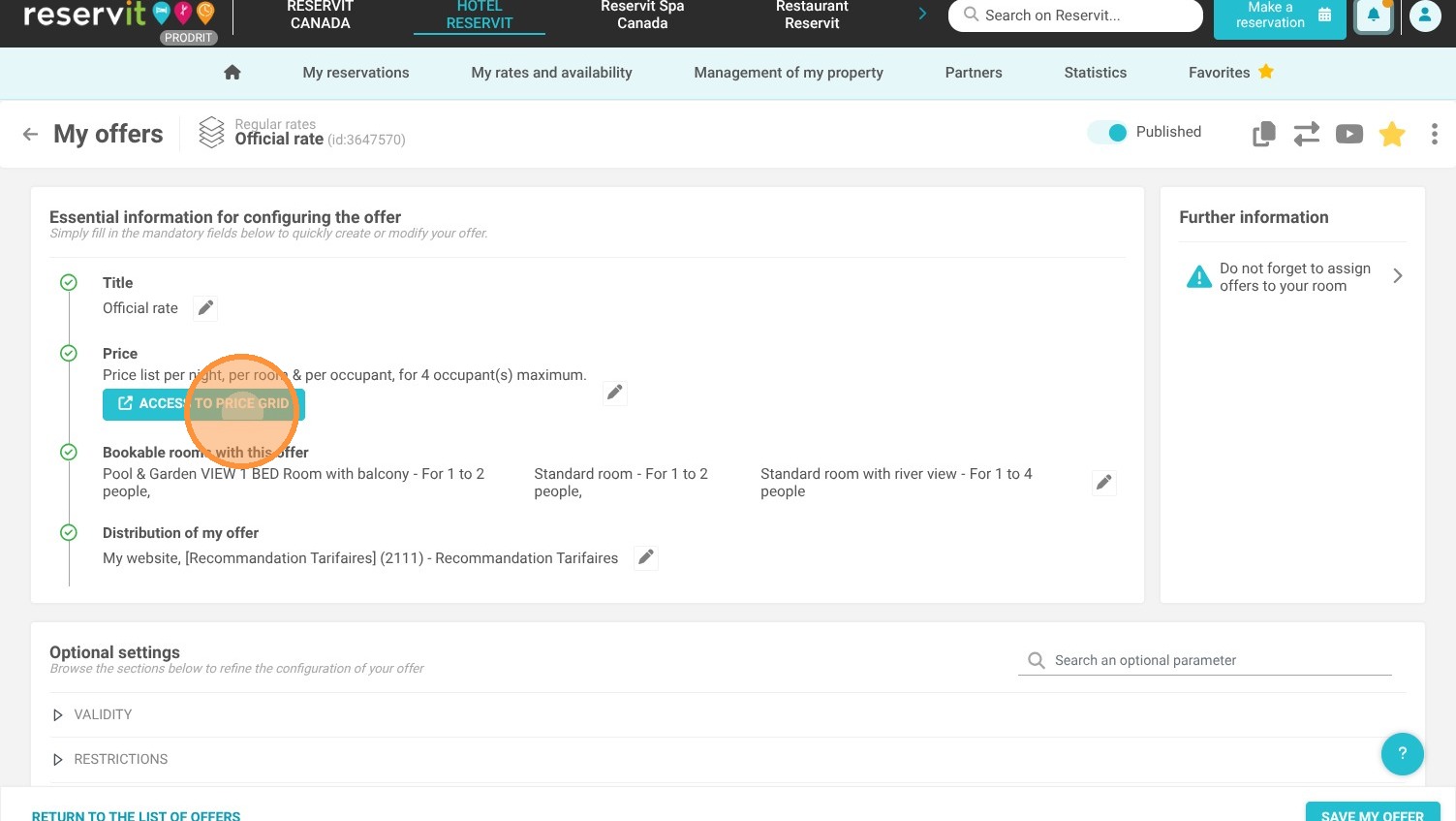
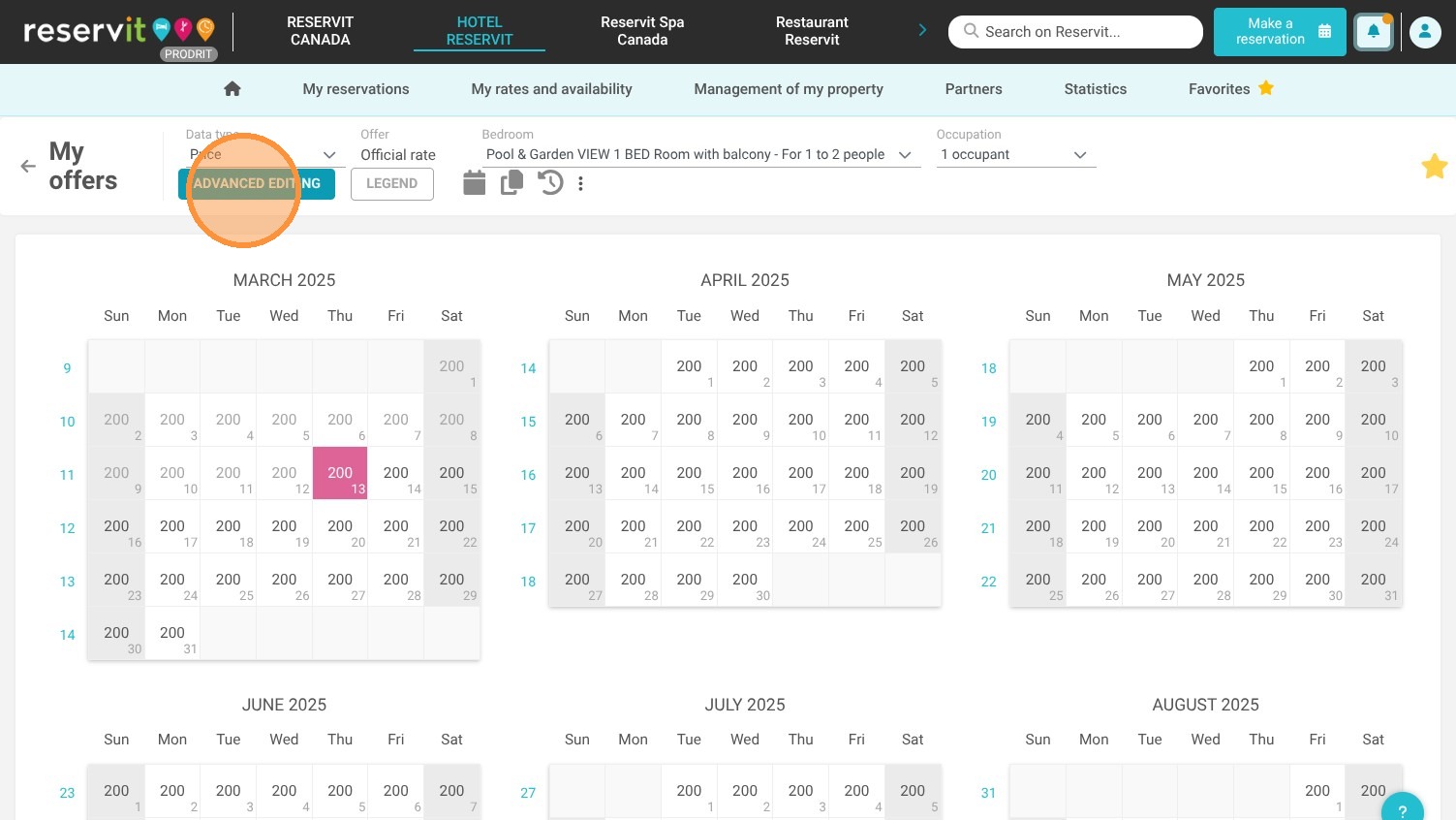
Open the advanced editor: Scroll to click "Access to price grid," then select the "Advanced Editing" button to enable bulk price modifications.
-
Select your date range: Highlight the specific dates or seasonal periods on the calendar where you want your new pricing adjustments to take effect.
-
Apply rate adjustments: Choose your specific type of price modification (a fixed amount, an exact increase, or a percentage/flat discount), enter the value, and click "Apply."
-
Verify your newly updated rates: Review the updated calendar grid to confirm that your prices have been successfully adjusted for the selected timeframe.
Why follow this guide? Following this guide saves you significant administrative time by leveraging bulk editing tools instead of updating daily rates manually one by one. It ensures your pricing strategy is applied securely and accurately across your calendar, minimizing the risk of input errors during major seasonal rate changes or flash sales.
1. Click "My rates and availability"
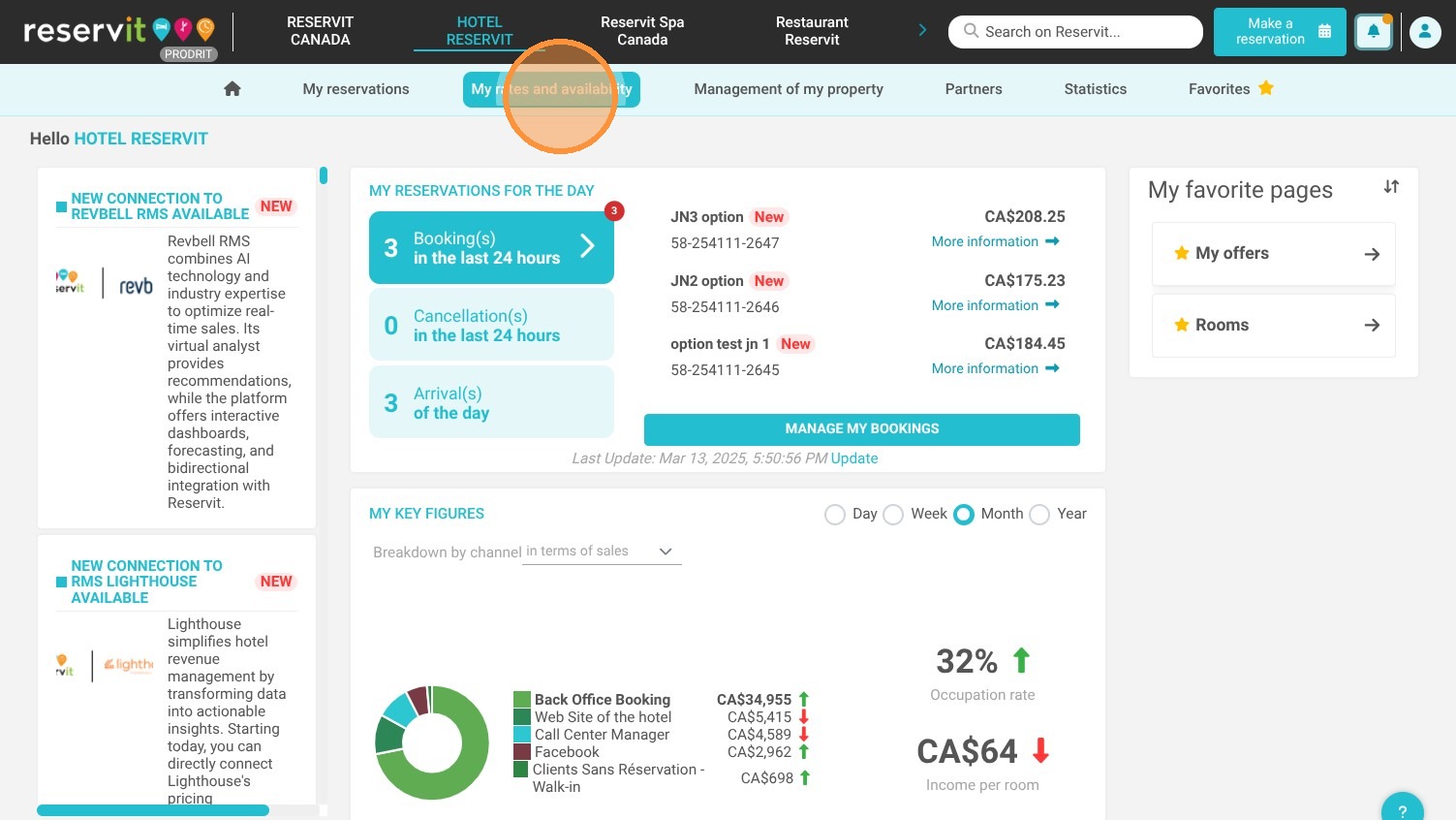
2. Click ''My offers''.
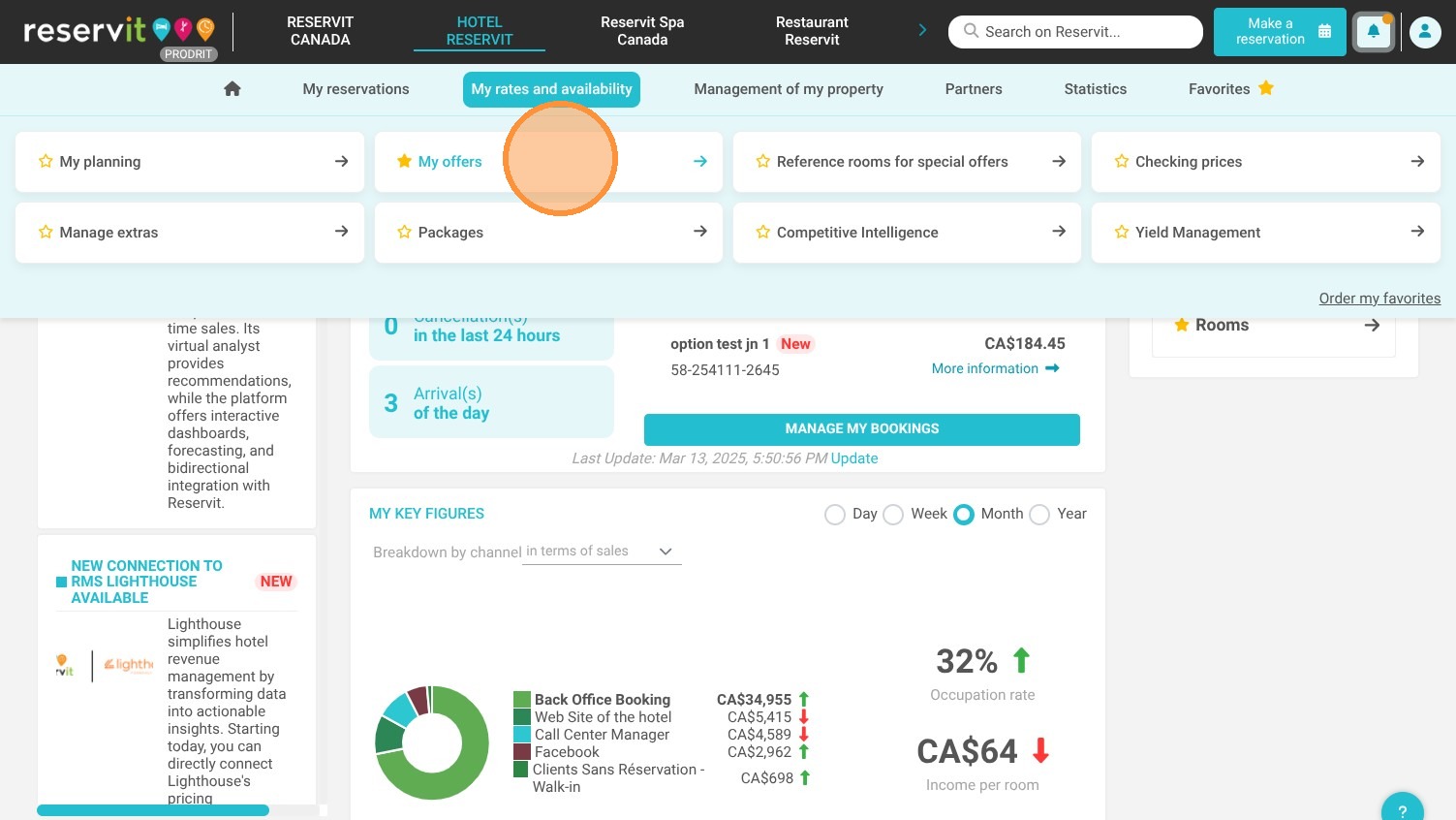
3. Click "Regular rates"
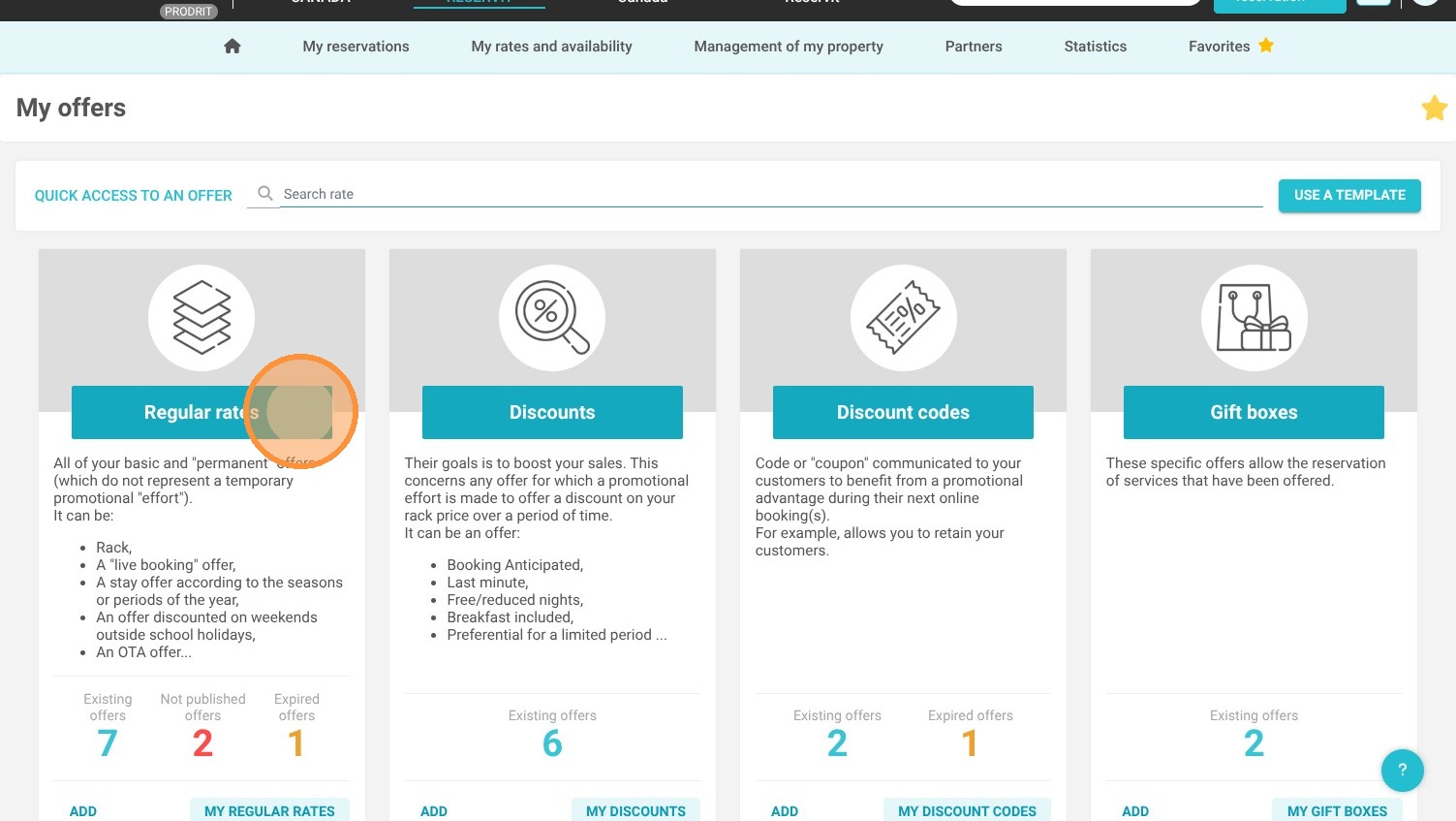
4. Click on the pencil icon to edit your offer.
5. Click "Access to price grid"
6. Click "Advanced Editing"
7. Select the dates for which you want to change the prices.
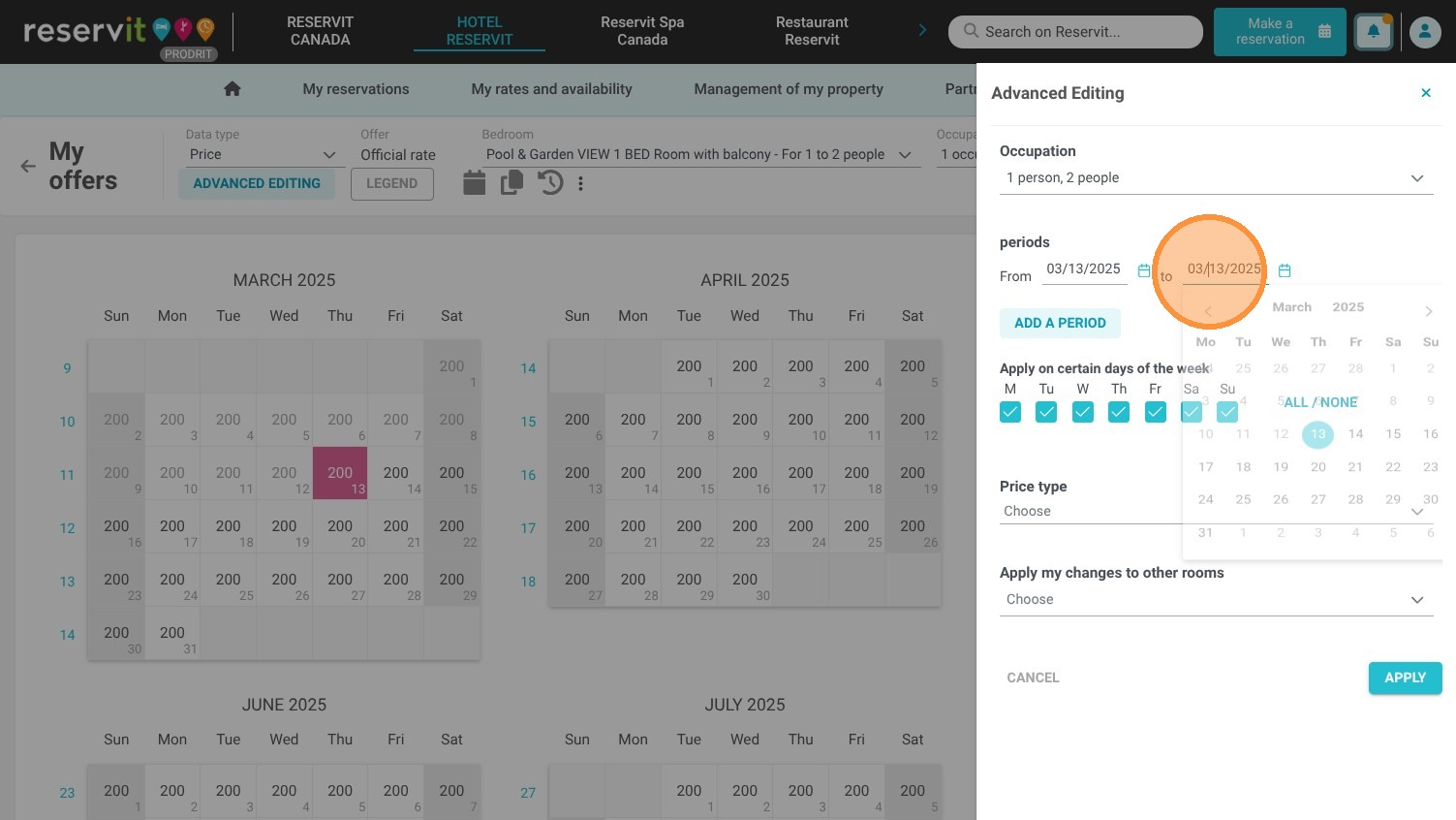
8. Choose the type of price adjustment you want to apply. This can be a fixed amount, an increase, or a discount in $ or %.
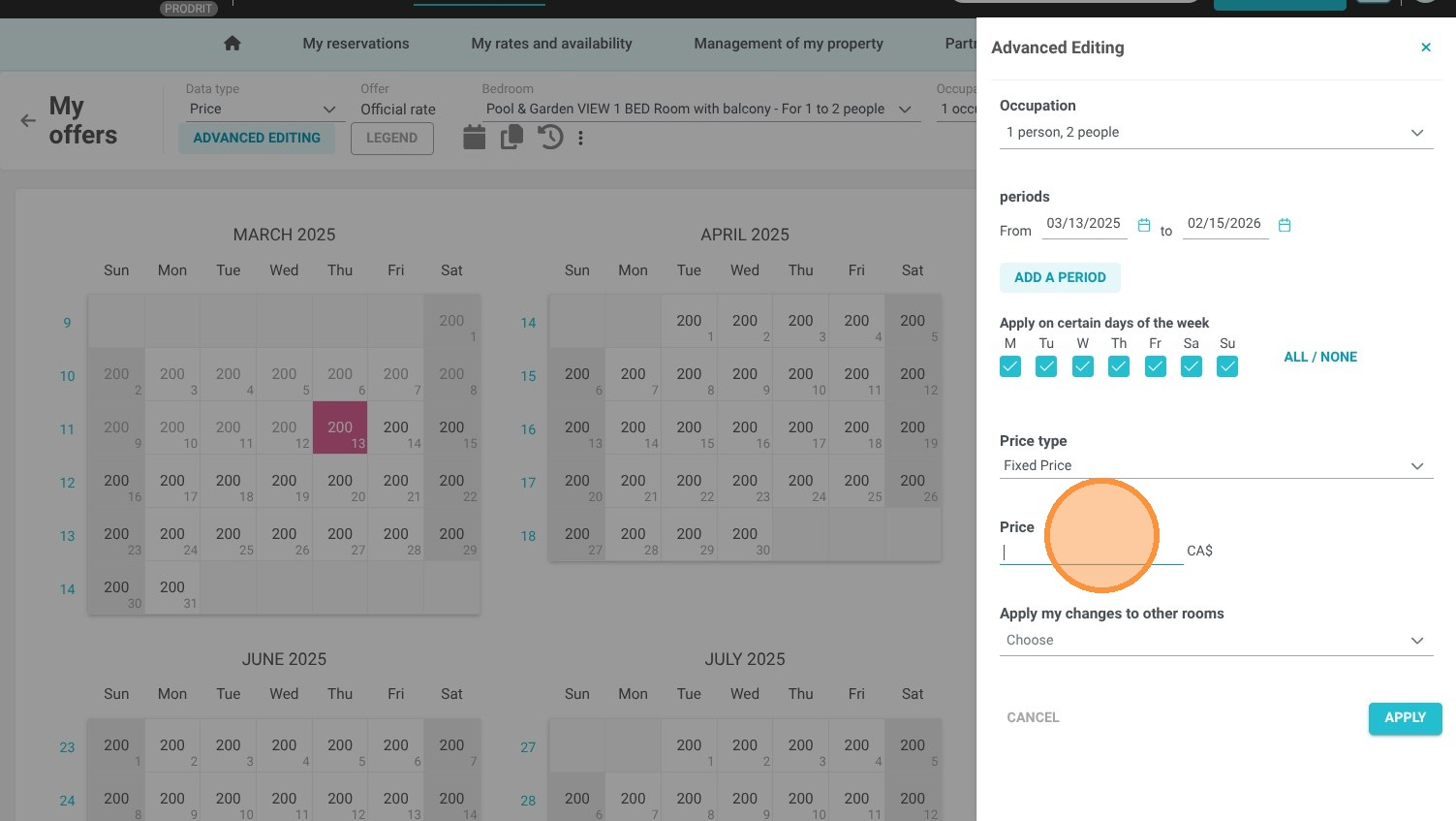
9. Enter the amount and Click "Apply"
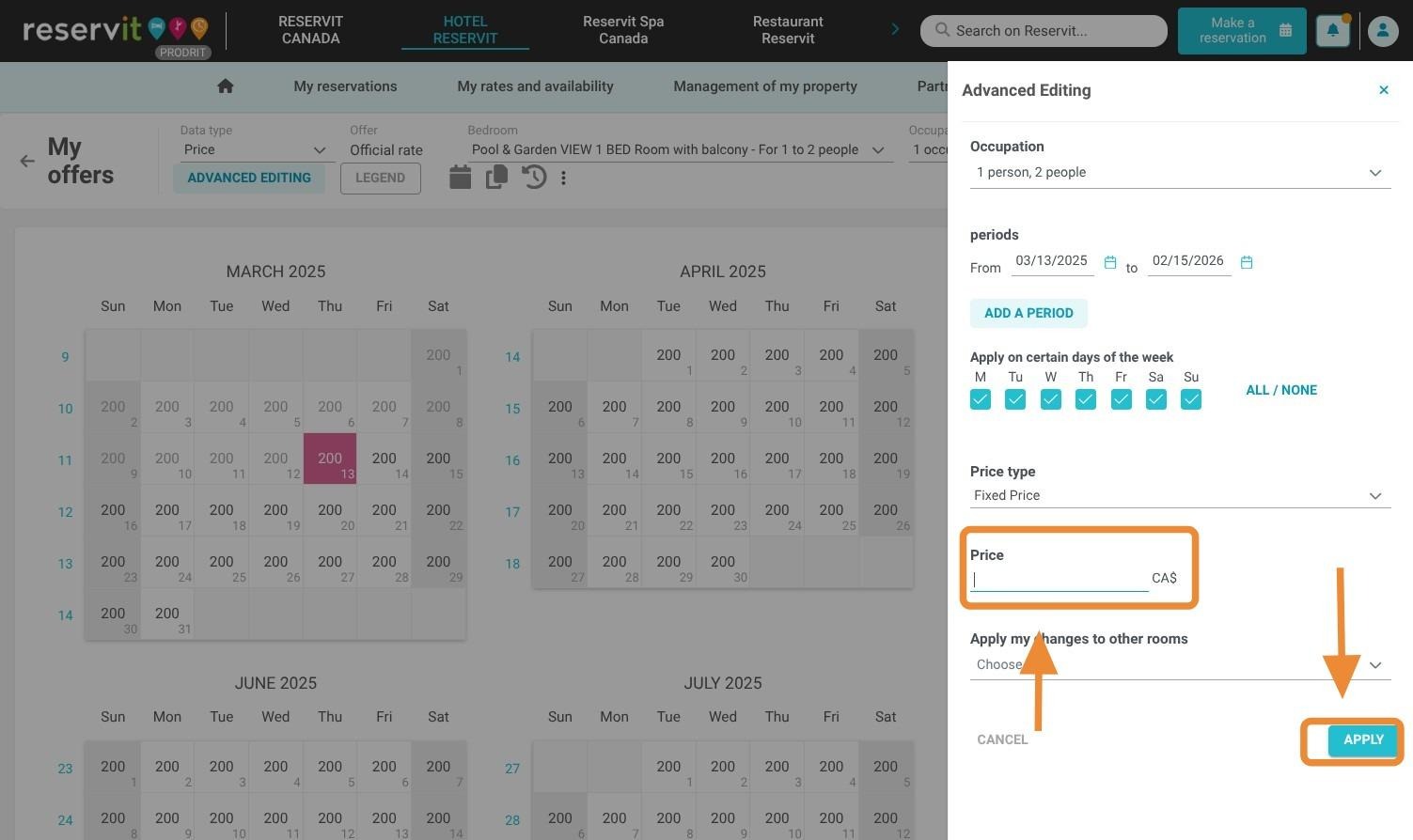
10. Your prices are now up to date.