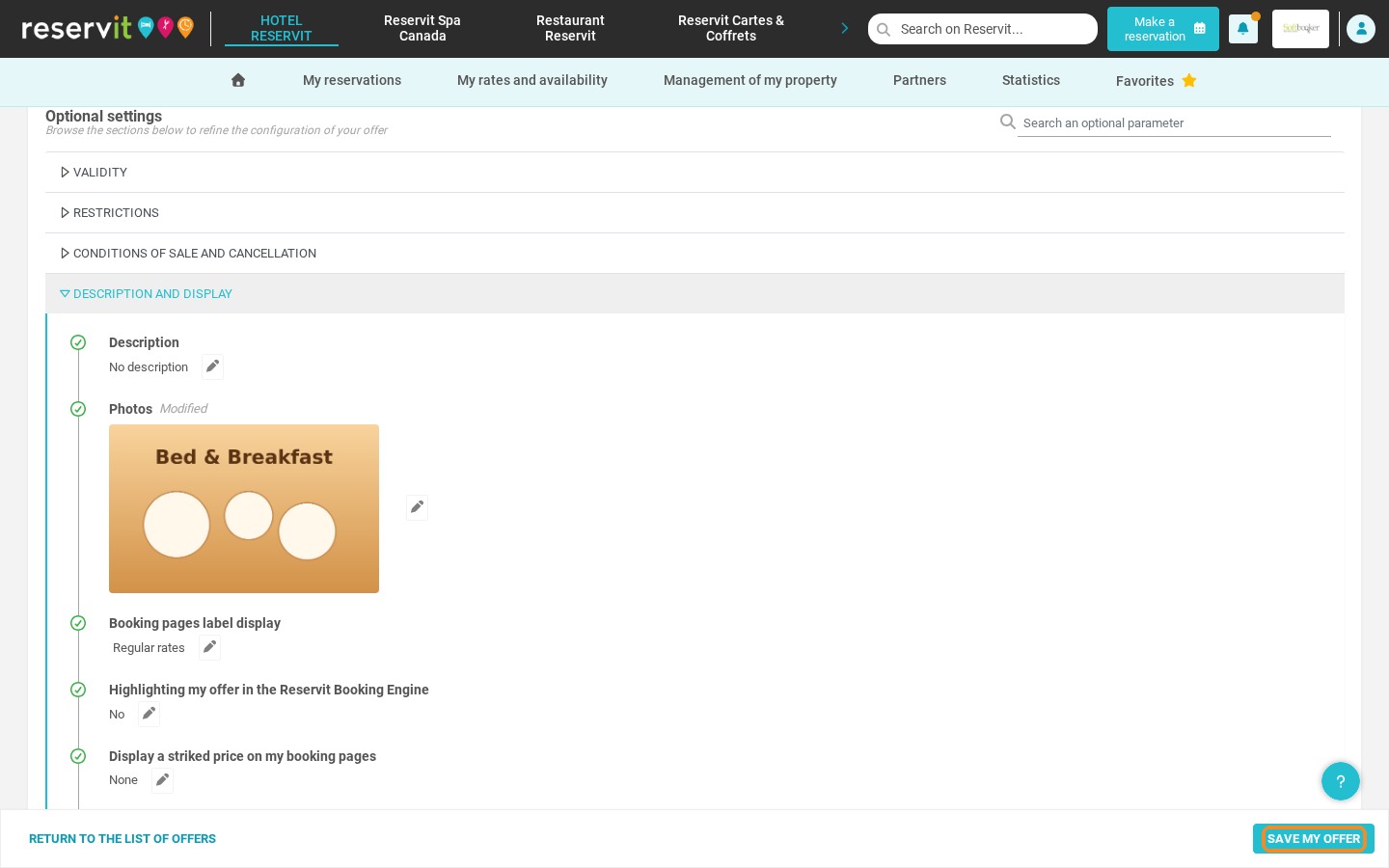
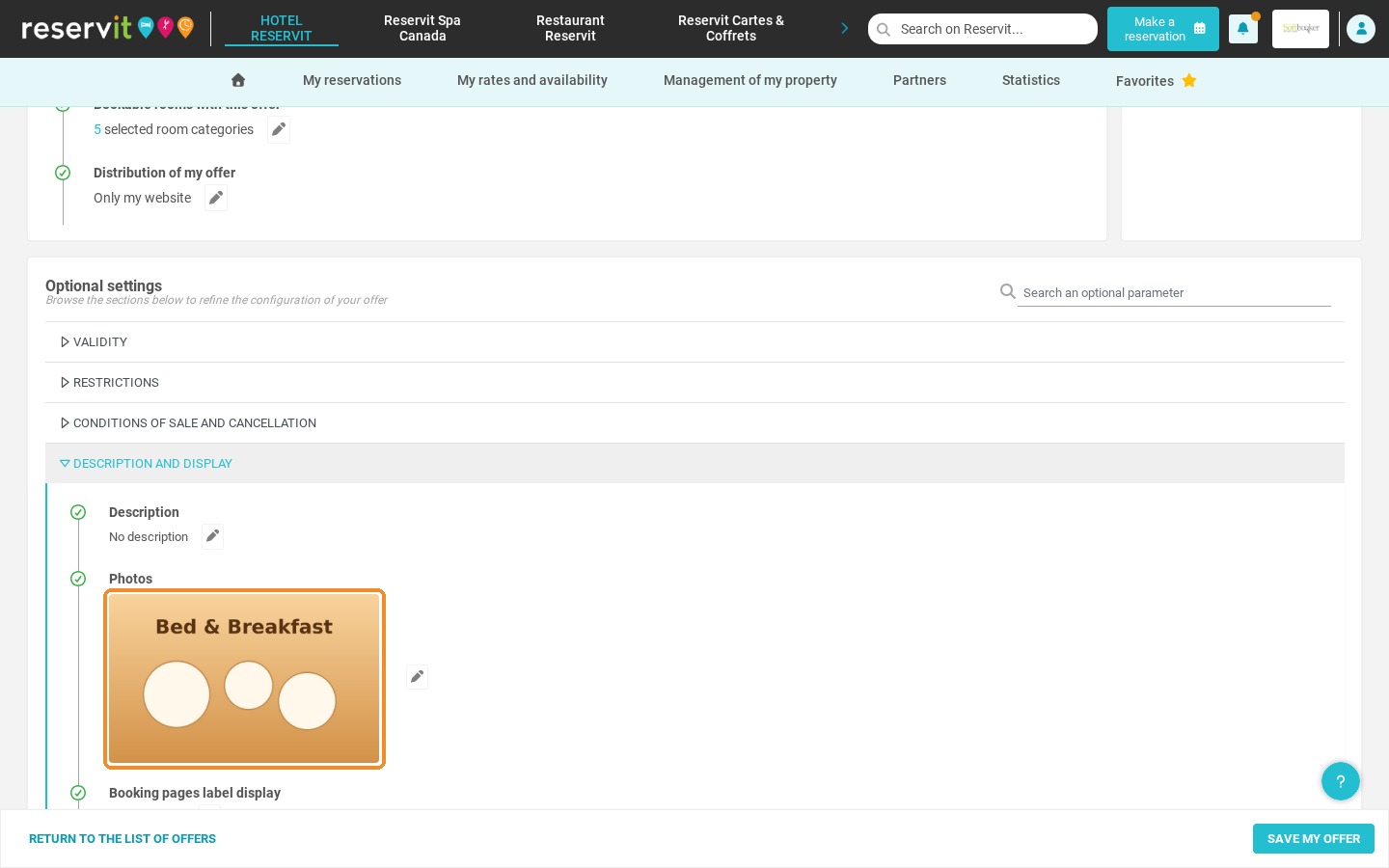
Article Summary: This tutorial guides you step by step through adding or changing the picture of your special offers and packages in Reservit Accommodation. You will learn how to find the display settings of an offer and upload, frame and save a new photo. Make your booking engine more attractive and increase your conversions with up-to-date, high-quality visuals.
The 5 Key Steps to Change the Photo of an Offer:
-
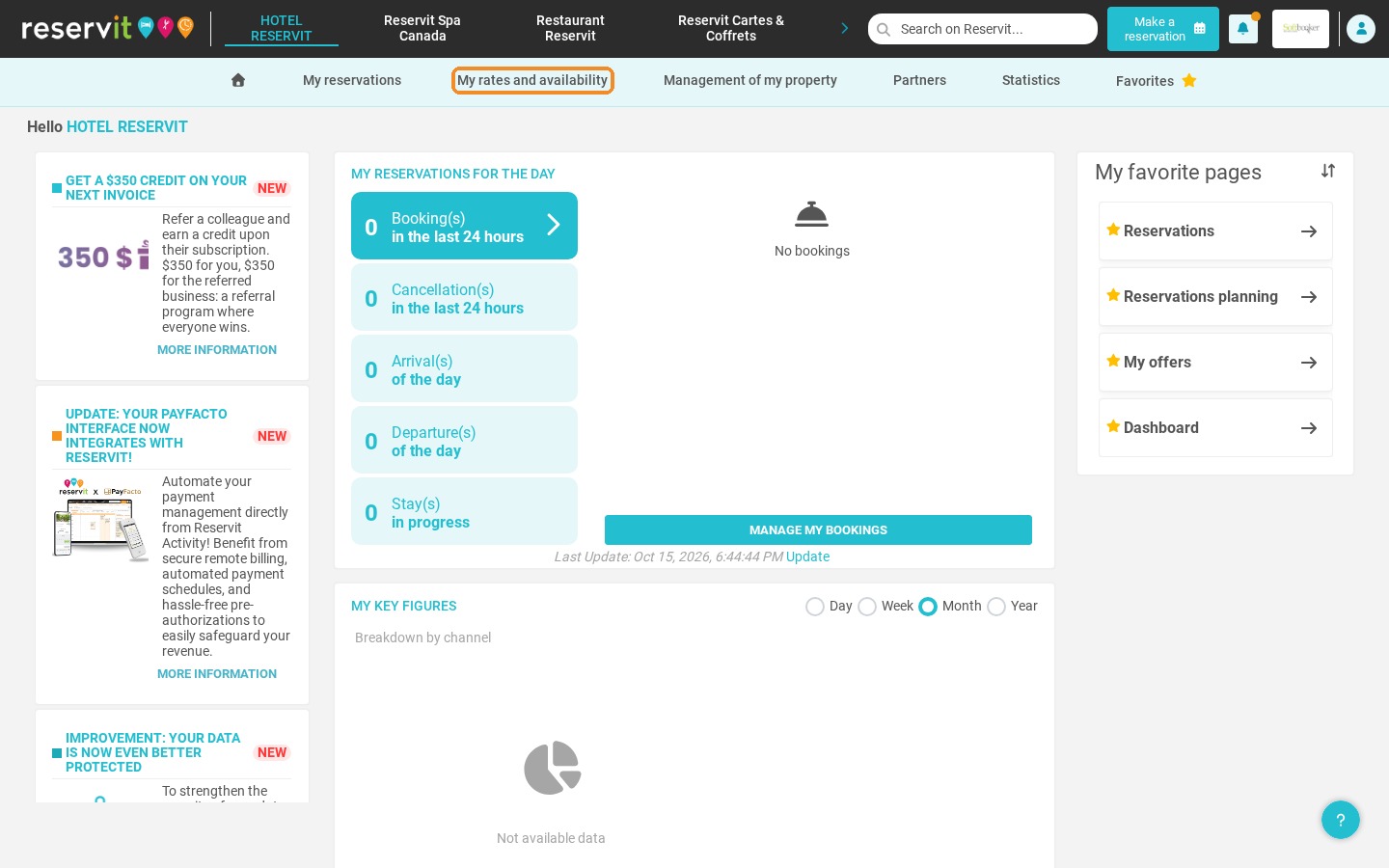
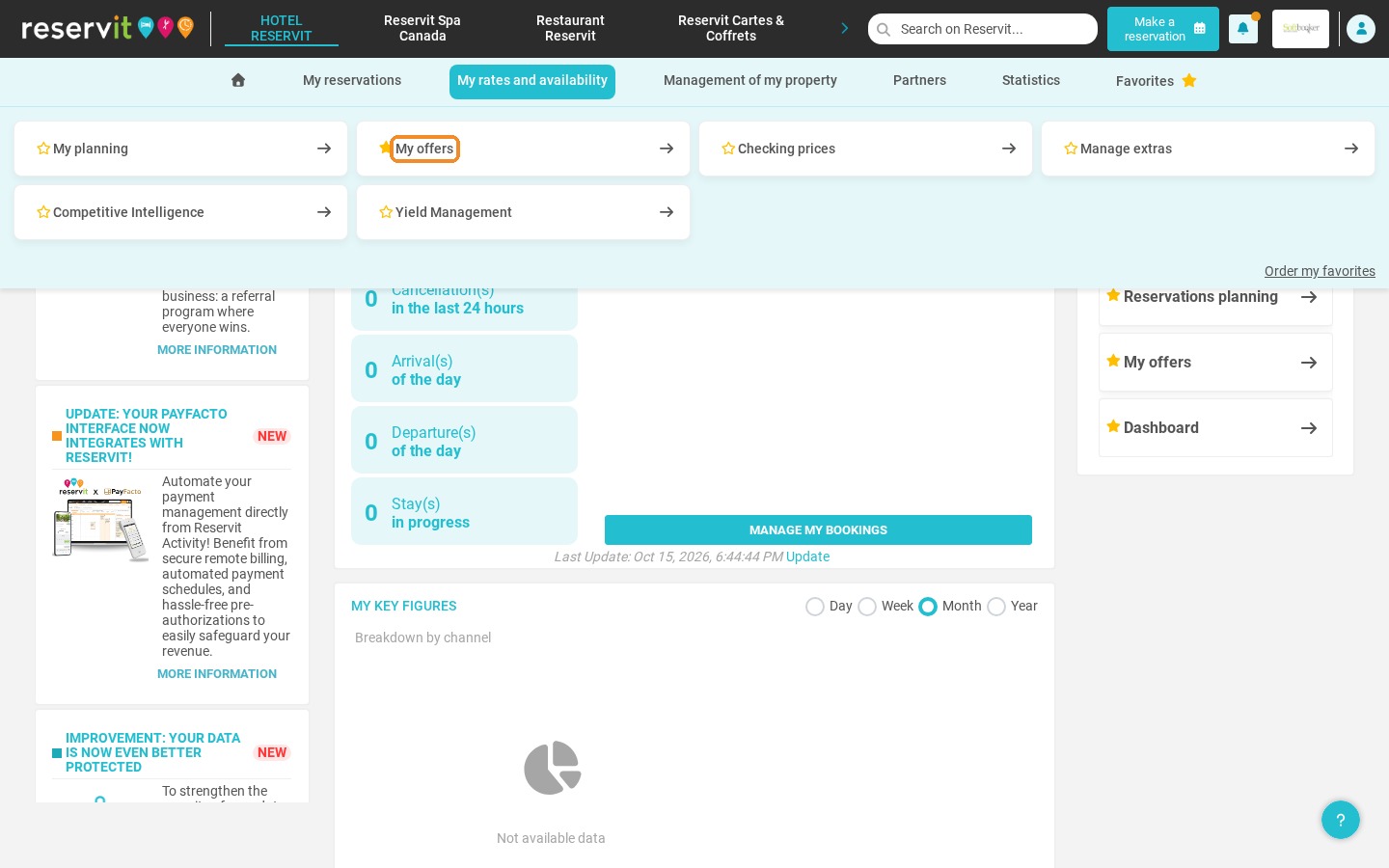
Open your offers: Go to "My rates and availability" and select "My offers".
-
Select the offer: Create a new offer or find an existing one with the "Quick access to an offer" search.
-
Open the display settings: Open the "Description and display" section in the optional settings of the offer.
-
Upload the photo: Add a new picture or replace the current one, adjust its framing and confirm.
-
Save your changes: Click "Save my offer" to apply the update.
Why Follow This Guide? This guide lets you showcase your offers quickly and on your own, without configuration errors. Attractive visuals catch your guests' attention and increase your chances of turning visits into online bookings.
1. Go to "My rates and availability", then "My offers".
2. Create your offer, or find it with the "Quick access to an offer" search field.
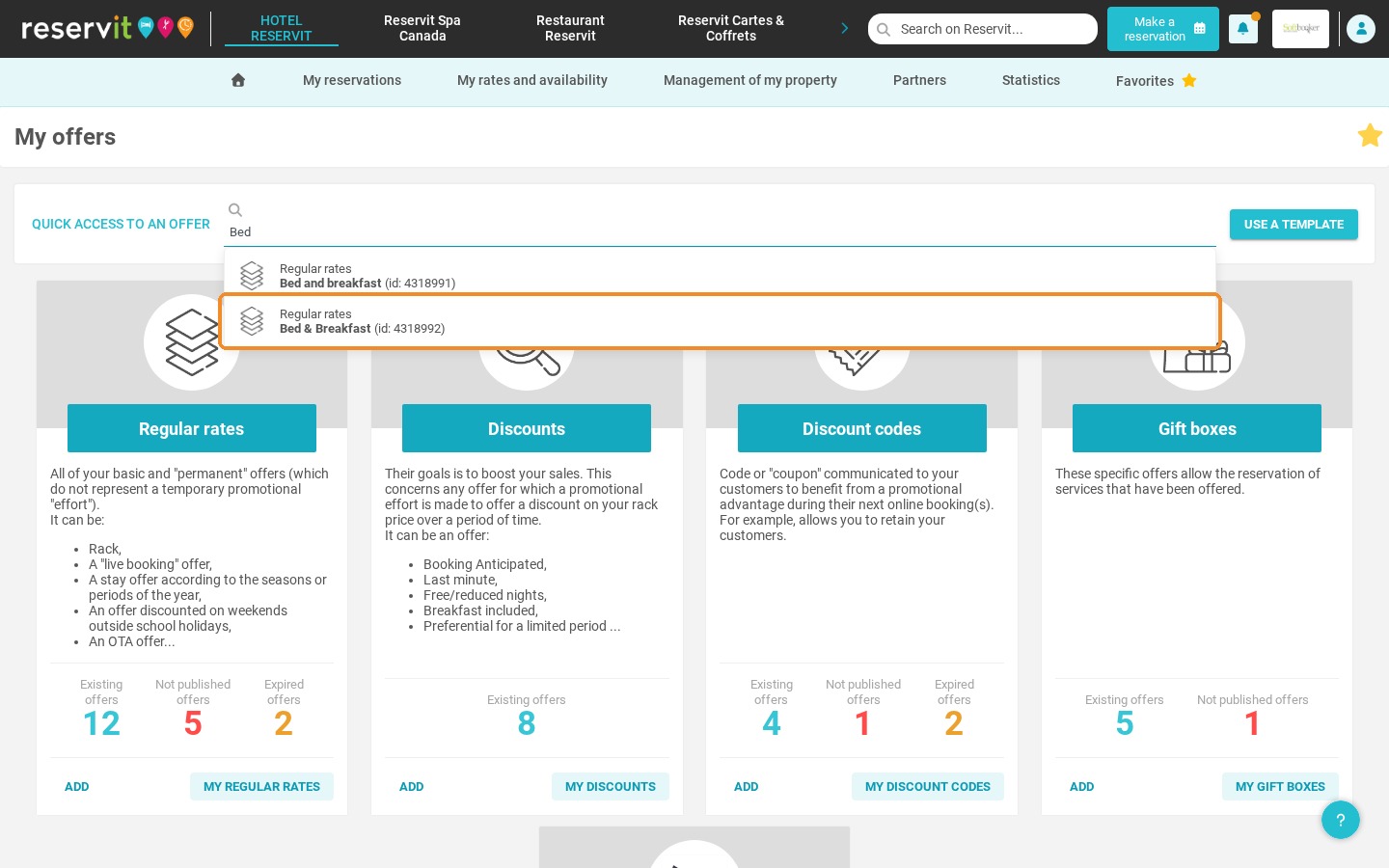
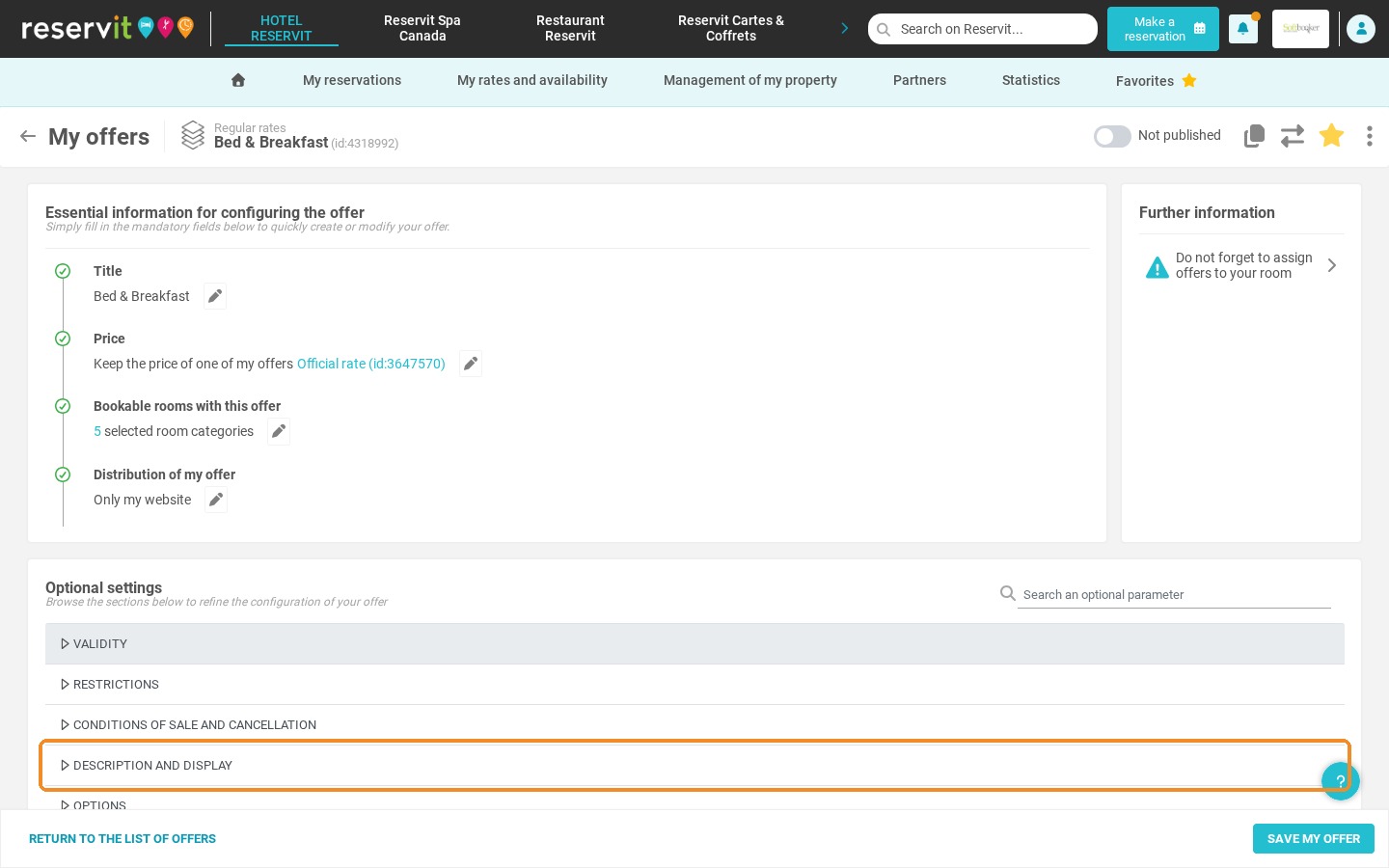
3. Open the "Description and display" section in the optional settings of the offer.
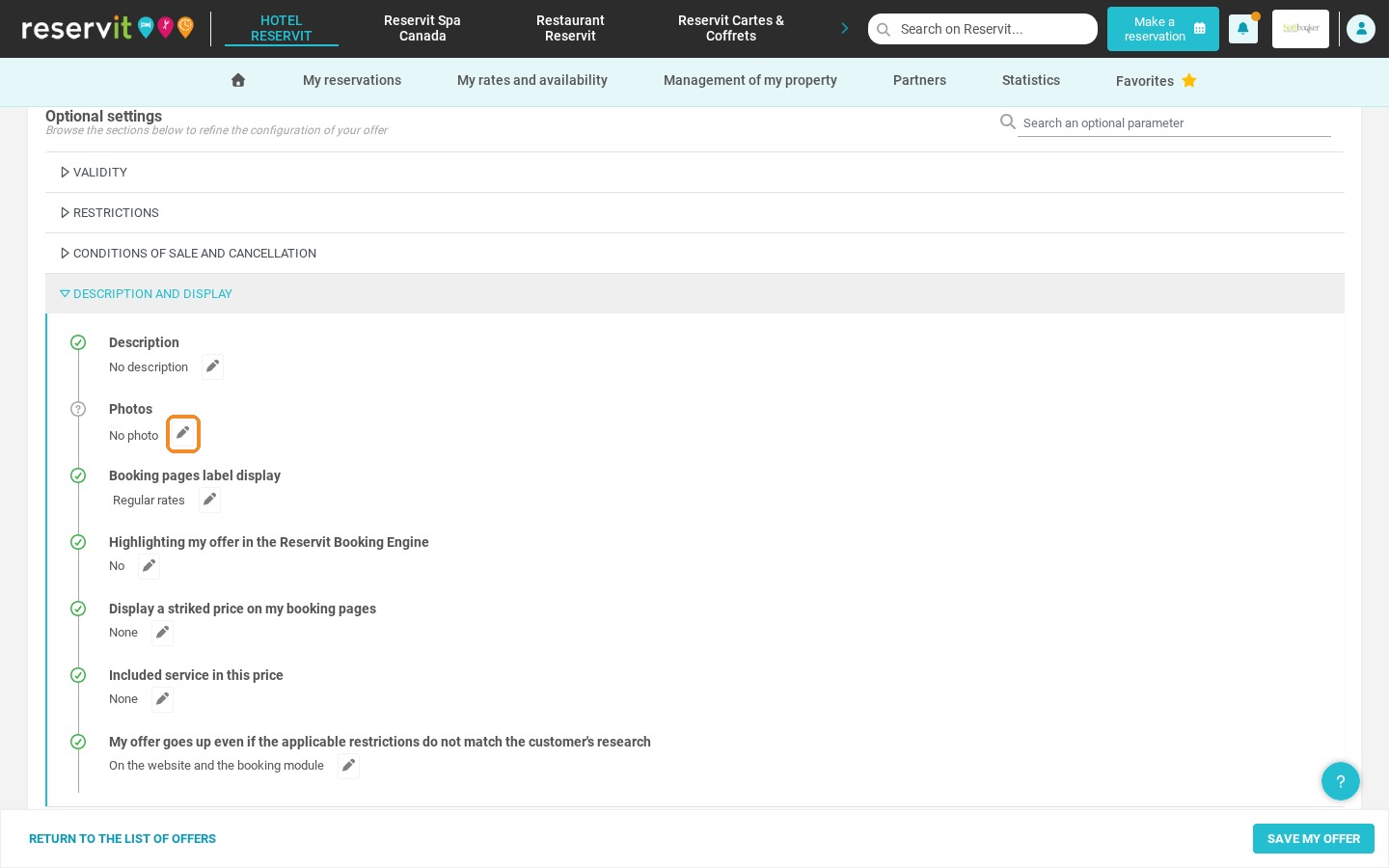
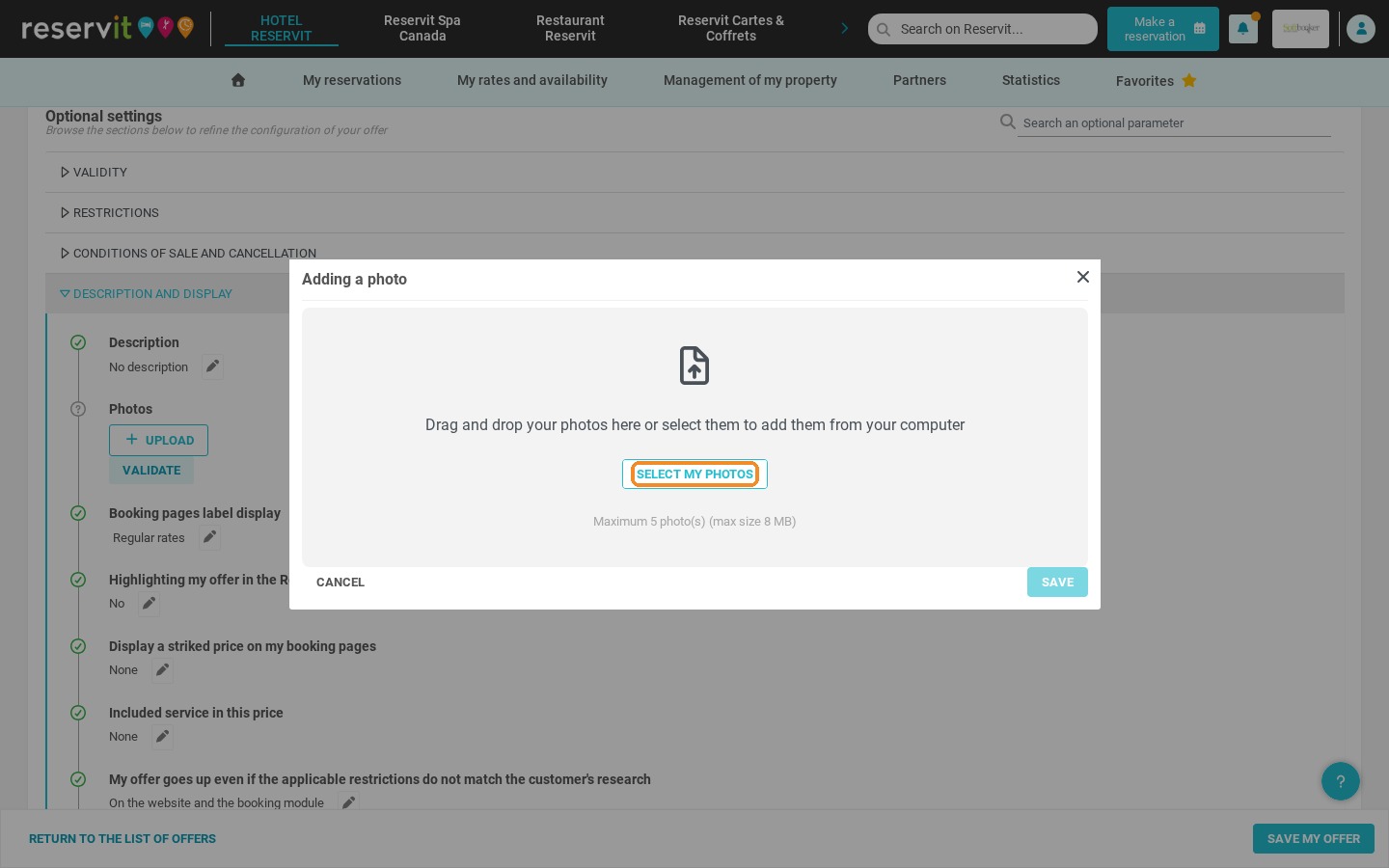
4. Click the pencil next to "Photos", then "Upload" and "Select my photos" to choose a picture from your computer.
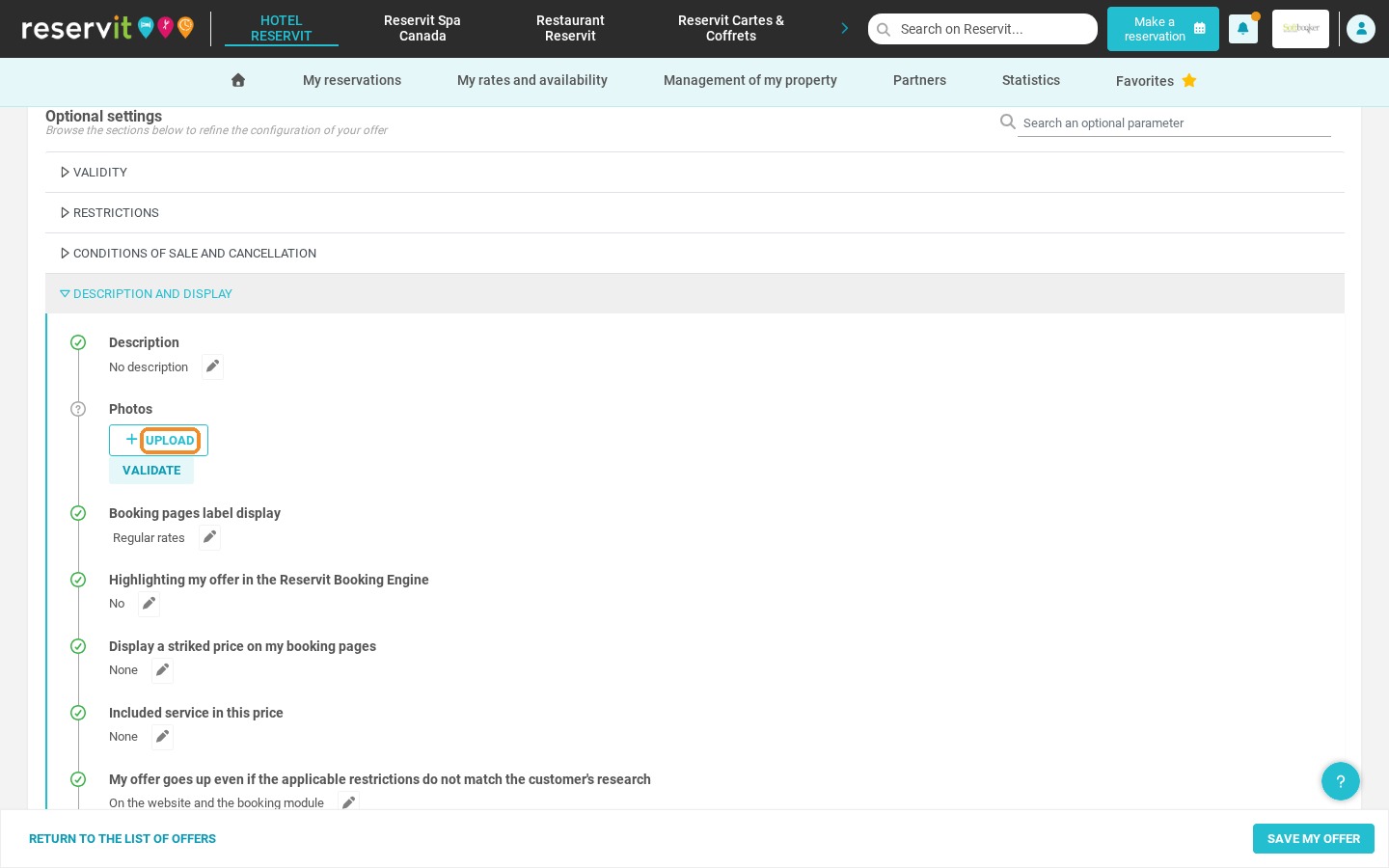
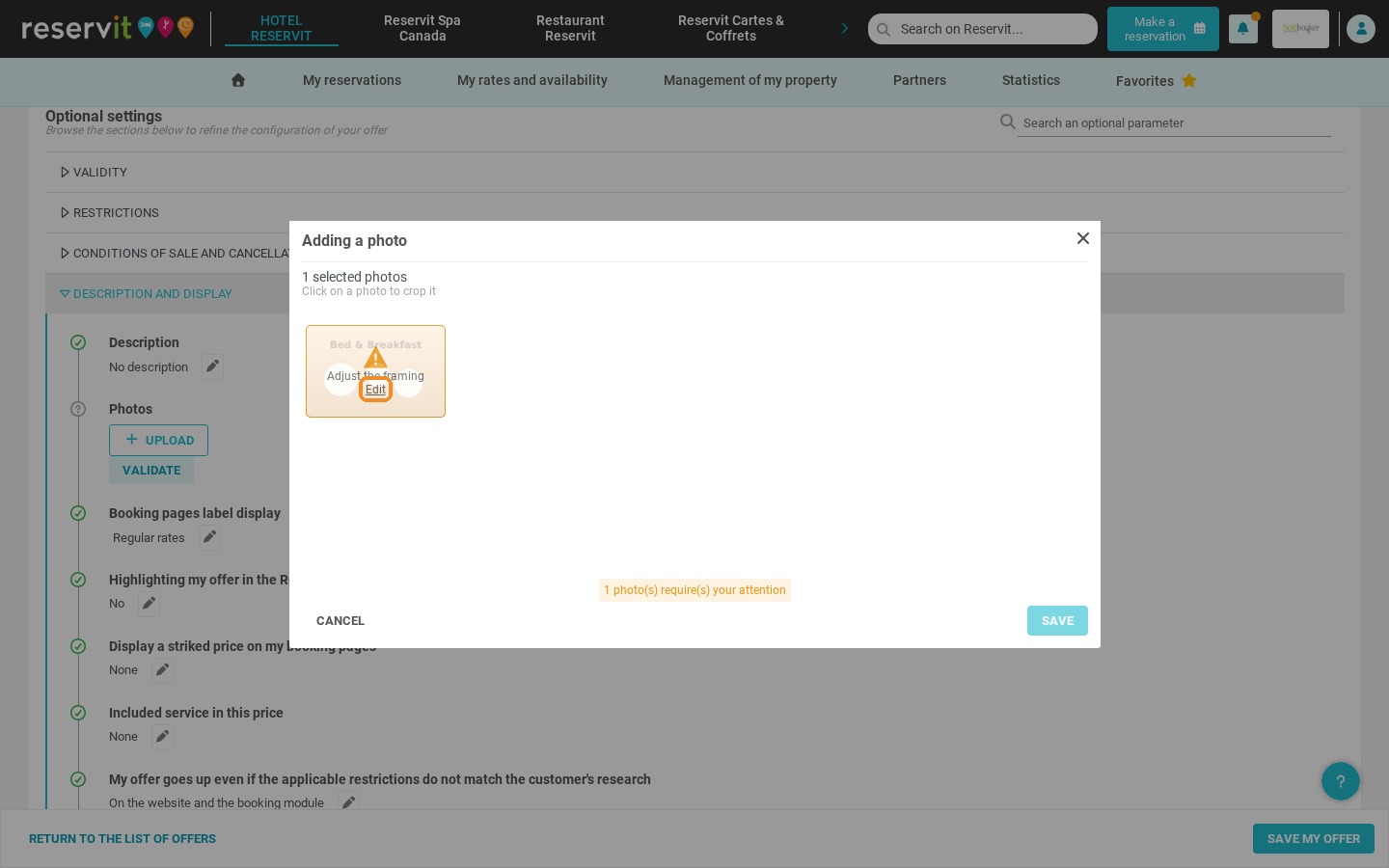
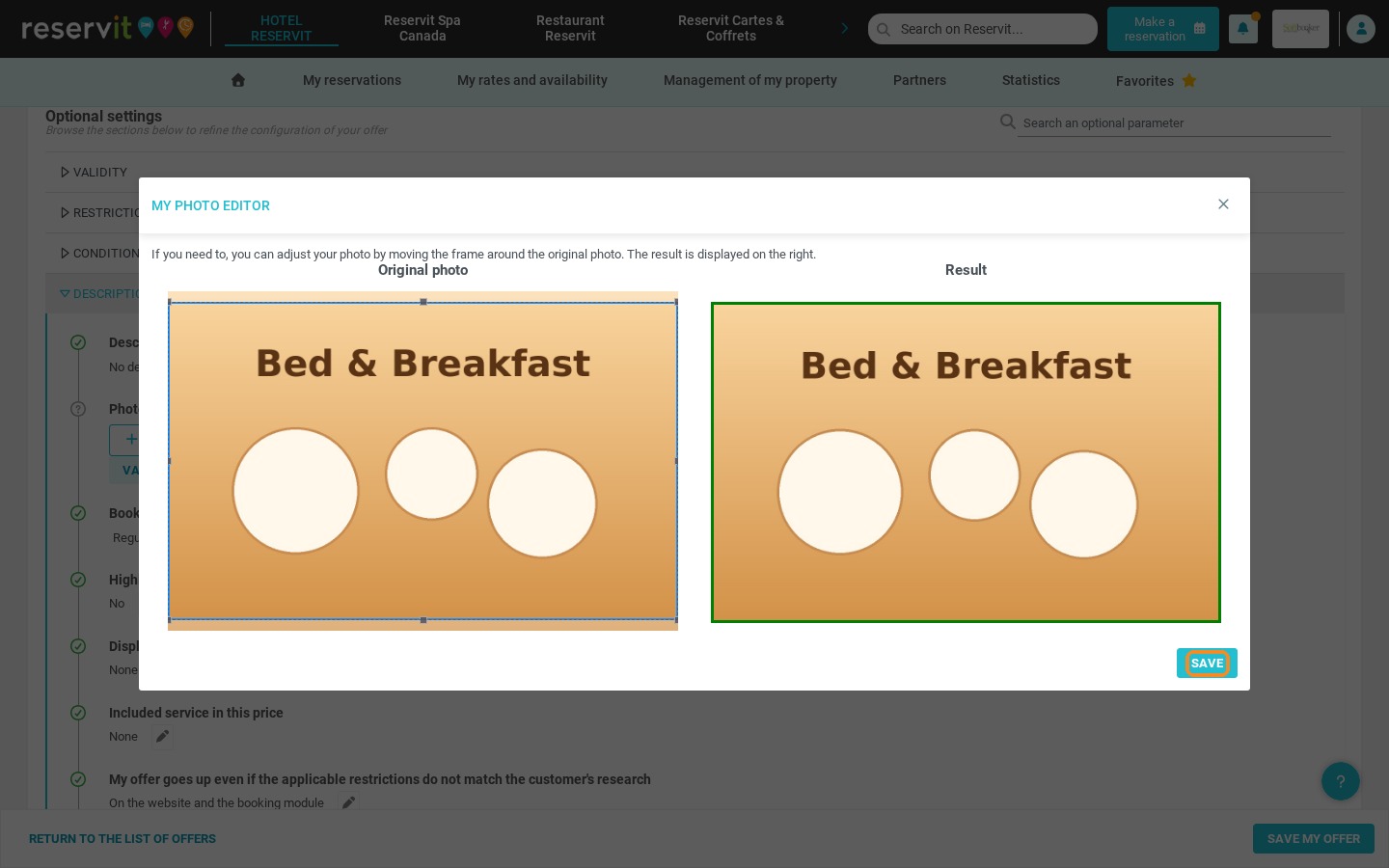
5. If the message "Adjust the framing" appears, click "Edit", move the frame on the original photo, then click "Save".
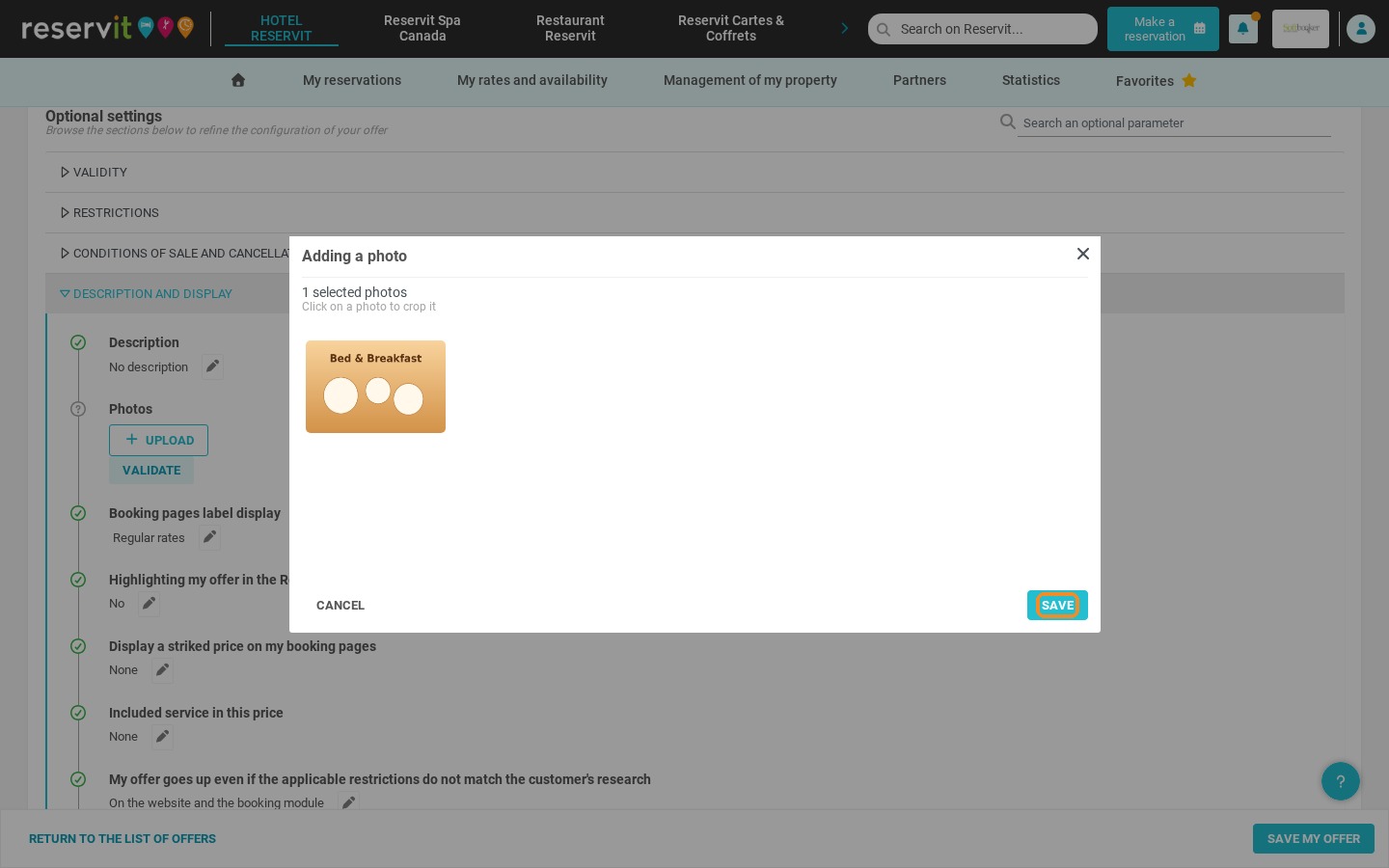
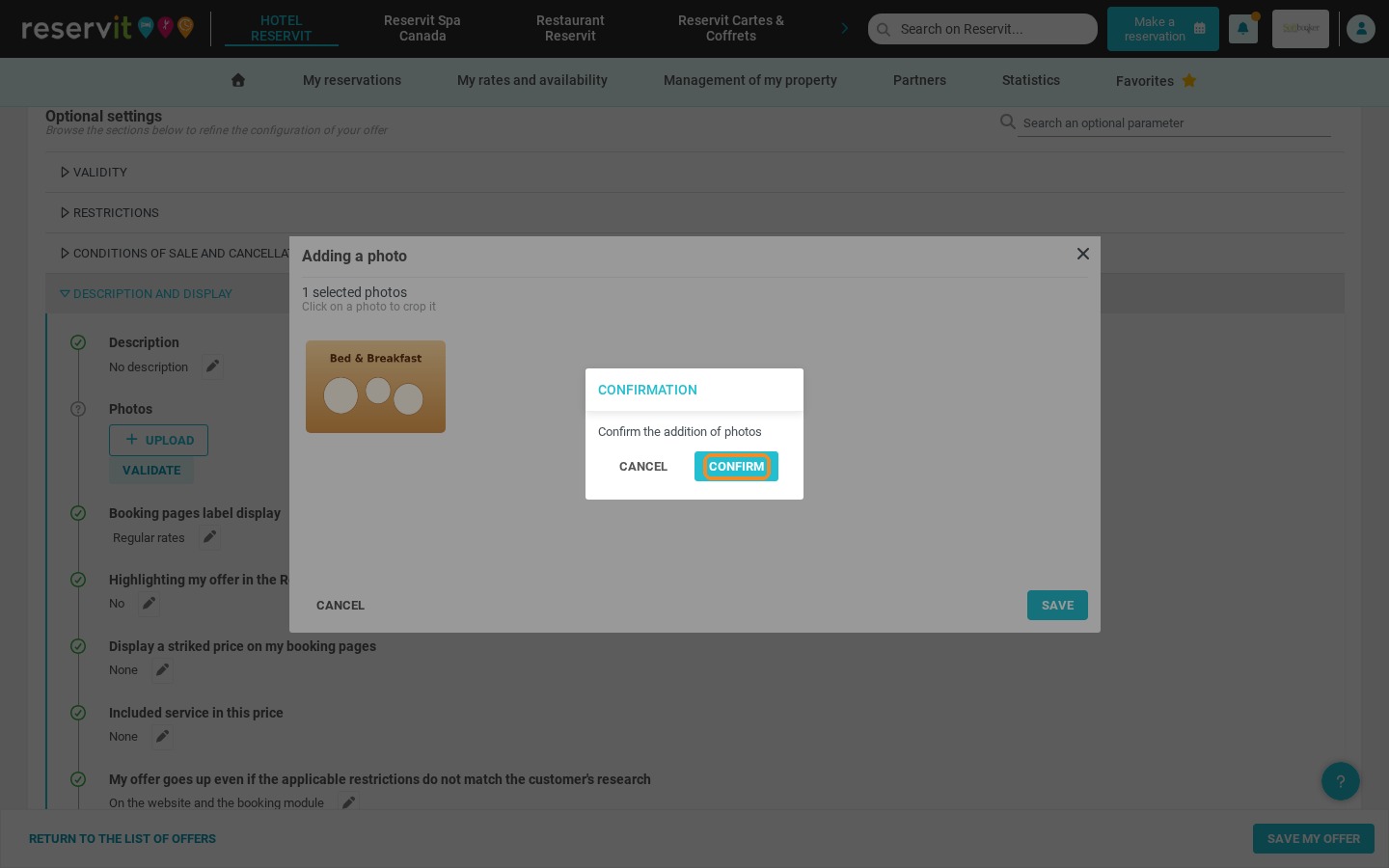
6. Click "Save", then "Confirm" to add the photo.
7. Click "Validate".
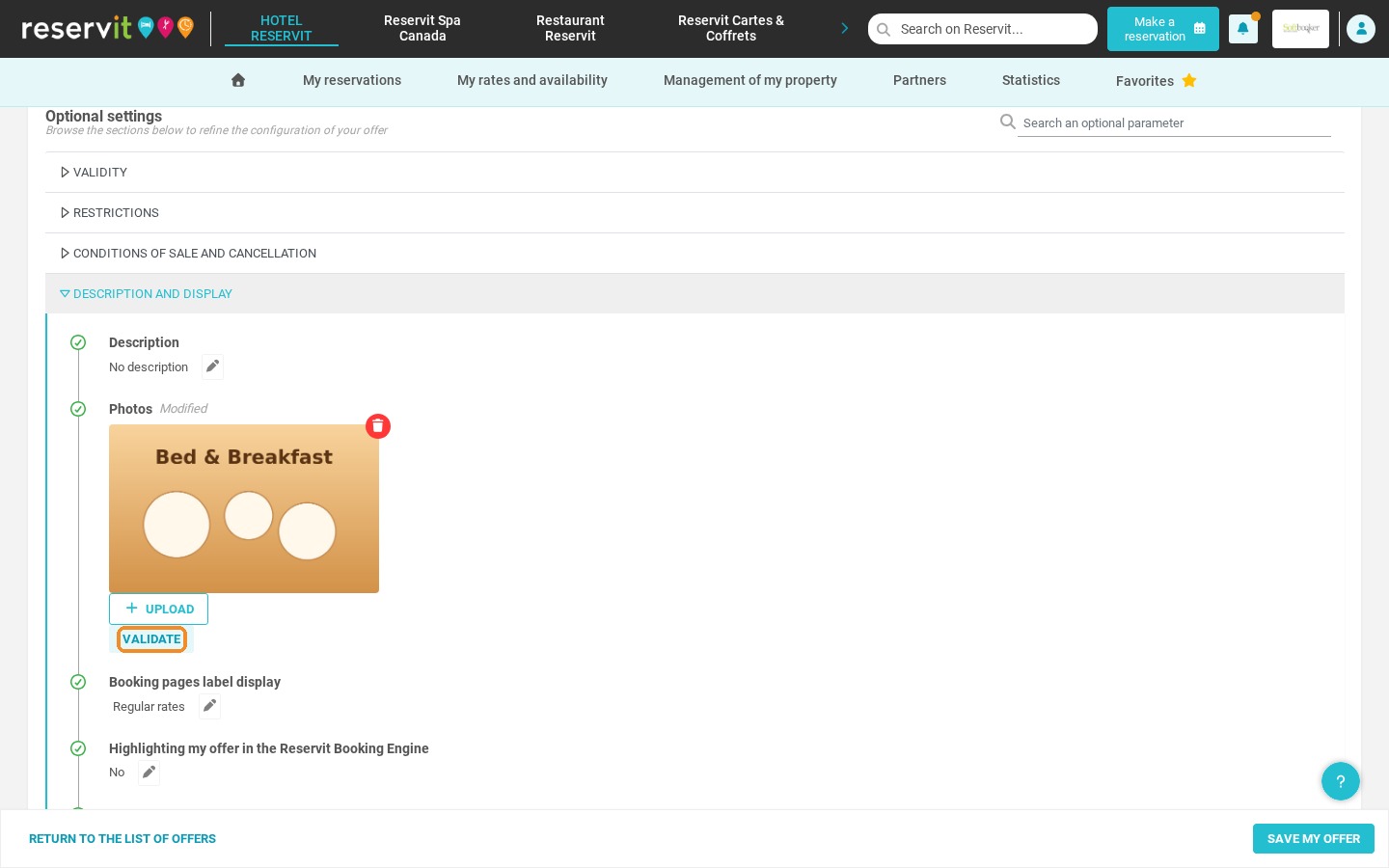
8. Click "Save my offer" to save your changes. The photo now appears in the settings of your offer.