Article Summary: This tutorial shows you how to set up a promo code in Reservit Accommodation. You will learn how to define the code your guests enter, set its impact on the price (percentage or fixed amount) and choose exactly which dates and rooms it applies to. Use promo codes to boost your direct bookings and reward loyal guests with tailored offers.
The 5 Key Steps to Set Up a Promo Code:
-
Create and name the code: In "My offers", add a new offer in the "Discount codes" category, give it a title and enter the exact code your guests will type.
-
Set the price impact: Choose the type of discount (percentage or fixed amount) and the reference offer it is calculated from.
-
Set the stay conditions: Define the stay period, the valid days of the week and the booking and cancellation conditions.
-
Select the eligible rooms: Choose the room categories the discount applies to.
-
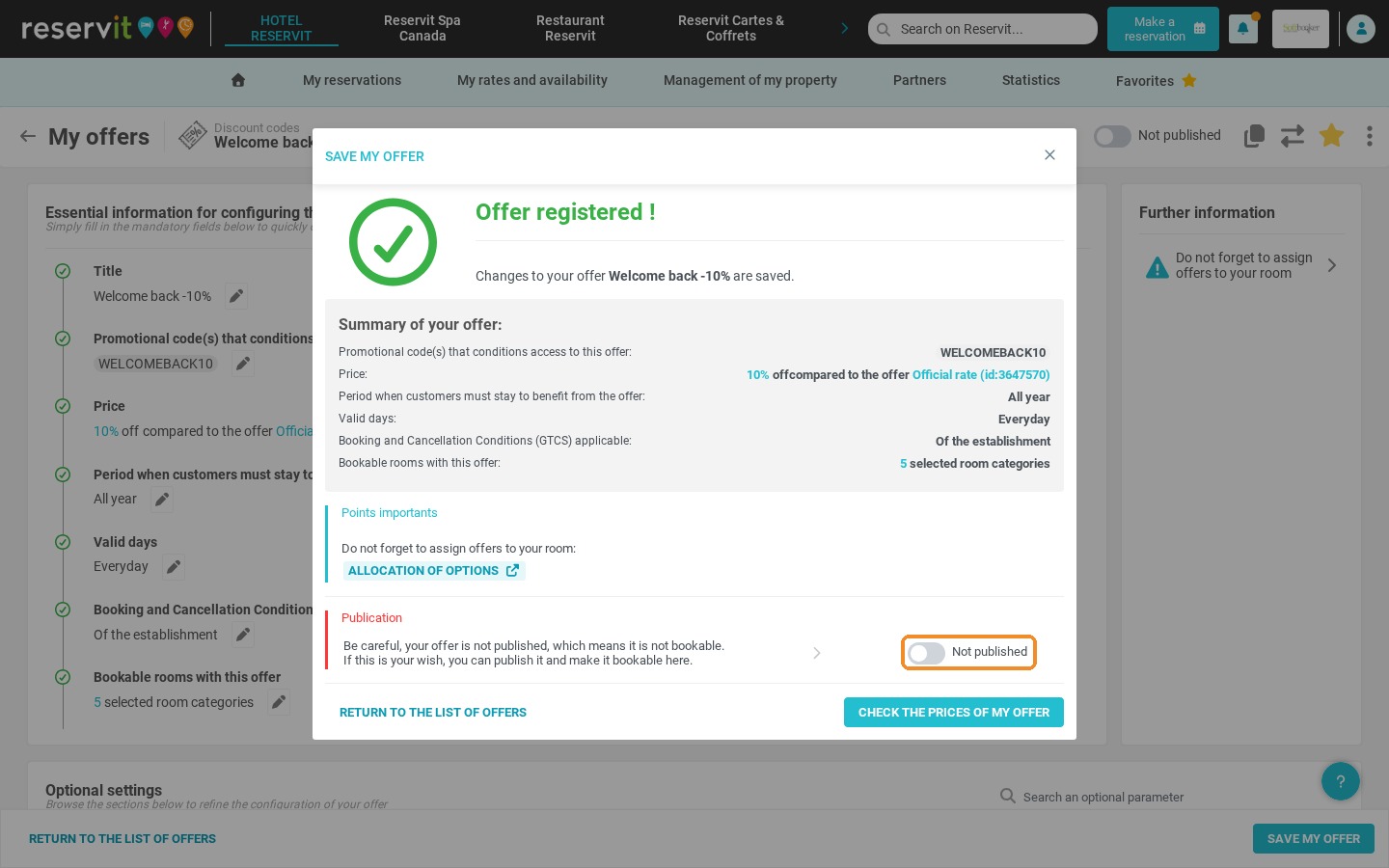
Save and publish: Save the offer, then publish it so the code works on your booking engine.
Why Follow This Guide? Following this procedure step by step ensures your discounts are set up securely and applied without errors. You can launch your marketing campaigns quickly and on your own, while keeping full control over your property's margins and terms of sale.
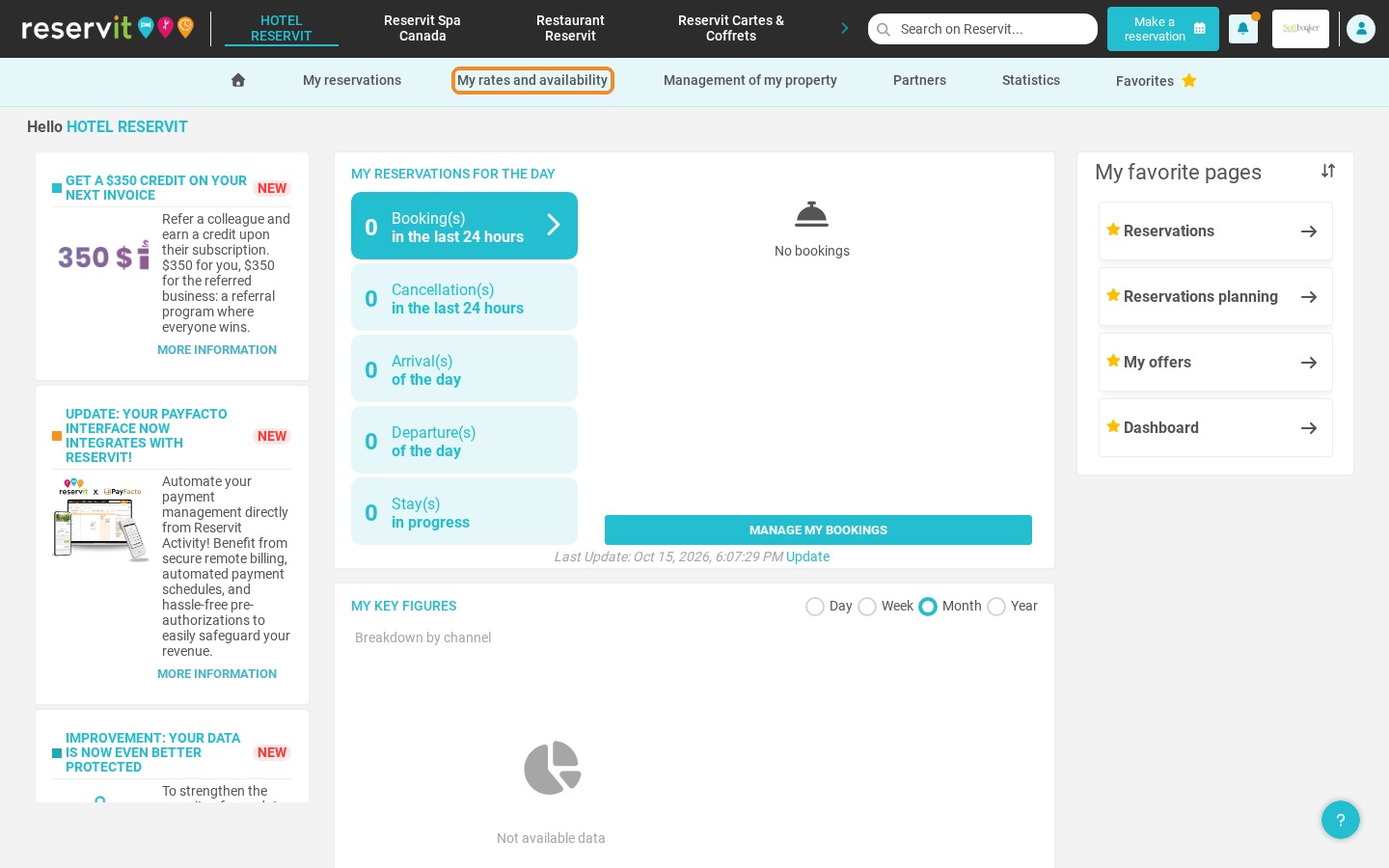
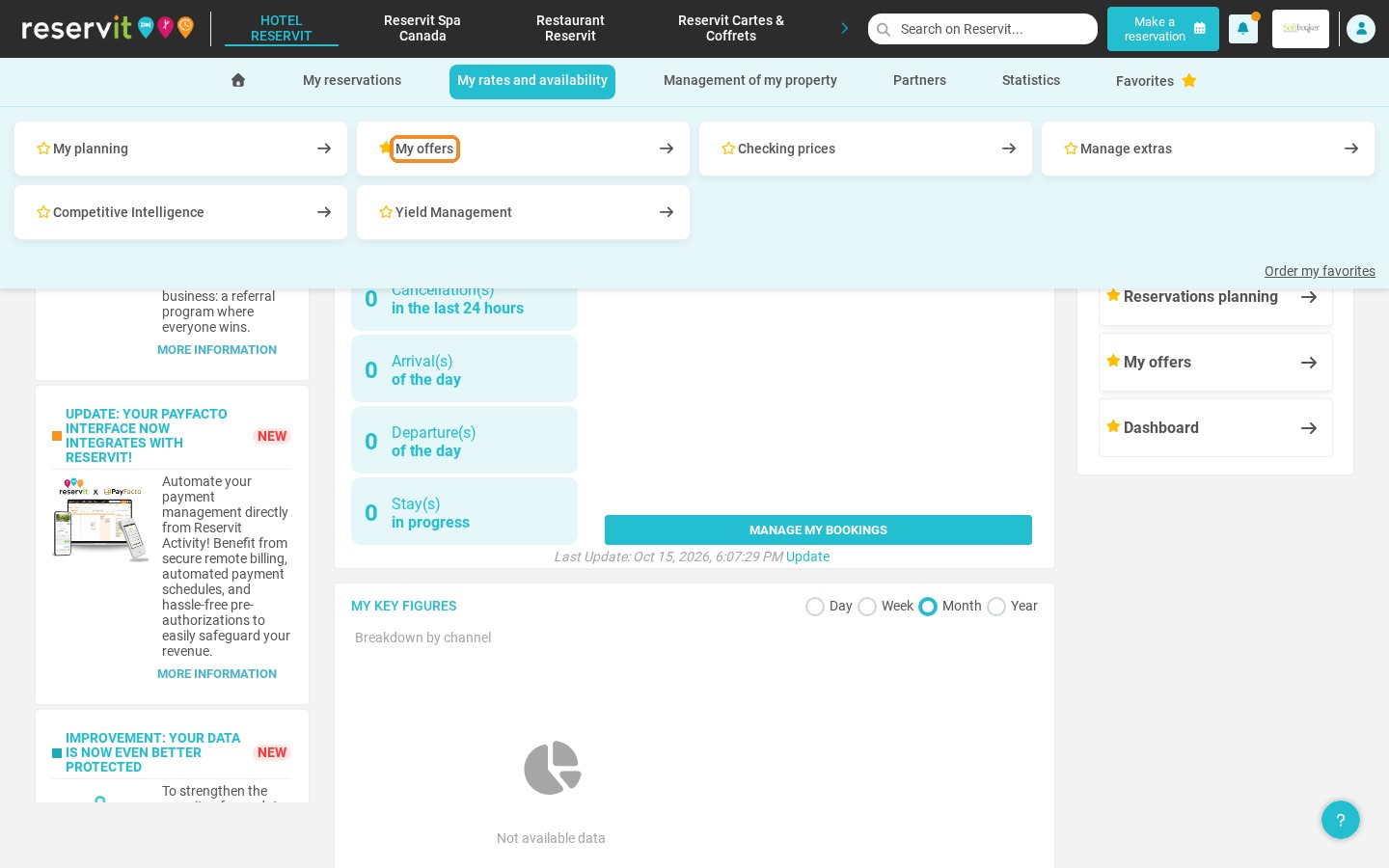
1. From the Reservit Accommodation home page, click "My rates and availability", then "My offers".
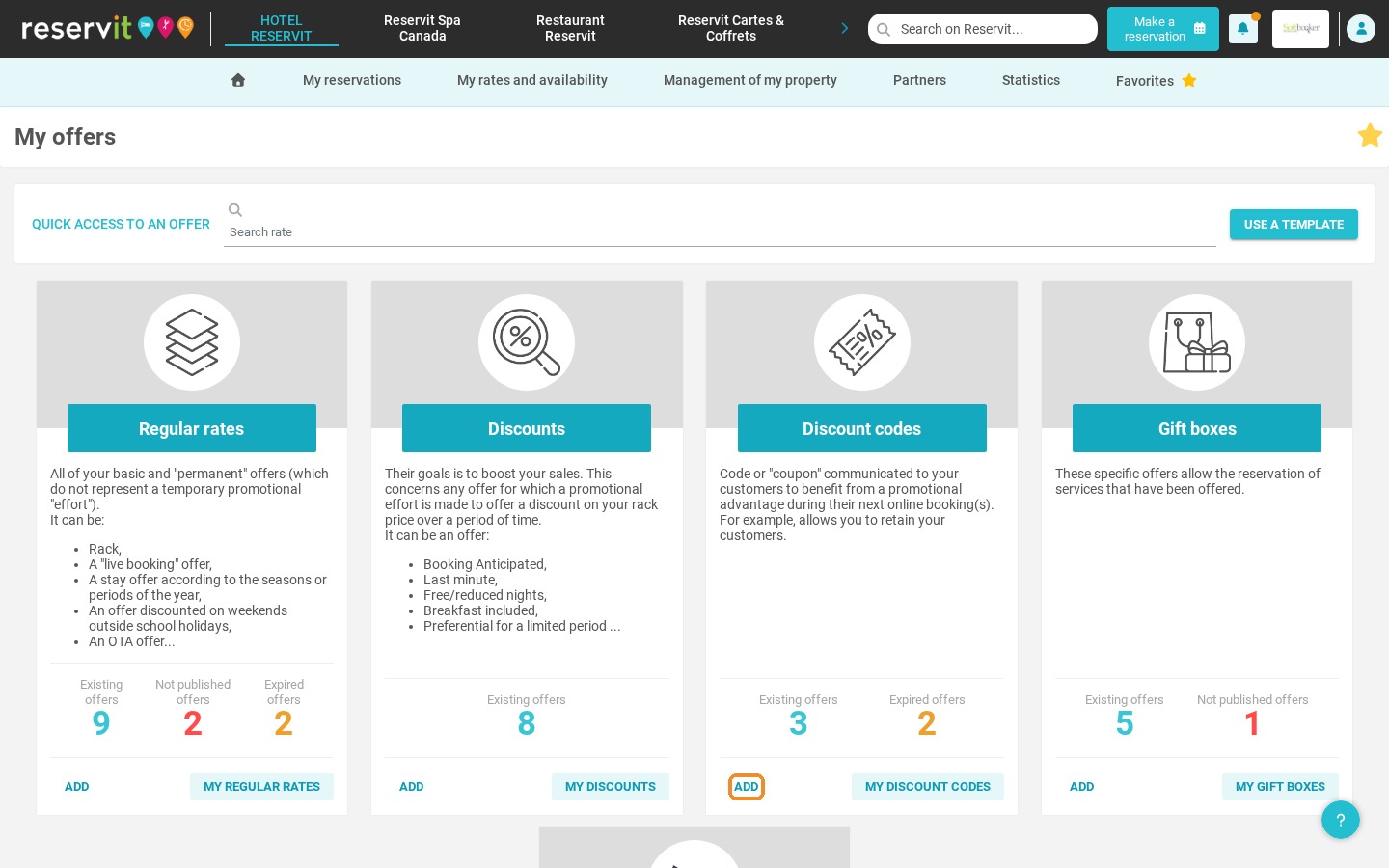
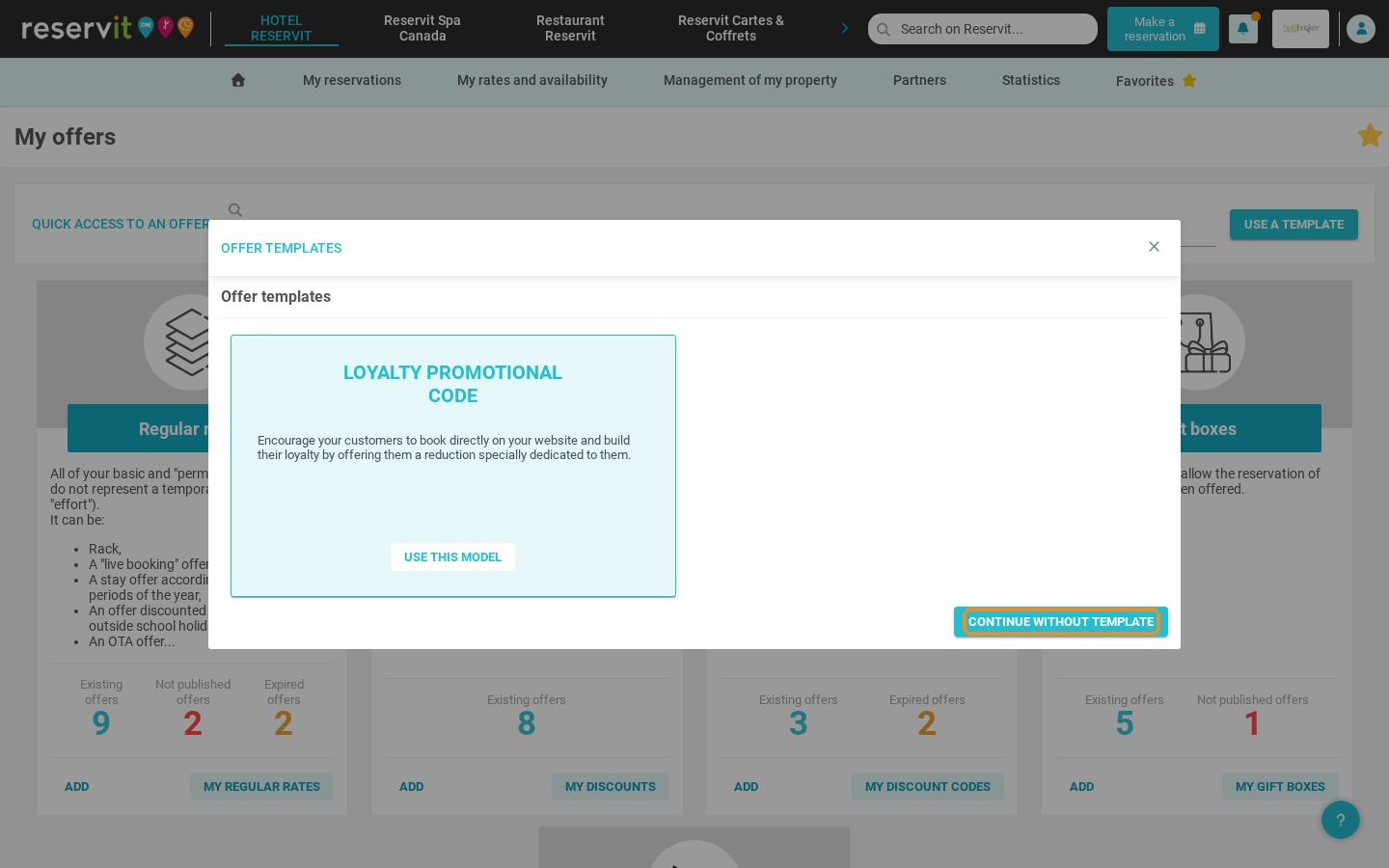
2. In the "Discount codes" category, click "Add", then "Continue without template".
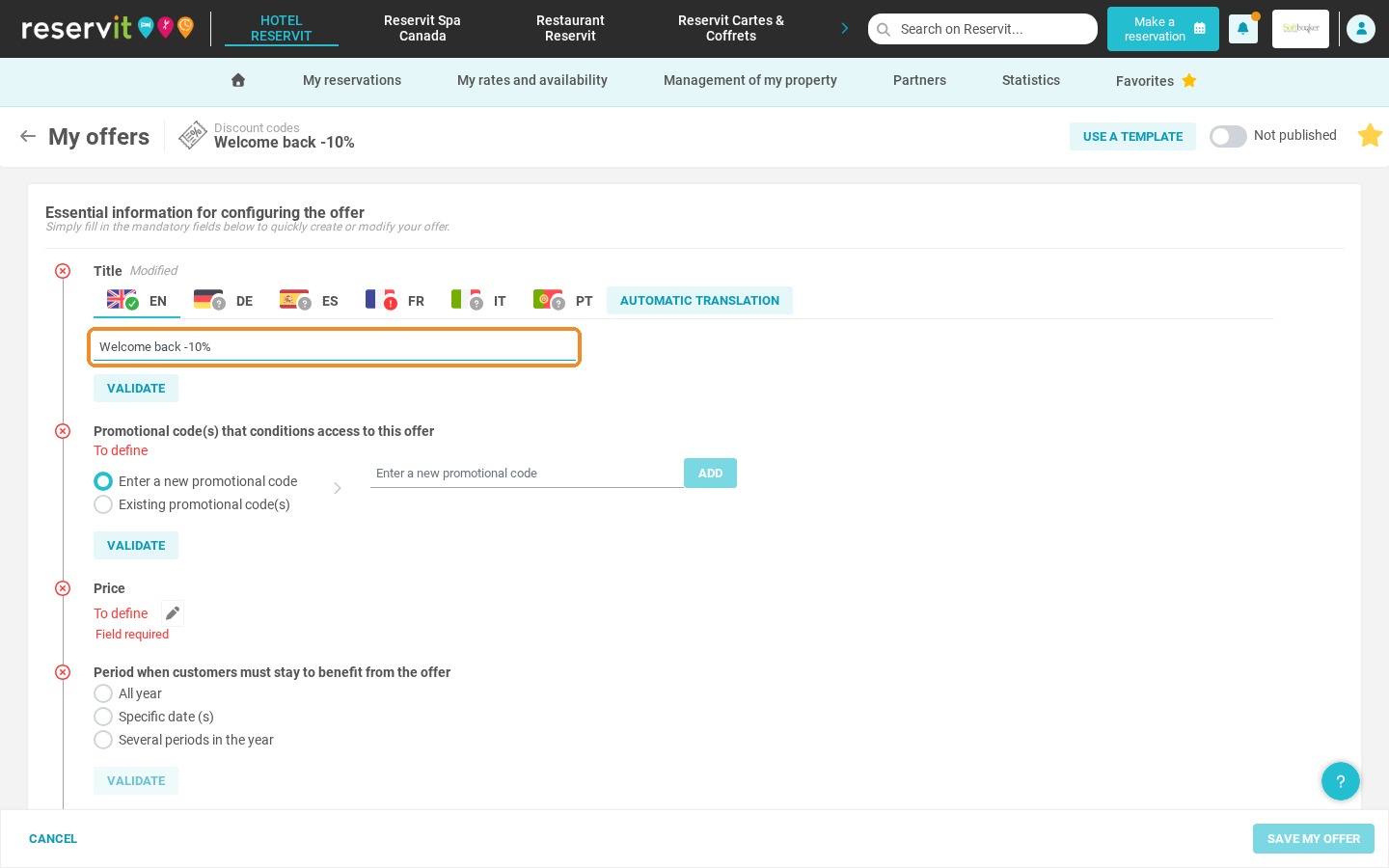
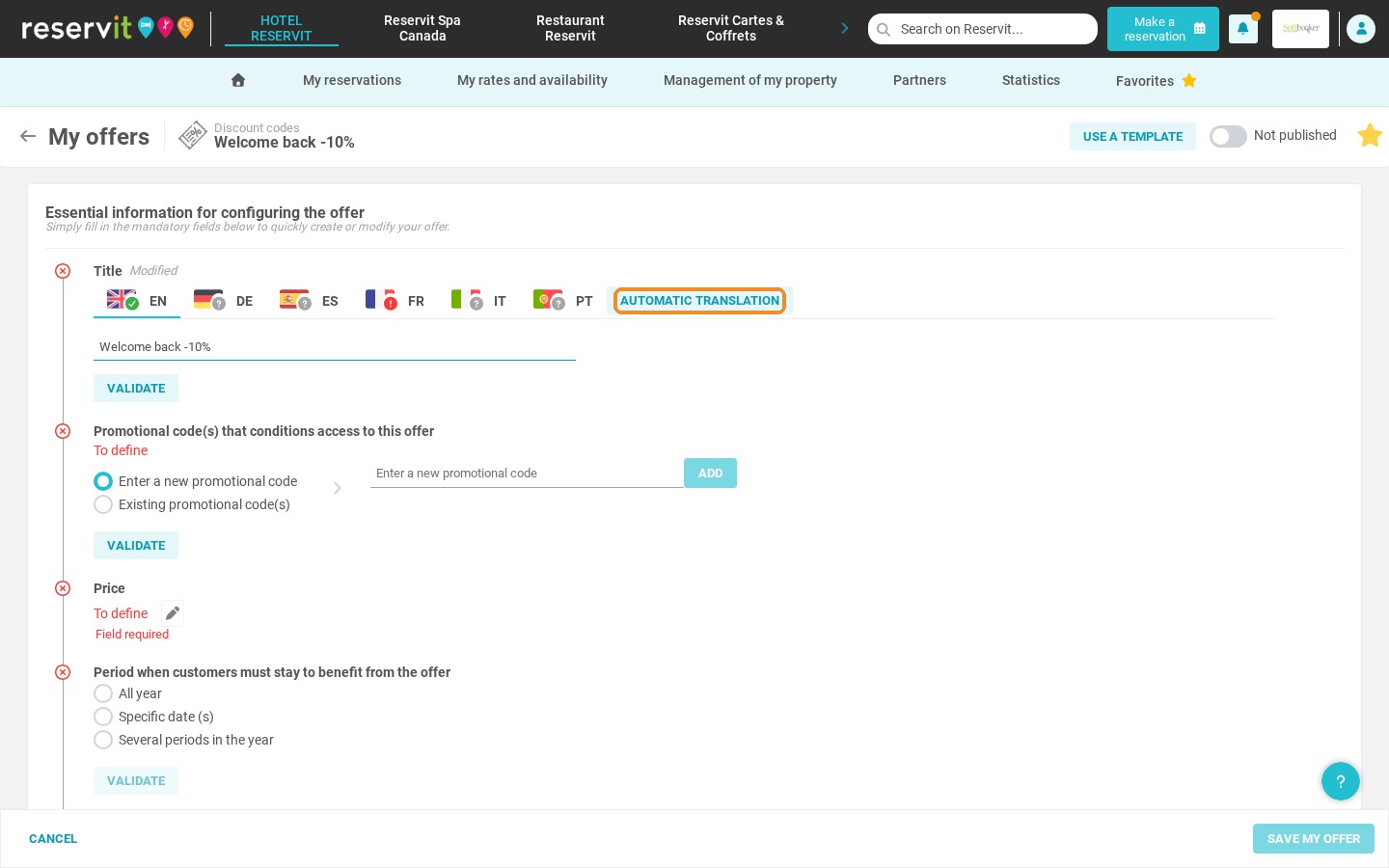
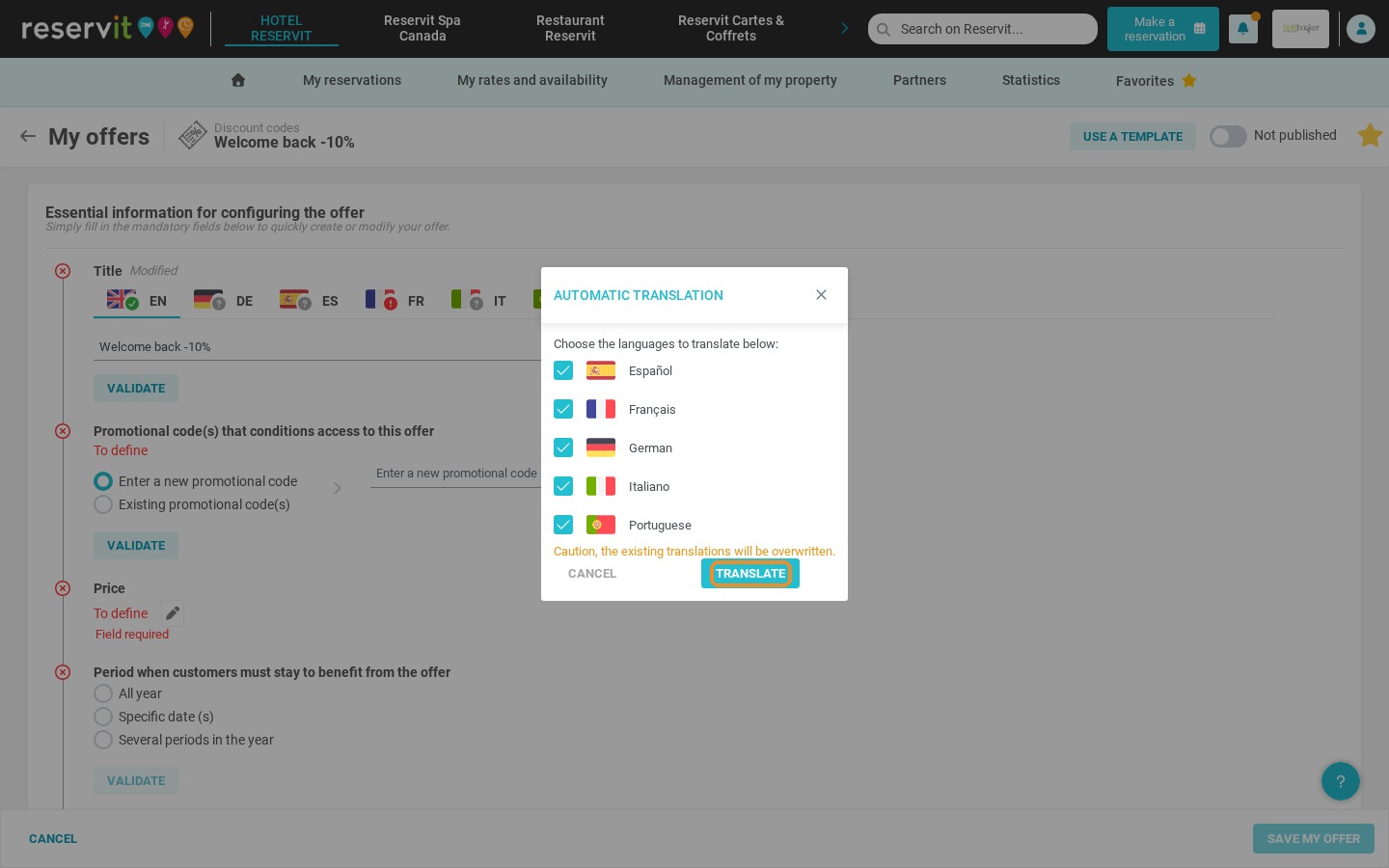
3. Enter the name of the offer, then click "Automatic translation" and "Translate" to add the other languages. Click "Validate".
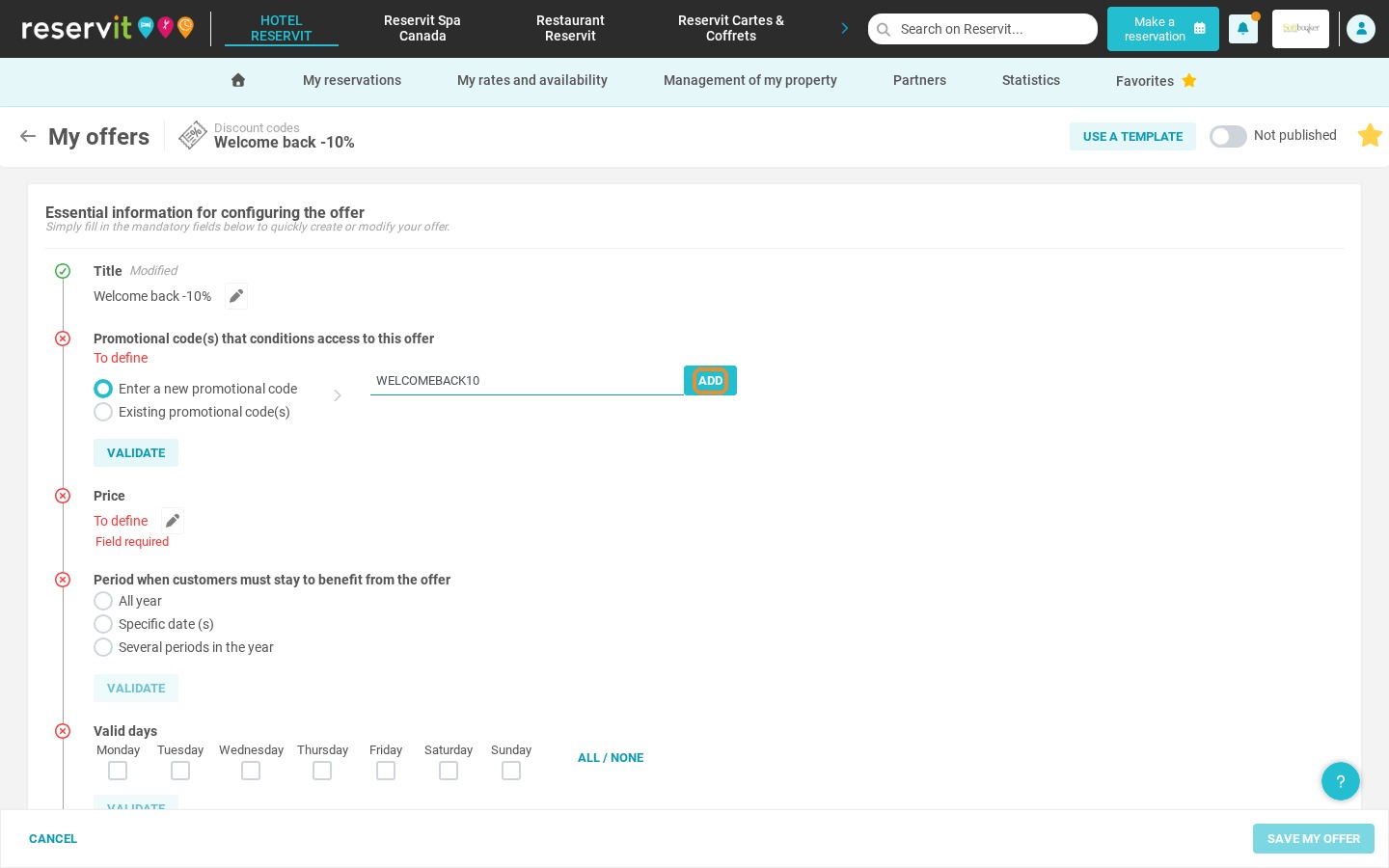
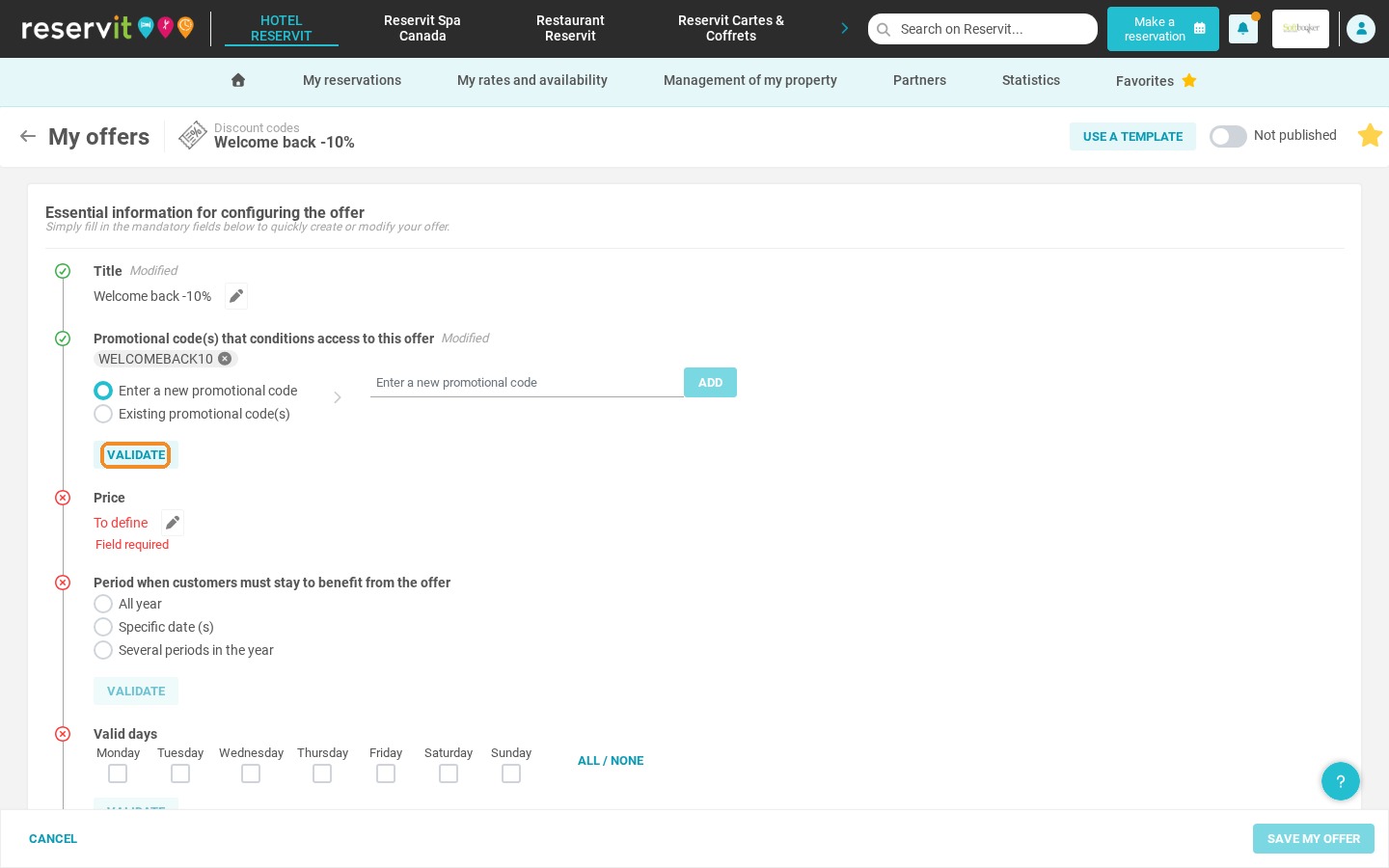
4. Enter the promo code your guests will have to type to benefit from the offer, click "Add", then "Validate".
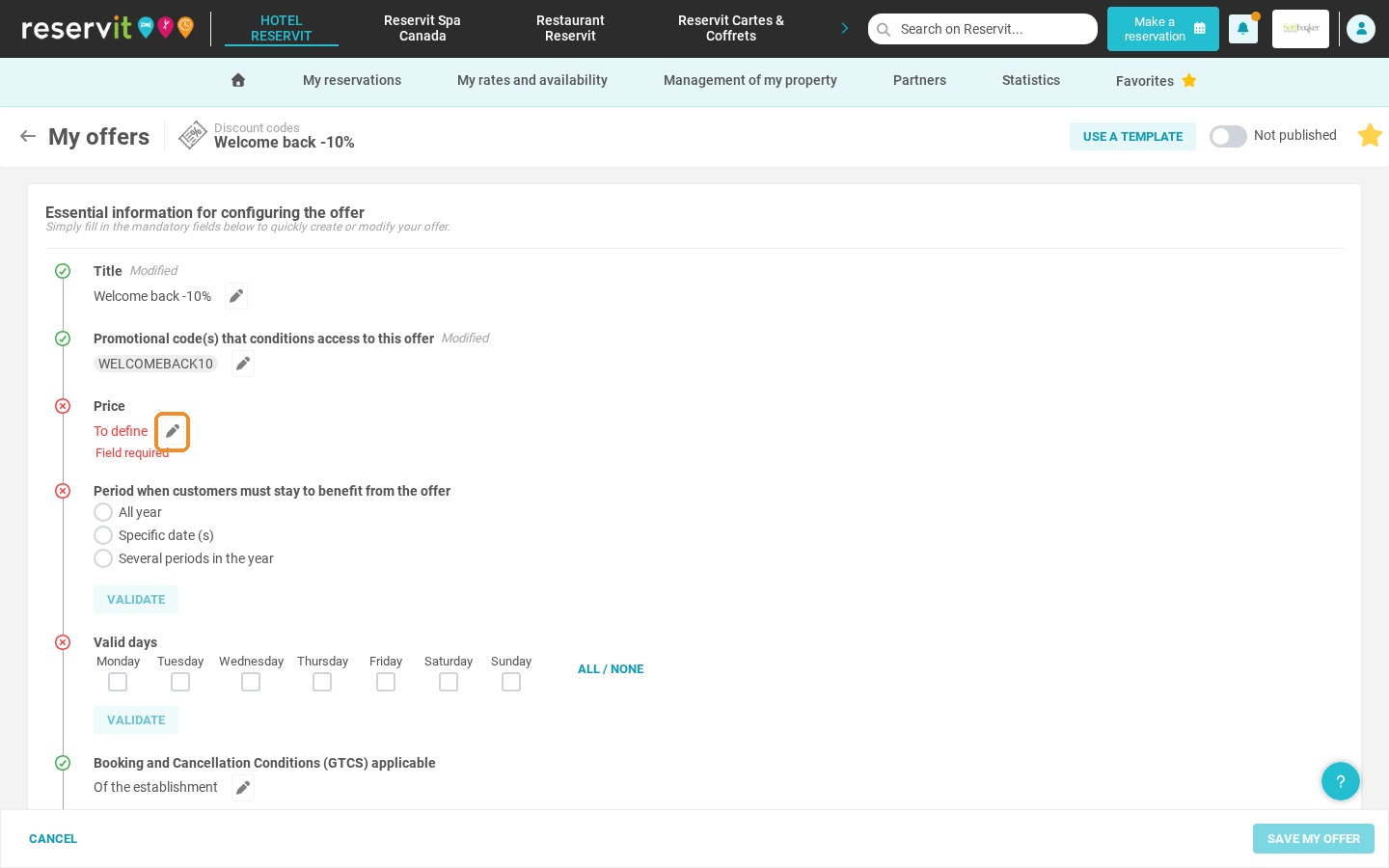
5. Click the pencil next to "Price" to define the impact of the promo code on the price.
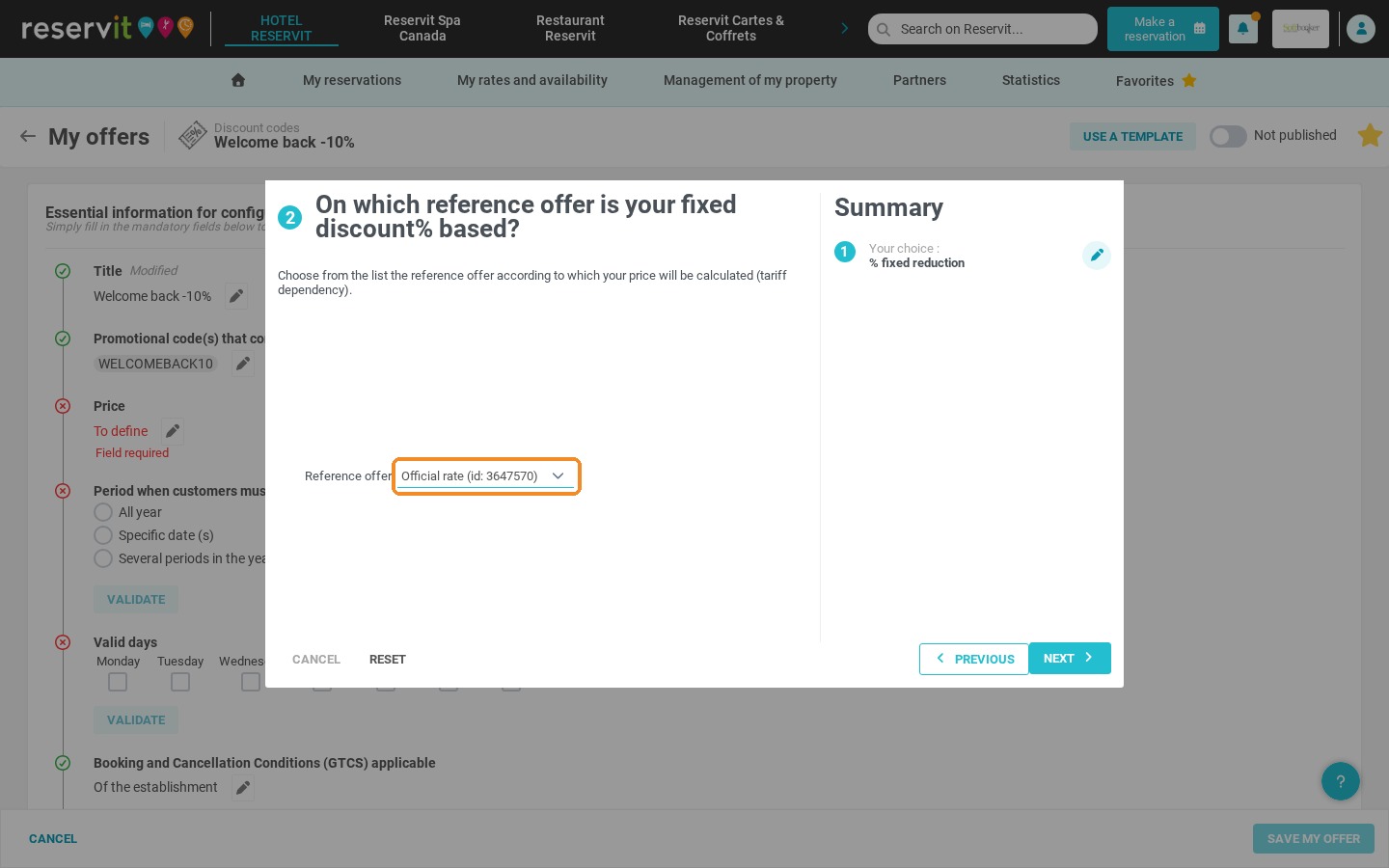
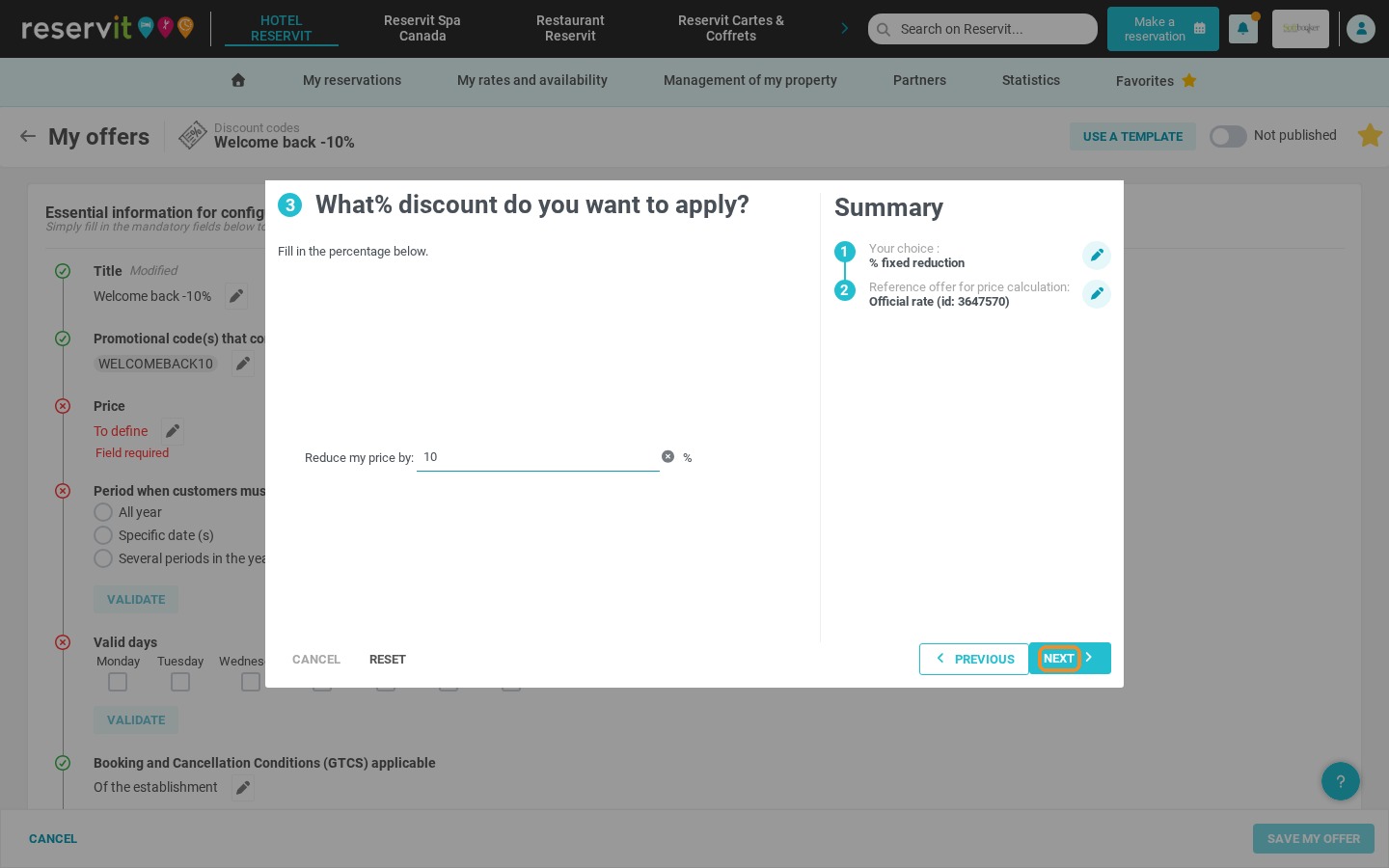
6. Choose the type of discount, for example "% fixed reduction", check the reference offer the discount is calculated from, then enter the percentage and click "Next".
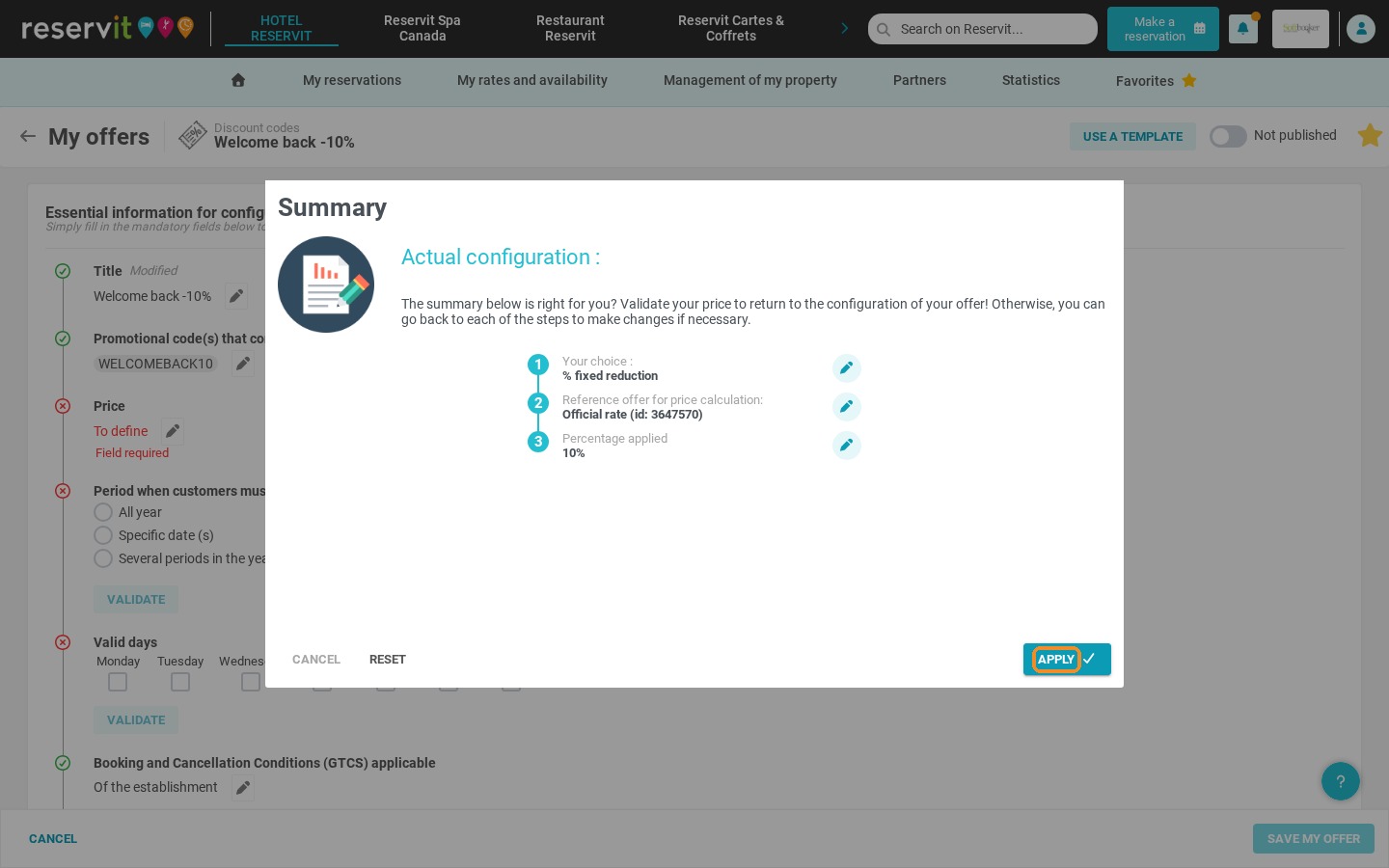
7. Click "Apply".
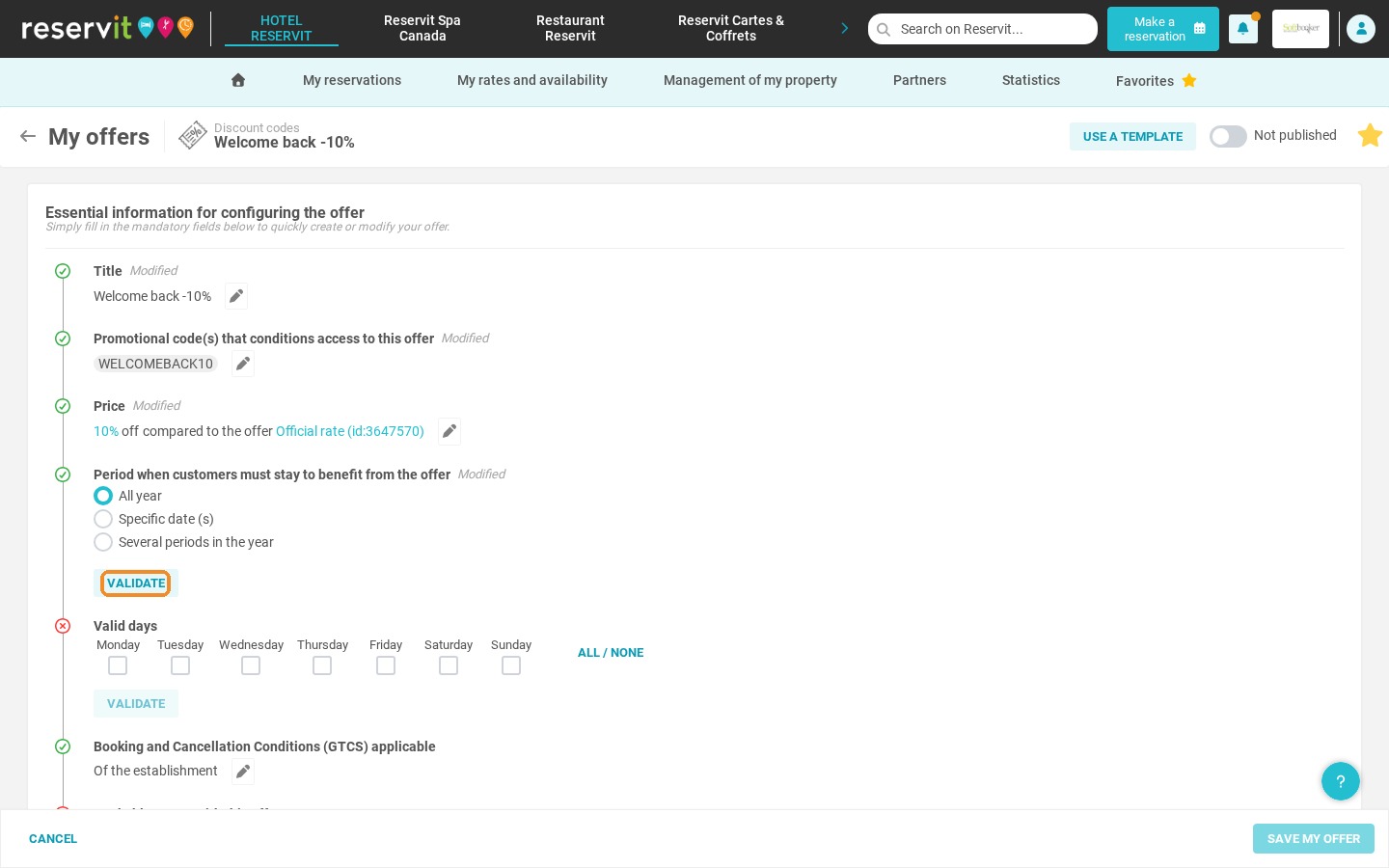
8. Select the period during which guests must stay to benefit from the offer, then click "Validate".
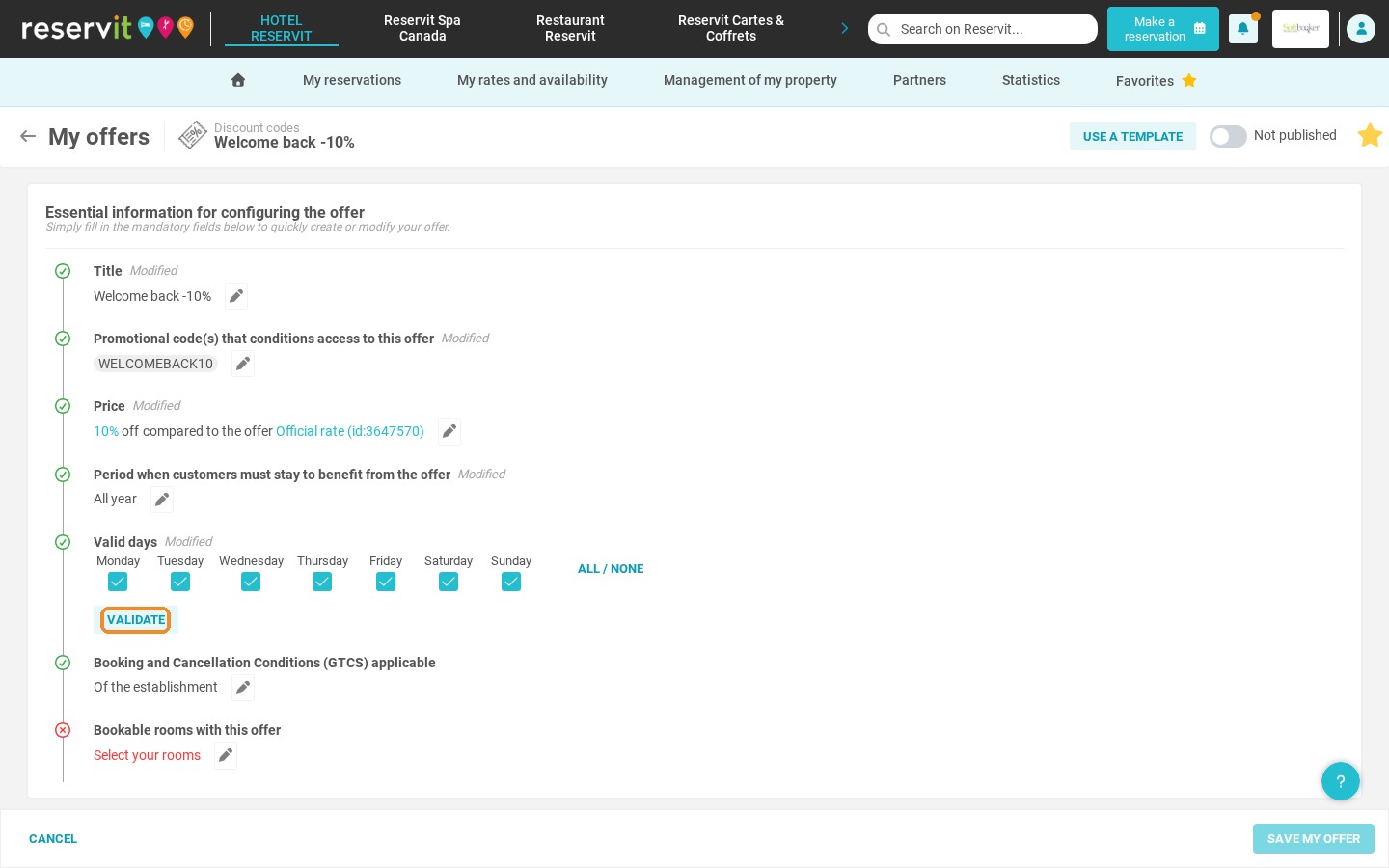
9. Select the day(s) of the week the offer applies to, then click "Validate".
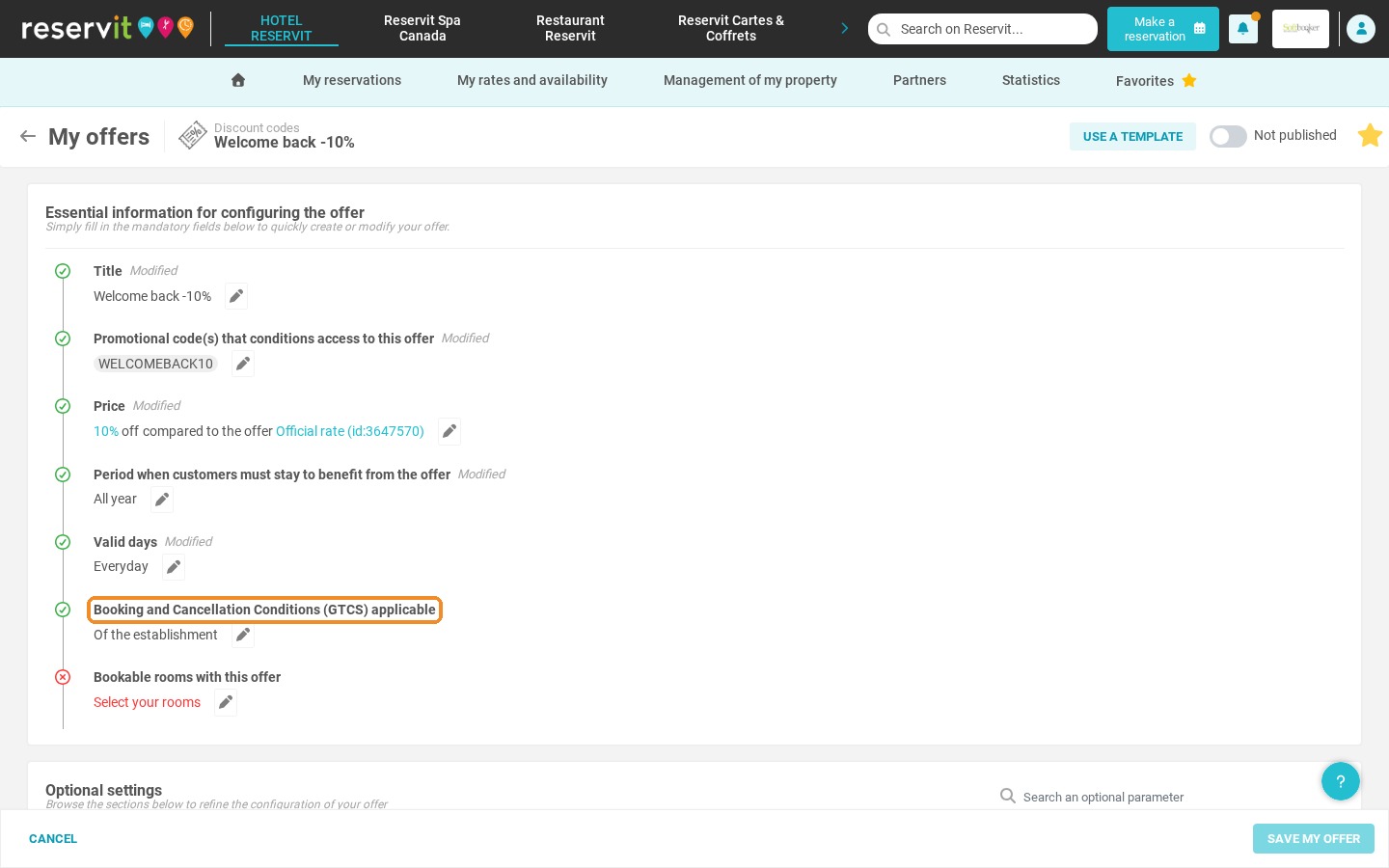
10. Check the applicable booking and cancellation conditions. By default, those of your property apply; click the pencil to change them and don't forget to apply.
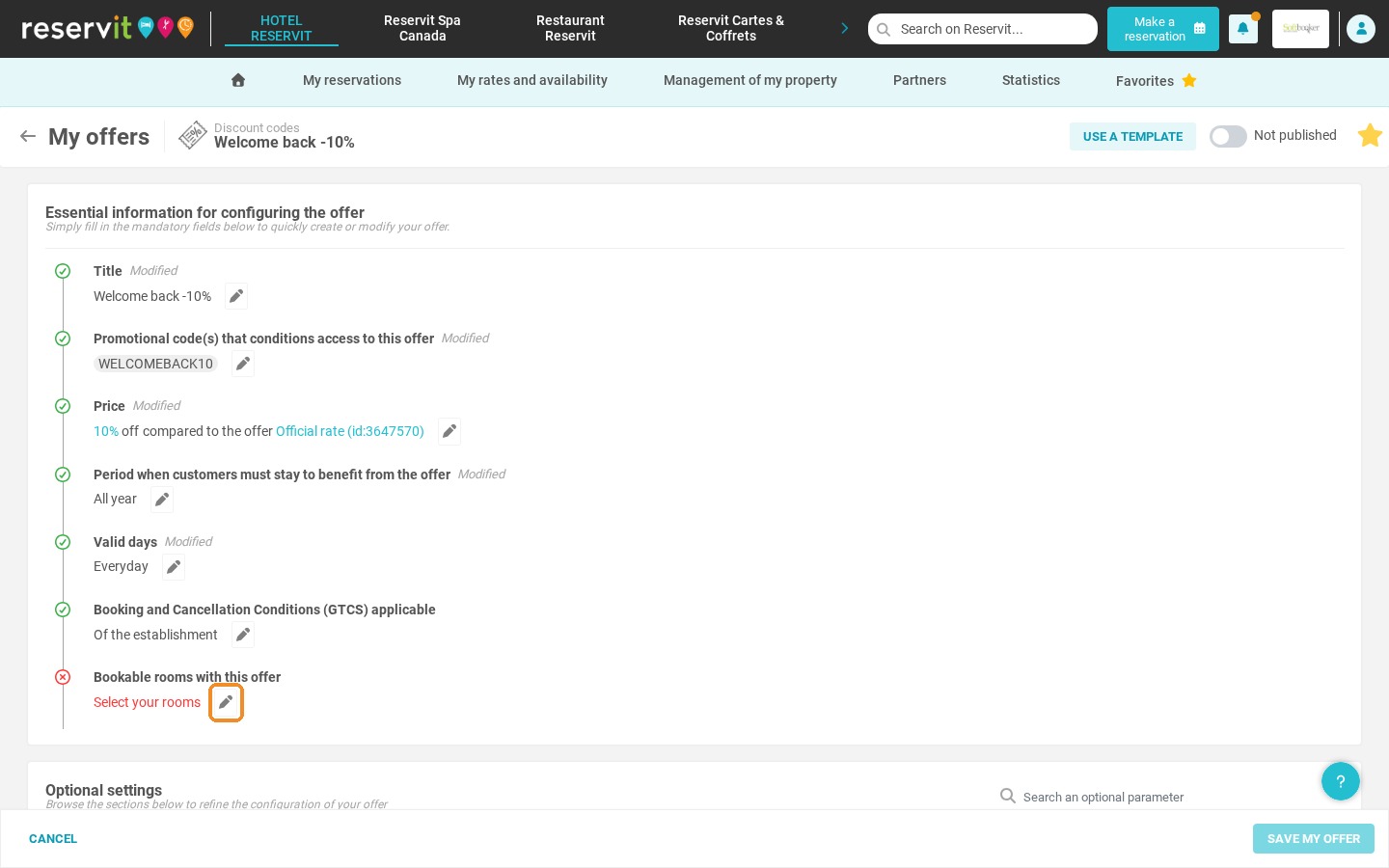
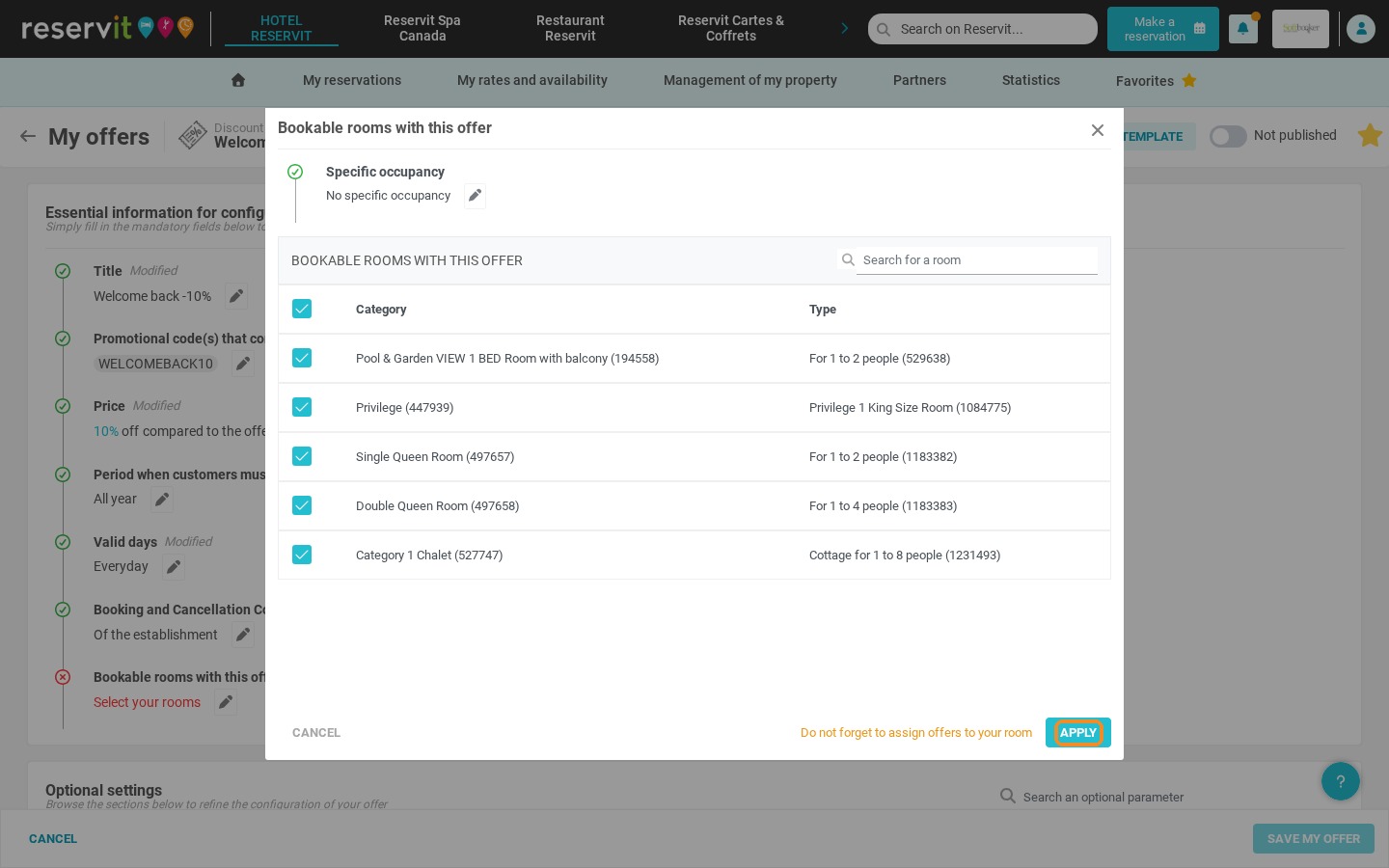
11. Click the pencil next to "Bookable rooms with this offer", select the room(s) the offer applies to, then click "Apply".
12. Click "Save my offer".
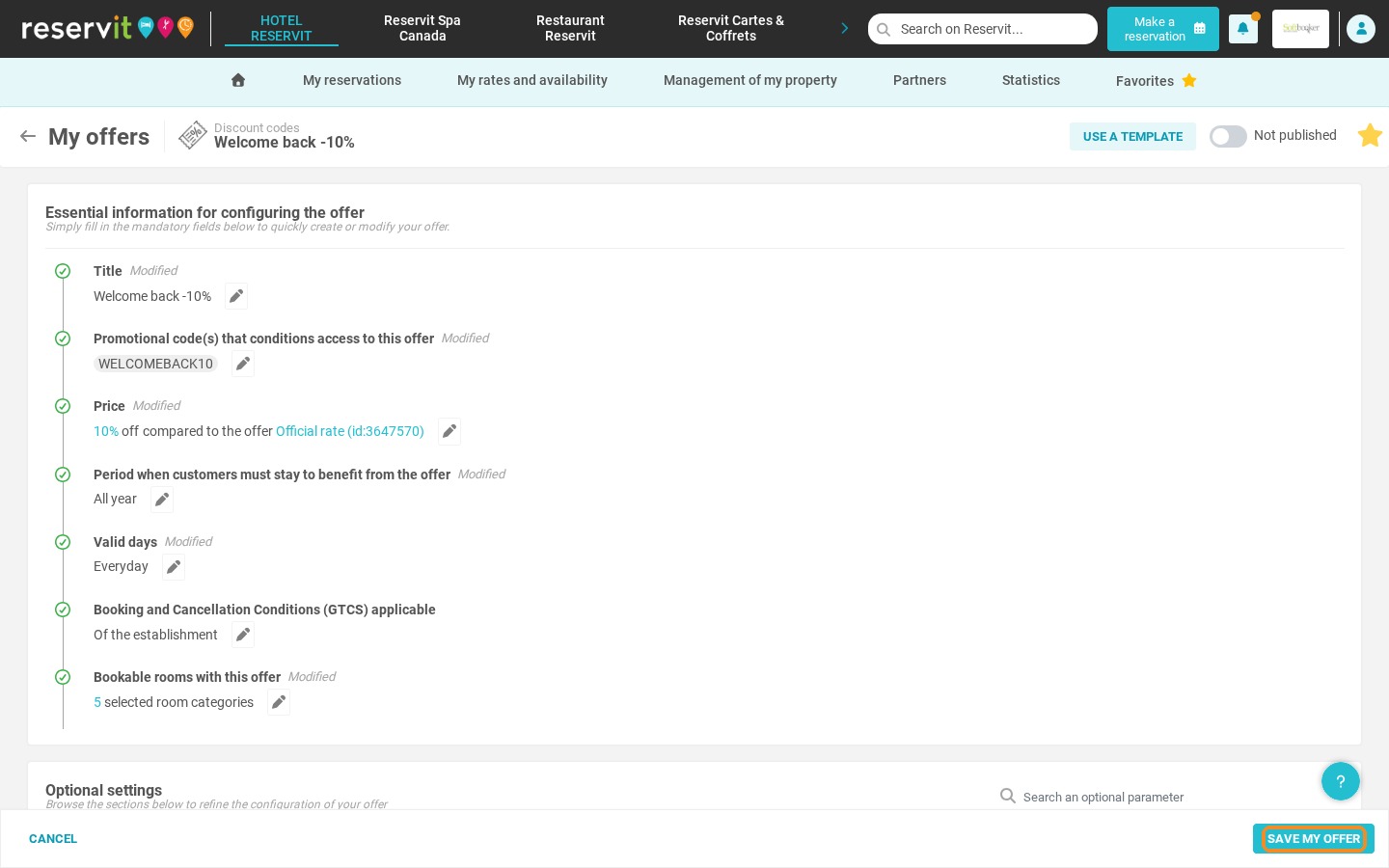
13. Please note: the offer is not published by default. Switch the "Not published" toggle on to make your promo code bookable.