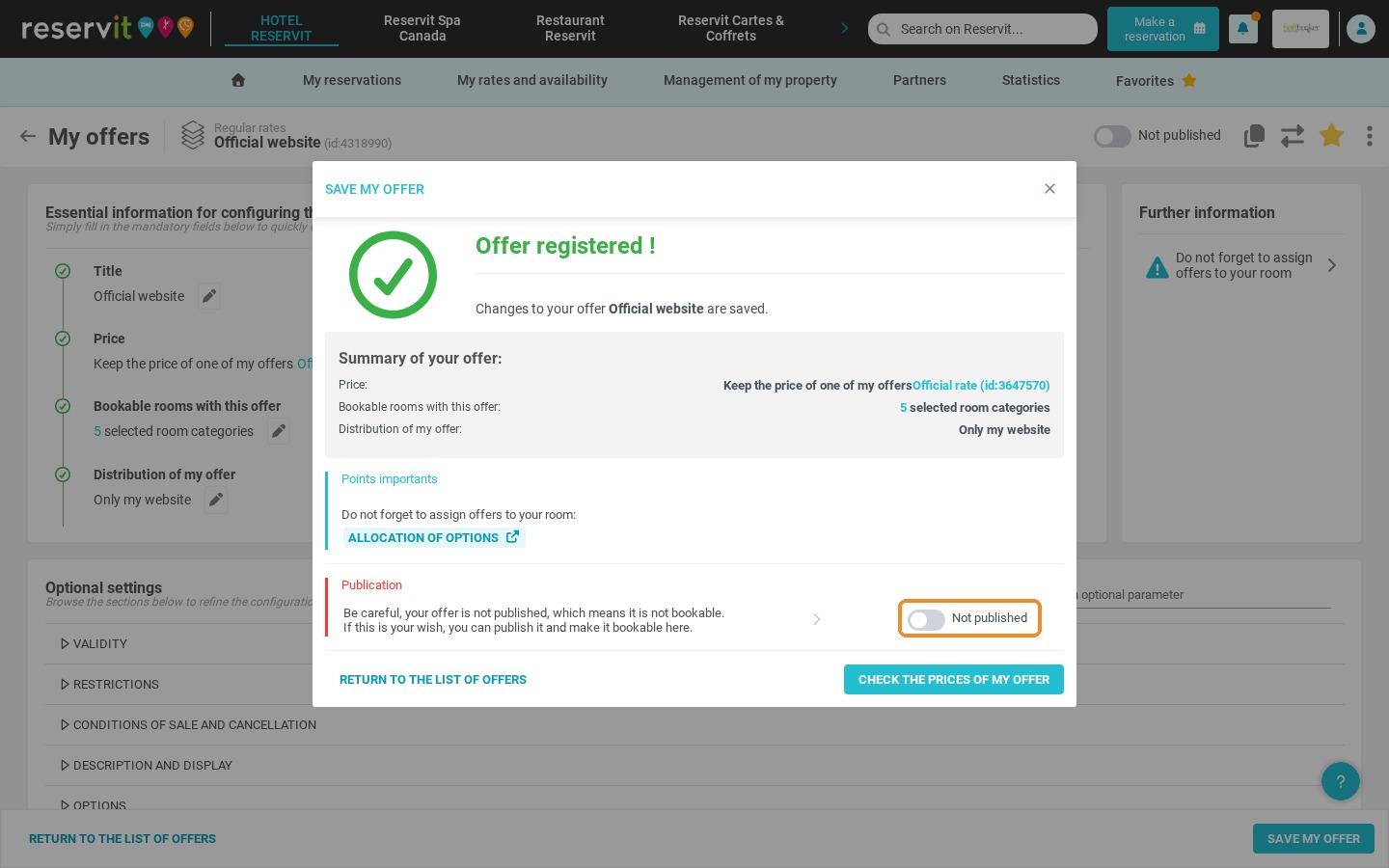
Article Summary: This tutorial explains how to create and configure a new rate offer in Reservit Accommodation using the built-in templates. You will learn how to assign the offer to your rooms and choose its sales channels, such as your own website. Set up targeted offers in a few clicks to strengthen your sales strategy and grow your direct bookings.
The 4 Key Steps to Create a Rate Offer:
-
Open the creation menu: Go to "My rates and availability" > "My offers", add a new offer and choose a predefined template.
-
Select the rooms: Open the room selection and choose the room categories the offer applies to.
-
Set the distribution: Select "My website" as the distribution channel to promote direct sales.
-
Save and publish: Click "Save my offer", then switch on the publication toggle to make the offer bookable.
Why Follow This Guide? This step-by-step guide saves you time and avoids errors when setting up your prices. By creating targeted offers quickly, you can fine-tune your revenue strategy (yield management) and make your booking engine more competitive.
Access My offers
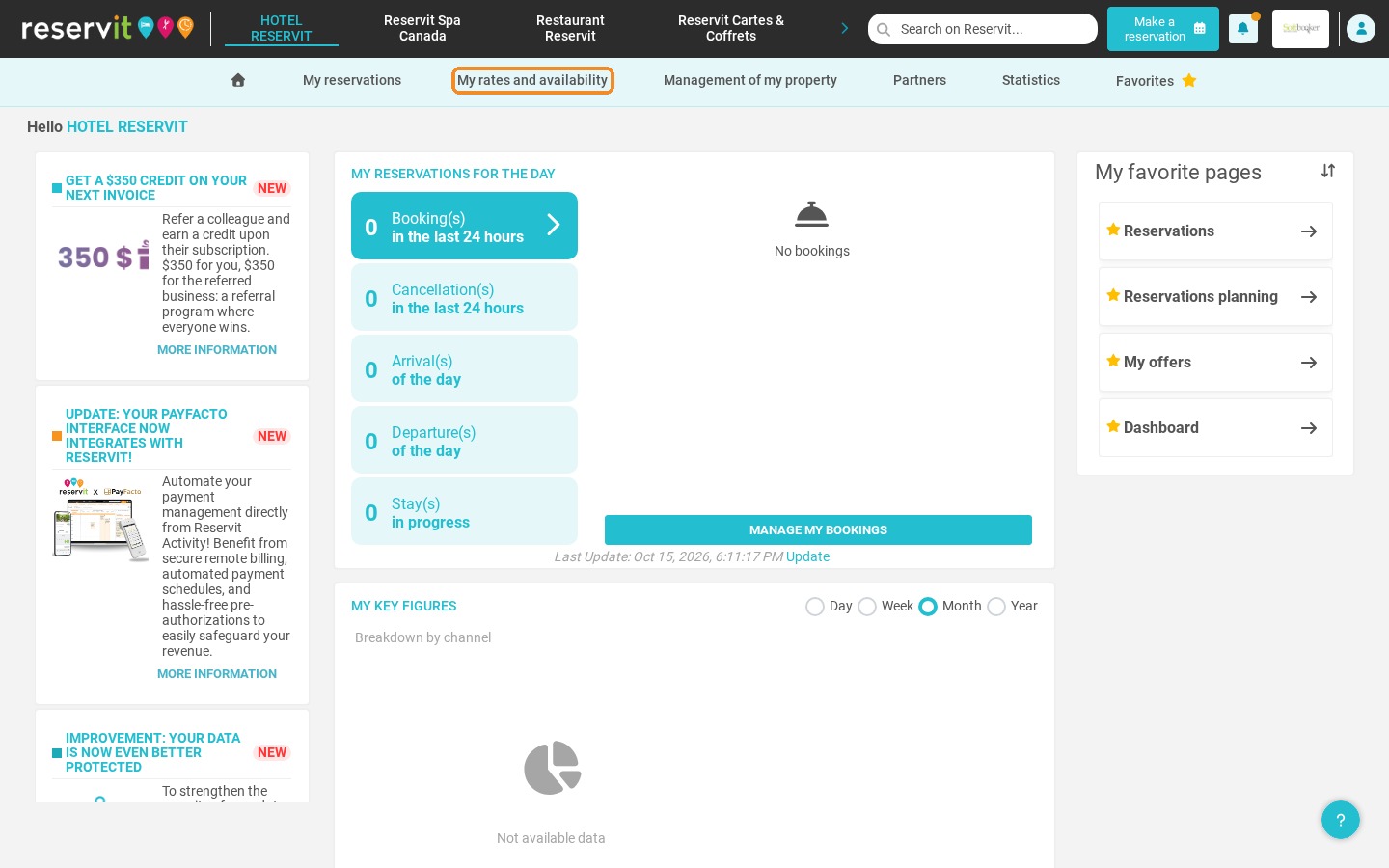
1. Click "My rates and availability".
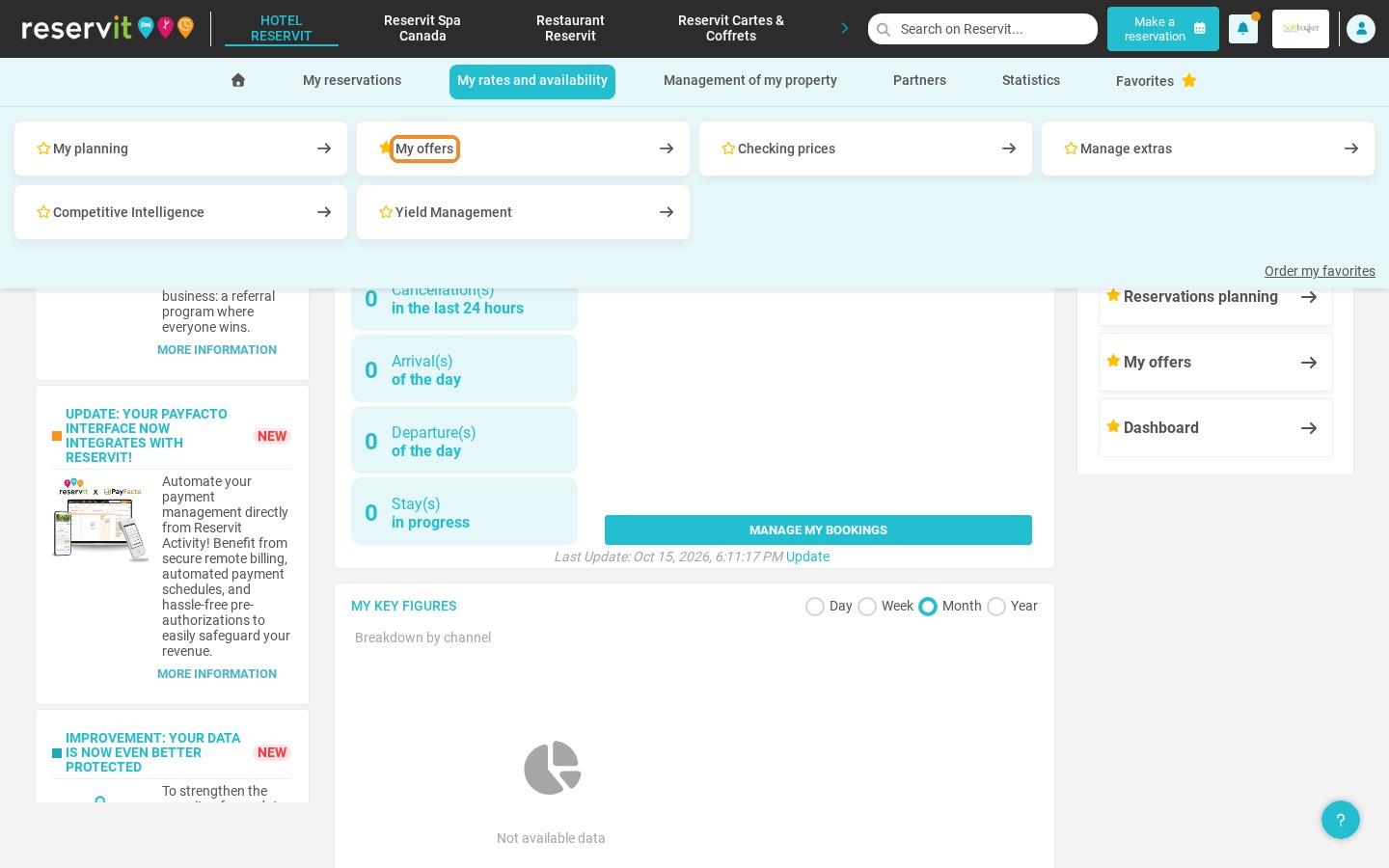
2. Click "My offers".
Create the offer
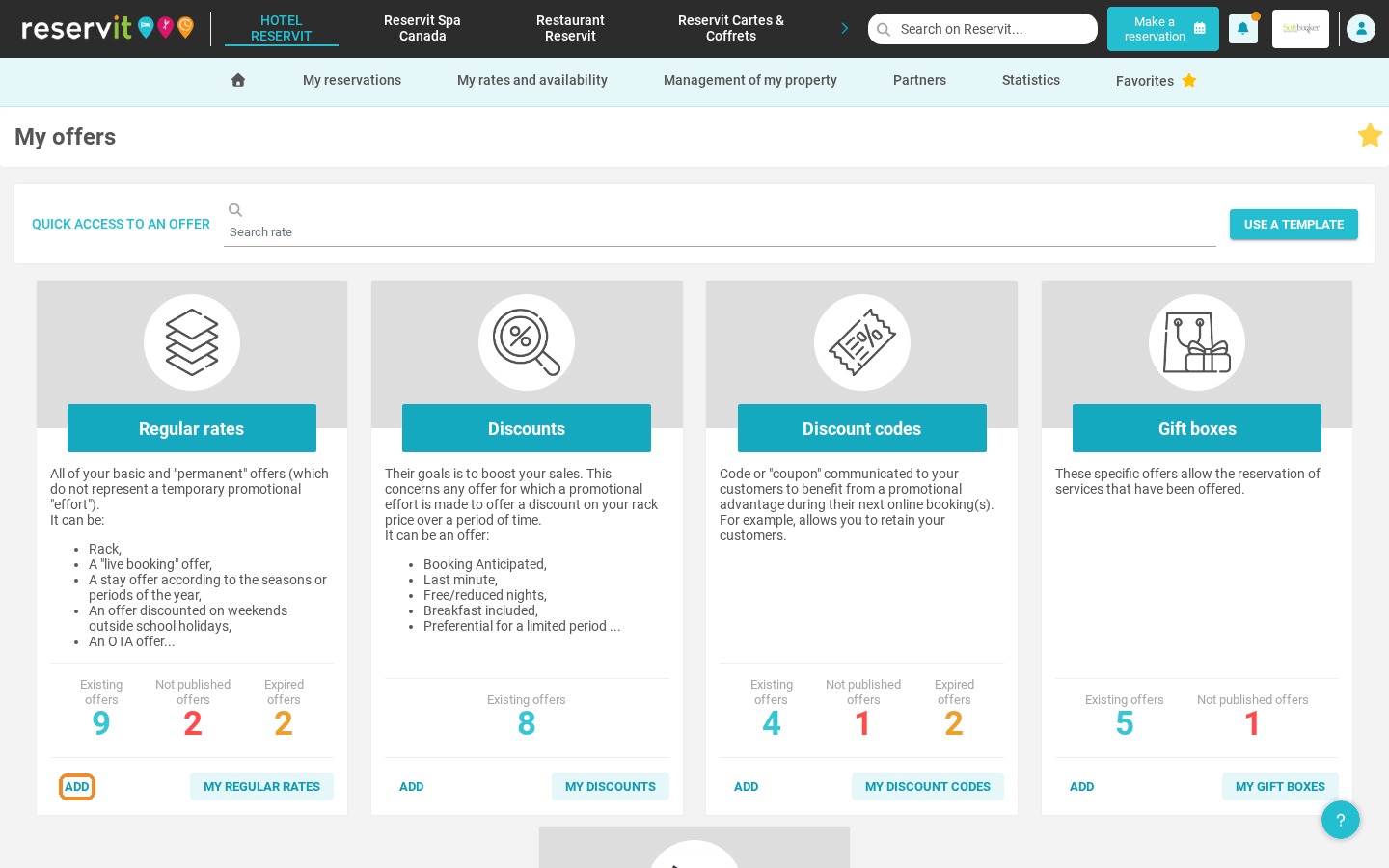
3. Click "Add" in the category of your choice, for example "Regular rates".
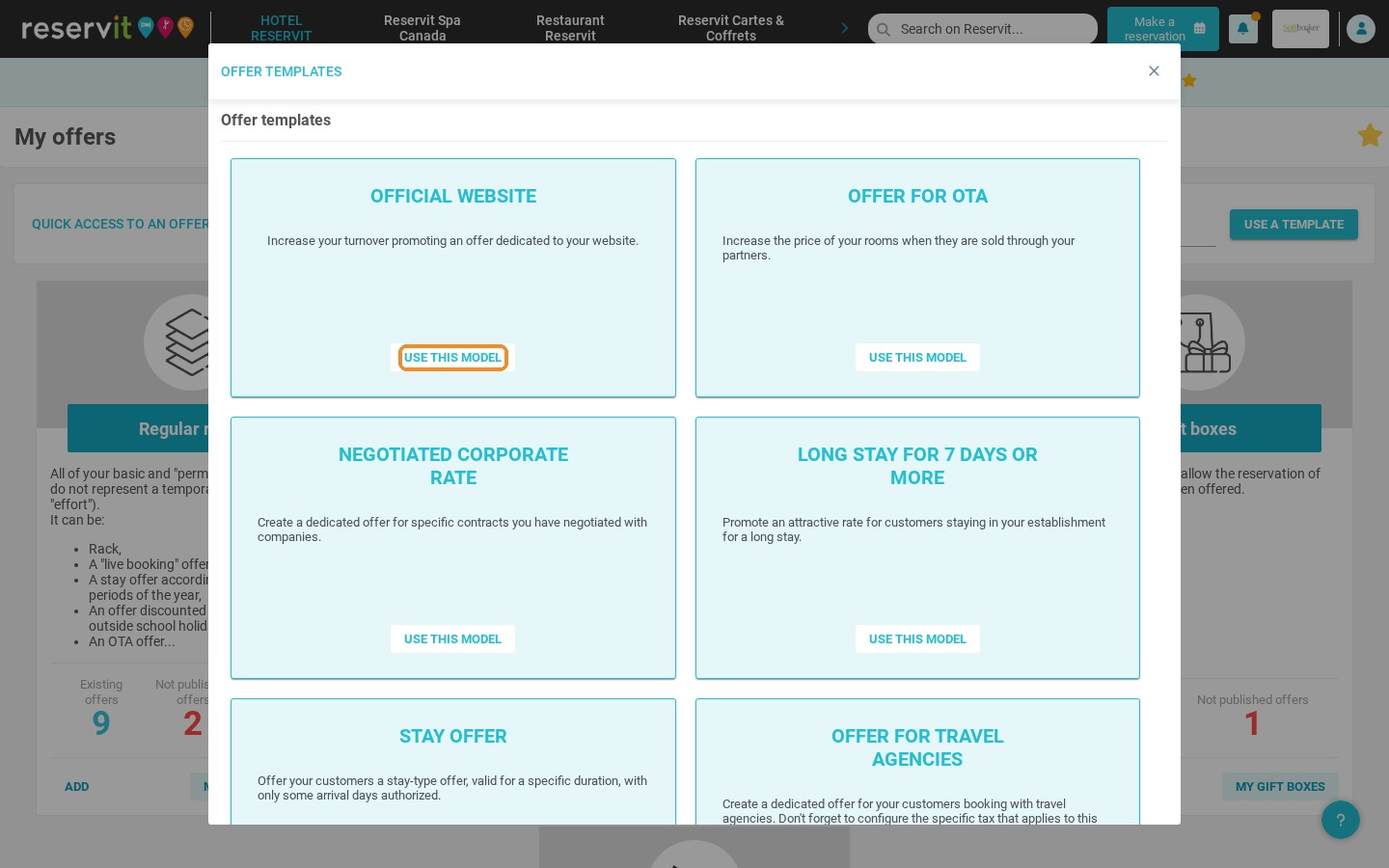
4. Click "Use this model" on the template you want to use, for example "Official website".
Configure the offer
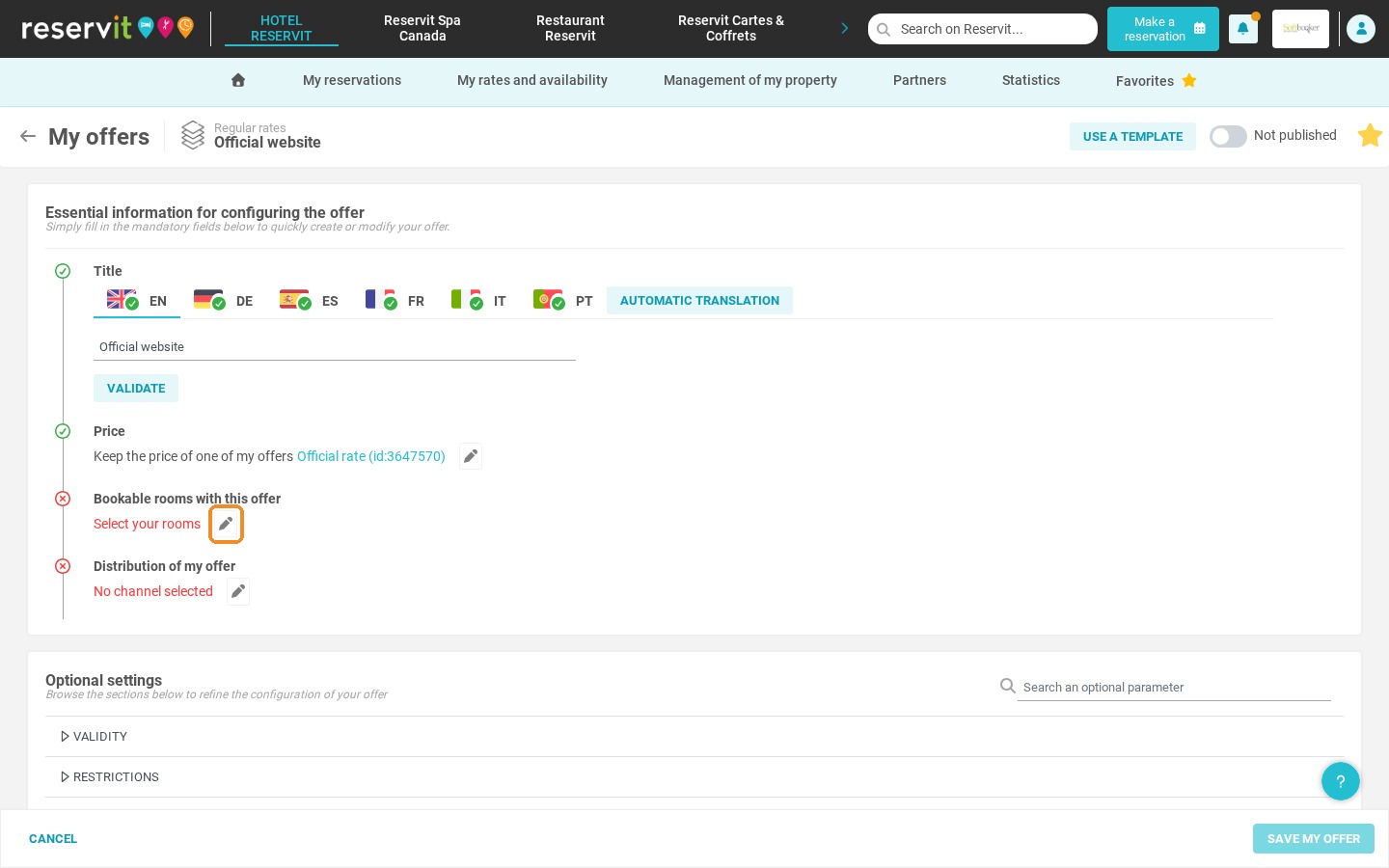
5. Click the pencil next to "Bookable rooms with this offer".
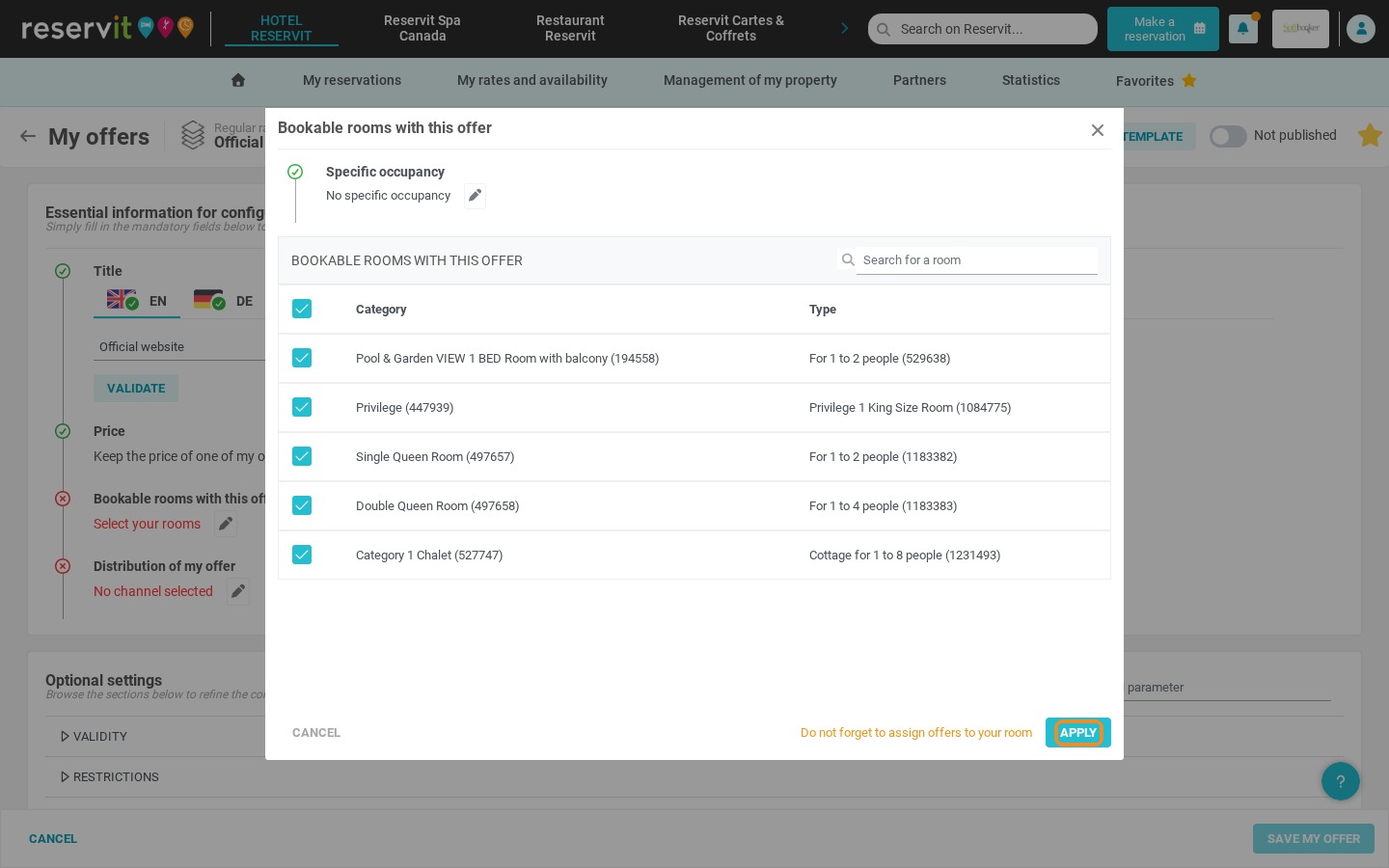
6. Select all the room categories and click "Apply".
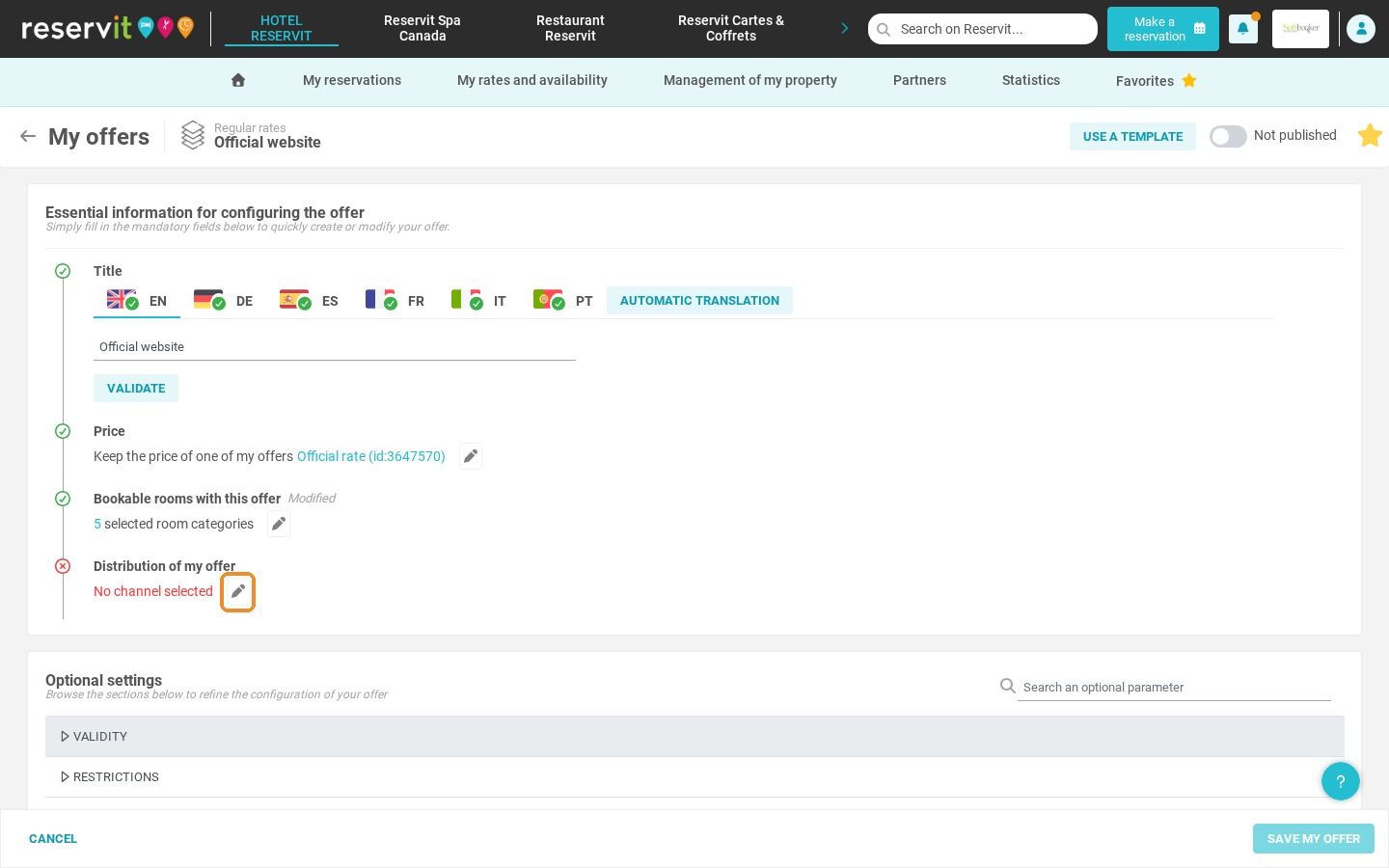
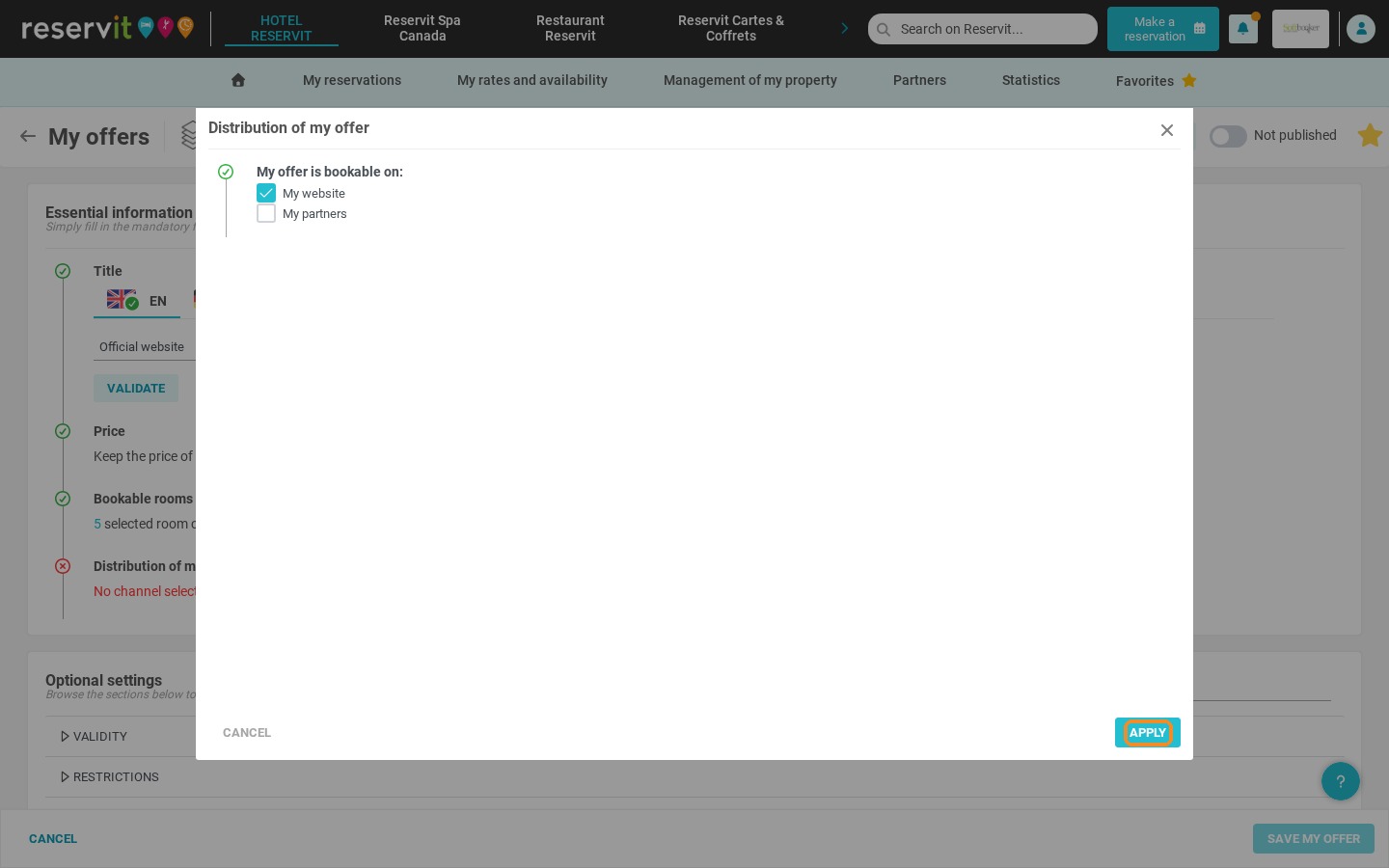
7. Click the pencil next to "Distribution of my offer".
8. Select "My website" as the distribution channel and click "Apply".
Save and publish
9. Click "Save my offer".
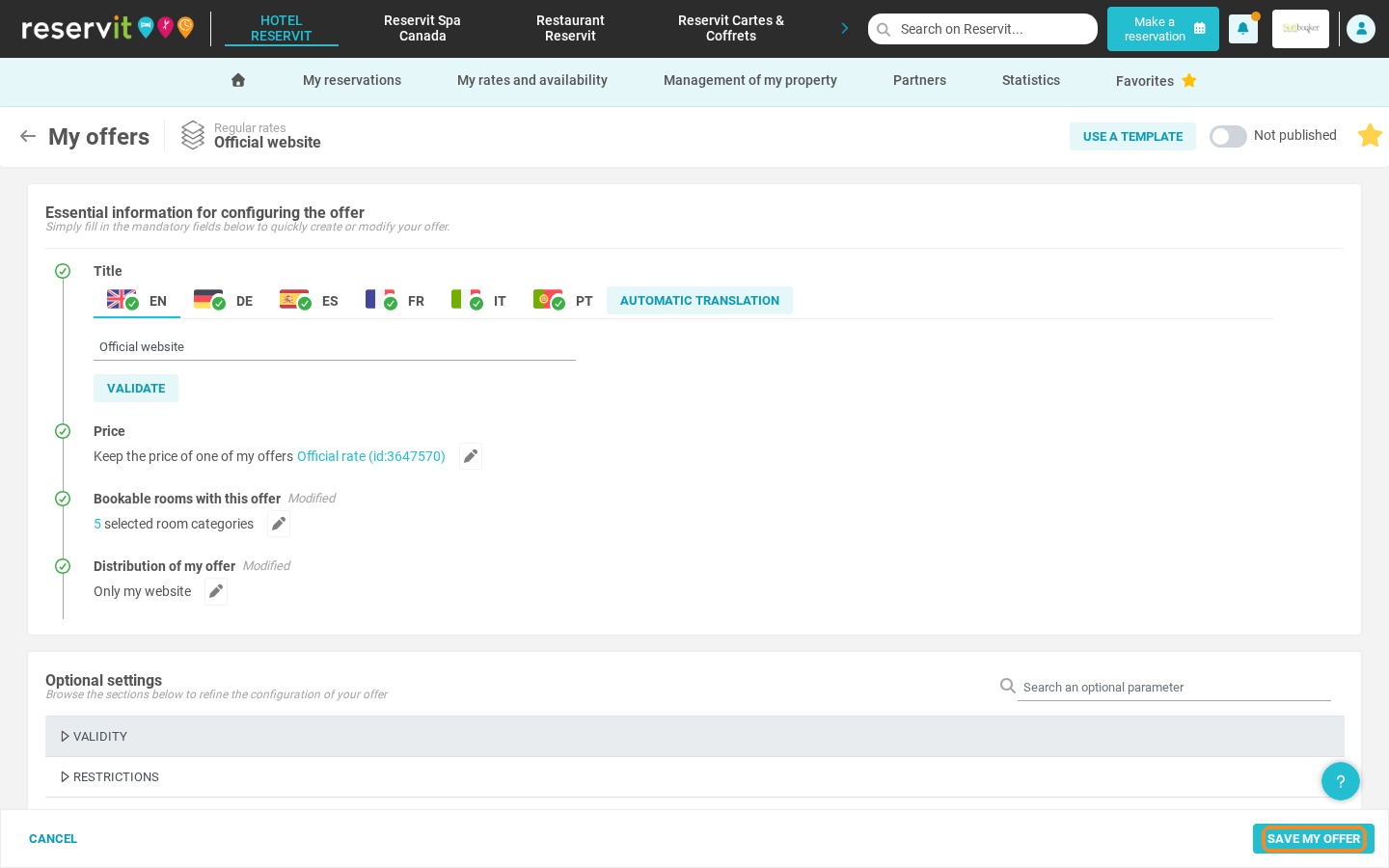
10. Switch on the publication toggle ("Not published") to make your offer bookable.