

Article Summary: This tutorial guides you step by step through creating a custom rate offer, such as an offer with breakfast included, in Reservit Accommodation without using a template. You will learn how to set the pricing rule, choose your distribution channels and attach extra services to the offer. Create attractive packages that meet your guests' expectations and boost your direct bookings.
The 5 Key Steps to Create a Custom Rate Offer:
-
Create a new offer: Go to "My offers", click "Add" and choose "Continue without template" to build the offer entirely to your needs.
-
Name the offer and set the price: Give the offer a clear name (for example "Bed & Breakfast") and base its price on your reference rate.
-
Set the distribution: Select the channels where the offer can be booked, such as your website and/or your partners.
-
Attach options: Link the relevant services to the offer, such as "Breakfast", from the "Options" section.
-
Save the configuration: Click "Save my offer" to complete the creation.
Why Follow This Guide? This procedure ensures your rates and distribution are set up without errors, so your rooms are sold under the right conditions. You save time while easily diversifying the offers on your booking engine to maximise your revenue.
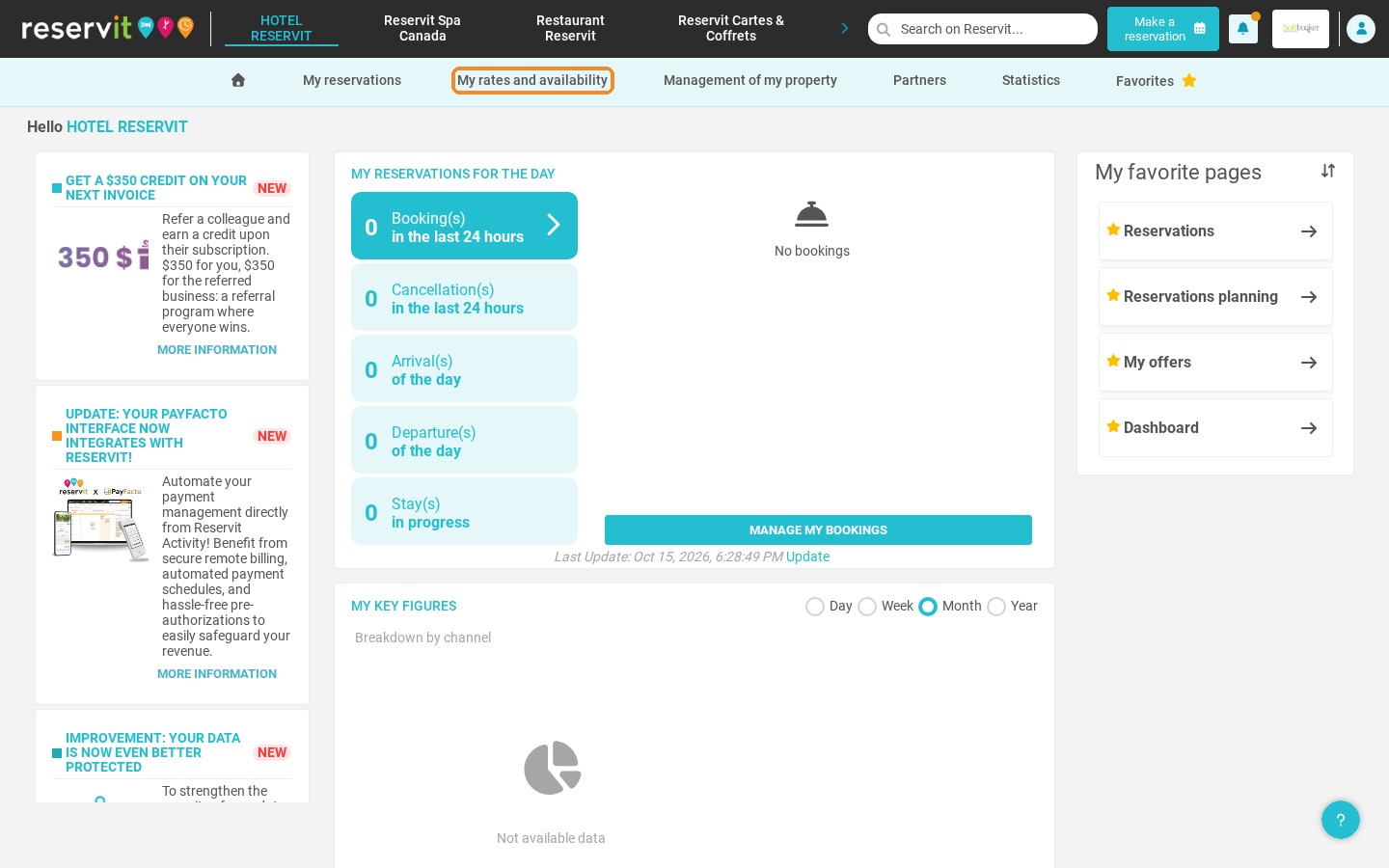
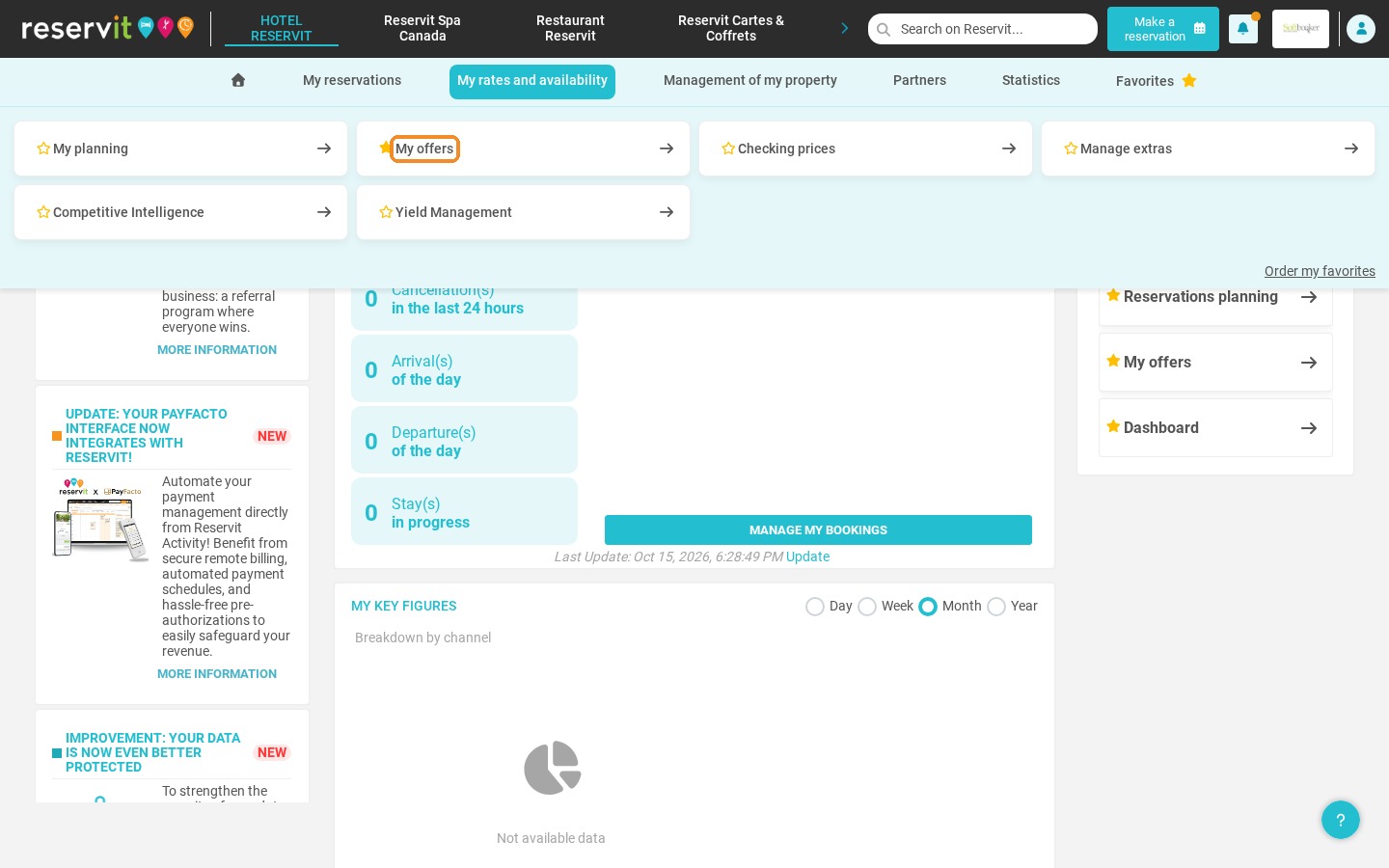
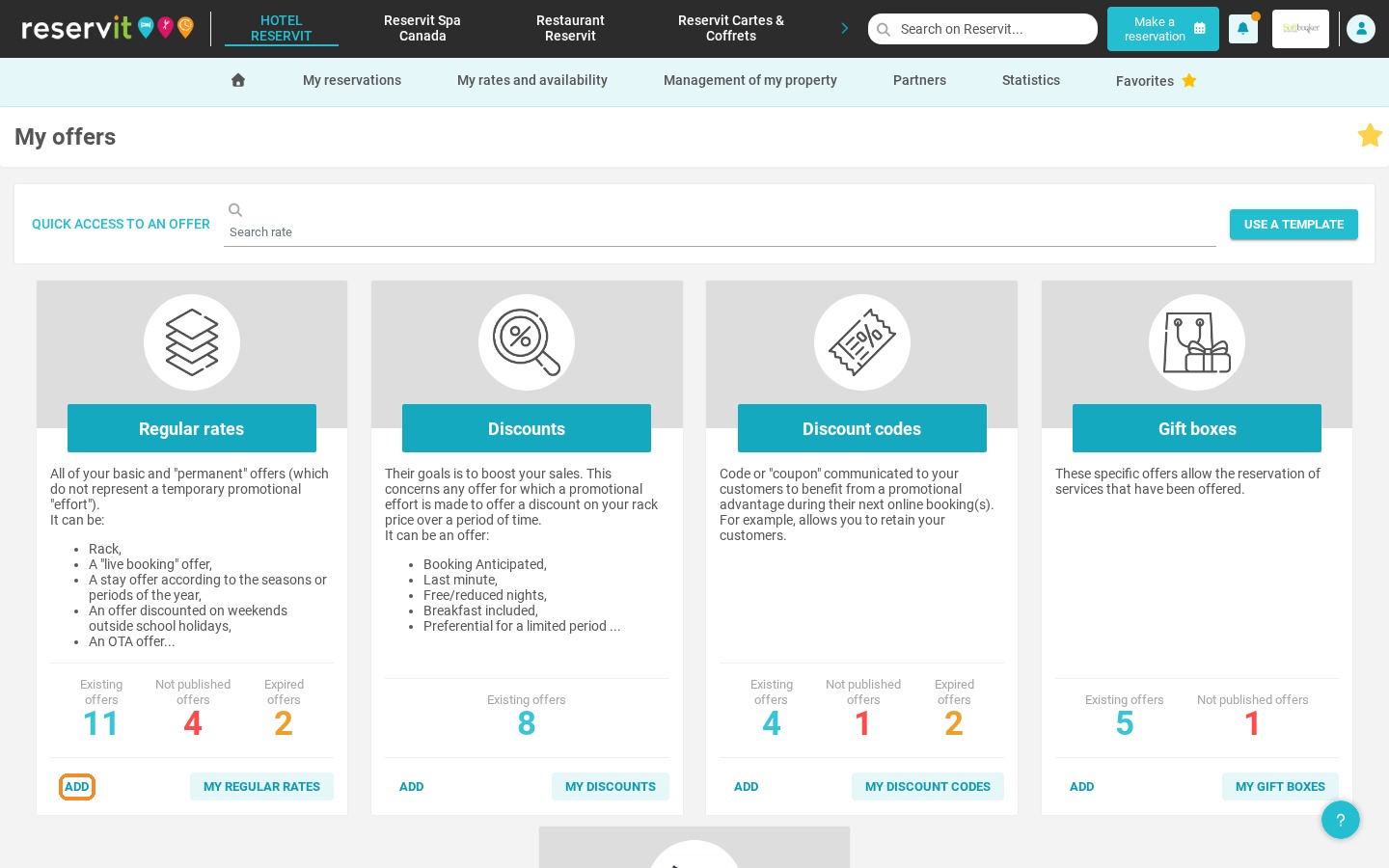
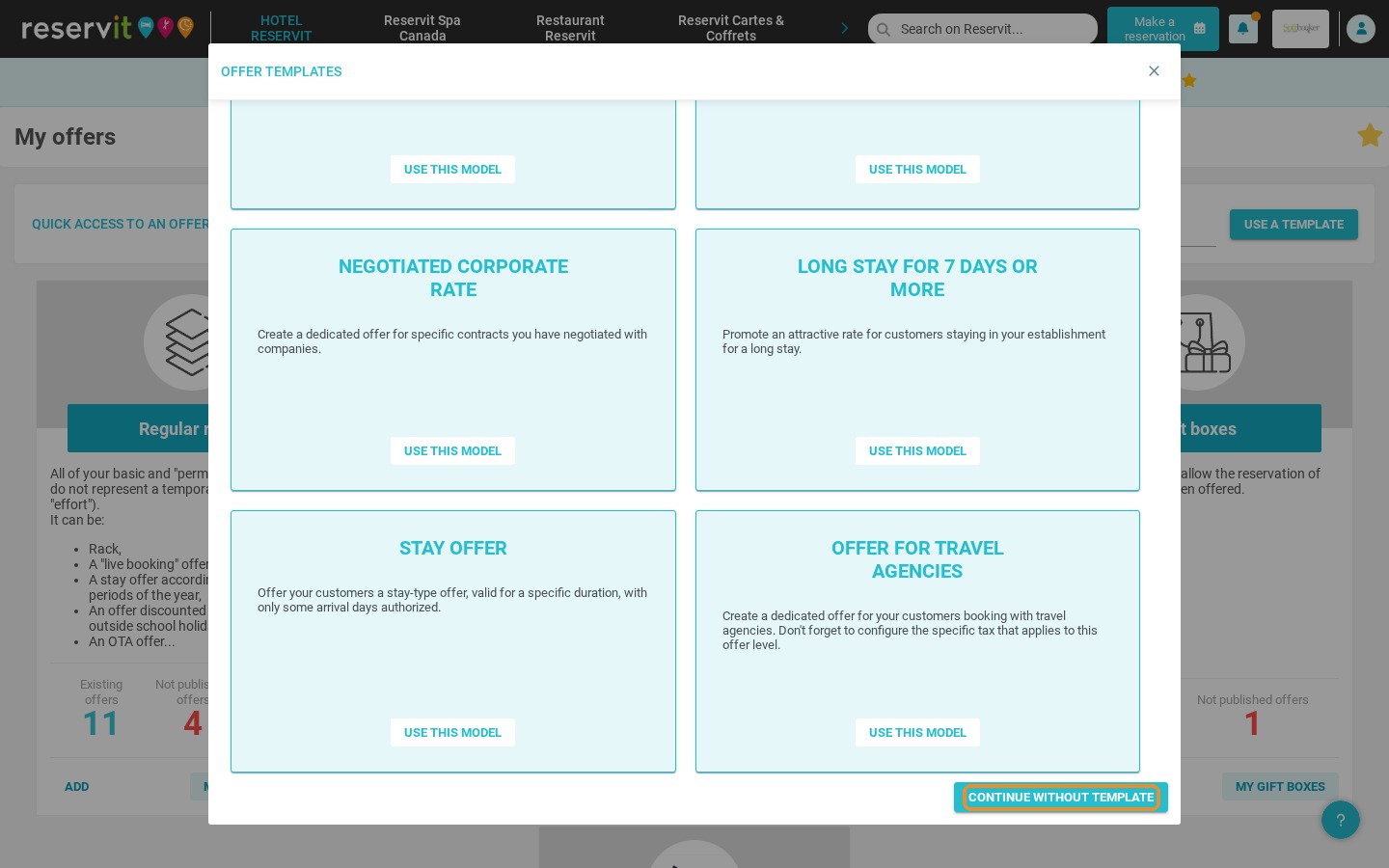
1. Go to "My rates and availability", then "My offers". Click "Add" to create a new offer, then "Continue without template" to configure it entirely to your needs.
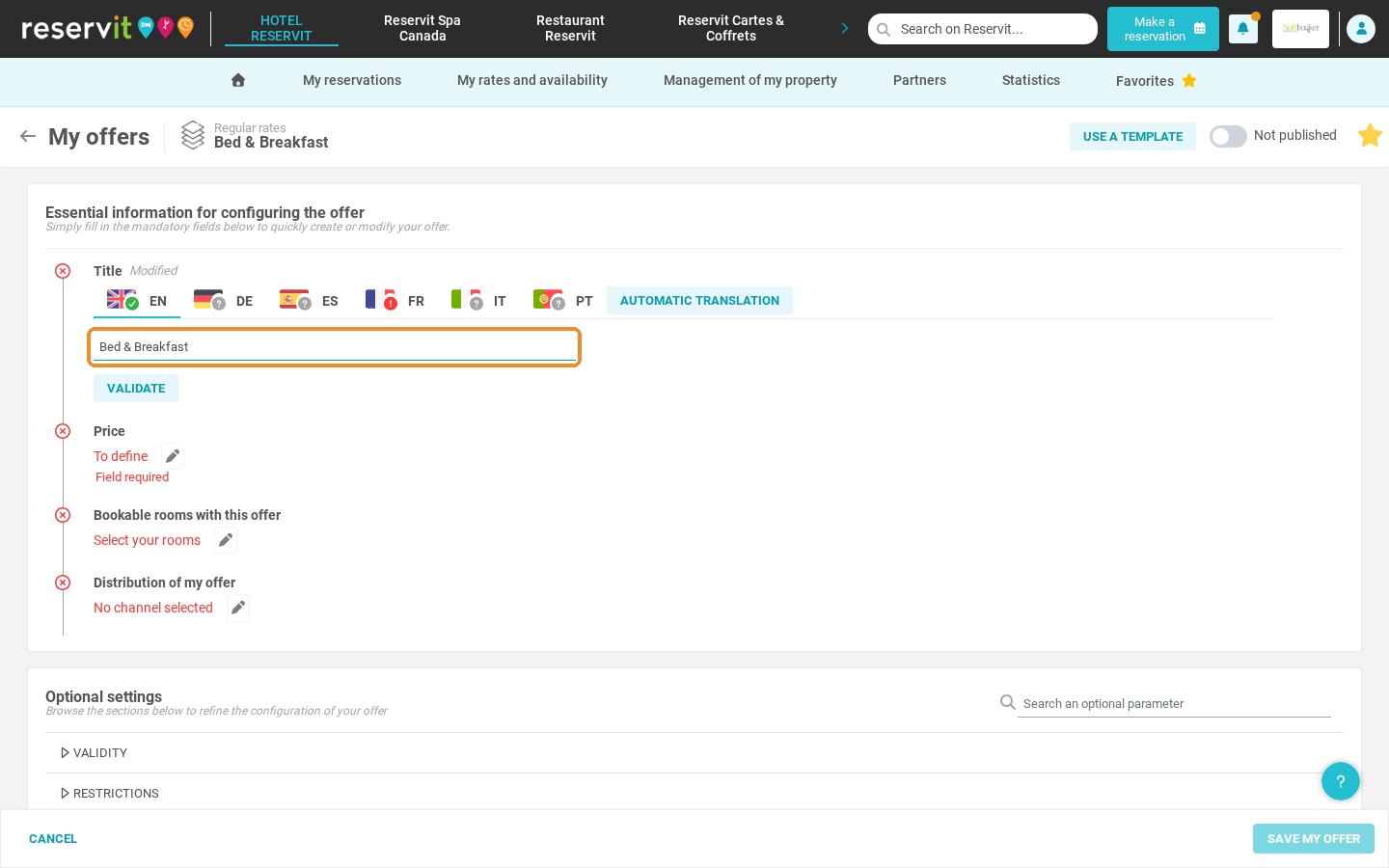
2. Enter the name of your offer (for example "Bed & Breakfast"), then click "Validate".
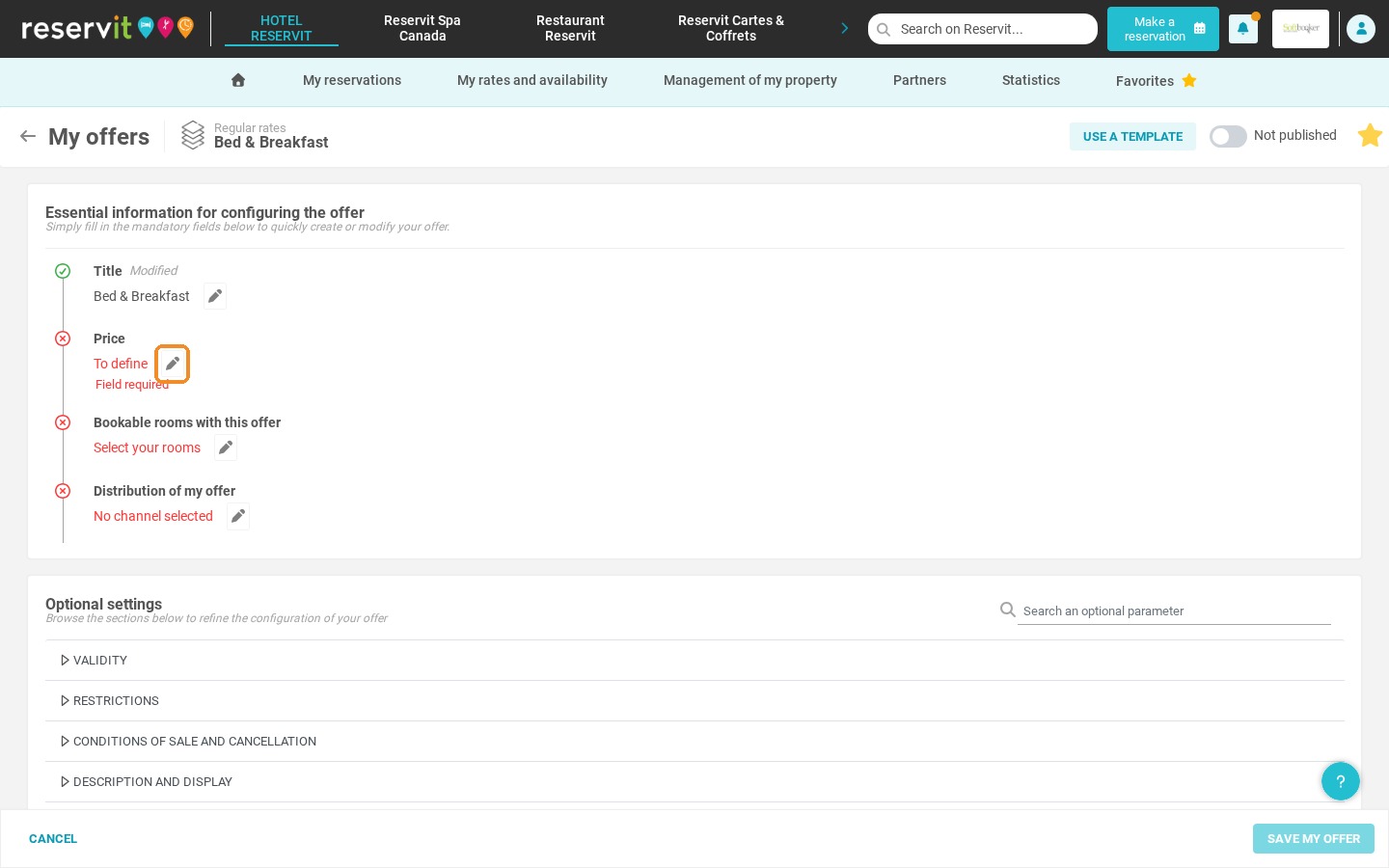
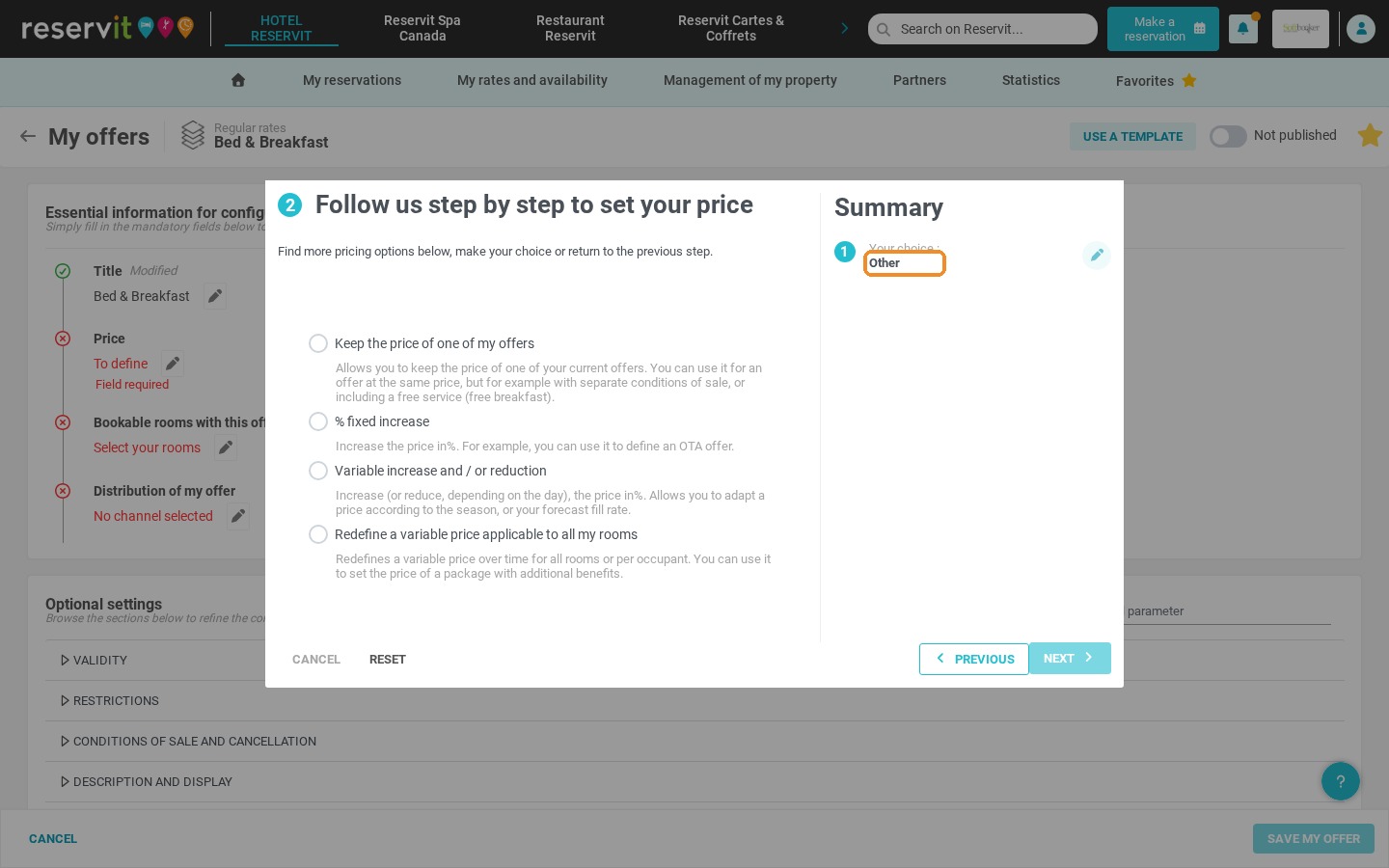
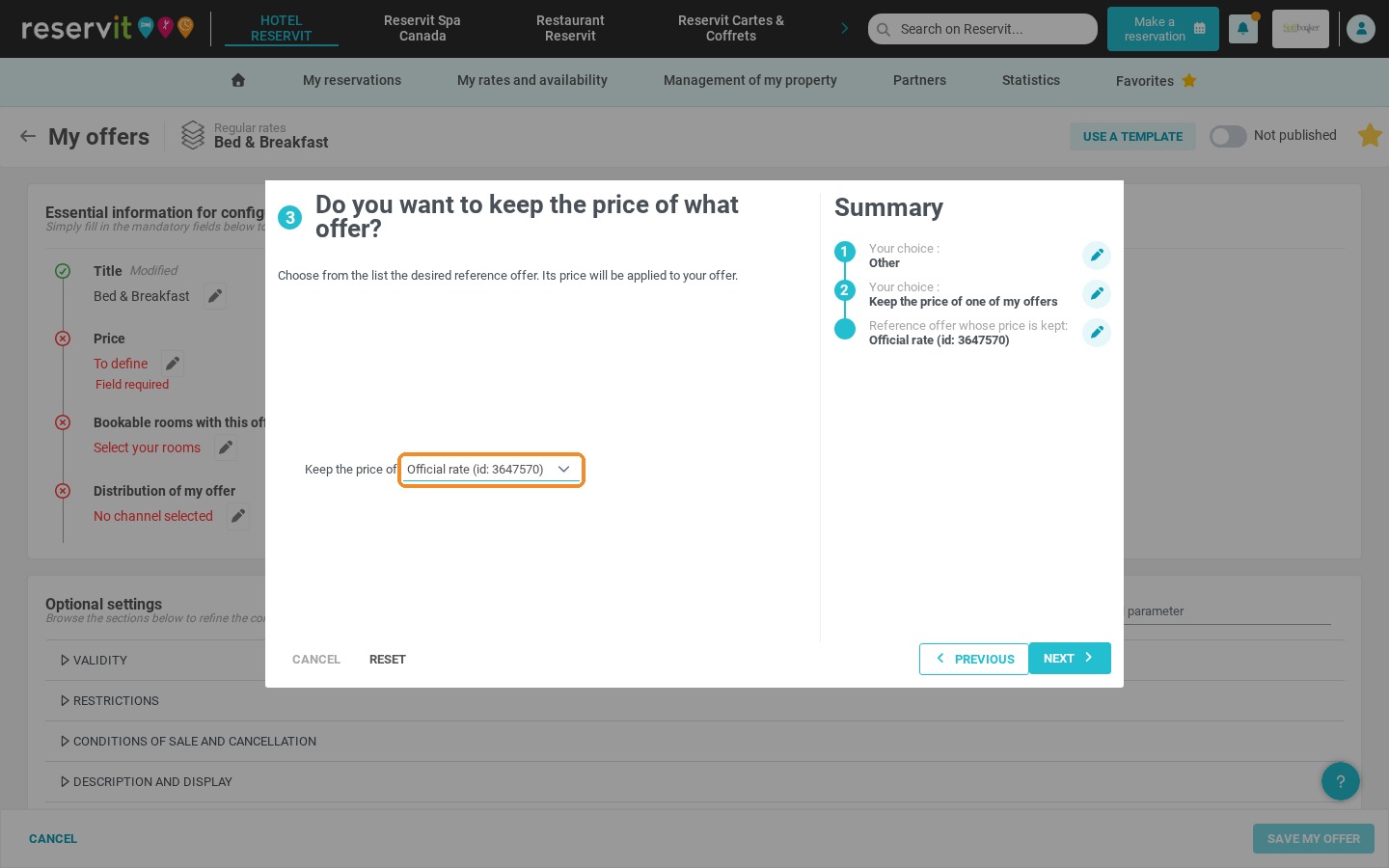
3. Click the pencil next to "Price". Select "Other" and click "Next", then select "Keep the price of one of my offers" and click "Next".
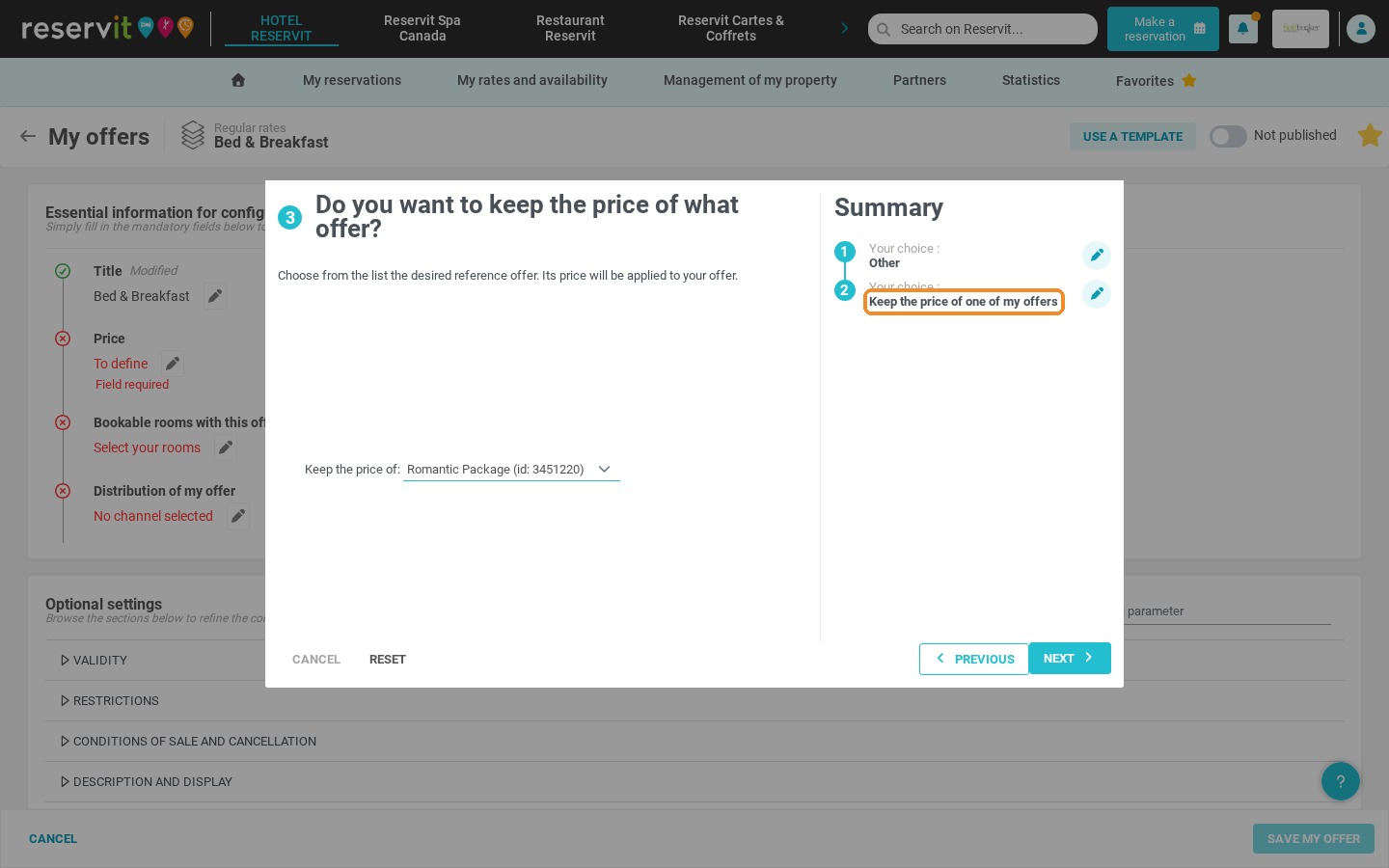
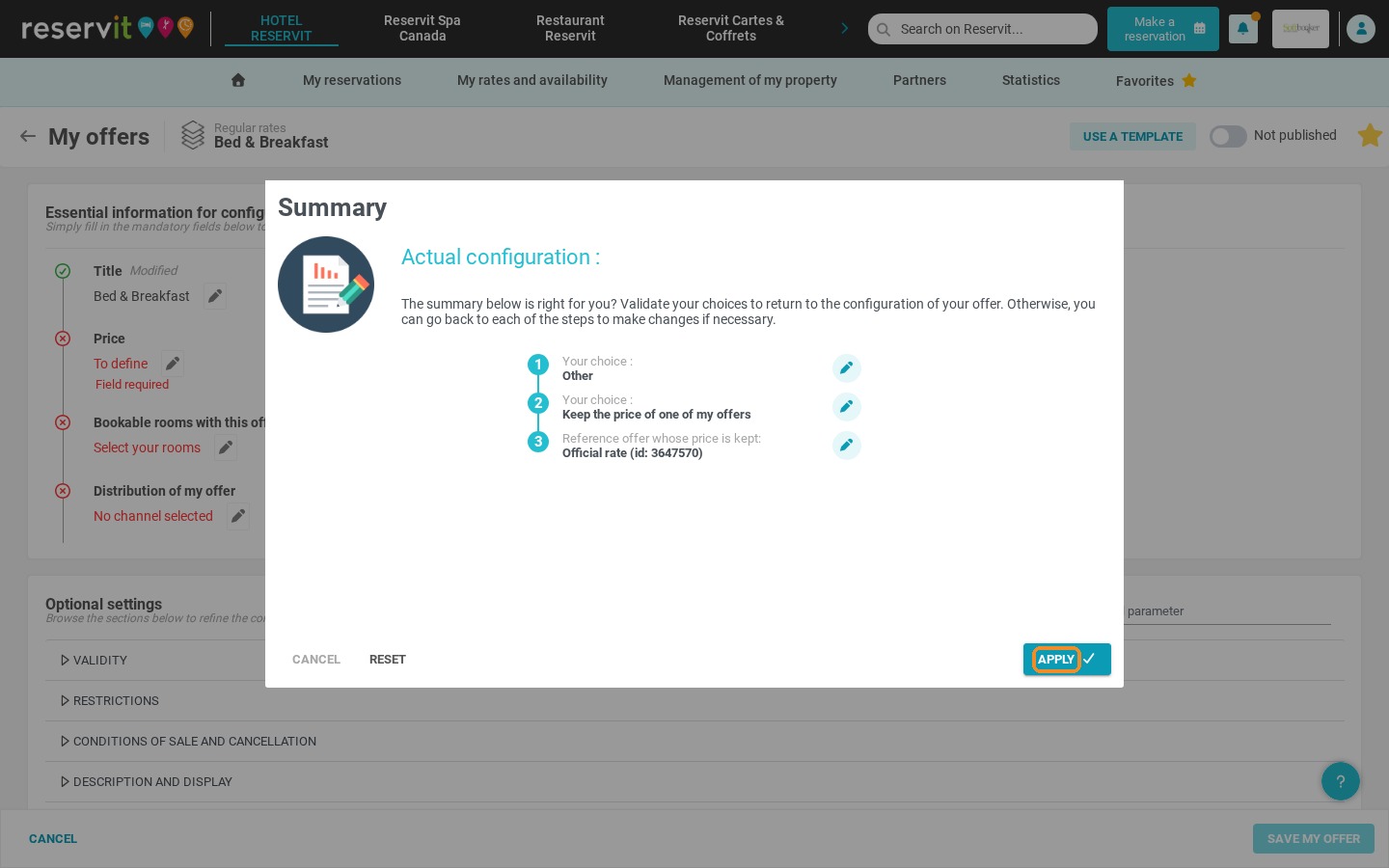
4. In the summary, check the reference offer whose price is kept. If needed, click the pencil to choose your reference rate (for example "Official rate"), click "Next", then "Apply".
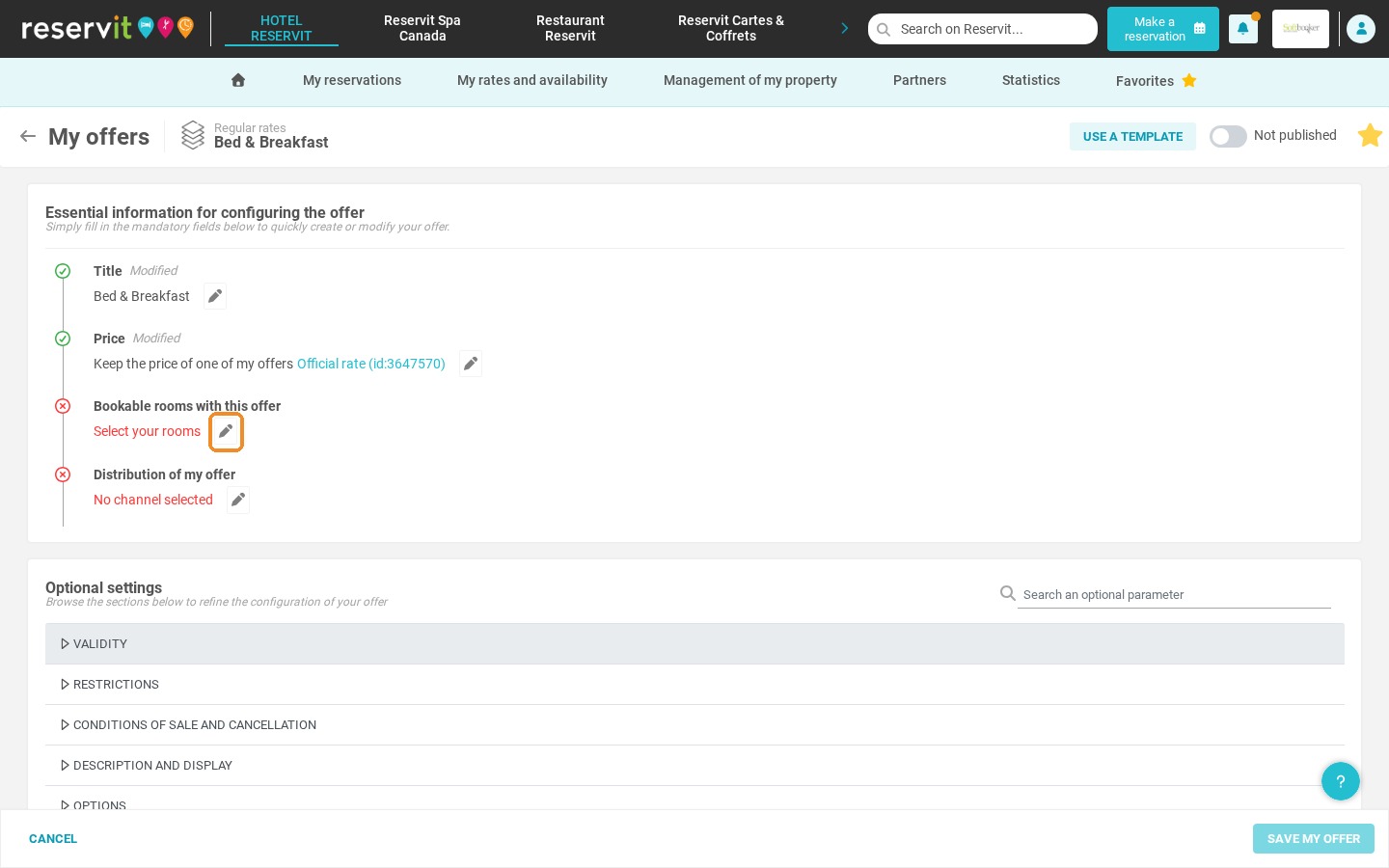
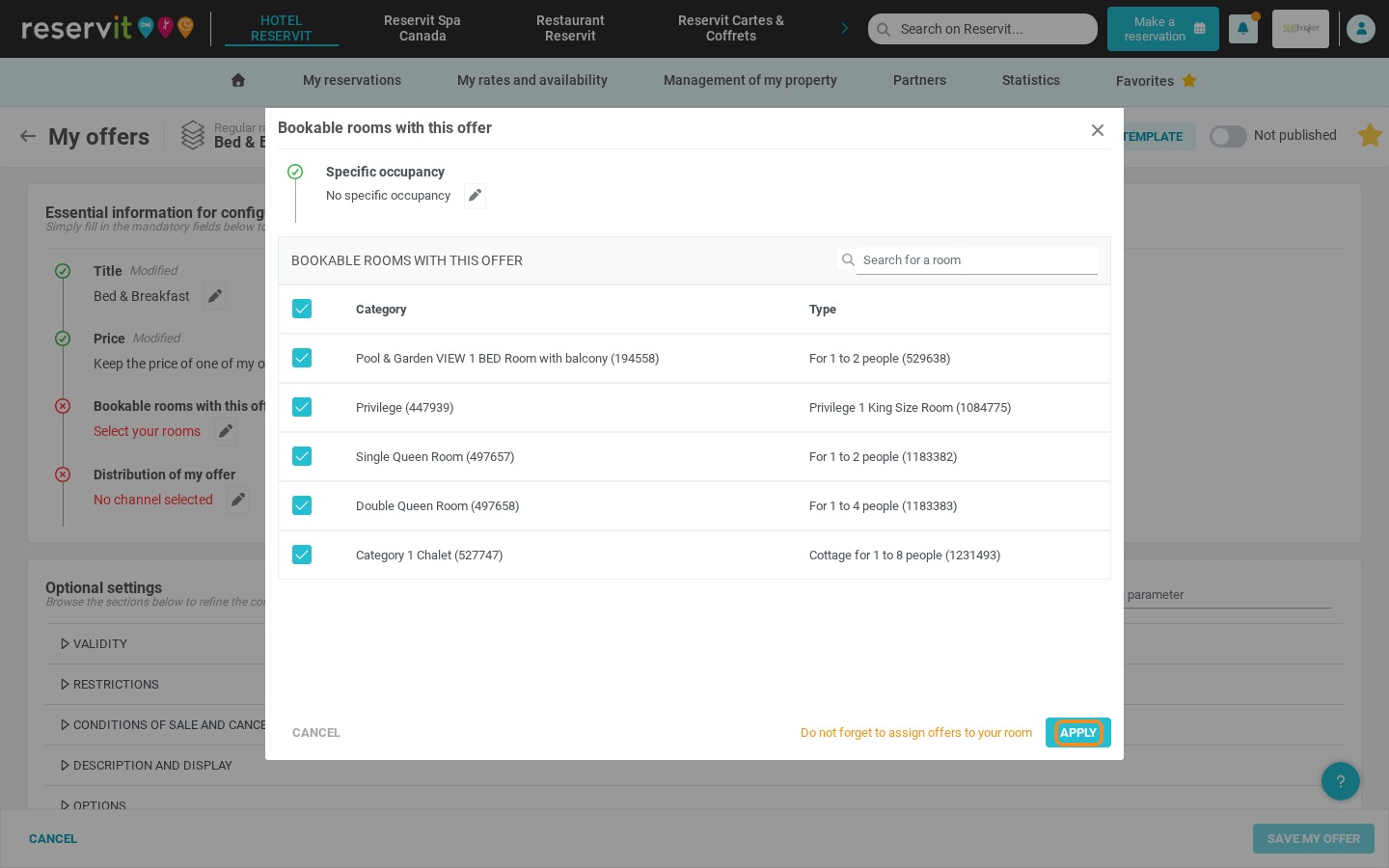
5. Click the pencil next to "Bookable rooms with this offer", select your room categories and click "Apply".
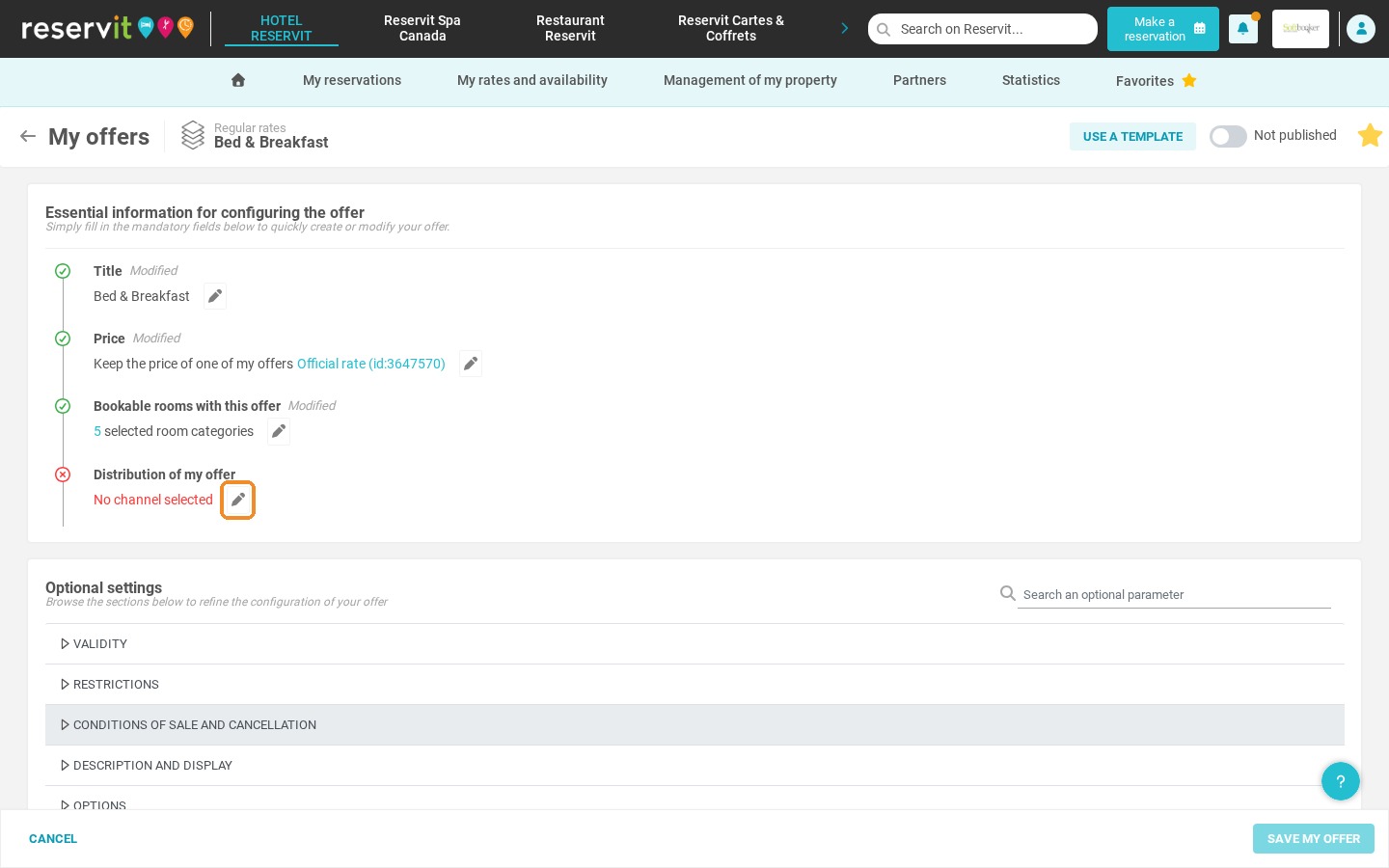
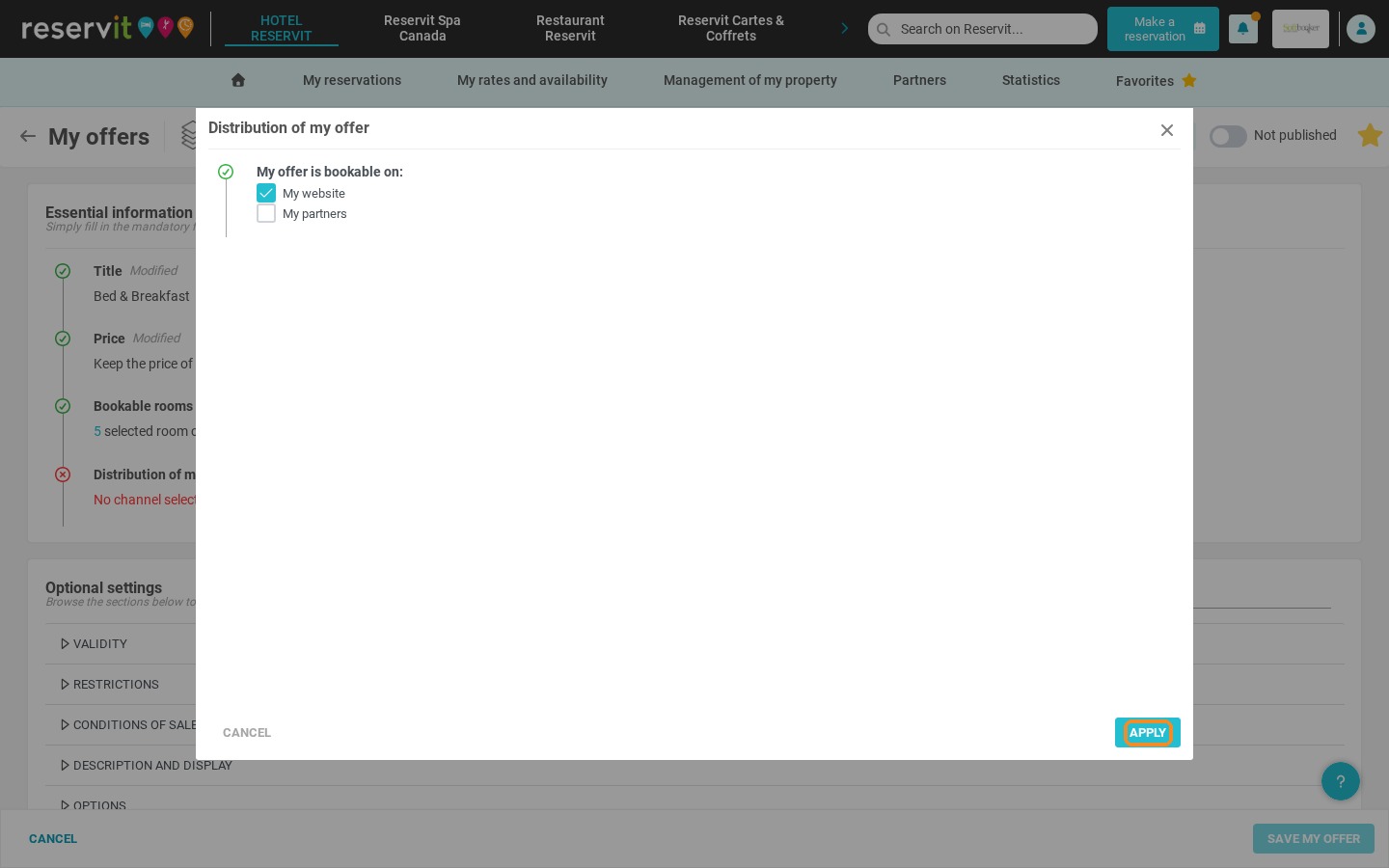
6. Click the pencil next to "Distribution of my offer", then select the channels where your offer can be booked: "My website" and/or "My partners". Click "Apply".
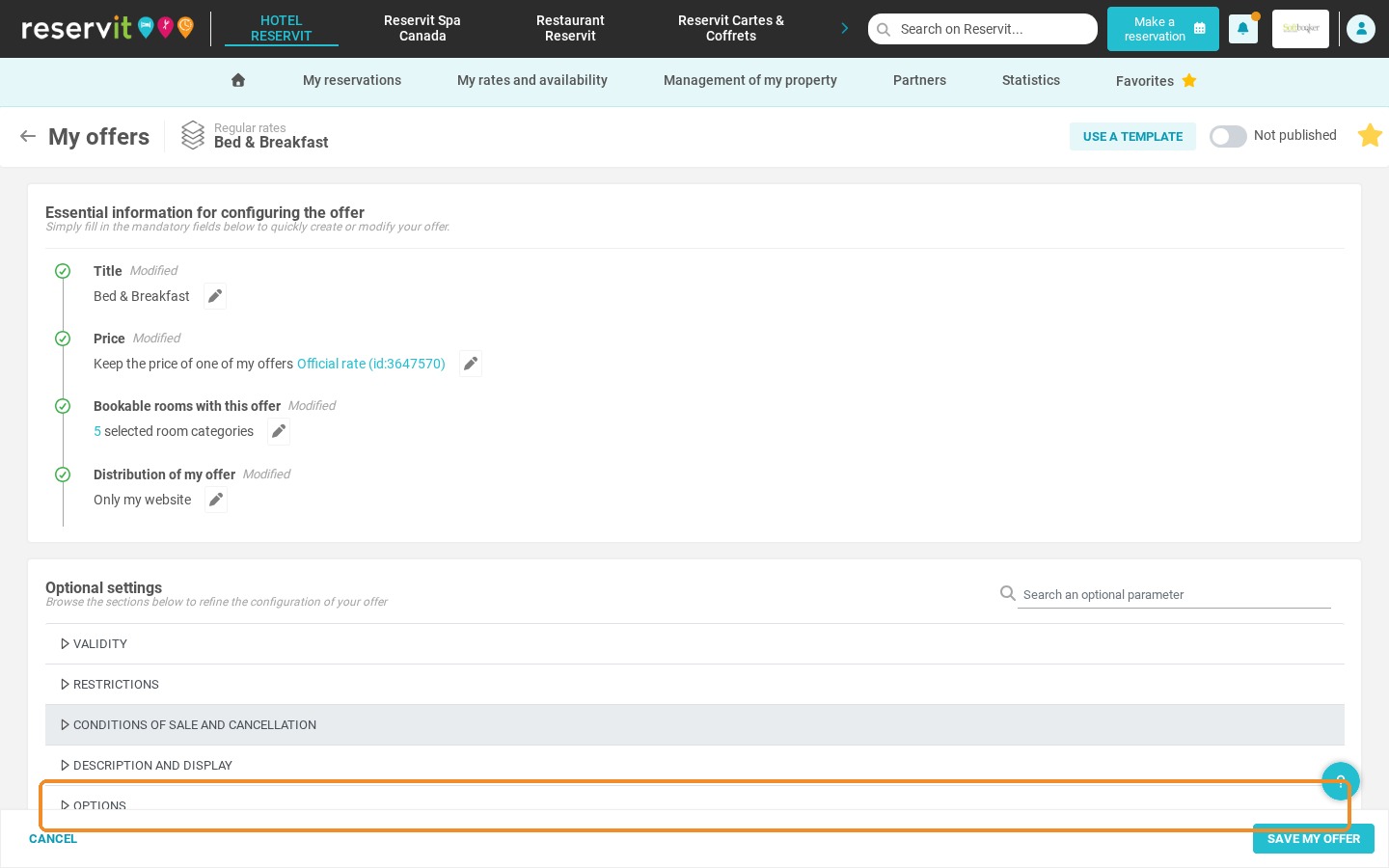
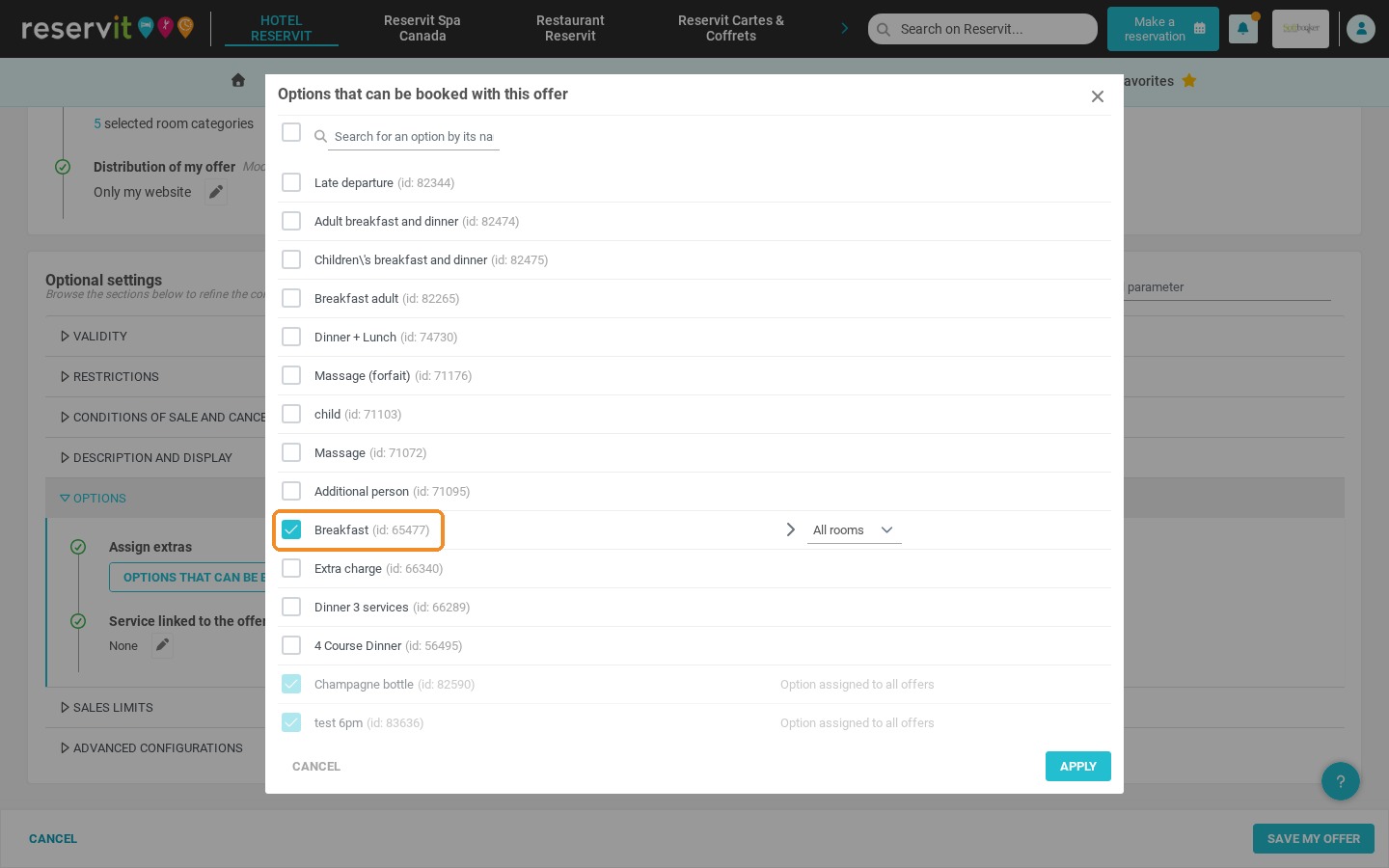
7. Open the "Options" section of the optional settings, then click "Options that can be booked with this offer".
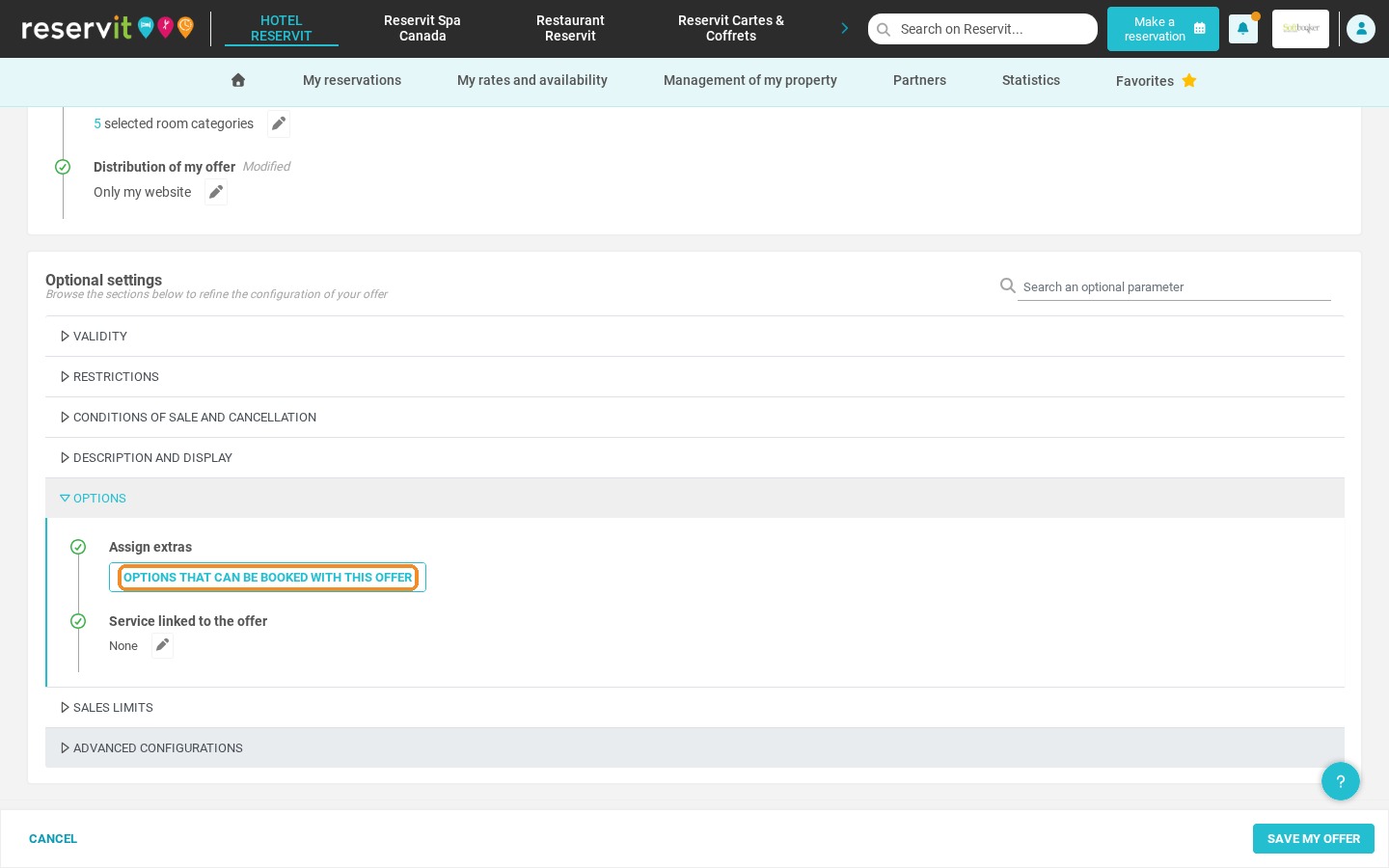
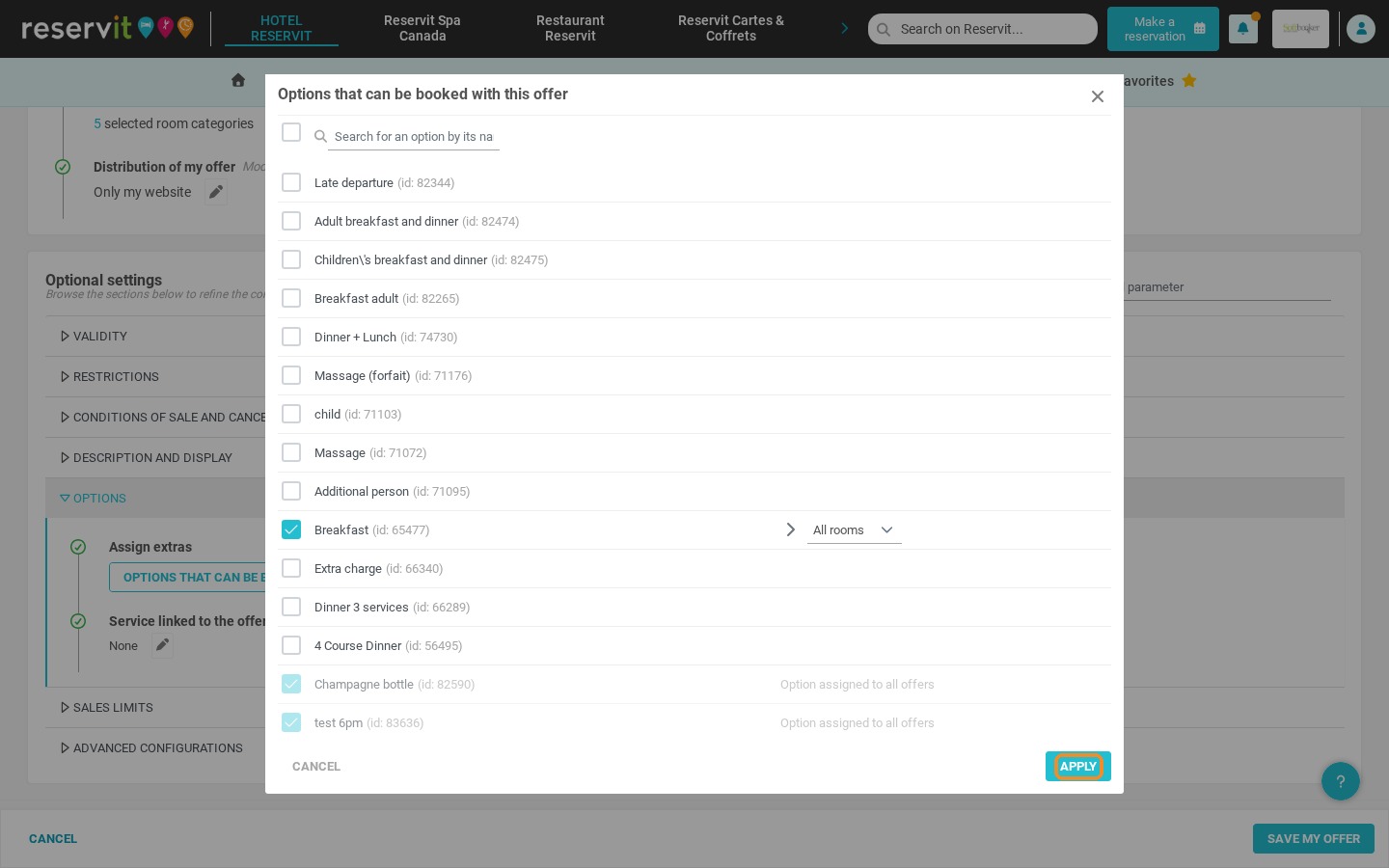
8. Select the option to attach to your offer, for example "Breakfast", then click "Apply".
9. Click "Save my offer".
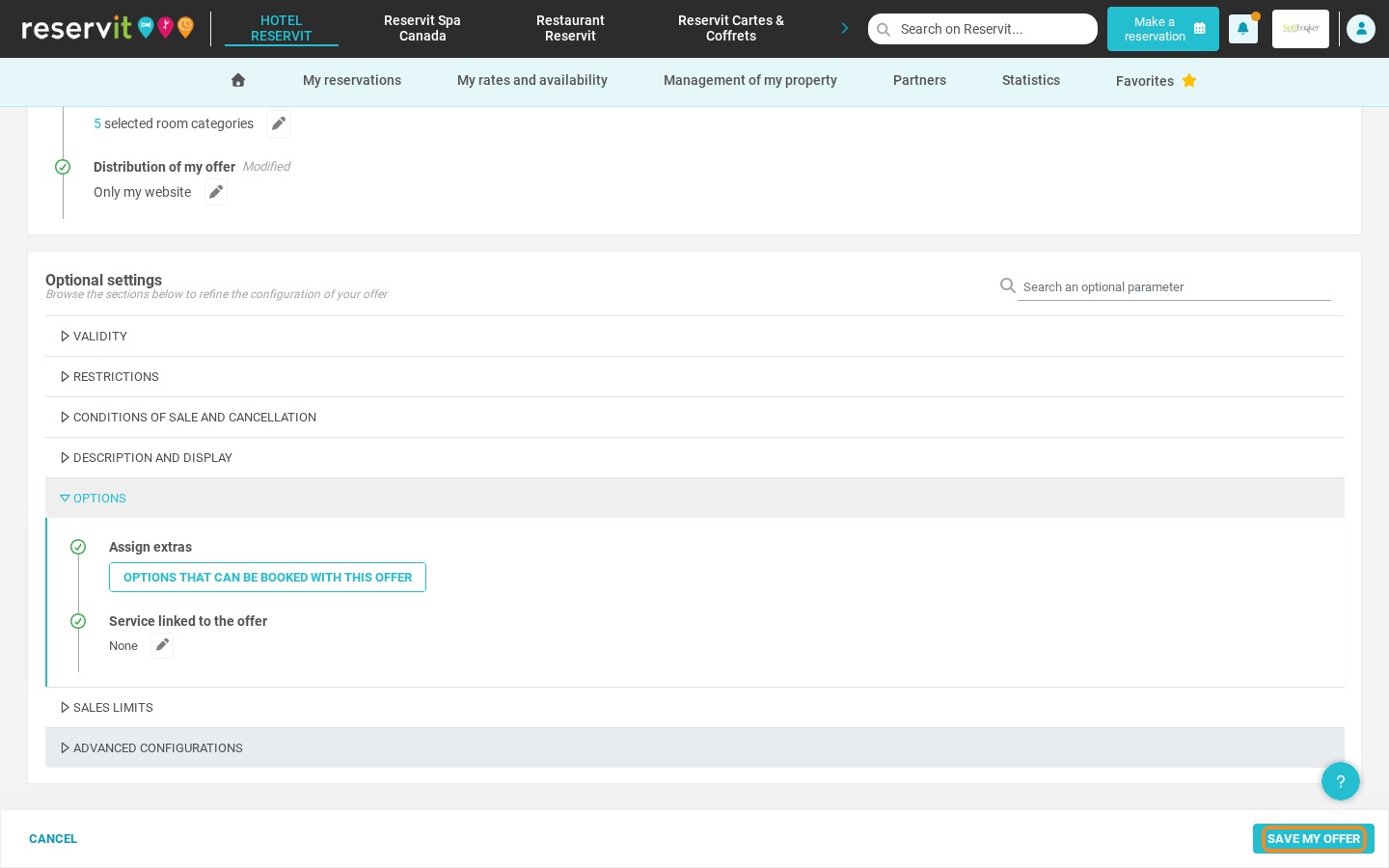
Your offer is saved but not published by default. Switch on the publication toggle to make it bookable.